コンテンツにスキップ

Mastering MikroTik Bridge Configuration: A Step-by-Step Guide

このコンテンツはまだ日本語訳がありません。

Summary > This guide explores the fundamentals of MikroTik Bridge configuration, explaining how to unify physical ports into logical interfaces. We cover setup procedures, loop prevention via STP, and how bridging simplifies remote management for ISPs and enterprises using tools like MKController and NatCloud.

Mastering MikroTik Bridge Configuration: A Step-by-Step Guide

In the world of MikroTik’s RouterOS, the Bridge is one of the most fundamental yet powerful tools at a network administrator’s disposal. At its core, a bridge acts as a virtual switch, allowing you to unify multiple physical interfaces—such as Ethernet ports or Wireless radios—into a single logical segment.

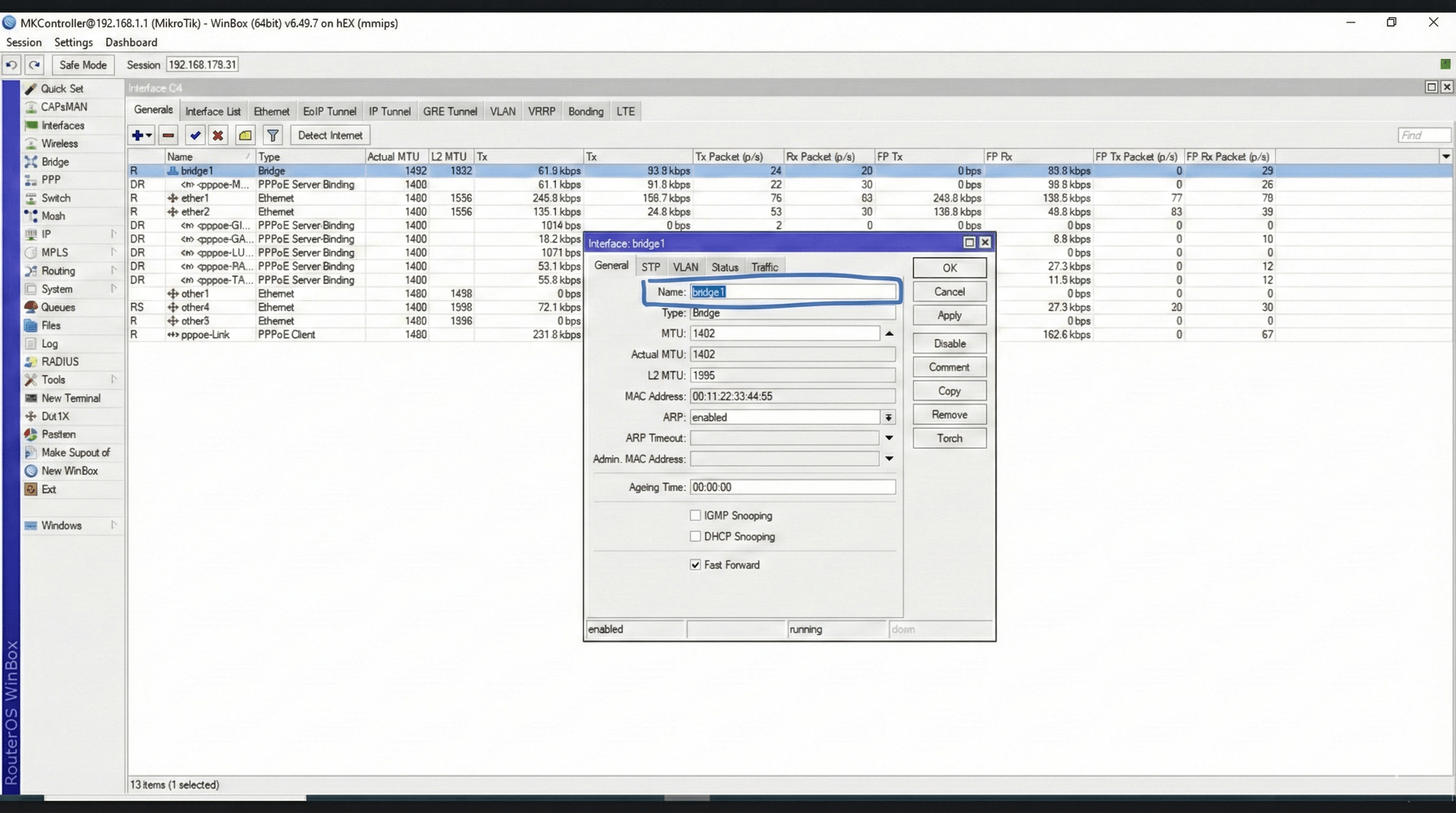
Diagram showing multiple physical ports connecting to a single logical Bridge interface

Why Use a Bridge in Your Network?

The primary reason to use a bridge is unification. Instead of assigning IP addresses and DHCP servers to five different physical ports, you create one Bridge interface, assign the IP to it, and add the physical ports as “members.”

Benefits include:

  • Simplified Management: Apply firewall rules or queues to one interface instead of many.
  • Layer 2 Transparency: Devices on different physical ports can communicate as if they were on the same switch.
  • Service Delivery: Ideal for hosting a PPPoE server or a Hotspot that needs to be available across multiple rooms or sectors.

Step-by-Step Bridge Configuration

Configuring a bridge involves two main steps: creating the bridge “container” and then assigning “ports” to it.

1. Creating the Bridge Interface

In Winbox, navigate to the Bridge menu on the left. Click the + icon and give your bridge a descriptive name, such as bridge-lan. Under the “STP” tab, ensure that a protocol like RSTP is selected to prevent network loops.

2. Adding Ports to the Bridge

Once the bridge is created, switch to the Ports tab within the same window.

  1. Click +.
  2. Select the physical interface (e.g., ether2).
  3. Assign it to your new bridge (bridge-lan).
  4. Repeat for other ports like ether3 or wlan1.

Note: When you add the port you are currently connected to into a bridge, your Winbox session might momentarily disconnect. This is normal as the interface transitions into the bridge logic.


Hardware Offloading (Hw. Offload)

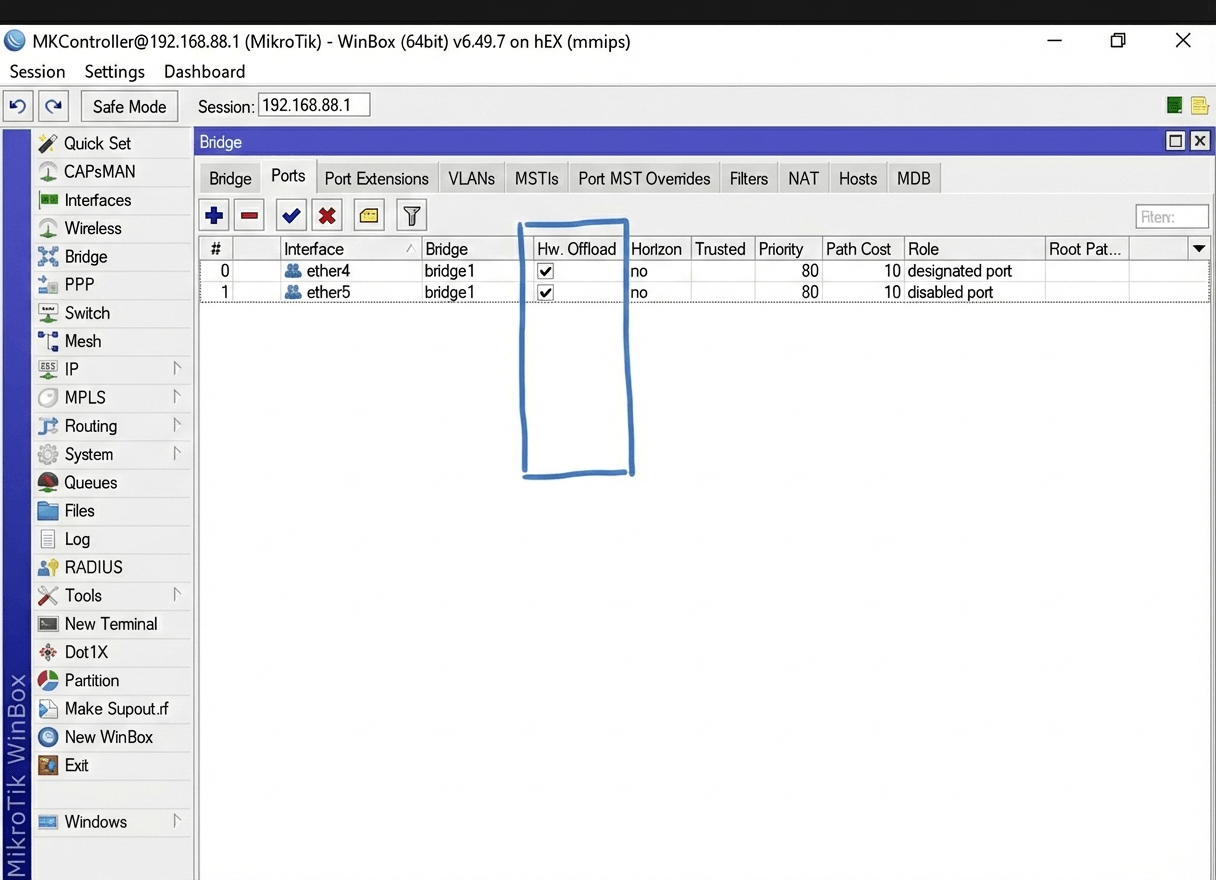
One of the most critical technical aspects of MikroTik bridging is Hardware Offloading. When “Hw. Offload” is enabled in the port settings, the traffic between ports is handled by the built-in switch chip rather than the main CPU.

If you disable this or use features incompatible with the switch chip (like complex bridge filters), the CPU must process every packet, which can significantly increase latency and reduce throughput on high-speed links. Always check the Official MikroTik Documentation to see which features your specific hardware supports for offloading.

Winbox screenshot showing the Ports tab with HW Offload enabled

Common Pitfalls and Troubleshooting

Many technicians find that their bridge “doesn’t work” because they haven’t followed the correct protocol sequence. Common issues include:

  • IP Address Placement: Always assign your IP address to the Bridge interface, not the physical ports inside it. If you assign an IP to ether2 while it’s in a bridge, you will likely lose connectivity to that IP.
  • DHCP Server Errors: Similarly, the DHCP Server must run on the Bridge interface.
  • Network Loops: Connecting two ports of the same bridge to the same external switch without STP enabled can crash your entire network.

Managing Bridged Networks with MKController

When managing hundreds of MikroTik devices, manual bridge configuration becomes a liability. This is where MKController and NatCloud shine. By using NatCloud, you can remotely access the WebFig or Winbox of any router behind CGNAT to adjust bridge settings without needing a public IP.

Where MKController helps: It provides a centralized dashboard where you can monitor the status of your bridge interfaces across your entire fleet, receive alerts if a port goes down, and perform automated backups before making major configuration changes.

If you are dealing with complex environments involving VLANs over bridges or TR-069 management, having a stable remote access tunnel via NatCloud ensures you can always reach the device, even if a configuration error temporarily disrupts standard routing. Explore more about Getting Started with NatCloud to simplify your remote operations.


About MKController

Hope the insights above helped you navigate your MikroTik and Internet universe a little better! 🚀
Whether you’re fine-tuning configs or just trying to bring some order to the network madness, MKController is here to make your life simpler.

With centralized cloud management, automated security updates, and a dashboard that anyone can master, we’ve got what it takes to upgrade your operation.

👉 Start your free 3-day trial now at mkcontroller.com — and see what effortless network control really looks like.