
Tutorial
Can't Access 10.5.50.1 on MikroTik?
If 10.5.50.1 won't load on your MikroTik HotSpot, this guide covers the reliable fixes — captive portal, subnet, and user management.
Summary 10.5.50.1 is the default gateway the MikroTik HotSpot wizard assigns to a captive-portal network — not the router’s factory address. When it won’t load, the cause is almost always that you’re on the wrong subnet, using https instead of http, or confusing the guest login page with the router admin panel. This guide walks through the fixes, then shows where vouchers and HotSpot users are actually managed.
What is 10.5.50.1?
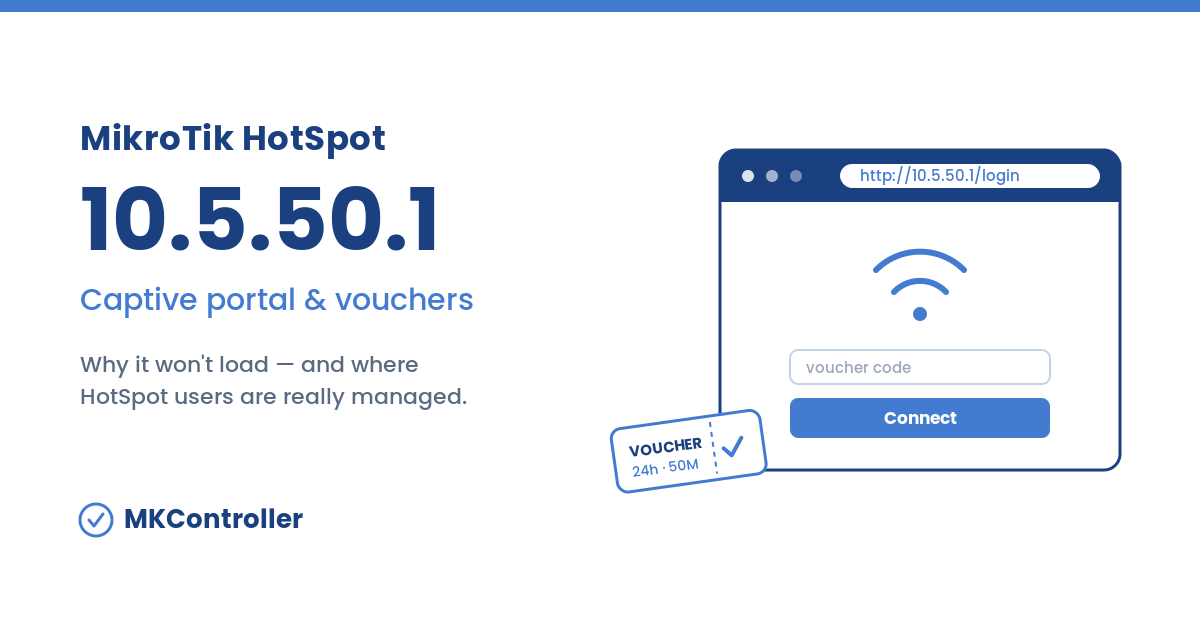
10.5.50.1 is the default gateway address MikroTik’s HotSpot setup wizard assigns when you build a captive-portal network. Run /ip hotspot setup and RouterOS proposes 10.5.50.1/24 for the HotSpot interface, a DHCP pool of 10.5.50.2–10.5.50.254 for guests, and hotspot-address=10.5.50.1 for the login portal. That is why countless MikroTik HotSpots — hotels, cafés, ISPs, events — all answer on the exact same address.
It is important to know what 10.5.50.1 is not: it is not the router’s factory IP. A brand-new MikroTik ships on 192.168.88.1. The 10.5.50.1 address only appears once a HotSpot is configured, and it serves the guest captive portal — a different door from the one you use to configure the device.
Why 10.5.50.1 won’t load — and how to fix it
Most “can’t reach 10.5.50.1” reports come down to four causes. Work through them in order.
1. You’re not on the HotSpot subnet
Symptoms: the page times out, or your computer’s IP looks like 192.168.88.x or 192.168.0.x instead of 10.5.50.x.
Fix:
- Connect directly to the interface the HotSpot runs on (the right SSID or LAN port) and let DHCP hand you a
10.5.50.xlease. - If DHCP is off, set a static IP such as
10.5.50.100, mask255.255.255.0, gateway10.5.50.1. - Avoid connecting through an upstream router that NATs you onto a different subnet.
2. The browser forces https
Symptoms: the browser shows a security warning, “connection refused,” or silently upgrades the address.
Fix:
- Type the address in full as
http://10.5.50.1— the captive portal is served over plain HTTP. - Open it in an incognito/private window so HSTS and cached redirects don’t force https.
- For the active session pages, use
http://10.5.50.1/loginorhttp://10.5.50.1/status.
3. The portal loads, but login fails
Symptoms: the splash page appears, but guest credentials are rejected.
Fix:
- Those credentials are HotSpot user logins (or vouchers), not the router’s
adminaccount. Check them in User Manager or your HotSpot user list. - If you changed the HotSpot IP away from
10.5.50.x, the portal’s LOGIN and LOGOUT links break — keep the wizard’s default range unless you also rewrite the html links.
4. You actually need the router admin, not the portal
Symptoms: you want to change settings, but the captive portal only offers a guest login.
Fix:
- Configure the device through WebFig or Winbox on the router’s management IP (the factory default is
192.168.88.1), not through10.5.50.1. - The captive portal and the admin interface are deliberately separate — guests should never reach the configuration panel.
- Reaching that admin panel on a remote HotSpot normally means port forwarding or a site visit. A cloud agent like MKController opens it from anywhere, with no static IP and no open ports.
Captive portal vs. router admin: the key distinction
This is the confusion that drives most of the searches. 10.5.50.1 is the guest-facing captive portal: it authenticates people who want internet access. The router admin — where you set firewall rules, interfaces, and the HotSpot itself — lives on the management IP via WebFig, Winbox, SSH, or the MikroTik app. Two doors, two audiences. If a page is asking a visitor to “log in to get online,” you’re at the portal; if it’s asking for admin, you’re at the panel.
| Entry point | Address | Who it’s for |
|---|---|---|
| Captive portal | http://10.5.50.1/login | HotSpot guests |
| Session status | http://10.5.50.1/status | HotSpot guests |
| Router admin | http://192.168.88.1 / Winbox | Network administrator |
| User Manager | Userman interface | Network administrator |
Managing HotSpot users and vouchers with User Manager
Once the portal works, the real job begins: issuing access. MikroTik’s User Manager is the built-in RADIUS server in RouterOS that handles HotSpot, PPPoE, and DHCP users. From it you create speed-and-time profiles, generate batches of prepaid vouchers, and watch active sessions and traffic history. In RouterOS v6 it lived at /userman; in v7 it’s the Userman package managed through WebFig. It is not reachable at “10.5.50” — that address only serves the guest portal.
For a single café this is straightforward. For an operator running captive portals across dozens of sites, it stops scaling fast: you log into each router by hand to cut a voucher batch, chase one guest’s failed login, or bump a speed profile. MKController turns that per-router grind into a single dashboard — issue and hand out vouchers, manage HotSpot and User Manager accounts, set profiles, and read live session and traffic reports for every location at once, without remoting into devices one at a time. The captive portal still lives on each router; the work of running it no longer has to.
Tips
- Bookmark
http://10.5.50.1/statusso guests can log themselves out and free their session. - Keep the HotSpot on the wizard’s
10.5.50.xrange; changing it silently breaks the portal’s login links. - Set up WireGuard on MikroTik so you can reach a remote HotSpot’s admin panel without a site visit.
- If a HotSpot router is wedged and won’t respond at all, recover it with Netinstall.
Run every captive portal from one screen
A working 10.5.50.1 is only step one. The moment you run HotSpots across more than one location, vouchers, profiles, and session reports scatter across every router — and each support call opens with the same remote-access scramble and a lost afternoon.
That is the exact problem MKController was built to remove. Your whole MikroTik fleet comes online over a secure cloud agent — no static IPs, no port forwarding, no driving to site — so you issue vouchers, manage HotSpot users, push captive-portal changes, and pull session reports for every location from one screen. Operators running guest Wi-Fi for hotels, ISPs, and venues use it to turn a router-by-router chore into a few clicks, and to catch an offline portal before a guest ever complains.
Stop logging into 10.5.50.1 one router at a time.