
Tutorial
Can't Access 192.168.88.1 on MikroTik?
If 192.168.88.1 isn't loading on your MikroTik router, this guide shows the most reliable fixes — from subnet mismatches to Winbox recovery.
Summary 192.168.88.1 is the default IP MikroTik routers ship with, used to reach WebFig and Winbox on first setup. When it stops responding, the culprit is almost always a subnet mismatch, a browser quirk, or a non-default config. This guide walks through the five fixes that resolve it 95% of the time, plus the recovery path when the router won’t respond at all.
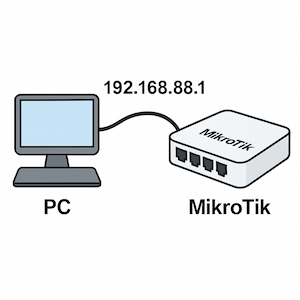
What is 192.168.88.1?
192.168.88.1 is the factory-default IP address assigned to MikroTik routers, preconfigured on the bridge interface (or directly on ether1 on older models). It’s the gateway you use to reach the device for first-time setup through WebFig (the browser interface), Winbox (the Windows desktop tool), SSH, or Telnet. Any MikroTik that boots with its stock configuration — out of the box or after a reset — answers on this address.
If you can’t reach it, the address itself is rarely the problem. What’s broken is usually the path between your computer and the router: a different subnet, a stuck browser session, a custom config that changed the address, or a half-completed reset.
Common problems and how to fix them
1. Can’t reach 192.168.88.1 at all
Symptoms: the browser shows “site can’t be reached,” ping fails, connection times out.
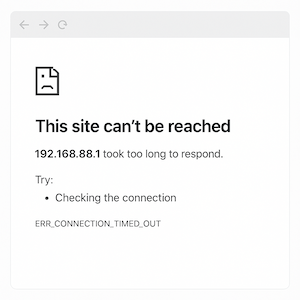
Fix:
- Manually set your computer’s IP to
192.168.88.2with subnet255.255.255.0, gateway192.168.88.1. - Plug a direct Ethernet cable from your computer into one of the router’s LAN ports — skip switches, hubs, and Wi-Fi during troubleshooting.
- Temporarily disable host firewall and antivirus, both of which sometimes block traffic to private IPs.
- If you’ve changed the config and don’t remember how, reset the router (see §4).
2. Router is on a different subnet
Symptoms: you get internet through the router, but the management page won’t load. Your computer’s IP looks like 192.168.0.X or 10.0.0.X instead of 192.168.88.X.
Fix:
- Set a static IP that matches whatever subnet the router is actually on, and use that gateway as the management address.
- Use Winbox’s MAC-based connection — it discovers the device by MAC and connects without IP routing, so subnet mismatch doesn’t matter.
- Scan the LAN for active MikroTik devices using Angry IP Scanner or
arp -ato find the address the router is actually using.
3. WebFig loads broken or won’t render
Symptoms: the page shows raw HTML, the layout is broken, or you see “connection reset.”
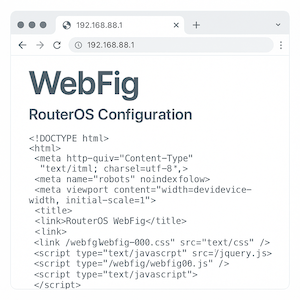
Fix:
- Try Chrome, Firefox, or Edge — WebFig is sensitive to extensions and aggressive privacy settings.
- Open the address in an incognito/private window or clear your browser cache.
- Fall back to Winbox or SSH; both are more stable than WebFig for ongoing management.
4. Reset didn’t work or router is unreachable
Fix:
- Reconnect with Winbox by MAC address — this works even when no IP is assigned.
- Hold the reset button correctly: power off → press and hold reset → power on while still holding → release when the ACT LED starts blinking.
- If nothing else works, run a Netinstall to reflash RouterOS from scratch. See our Netinstall recovery guide for the full procedure.
Top alternatives to access your MikroTik
When 192.168.88.1 isn’t cooperating, every MikroTik supports several other entry points:
| Method | Description |
|---|---|
| Winbox | Windows tool. Discovers devices by MAC or IP. Full GUI. |
| SSH | Command-line via ssh admin@192.168.88.1. |
| WebFig | Browser interface at http://192.168.88.1. |
| MikroTik App | iOS/Android app for quick changes on the go. |
Winbox is the most reliable when the IP layer is the problem — it can connect by MAC address alone.
Performing a clean reset
When the device is stuck and you want to start fresh, three reset paths cover every scenario:
Reset via the physical button
- Power off the router.
- Press and hold the Reset button.
- Power on while still holding.
- Release when the ACT LED starts blinking.
- Wait 1–2 minutes for the device to come back up.
This restores the default IP 192.168.88.1, user admin, no password.
Reset via Winbox
Connect by MAC or IP, then open System → Reset Configuration. Optionally check “No Default Configuration” for a fully clean reset, then click Reset Configuration.
Reset via SSH
If you can still reach a terminal:
/system reset-configuration no-defaults=no skip-backup=yesno-defaults=no keeps the standard 192.168.88.1 configuration; skip-backup=yes skips the automatic pre-reset backup.
Tips
- Keep the WireGuard on MikroTik tunnel configured before you lock yourself out — it’s the cleanest recovery path when local access fails.
- If you change the management IP away from 192.168.88.1, document it. The default is the only one everyone remembers.
- Disable Wi-Fi while troubleshooting LAN access — Wi-Fi routes can mask which interface is actually carrying your traffic.
Stop chasing IPs and reset buttons
If you’re managing more than one MikroTik, the “can’t reach 192.168.88.1” problem multiplies fast. Static IPs drift, devices get reconfigured by junior engineers, and every site visit starts with the same fifteen-minute discovery dance.
MKController removes that friction. Devices come online over a cloud agent — no static IPs, no port forwarding, no MAC-detection workflow. You get centralized backups, configuration history, and a dashboard that surfaces unreachable devices before your customers notice.