
Tutorial
Can't Access CAPsMAN on MikroTik?
If you can't find or reach CAPsMAN on your MikroTik, this guide covers the real causes — the missing RouterOS 7 menu, CAPs that never enroll, and an unreachable controller.
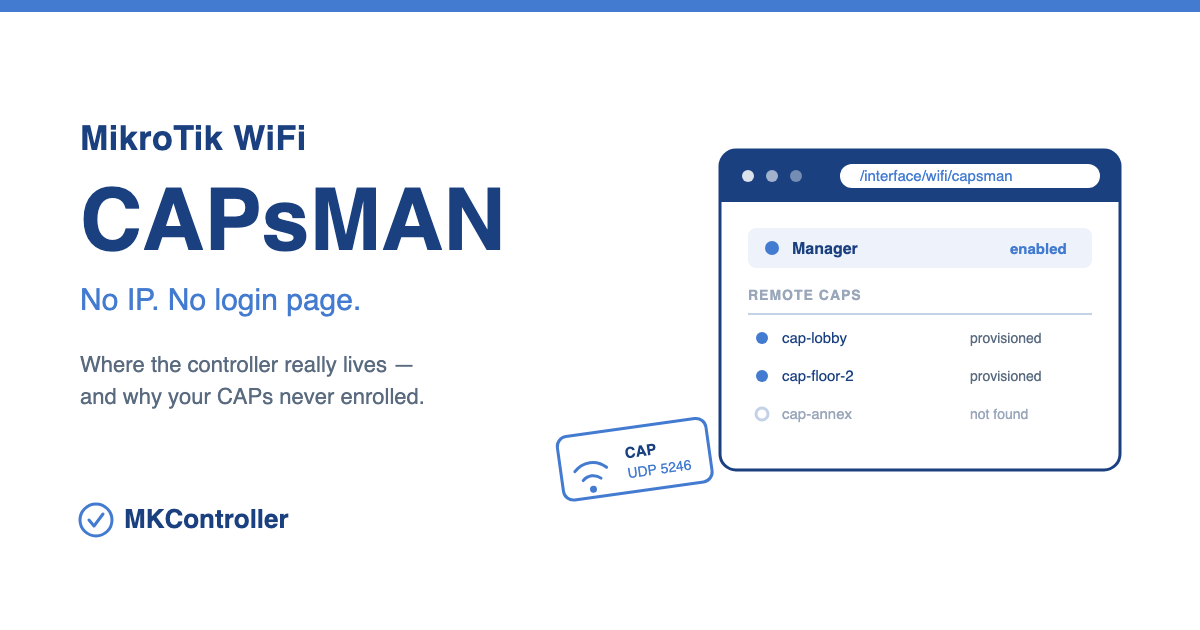
Summary Unlike 192.168.88.1 or 10.5.50.1, CAPsMAN has no IP address and no login page. It is a menu inside RouterOS on whichever device you made the controller — so “can’t access CAPsMAN” almost always means one of five things: you’re hunting for a web page that doesn’t exist, a RouterOS 7 upgrade moved the menu, Winbox is too old to draw it, your access points never enrolled, or the controller itself is unreachable. This guide works through all five, in the order that resolves them fastest.
What is CAPsMAN — and why it has no address
CAPsMAN (Controlled Access Point system Manager) is RouterOS’s built-in wireless controller. One device holds the SSIDs, security profiles, channel plans, and provisioning rules; every other access point — a CAP — hands its radios up to that controller and gets configured automatically. Change the guest password once and the whole fleet inherits it.
What trips people up is the comparison with the MikroTik addresses they already know. 192.168.88.1 is the router’s factory management IP. 10.5.50.1 is the HotSpot captive portal. CAPsMAN is neither, because it is not something you browse to. There is no CAPsMAN IP, no dedicated port, no separate login. You reach it by logging into the controller router itself — through Winbox, WebFig, or SSH on that device’s management IP — and opening the CAPsMAN menu inside it.
So the question is never “what is the CAPsMAN address.” It is “can I reach the controller, and is the menu where I expect it to be.”
Why you can’t get to CAPsMAN — and how to fix it
Five causes cover nearly every report. Work through them in order.
1. You’re looking for a CAPsMAN web page
Symptoms: the browser times out on a guessed address, or nothing answers on a “CAPsMAN IP” you found in a forum post.
Fix:
- Connect to the controller — the RouterOS device you enabled CAPsMAN on — at its own management IP. If that address won’t load either, start with our 192.168.88.1 troubleshooting guide.
- In Winbox open WiFi → CAPsMAN (RouterOS 7) or CAPsMAN (legacy). WebFig shows the same entries in its left-hand tree.
- From a terminal, confirm the manager is actually running:
/interface/wifi/capsman/printon the current stack,/caps-man/manager/printon the legacy one. - Don’t troubleshoot from an access point’s own interface. A CAP is a client of the manager — it has no controller UI of its own.
2. The CAPsMAN menu vanished after a RouterOS 7 upgrade
Symptoms: /caps-man returns “no such item,” or the CAPsMAN entry simply disappeared from the menu after an upgrade.
RouterOS 7 carries two separate wireless stacks. The legacy one ships in the wireless package and lives at /caps-man. The current one ships as wifi-qcom / wifi-qcom-ac and puts everything under /interface/wifi, with the controller at /interface/wifi/capsman. They are different implementations, they don’t coexist on the same device, and an upgrade that moves your hardware onto the new drivers takes the old menu with it.
Fix:
- Run
/system/package/printand check which stack is installed and enabled —wifi-qcomorwireless. - On the current stack, enable the controller with
/interface/wifi/capsman/set enabled=yes. - On the legacy stack it stays where it was:
/caps-man/manager/set enabled=yes. - If a package shows as disabled, enable it and reboot — package changes only take effect after a restart.
- Never mix the two: a legacy
/caps-manmanager cannot provision a CAP running the new WiFi stack, and vice versa. Both ends have to match.
3. Winbox is too old to render the menu
Symptoms: SSH shows /interface/wifi/capsman working perfectly, but Winbox has no WiFi or CAPsMAN entry at all — or the menu opens empty.
Fix:
- Update to the current Winbox release. Winbox draws its menus from the router, and a client several versions behind a major RouterOS jump can render the newer WiFi menus incompletely.
- Clear Winbox’s local cache for that device, so it fetches a fresh menu layout instead of reusing the pre-upgrade one.
- Verify over SSH before concluding the feature is missing. The CLI is the source of truth; the GUI is just a view of it.
4. CAPs never show up in the Remote CAP list
Symptoms: the manager is enabled, the APs are configured, but the remote CAP list stays empty — and the APs keep broadcasting their own local SSID instead of the one you provisioned.
Fix:
- On each AP, enable CAP mode pointing at the right interfaces:
/interface/wifi/cap/set enabled=yes discovery-interfaces=<iface> slaves-datapath=<bridge>(current stack) or/interface/wireless/cap/set enabled=yes ...(legacy). The discovery interface has to face the controller. - Layer 2 discovery only reaches across one broadcast domain. If the CAP sits on a different subnet, point it at the manager explicitly with
caps-man-addresses=<controller IP>. - Allow the CAPWAP ports on the controller’s
inputchain: UDP 5246 (control) and 5247 (data). A default-deny input rule swallows enrollment without any visible error. - Keep RouterOS and package versions aligned across controller and APs. Mismatches usually show up as a connect/disconnect loop rather than a clean failure.
- Watch both ends while an AP boots:
/log print follow where topics~"caps". - If the CAP connects but no wireless appears, the manager has it — no provisioning rule matched it. Check
/interface/wifi/provisioningbefore touching anything else.
5. CAPsMAN is fine — the controller is unreachable
Symptoms: the site’s WiFi is up and serving clients, you just can’t get into the controller. It sits behind CGNAT, LTE, or Starlink with no public IP to dial into.
Fix:
- Bring up a WireGuard tunnel on MikroTik so the controller is reachable from your side without an inbound port.
- Or reach it through a cloud agent — the approach covered in our guide to MikroTik remote management behind CGNAT — which needs no public IP and no port forwarding at all.
- If the controller is hard-down and won’t answer on any path, recover it with Netinstall.
Where CAPsMAN actually lives
Half of the “missing CAPsMAN” reports are just the wrong menu path for the stack the device is running. This is the map:
| What you’re looking for | RouterOS 7 (wifi-qcom) | Legacy (wireless) |
|---|---|---|
| The controller (manager) | /interface/wifi/capsman | /caps-man/manager |
| Enrolled access points | /interface/wifi/capsman/remote-cap | /caps-man/remote-cap |
| CAP mode on an access point | /interface/wifi/cap | /interface/wireless/cap |
| Configuration & provisioning | /interface/wifi/configuration, /interface/wifi/provisioning | /caps-man/configuration, /caps-man/provisioning |
| The controller device itself | WebFig, Winbox, or SSH on its management IP | same |
The last row is the one that matters when nothing else responds: CAPsMAN is only ever as reachable as the router hosting it.
Confirming CAPsMAN is actually running
Four commands settle almost every case before you start changing configuration:
/system/package/print/interface/wifi/capsman/print/interface/wifi/capsman/remote-cap/print/log print follow where topics~"caps"The first tells you which stack you’re on, the second whether the manager is enabled, the third which APs have enrolled, and the fourth what happens live when one tries. On a legacy device, swap the middle two for /caps-man/manager/print and /caps-man/remote-cap/print.
Tips
- Host CAPsMAN on a device you can always reach — the main router or a CHR — not on an AP hanging off the far end of a wireless link.
- Take a backup before any fleet-wide provisioning change. Centralized control cuts both ways: one bad rule doesn’t break one AP, it breaks all of them at once.
- Record which stack each site runs. On a mixed fleet,
wifi-qcomandwirelesssites need different commands for the same task. - Building CAPsMAN from scratch rather than repairing it? Follow our MikroTik CAPsMAN centralized WiFi setup guide.
- CAP traffic lands on a bridge, so a clean Layer 2 is a prerequisite — see mastering bridge configuration if enrollment works but traffic doesn’t.
Reach every controller, not just this one
CAPsMAN centralizes the access points inside one controller’s reach. It does nothing for the controllers themselves — and those are the ones that go quiet: one per building, per branch, per tower site, each behind CGNAT with no way in when an AP drops off the list.
That is the layer MKController handles. Every controller in your fleet comes online over a secure outbound agent — no static IPs, no port forwarding, no drive to site — so you open CAPsMAN on any of them from one dashboard, push identical profiles across every location, keep automatic backups you can roll back after a bad provisioning push, and get alerted when a site stops answering instead of hearing it from a guest.
Stop starting every CAPsMAN problem with a remote-access problem.