
Tutorial
MikroTik Bridge Configuration Guide
How to configure MikroTik bridges in RouterOS — port unification, STP loop prevention, hardware offloading, and common pitfalls explained.
Summary A MikroTik bridge is a virtual switch that unifies multiple physical interfaces — Ethernet ports, wireless radios — into one logical segment. Bridges are how RouterOS replaces five-port-management with one-interface-management, and they’re the foundation for PPPoE servers, hotspots, and most LAN-side configuration. This guide covers the two-step bridge build in Winbox, how Hardware Offload changes performance, the IP-address placement rule that catches every beginner, and the STP setting that prevents network loops from taking the bridge down.
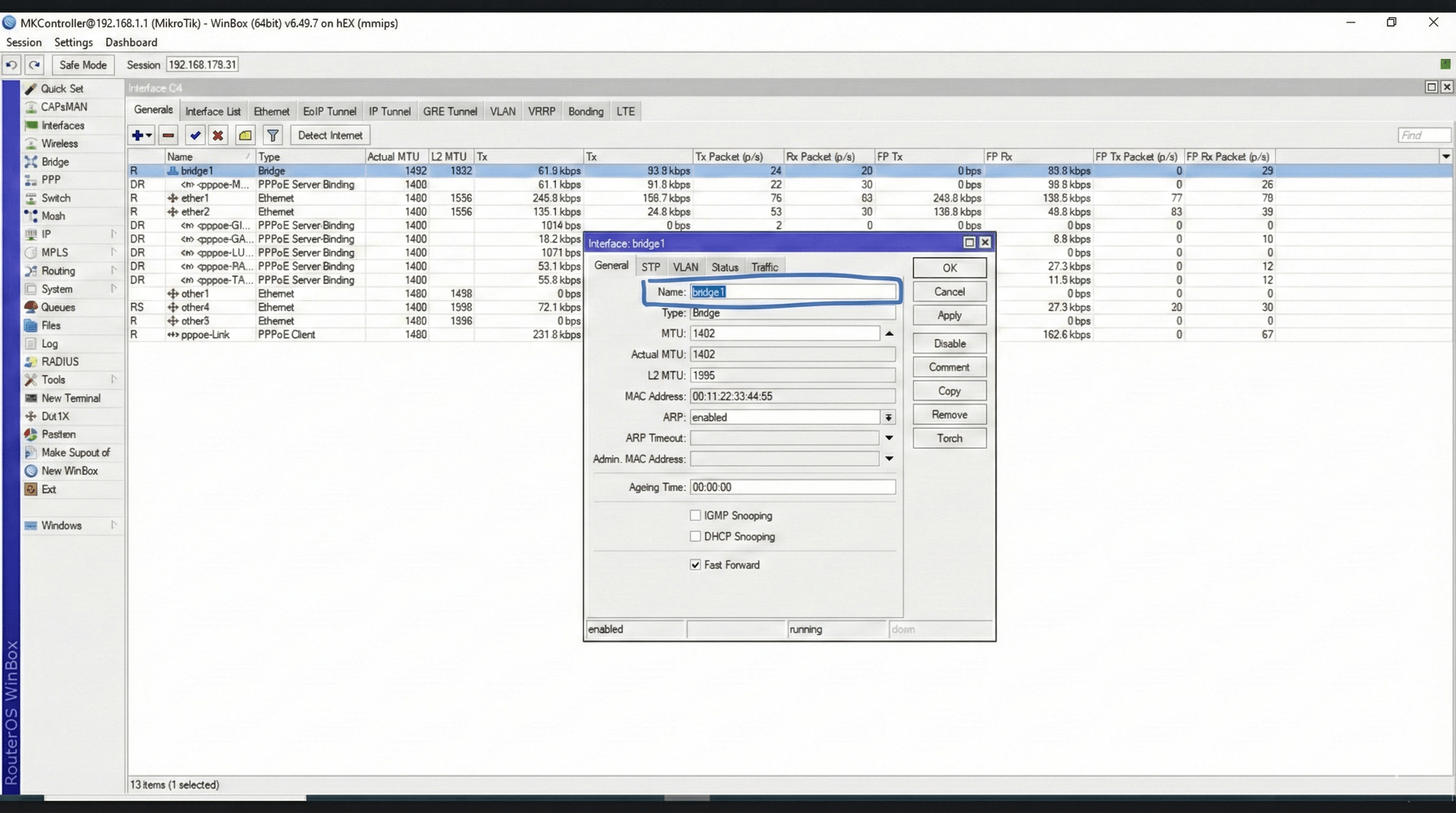
How does a MikroTik bridge work?
A MikroTik bridge is a virtual switch inside RouterOS that combines several physical interfaces — Ethernet ports, wireless radios, VLAN interfaces — into a single logical segment. Once the bridge is configured, traffic moves between member ports at Layer 2 the same way it would inside a hardware switch, and the rest of the router treats the bridge as one interface for IP addressing, DHCP, firewall rules, and queue assignment.
The reason this matters in practice is unification. Instead of assigning IP addresses, DHCP servers, and firewall rules to five different physical ports, you create one bridge interface, assign everything to it, and add the ports as members. That collapses configuration complexity by a factor of ten on a five-port device. It’s also why MikroTik routers can host PPPoE servers and hotspots that need to be available across multiple ports — the service binds once to the bridge and serves every member.
Why use a bridge?
The benefits show up immediately in three areas:
- Simplified management. One bridge interface to maintain instead of five physical ports. Firewall rules apply once, queues apply once, the IP plan stays clean.
- Layer-2 transparency. Devices on different physical ports communicate as if they’re on the same switch — no router hop, no NAT, no extra latency.
- Service delivery. PPPoE servers, hotspots, and DHCP servers expect a single broadcast domain. A bridge is how you build one out of multiple physical interfaces.
Step-by-step bridge configuration
The build is two steps: create the bridge container, then attach physical ports.
Step 1 — Create the bridge interface
In Winbox, open the Bridge menu in the left panel. Click + to create a new bridge and give it a descriptive name (bridge-lan is the convention). Switch to the STP tab and enable RSTP as the protocol. RSTP detects accidental loops in the topology and shuts the offending port down before they bring the LAN to a halt — leaving it disabled is one of the easiest ways to take a network out by mistake.
Step 2 — Add ports to the bridge
Inside the same Bridge window, switch to the Ports tab and:
- Click
+. - Select the physical interface (e.g.,
ether2). - Set the bridge to your new bridge name (
bridge-lan). - Repeat for the other ports —
ether3,wlan1, and any additional members.
When you add the port you’re currently connected through, Winbox may disconnect momentarily. That’s expected — the interface is transitioning into the bridge logic. The session reconnects on the bridge IP once the configuration finishes applying.
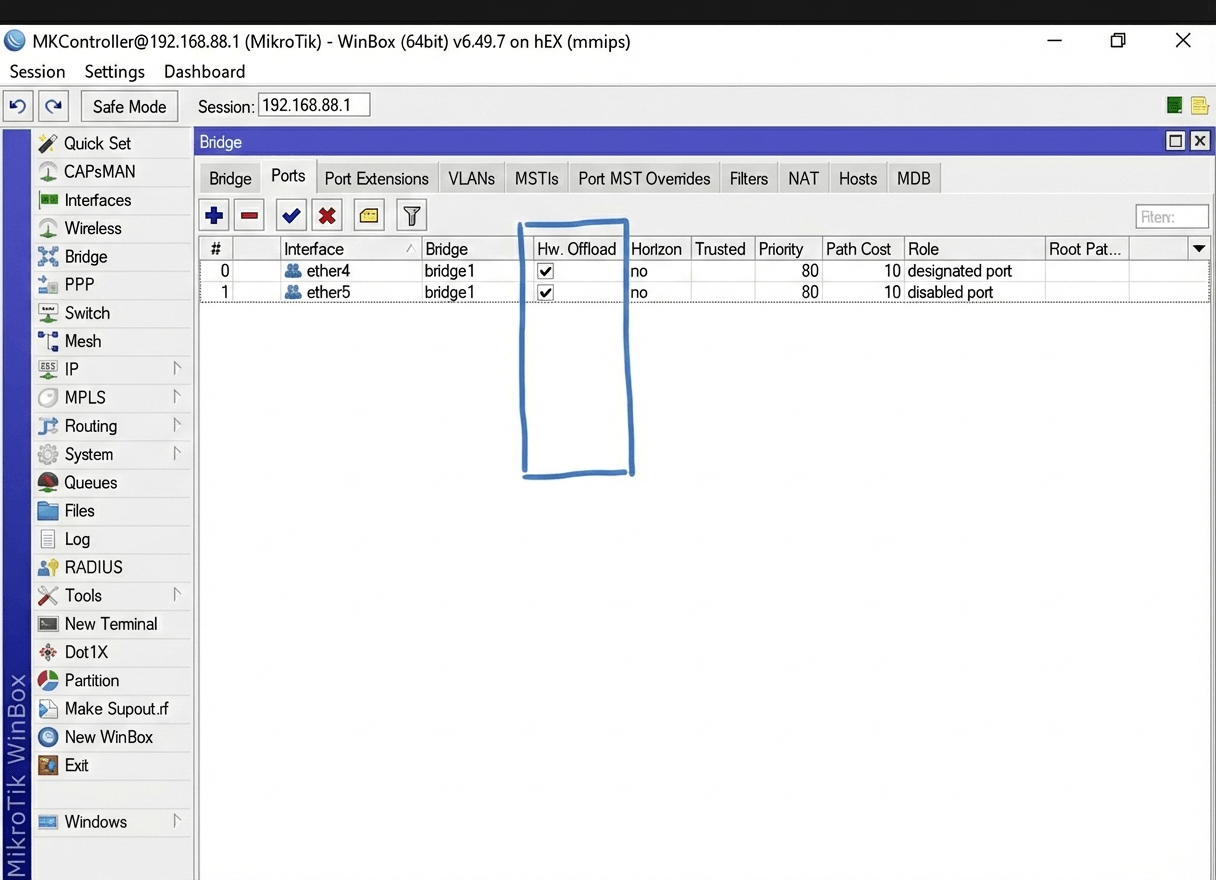
Hardware Offload (Hw. Offload)
Hardware Offload is the single most important performance knob for MikroTik bridges. When Hw. Offload is enabled on a port, traffic between bridge members is handled by the device’s built-in switch chip — at wire speed, with no CPU involvement.
Disable it (or use features incompatible with the switch chip, like complex bridge filters or some VLAN-on-bridge configurations), and every packet between member ports has to traverse the CPU. On a Gigabit interface, that’s the difference between line rate and a few hundred Mbps with significant latency added. Always verify which features the specific MikroTik model supports for offloading on the official MikroTik bridging documentation — the support matrix varies by switch-chip family.
Common pitfalls
Three mistakes account for most “the bridge isn’t working” tickets.
IP address placement. Assign the IP to the bridge interface, never to a physical port that is a bridge member. An IP on ether2 while ether2 is bridged into bridge-lan causes intermittent connectivity at best and outright unreachability at worst, because the IP belongs to a port the router no longer treats as a routable interface.
DHCP server binding. Just like the IP, the DHCP server runs on the bridge, not on a member port. If you bound DHCP to a port before adding it to the bridge, remove the old binding and rebind to the bridge — otherwise leases stop being handed out.
Network loops. Connecting two ports of the same bridge to the same external switch without RSTP enabled creates a Layer-2 loop that broadcasts traffic infinitely. The LAN melts within seconds. Always enable RSTP on the STP tab when the bridge has more than one member port that connects to an external network, and verify the external switch supports STP too.
Tips
- Snapshot the configuration with
/exportbefore adding the management port to a bridge for the first time. If something goes wrong, restoring is a one-liner. - Bridge VLAN filtering is a separate (more powerful) feature than basic bridging — it adds proper 802.1Q VLAN trunking on the bridge. Configure it explicitly when you need VLANs, not by accident.
- For broader operational context, see our guides to NAT configuration and WireGuard VPN on MikroTik — both depend on the bridge being correctly built first.
Take the next step
A single bridge is straightforward. Managing consistent bridge configurations across hundreds of MikroTik devices — same STP settings, same Hardware Offload state, same IP plan on the right interface — is where operational discipline matters. One technician’s accidental IP-on-port misconfiguration becomes someone else’s two-hour outage debugging session.
MKController pushes the same bridge template to every router in your inventory and surfaces deviations from the template before they become incidents. NATCloud handles the case where the device sits behind CGNAT, double NAT, or strict customer-side firewall policy — no port forwarding required to reach the bridge configuration.