
Tutorial
MikroTik Bandwidth Management: Queues
How to manage bandwidth on MikroTik: simple queues, queue tree with mangle marks, PCQ fair sharing, burst and priority, and fleet-wide rate limits.
Summary MikroTik bandwidth management runs on three tools: simple queues for a quick per-client cap, queue trees for hierarchy and priority, and PCQ for fair sharing among many users without creating a queue each. Queue trees pair with firewall mangle marks and give you guarantees, ceilings and priorities. This guide shows when to use each, the RouterOS commands, and how to keep the same policy consistent across a fleet of routers.
What Is Bandwidth Management on MikroTik?
Bandwidth management on MikroTik is the use of RouterOS queues to control how much of a link each customer, subnet or traffic class may consume — limiting rates, guaranteeing minimums, and deciding who yields when the link is full. RouterOS implements queues with a Hierarchical Token Bucket (HTB) scheduler, exposed in two places: simple queues, an ordered list applied in sequence, and the queue tree, a hierarchy attached to interfaces or to packet marks from the firewall’s mangle facility (MikroTik Documentation — Queues).
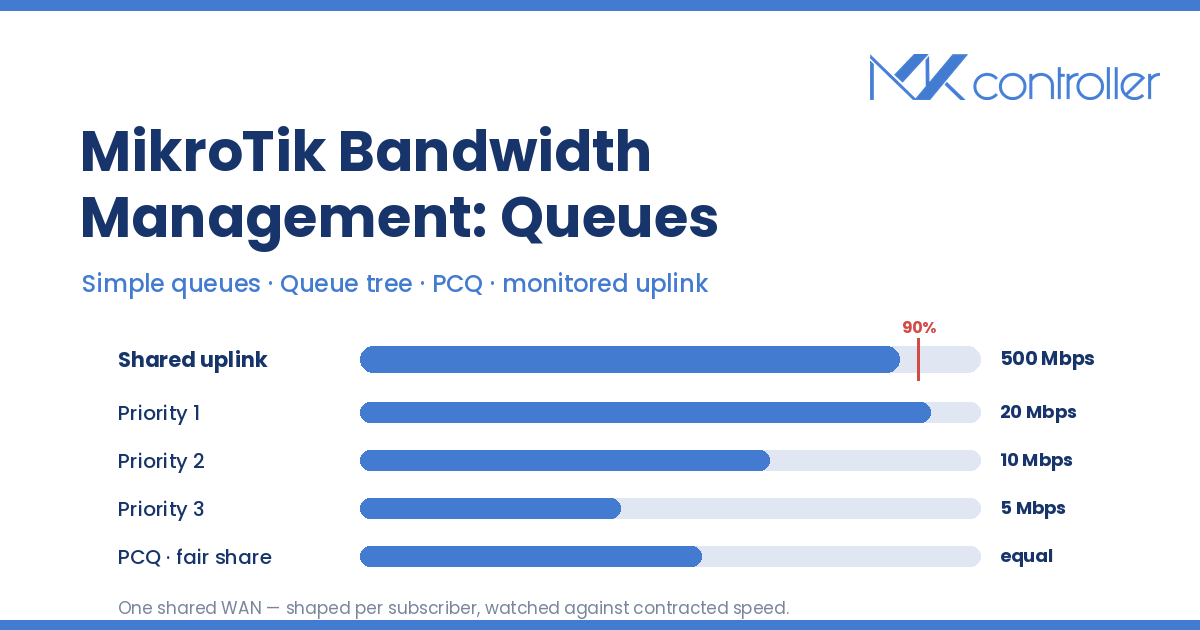
The distinction decides how far your design will scale. A simple queue answers “cap this customer at 50 Mbps.” A queue tree answers “this 500 Mbps uplink is shared by 300 subscribers, VoIP goes first, nobody starves, and heavy downloaders don’t ruin the evening.” Every ISP eventually needs the second answer.
Step 1 — Cap one client with a simple queue
Simple queues are the shortest path from problem to fix. Target an IP, a subnet or an interface, set the ceiling, and you are done:
/queue simple add name=client-101 target=10.10.0.101/32 max-limit=10M/50Mmax-limit is written as upload/download from the router’s point of view. Rules are evaluated in order and the first match wins — so an early broad rule silently swallows the specific ones you add later. That ordering is the most common reason a “working” queue stops working after someone adds a rule above it (MikroTik Documentation — Queues).
Simple queues also pair with subscriber authentication: a PPPoE profile’s rate-limit field creates a dynamic simple queue per session, so plans follow the user rather than the IP. Our MikroTik PPPoE server guide for ISPs covers the profile side.
Step 2 — Mark traffic with firewall mangle
The queue tree cannot see “VoIP” or “customer 101”; it sees packet marks. Create them in mangle, marking the connection first and the packets second, which is cheaper than re-inspecting every packet:
/ip firewall mangleadd chain=forward action=mark-connection new-connection-mark=voip-conn protocol=udp port=5060,10000-20000add chain=forward action=mark-packet connection-mark=voip-conn new-packet-mark=voip-pkt passthrough=noKeep the mark taxonomy small and stable. Marks are the vocabulary your queues speak, and once a fleet has three generations of ad-hoc mark names, nobody can tell which router enforces which policy. This is where MKController’s configuration audit and history earns its keep: see the mangle and queue state of every router, diff it against the intended policy, and push the corrected rules fleet-wide instead of opening thirty Winbox sessions to find the one box that never got the change.
Step 3 — Build the queue tree hierarchy
A queue tree has one parent holding the real capacity of the link, and children that divide it:
/queue treeadd name=download parent=bridge-lan max-limit=500Madd name=voip parent=download packet-mark=voip-pkt limit-at=50M max-limit=100M priority=1add name=bulk parent=download packet-mark=bulk-pkt limit-at=50M max-limit=500M priority=8Three fields do the work. limit-at is the guarantee a child receives even when the link is saturated. max-limit is the ceiling it may reach when capacity is free. priority — 1 is highest, 8 lowest — decides which child gets the leftovers first, and applies only between limit-at and max-limit (MikroTik Documentation — Queues). Set the parent’s max-limit to what the link actually delivers, not what the contract says, or the queue never becomes the bottleneck and never shapes anything.
Step 4 — Add PCQ for fair sharing
Per Connection Queue (PCQ) is the reason MikroTik scales to subscriber counts that make a per-user queue list unmanageable. A PCQ queue type classifies traffic by an address field and creates a dynamic sub-queue for each distinct value, applying the same rate to each (MikroTik Documentation — PCQ example):
/queue typeadd name=pcq-down kind=pcq pcq-rate=20M pcq-classifier=dst-addressadd name=pcq-up kind=pcq pcq-rate=10M pcq-classifier=src-addressAttach pcq-down as the queue of the child that carries customer download traffic, and every customer gets up to 20 Mbps, allocated automatically. Set pcq-rate=0 and PCQ divides the parent’s bandwidth equally among whoever is active — the classic “nobody starves” configuration. One queue type replaces hundreds of hand-written entries.
The same equalising logic applies to shared WiFi: the plan’s rate limit and a PCQ parent together stop one guest from consuming a venue’s uplink — see our MikroTik HotSpot voucher setup guide for the credential side.
Step 5 — Tune limit-at, max-limit, burst and priority
Most broken QoS is not a wrong tool, it is wrong numbers. Keep the sum of every child’s limit-at at or below the parent’s max-limit; if the guarantees oversubscribe the link, HTB cannot honour them and priorities stop behaving as you expect. Reserve priority=1 for latency-sensitive traffic — VoIP, gaming, DNS — and let bulk transfers live at 8 with a generous ceiling.
Burst deserves a warning. burst-limit, burst-threshold and burst-time let a client exceed max-limit briefly while its average stays low — great for speed tests, worse for an oversubscribed link. Measure with /queue simple print stats or the queue tree counters while the link is under load, not at 3 a.m. when everything is idle. If reading counters at peak is not practical, MKController’s Internet Link view keeps the same picture continuously — utilization against the contracted speed; latency as average, max and P95; and how many hours each link spent above 90% — so you tune against history, not a lucky snapshot.
Capacity also moves. On a dual-WAN failover setup, the parent max-limit you tuned for fibre is fiction the moment traffic lands on the LTE backup — plan a second policy.
Step 6 — Roll the policy out across the fleet
One router is a configuration; a hundred routers is an operation. The policy now has to be identical on every box, survive the technician who “temporarily” raised a customer’s ceiling, and be recoverable when a tower router is netinstalled. Nothing in RouterOS does that for you.
MKController does: fleet-wide pushes of queue types, rate-limit profiles and firewall rules; configuration history, so you can see when a limit changed and restore the previous version in one click; automatic backups before a change; and secure outbound remote access to routers behind CGNAT or on Starlink, with no public IP and no port forwarding — the approach we describe in MikroTik remote management behind CGNAT. And its Internet Link monitoring watches the very uplinks you just shaped — per-source utilization against contracted speed, latency with P95, and consumption crossing the 75% and 90% bands across up to four WAN sources per router — so a link creeping toward saturation surfaces on the dashboard, and (paired with Telegram alerts) in your notifications, before a subscriber calls. ISPs and WISPs running MikroTik at scale use it so bandwidth policy stays one decision, not a hundred.
Tips
- Shape on the interface where traffic leaves the router; queues control egress, so downloads are shaped on the LAN side and uploads on the WAN side.
- Prefer one PCQ queue type over hundreds of simple queues once you pass a few dozen subscribers.
passthrough=noonmark-packetrules saves needless traversal of the remaining mangle rules.- Always back up before touching queues on a production edge, and change one variable at a time.
Stop guessing where your bandwidth went
Queues are the difference between selling a plan and delivering it. Simple queues cap a client, queue trees give structure and priority, PCQ makes fairness automatic — and MKController turns all three into a policy you apply once and enforce everywhere: centralized fleet management, rate-limit and firewall pushes to every router, config history with one-click restore, remote access without a public IP, and Internet Link monitoring that flags a link saturating against its contracted speed before your customers do.