
Tutorial
MikroTik CAPsMAN Central WiFi Setup
Set up MikroTik CAPsMAN on RouterOS 7 to centrally manage many WiFi access points: provisioning rules, config profiles, and multi-site control.
Summary MikroTik CAPsMAN turns one RouterOS device into a wireless controller that configures every access point from a single place. Instead of logging into each AP to change an SSID or password, you edit one profile and CAPsMAN pushes it to the whole fleet. In RouterOS 7 the controller is built into the wifi package — no add-on needed. This guide walks the full chain: enable the manager, enroll your APs as CAPs, build provisioning rules, secure the control channel, and scale the pattern across sites.
What Is MikroTik CAPsMAN?
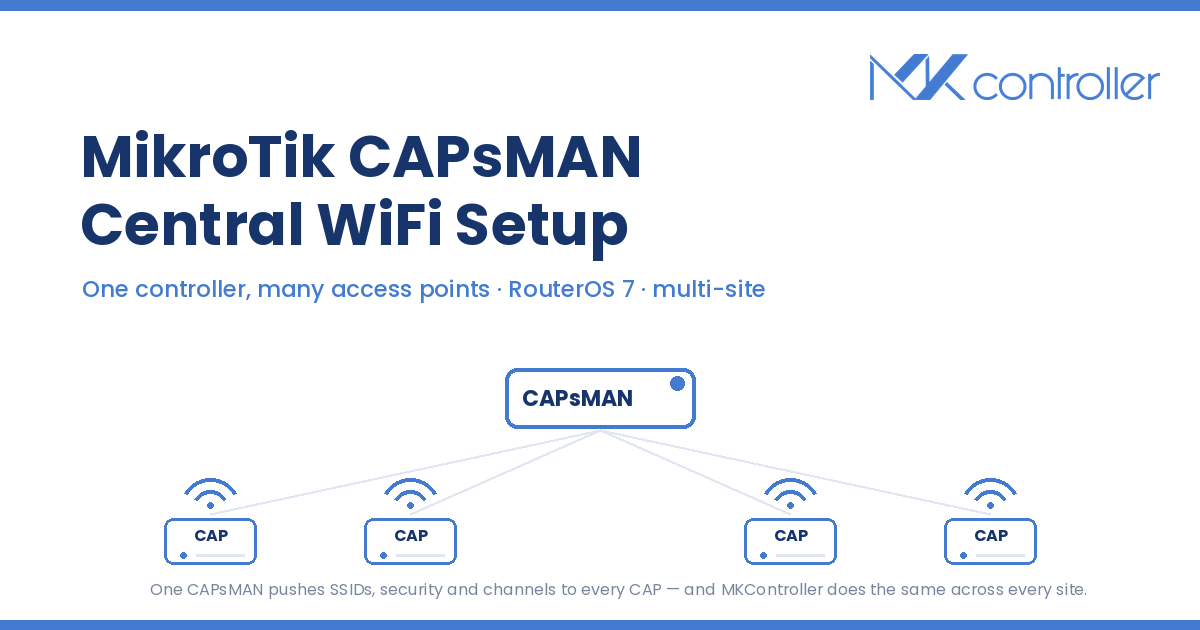
MikroTik CAPsMAN is RouterOS’s built-in wireless controller: a Controlled Access Point system Manager that holds the configuration for a group of access points and provisions each one automatically when it connects (MikroTik Documentation — AP Controller (CAPsMAN)). The network splits into two roles — the manager (CAPsMAN), which stores SSIDs, security, and channel settings, and any number of CAPs, the access points that provide the actual radio coverage and hand their configuration up to the manager.
The payoff is a single source of truth for WiFi: change the guest password once and every CAP inherits it; add an AP and it provisions itself against the rules you already wrote. Any device with a Level 4 or higher license can act as a CAP (MikroTik Documentation — WiFi).
Step 1 — Enable the CAPsMAN manager
Pick the device that will act as controller — often the main router, though any RouterOS 7 device with the wifi package can host it. Confirm the package is present under /system/package, then enable the manager with /interface/wifi/capsman/set enabled=yes. Set a package-path and upgrade-policy if you want CAPs to pull matching wifi packages from the controller so their firmware stays aligned (MikroTik Documentation — AP Controller (CAPsMAN)).
The controller now listens for CAPs but manages nothing yet — that comes from the rules in Step 3. Note the interface the manager listens on: CAPs discover it over Layer 2 by default, so controller and APs should share a broadcast domain during enrollment, or be bridged toward one.
Step 2 — Turn your access points into CAPs
On each access point, hand its radios to the controller. Enable CAP mode with /interface/wifi/cap/set enabled=yes, list the interfaces the AP should offer up with slaves-datapath and discovery-interfaces, and set caps-man-addresses if you are pointing at the controller by IP rather than relying on Layer 2 discovery (MikroTik Documentation — WiFi). Once the CAP finds the manager, its local radio config is replaced by whatever CAPsMAN provisions.
Hardware matters here: a CAP is only as good as its radio. Wi-Fi 6 and Wi-Fi 7 APs like the MikroTik hAP be lite make excellent CAPs because CAPsMAN can drive their newer radios centrally, and the band and channel tuning you would normally do per device — the kind covered in our guide to configuring WiFi 6 on MikroTik AX routers — becomes a profile you write once.
Step 3 — Build configurations and provisioning rules
This is where CAPsMAN earns its place. A configuration profile defines the SSID, security (authentication-types, passphrase), country, and channel plan; a datapath decides how CAP traffic reaches the network — bridged locally at the AP or tunneled back to the controller. Provisioning rules then match connecting CAPs — by radio MAC, model, or identity — and apply the right configuration automatically (MikroTik Documentation — AP Controller (CAPsMAN)). Write /interface/wifi/provisioning add action=create-dynamic-enabled ... so new APs self-configure instead of waiting on you.
Because CAP traffic usually lands on a bridge, this step assumes your Layer 2 is clean; if bridging is new to you, our MikroTik bridge configuration guide covers the groundwork. And here is the honest limit of CAPsMAN: it centralizes WiFi within one controller’s reach. The controllers themselves — one per building, per branch, per tower site — are still separate routers you have to keep in sync. That second layer is exactly what MKController’s fleet configuration management handles: push an identical CAPsMAN profile to every controller at once, and use Action History to see who changed what, when, and which site drifted.
Step 4 — Separate a management VLAN and secure access
Treat the CAPsMAN control channel as infrastructure, not an afterthought. Carry CAP-to-manager traffic on a dedicated management VLAN, keep it off the guest and client SSIDs entirely, and restrict which interfaces the manager will accept CAPs on. A management VLAN also stops a chatty client network from ever touching the plane that controls your radios (MikroTik community — CAPsMAN with management VLAN).
Centralized control cuts both ways: one wrong provisioning rule doesn’t break one AP, it breaks all of them at once. Before you push a channel or security change fleet-wide, you want a backup you can roll back to — and a way in if the change locks you out. MKController keeps daily automatic binary backups of every device — the last five versions, in the cloud — and lets you take a manual one right before a risky push, so a bad CAPsMAN push becomes a one-click restore to the last known-good state instead of a drive to the site with a console cable.
Step 5 — Roll CAPsMAN out across every site
One controller and a handful of CAPs is an afternoon. The real job is the tenth venue — a hotel annex, a second tower, a client campus — each with its own controller behind LTE or Starlink and Carrier-Grade NAT, with no public IP to dial into when an AP goes quiet. That is the wall single-site tutorials never mention.
This is the reader’s real job-to-be-done, and where the control plane matters most. MKController keeps every controller reachable through NATCloud — its secure outbound tunnel that needs no port forwarding and no public IP, the approach detailed in our guide to MikroTik remote management behind CGNAT — pushes identical CAPsMAN profiles across the fleet, and tracks each site’s device availability, so a downed CAP shows up — and, with Telegram alerts, reaches you — before the front desk calls. WISPs and multi-site operators running MikroTik WiFi use it to make twenty sites feel like one dashboard.
Tips
- Keep controller and CAPs on the same RouterOS 7 wifi package version; mismatches cause CAPs to drop and re-provision in loops.
- Start with
create-dynamic-enabledprovisioning so new APs come online configured, then tighten to per-model rules as the fleet grows. - Use local-bridging datapaths for high-traffic sites so client data doesn’t hairpin through the controller.
- Name SSID and security profiles by purpose (“guest”, “staff”) not by location, so one profile serves every site identically.
Manage WiFi, not a rack of routers
CAPsMAN solves one AP fleet from one controller. A business solves every controller from one place. MKController is that control plane: fleet-wide configuration push, config audit and history, automatic backups, and secure outbound access to sites behind CGNAT via NATCloud — no public IP, no port forwarding — plus availability monitoring and Telegram alerts that surface a downed CAP before a guest notices the WiFi dropped. Operators running MikroTik across many sites use it to keep every location on the same page without the drive.