
Tutorial
MikroTik DNS over HTTPS Setup Guide
Configure DNS over HTTPS (DoH) on MikroTik RouterOS v7 with Cloudflare to encrypt DNS queries and block ISP-level monitoring.
Summary DNS over HTTPS (DoH) on MikroTik RouterOS v7 encrypts every DNS query the router resolves, hiding browsing destinations from your ISP and any attacker on the local network. The setup is three short steps: import a Root CA, point IP → DNS at Cloudflare’s
https://1.1.1.1/dns-query, and verify the encrypted path from a client. This guide walks through each step plus the troubleshooting checks that catch the two most common failure modes.
How does DNS over HTTPS work on MikroTik?
DNS over HTTPS is a protocol that wraps DNS lookups inside a standard HTTPS connection (port 443) instead of sending them in plain text over UDP port 53. On a MikroTik router, RouterOS v7 ships with a native DoH client: once configured, the router becomes the single secure resolver for every device on the LAN, and ISPs lose the ability to log or filter DNS queries by domain.
The implementation has three moving parts. First, the router needs a Root CA certificate so it can validate the TLS handshake with the DoH provider. Second, the DNS subsystem points at a DoH URL instead of an IPv4 nameserver. Third, every client on the LAN uses the MikroTik itself as its DNS server, otherwise traffic bypasses the encrypted path entirely.
Prerequisites
Two things must be true before DoH will work reliably:
The system clock must be accurate. TLS certificates carry validity windows; a router whose clock is even a few minutes off will reject the handshake and DNS will silently stop resolving. Open System → Clock, verify date and time, and enable the NTP client to keep it synced.
The router must be running RouterOS v7. Earlier versions had partial DoH support but lacked the cipher stability needed for production use with Cloudflare or Google.
Step 1: Import the Root CA certificate
The MikroTik needs to trust the certificate authority that signed Cloudflare’s DoH endpoint. Without this, the TLS handshake fails and DoH won’t initialize.
-
Open the Terminal in Winbox.
-
Fetch the Root CA:
/tool fetch url=https://ssl.com/repo/certs/SSLcomRootCertificationAuthorityECC.pem -
Import it into the certificate store:
/certificate import file-name=SSLcomRootCertificationAuthorityECC.pem passphrase="" -
Confirm under
System → Certificates— the CA should appear in the list.
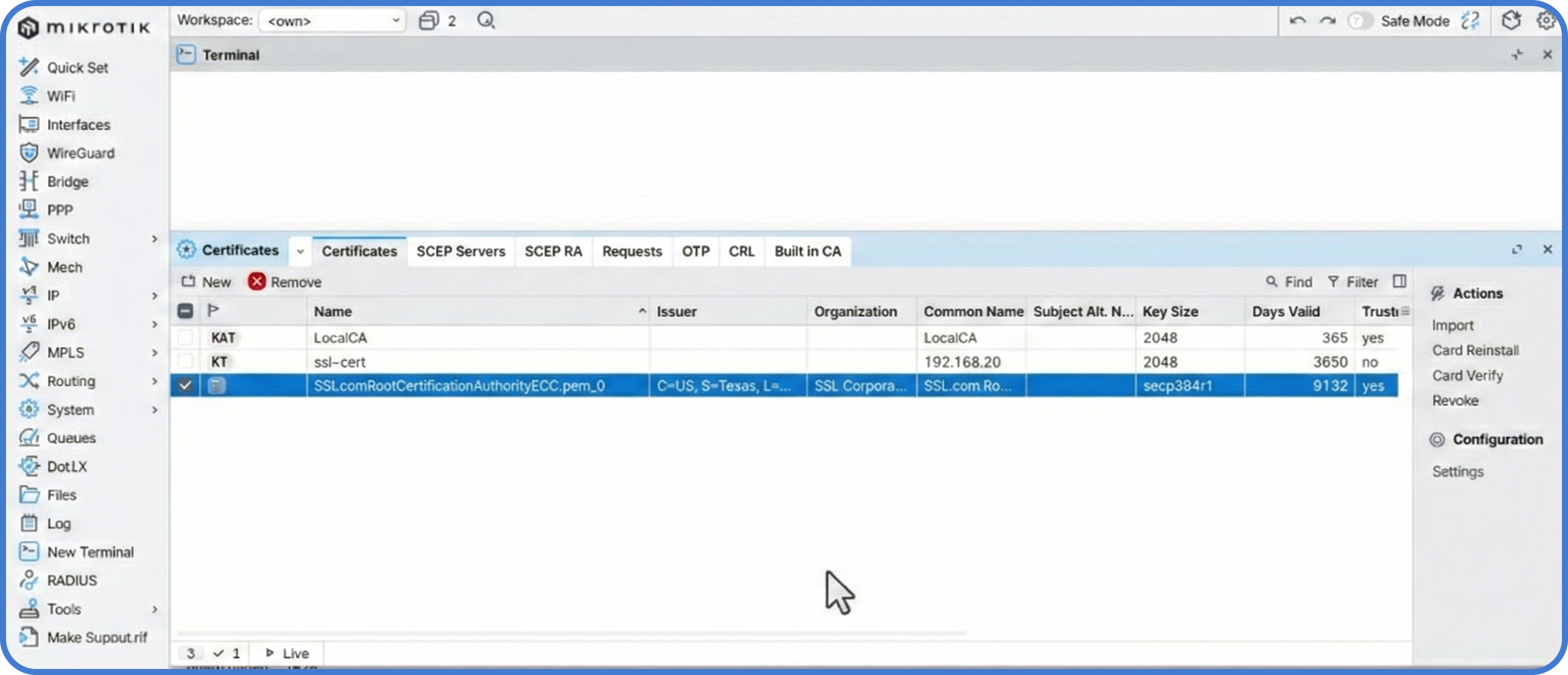
Step 2: Configure the DoH resolver
With the CA trusted, point the DNS subsystem at Cloudflare.
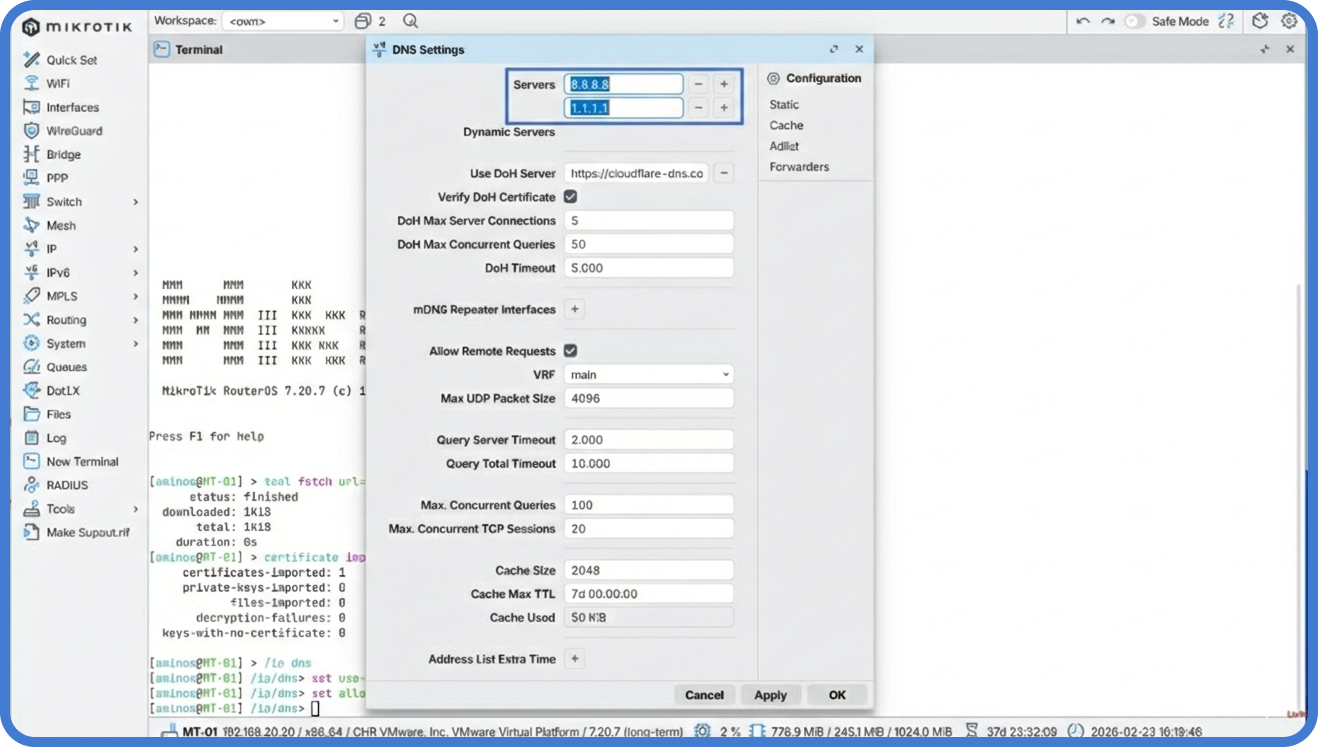
- Navigate to
IP → DNS. - Set Use DoH Server to
https://1.1.1.1/dns-query. - Check Verify DoH Certificate — this is what makes the connection genuinely secure.
- Check Allow Remote Requests so LAN clients can use the MikroTik as their DNS gateway.
- Optionally clear any legacy plain-text resolvers from the
Serverslist to make sure no query leaks unencrypted.
Step 3: Verify the encrypted path
The router is now using DoH for its own queries, but you still need to confirm clients route through it.
- On a LAN client, set DNS to the MikroTik’s LAN IP (DHCP push usually handles this automatically once the router’s DNS is the only one offered).
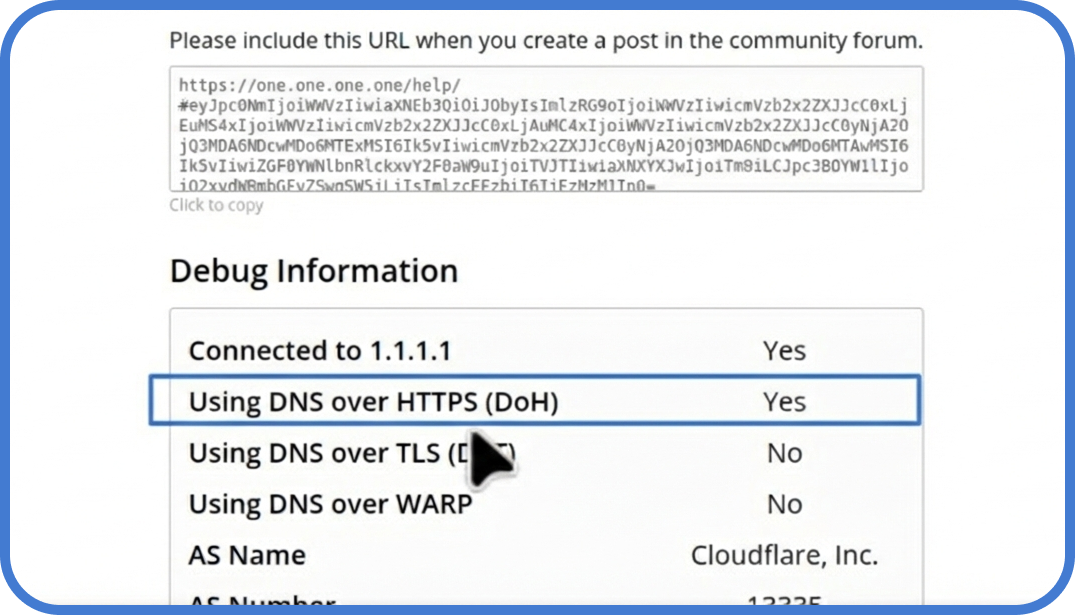
- Open
https://1.1.1.1/helpin a browser. - Wait for the diagnostic table. Look for Using DNS over HTTPS (DoH) — it should show Yes.
Troubleshooting
If a site doesn’t resolve, the issue is almost always one of two things: a clock drift breaking certificate validation, or a missing Root CA. Inspect the log first:
/log print where message~"doh"A line containing SSL error or certificate not trusted points at the Root CA or clock. A line containing timeout points at upstream reachability — verify your WAN can reach 1.1.1.1 over port 443. For more on locking down management access while you’re in IP → DNS, see our guide to blocking traffic to a country or the MikroTik adlist filtering tutorial for layered DNS-based protection.
Tips
- Pin the NTP source to a public stratum-1 server (
time.cloudflare.comis a good default) — clock drift is the single most common cause of DoH outages. - Disable any DNS forwarders on client machines (browsers like Chrome and Firefox have their own DoH settings) so the policy is enforced at the router only.
- Keep one fallback resolver path documented for the operator — if the Root CA expires unexpectedly, the LAN will lose DNS until the new CA is imported.
Scale this across every site
Configuring DoH on one router takes fifteen minutes. Doing it across fifty branch sites — each with its own clock drift, its own certificate renewal cycle, its own quirky firewall rules — is a different problem entirely.
MKController pushes the same DoH configuration and Root CA bundle to every MikroTik in your inventory in one operation. When a certificate is approaching expiration or a remote clock starts drifting outside the NTP threshold, the dashboard alerts you before customers notice a DNS outage.