
Tutorial
MikroTik CHR on VMware Workstation
Install MikroTik RouterOS CHR on VMware Workstation using the VMDX image — network planning, VM setup, and Winbox first access.
Summary MikroTik RouterOS runs cleanly as a virtual machine in VMware Workstation using the official CHR (Cloud Hosted Router) VMDX image. This guide walks through the three-interface lab topology, the VMware Virtual Network Editor settings, the VM build using the VMDX as an existing disk, and the first-boot password setup plus Winbox MAC-based discovery to reach the router from the host.
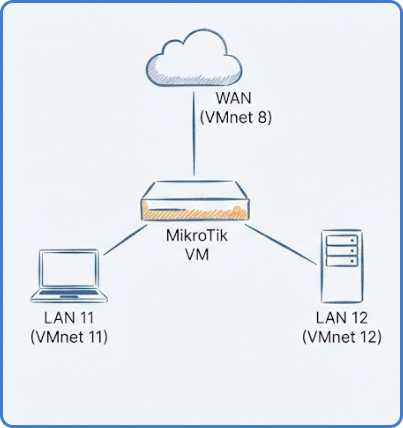
How does MikroTik CHR run on VMware Workstation?
MikroTik Cloud Hosted Router (CHR) is the virtualized variant of RouterOS, packaged for hypervisors including VMware, Hyper-V, KVM, and VirtualBox. On VMware Workstation, CHR runs as a regular VM using the pre-built VMDX disk image MikroTik publishes — there’s no ISO install ceremony, no first-boot wizard, and no licensing friction for lab or trial use. The result is a fully-featured RouterOS instance that behaves identically to a physical router for management, routing, firewall, and VPN testing.
Virtualizing RouterOS is the cleanest way to build a lab environment, test complex routing or firewall configurations, or even run a production-grade CHR. The catch is that the network topology has to be planned at the VMware layer first — every virtual NIC needs to map to a specific VMnet, and getting that mapping right up-front saves hours of debugging later.
Plan the virtual network
Before installing anything, design the topology. A typical lab uses three interfaces:
- ether1 — WAN: assigned to
VMnet 8 (NAT mode). This gives the router internet access through the host machine. - ether2 — LAN-A: assigned to
VMnet 11 (Host-only). Simulates the first internal subnet. - ether3 — LAN-B: assigned to
VMnet 12 (Host-only). A second subnet for inter-VLAN routing, segmentation tests, or DHCP isolation.
Separate VMnets isolate traffic and let you treat each virtual link as if it were connected to a different physical switch. This is the foundation everything else in the lab depends on.
Prerequisites and downloads
Two files from https://mikrotik.com/download:
- Winbox — the primary graphical management tool for RouterOS.
- Cloud Hosted Router (CHR) — specifically the VMDX image. The VMDX is pre-configured for VMware and skips the standard ISO installation procedure.
Use the Stable release channel (v7.x) for the best balance between current features and reliability during lab work. Testing builds work too if you’re explicitly verifying a feature in development, but Stable is the right default.
Configure VMware virtual networks
Open the Virtual Network Editor in VMware and verify the VMnet mappings:
VMnet 8→ NAT (this is the default and is usually already correct).VMnet 11→ Host-only. Give it a dedicated static subnet (e.g.,192.168.111.0/24) so DHCP and static routes inside RouterOS resolve predictably.VMnet 12→ Host-only. Use a different dedicated subnet (e.g.,192.168.112.0/24).
Assigning predictable subnets to each Host-only adapter makes it much easier to identify which segment traffic is flowing on when troubleshooting later, especially once you start running multiple CHRs side-by-side in the same lab.
Create the MikroTik virtual machine
Now build the VM and attach the VMDX as the boot disk:
- New VM → Custom configuration. Choose
Otherfor the Guest Operating System (RouterOS is not in VMware’s preset list). - Allocate 512 MB RAM as the minimum. RouterOS is lightweight but extra memory helps when running multiple services or queues.
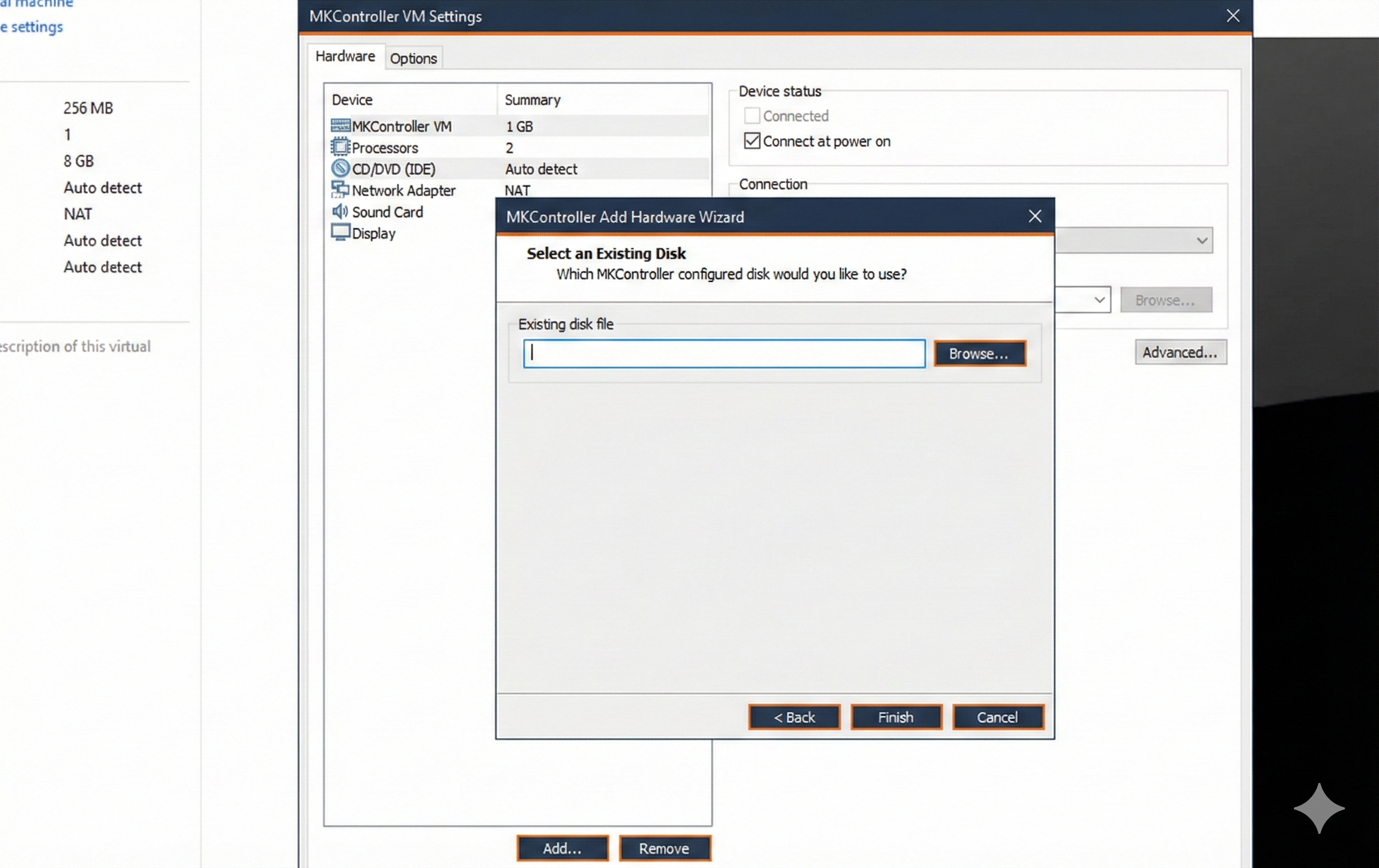
- Storage: remove the default virtual disk VMware creates, then add a new Hard Disk and select “Use an existing virtual disk”. Point it at the
.vmdxfile you downloaded. - Network adapters: add three adapters. Map the first to
VMnet 8, the second toVMnet 11, and the third toVMnet 12. Adapter order matters — RouterOS will enumerate them asether1,ether2,ether3in that sequence.
Initial setup and Winbox connection
Power on the virtual machine. The default credentials are:
- User:
admin - Password: (blank)
On first login, RouterOS asks whether you want to view the software license — press n to skip. It then prompts you to set a strong password. Set one — even in a lab, exposed default credentials catch out the operators who forget the VM is reachable from the host network.
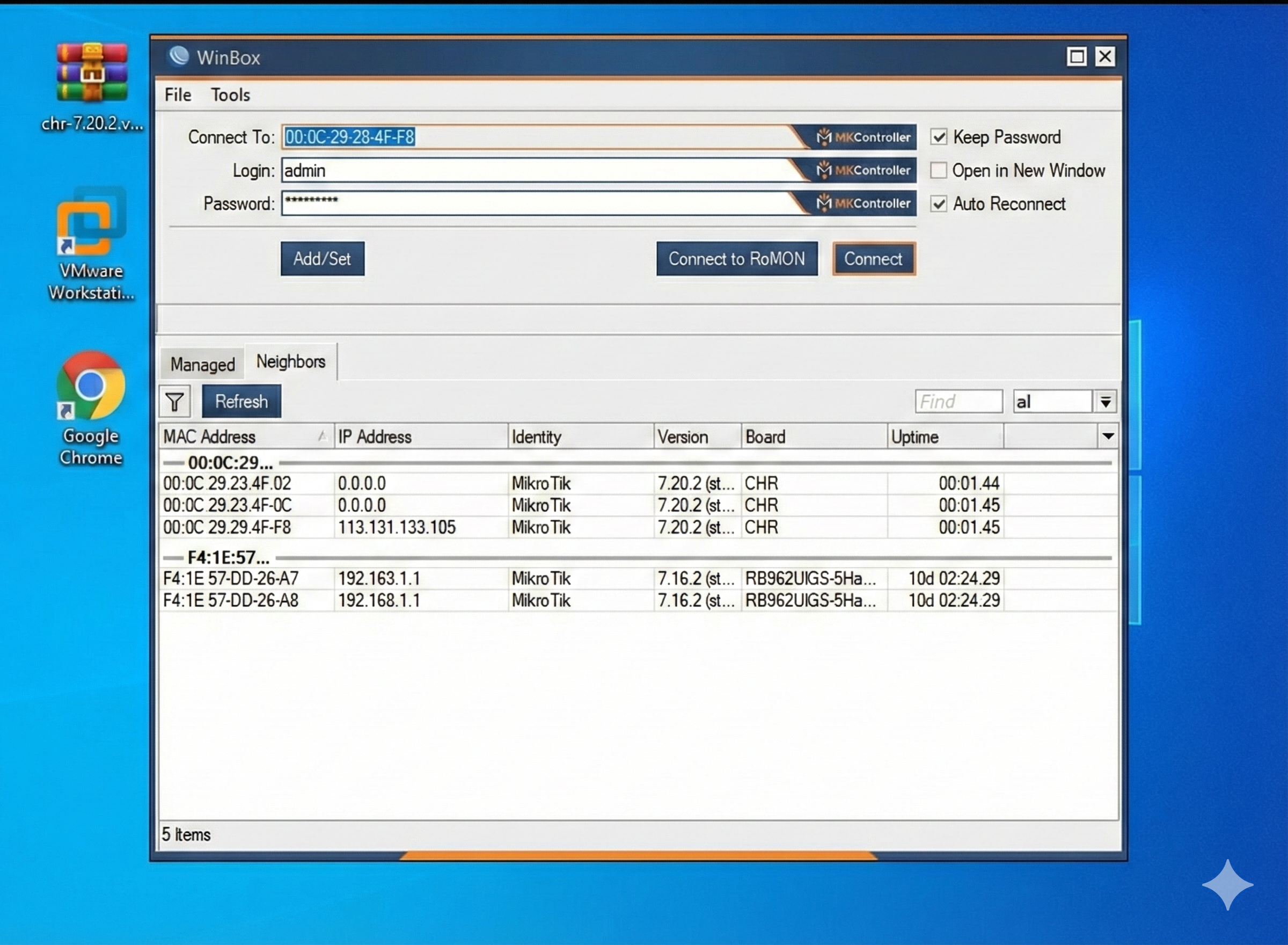
Open Winbox on the host machine. The CHR shows up in the Neighbors tab via MAC-based discovery — Winbox can connect to the router by MAC even before you’ve assigned an IP to the LAN interfaces. Click the entry, log in with the new password, and you have a working RouterOS instance to start configuring. For the next step in a typical lab build, see our NAT configuration tutorial and the 192.168.88.1 access troubleshooting guide for fallback when Winbox can’t discover the VM.
Tips
- Snapshot the VM before you start configuring anything — RouterOS is famously easy to brick with a misconfigured firewall rule.
- If Winbox doesn’t see the CHR in Neighbors, verify the host adapter for
VMnet 11is enabled in the host’s network settings. - Pair this lab with the WireGuard tutorial to test remote-access topologies before deploying them on production hardware.
Take the next step
A virtualized CHR is the right place to experiment with RouterOS, but production fleets eventually run on physical hardware across many sites. Managing the same configuration template across a mix of physical routers, CHR instances on a VPS, and CHR labs in VMware requires orchestration that scales beyond manual Winbox sessions.
MKController templates RouterOS configuration centrally, applies it to every device — virtual or physical — in your inventory, and tracks drift across the fleet so you see exactly which router diverged from the template. Lab work in VMware translates directly to production rollouts when the orchestration layer is consistent.