
Tutorial
MikroTik NAT Setup for Internet Access
Configure Network Address Translation on a MikroTik router with masquerade or src-nat, using Winbox or the CLI, in five short steps.
Summary Network Address Translation (NAT) is what lets a roomful of devices share a single public IP. On MikroTik routers, NAT is configured under
IP → Firewall → NATwith two practical choices:masqueradefor dynamic WAN links andsrc-natfor static public IPs. This guide walks through both, plus the rule fields that catch people out the first time.
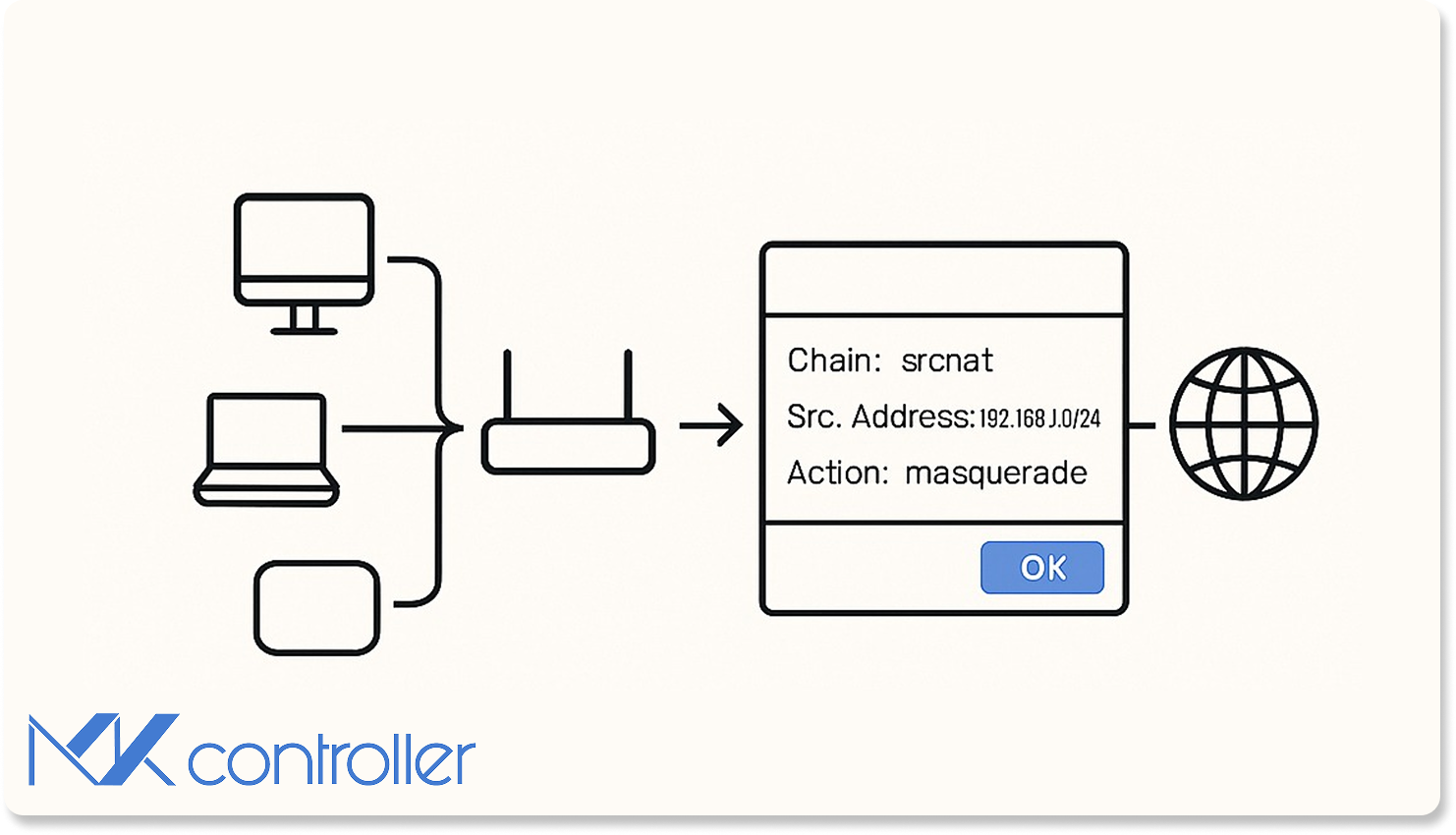
How does NAT work on MikroTik?
NAT is the firewall feature that rewrites IP addresses on packets as they pass through the router, so devices on a private LAN can share one public IP to reach the internet. On MikroTik, NAT lives inside the firewall under IP → Firewall → NAT, and the router applies rules to traffic based on chain (direction), interface, and an action that says how to rewrite the addresses.
A correct NAT rule turns “LAN device wants internet” into “WAN sees a single packet from the router’s public IP, and routes the reply back through the same translation.” Without a NAT rule, the LAN sends packets out, but the upstream provider drops them because RFC 1918 addresses (192.168.x, 10.x, 172.16.x) are not routable on the public internet.
NAT rule fields you need to know
Three fields make or break a NAT rule:
Chain is the traffic direction. Use srcnat for outbound translations (the LAN-to-internet case this guide covers) and dstnat for inbound (port forwarding).
Out. Interface is the outbound interface the rule applies to — typically your WAN port, the one receiving the internet link from the ISP.
Action is what the rule does with matching packets. For source NAT, the two options are masquerade and src-nat.
Masquerade vs. src-nat
Both rewrite the source IP on outgoing packets, but they handle it differently:
| Field | masquerade | src-nat |
|---|---|---|
| Internet link | Dynamic IP | Valid (static) public IP |
| NAT mappings record | Not maintained | Maintained |
| Source IP after translation | The router’s current public IP | A specific IP you define in To Address |
Masquerade is the right choice when your ISP hands you a different IP every reboot (most home and SMB plans). It rewrites packets to whatever address the WAN interface currently holds, and it doesn’t keep state across IP changes, which means it survives a WAN flap gracefully.
Src-nat is the choice when you have a static public IP and want explicit control. The To Address field lets you pin the post-translation source IP, which matters for inbound traffic correlation, traffic accounting, and edge cases like multiple WAN IPs on one interface.
Configure NAT step by step in Winbox
Step 1 — Open the NAT menu
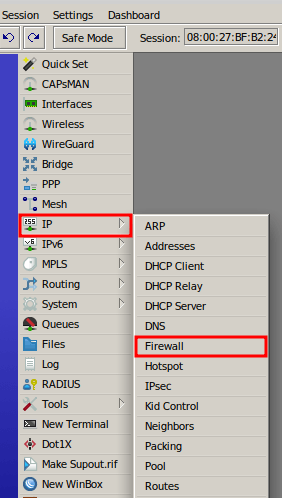
Connect to the router with Winbox, then go to IP → Firewall and switch to the NAT tab.
Step 2 — Add a new rule
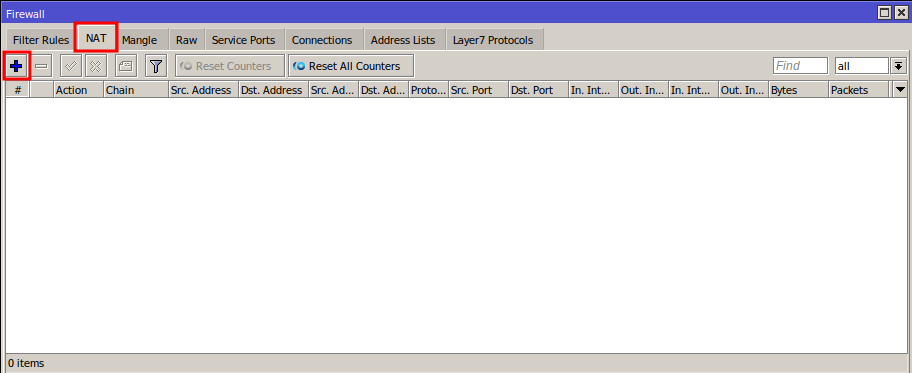
Click the blue + button to open the New NAT Rule dialog.
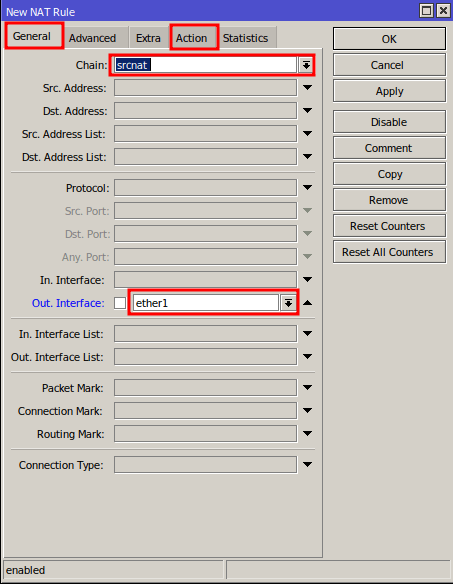
Step 3 — Set Chain and Out. Interface
On the General tab:
- Chain:
srcnat - Out. Interface: the WAN interface (commonly
ether1on a stock config)
Switch to the Action tab to define the translation.
Step 4a — Dynamic IP: use masquerade
If your ISP assigns a dynamic IP, set Action to masquerade and click OK. The router will rewrite the source address on the fly, regardless of what public IP it currently holds.
/ip/firewall/nat add chain=srcnat out-interface=ether1 action=masquerade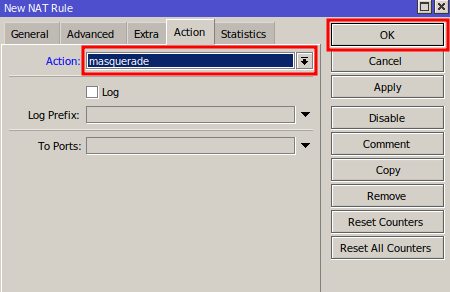
Step 4b — Static IP: use src-nat
If your ISP provides a fixed public IP:
- Set Action to
src-nat. - In To Address, enter the static IP assigned to the WAN interface.
- Click OK.
/ip/firewall/nat add chain=srcnat out-interface=ether1 action=src-nat to-addresses=203.0.113.10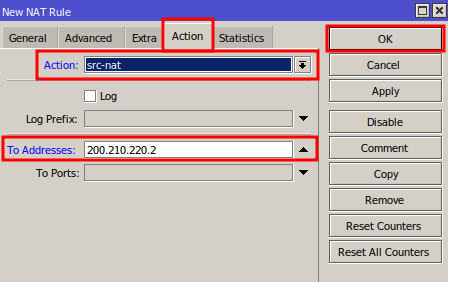
Step 5 — Verify
LAN devices should now reach the internet. From a client, browse to any external site or run ping 8.8.8.8. If it fails, the usual suspects are the wrong interface in Out. Interface, a missing default route, or DNS not being configured separately — fix those by following our DNS over HTTPS setup guide or the 192.168.88.1 access troubleshooting checklist.
Tips
- Place NAT rules after any specific drop rules in the firewall, so policy decisions happen on untranslated addresses.
- If you change from masquerade to src-nat, clear the existing connection tracking entries with
/ip/firewall/connection remove [find]— stale entries can mask the new translation. - For CGNAT environments, masquerade on the MikroTik still works fine — the ISP’s CGNAT just adds a second translation layer behind yours.
Scale NAT policy across every site
A single NAT rule is trivial. Managing NAT, port forwards, and src-nat mappings across a hundred MikroTik routers — each with its own WAN setup, its own static IP allocation, its own customer-specific exceptions — is where operators lose hours every week.
MKController pushes the same NAT and firewall ruleset to every device in your inventory and tracks per-router deviations so you see exactly which sites drifted off the template. When an upstream IP allocation changes or a rule order regression breaks connectivity, the dashboard flags the affected sites before customers do.