
اربط جهاز MikroTik بالـ Hotspot الخاص بك
ملخص يؤدي ربط جهاز MikroTik إلى توصيل جهاز توجيه فعلي بقسيمة WiFi Monetization (تحقيق الدخل من Wi-Fi) لديك حتى يتمكن من تقديم البوابة الأسيرة. يختار معالج النشر الموجَّه الواجهة، ويضبط شبكة IP فرعية، ويهيّئ لك الـ hotspot وRADIUS وDHCP والحديقة المسوَّرة (walled garden) — دون أي برمجة نصية في RouterOS. نقاط الوصول الإضافية مدعومة ما دامت تعمل في وضع الجسر (bridge).
ماذا يفعل ربط جهاز؟
Section titled “ماذا يفعل ربط جهاز؟”القسيمة (voucher) هي حملة Wi-Fi الخاصة بك؛ أما الجهاز المرتبط فهو جهاز MikroTik الذي يبثّها فعليًا. عند ربط جهاز MikroTik، ينشر MKController كل ما يحتاجه الـ hotspot إلى جهاز التوجيه عبر النفق المشفّر: واجهة الـ hotspot، وبوابة الحضور القائمة على RADIUS التي تتحقق من الوصول، وDHCP لعناوين IP الخاصة بالضيوف، والحديقة المسوَّرة التي تسمح بتحميل صفحة تسجيل الدخول قبل أن يصادق الضيف.
يمكنك ربط أكثر من جهاز MikroTik بالقسيمة نفسها — وهو مفيد عندما تغطي حملة واحدة عدة أجهزة توجيه — كما يمكنك إلغاء ربط جهاز أو نقله لاحقًا.
قبل أن تربط
Section titled “قبل أن تربط”- يجب أن يكون جهاز MikroTik مُعتمَدًا بالفعل في MKController. وإن لم يكن كذلك، فاعتمده أولًا: أضف أول جهاز MikroTik لديك.
- قرّر أي واجهة سيتصل الضيوف من خلالها (على سبيل المثال، واجهة لاسلكية أو جسر يجمع نقاط الوصول لديك).
- ينبغي أن يكون الجهاز متصلًا بالإنترنت في MKController حتى يتمكن المعالج من دفع التهيئة.
كيف تربط جهاز MikroTik
Section titled “كيف تربط جهاز MikroTik”الخطوة 1: افتح قسم Devices
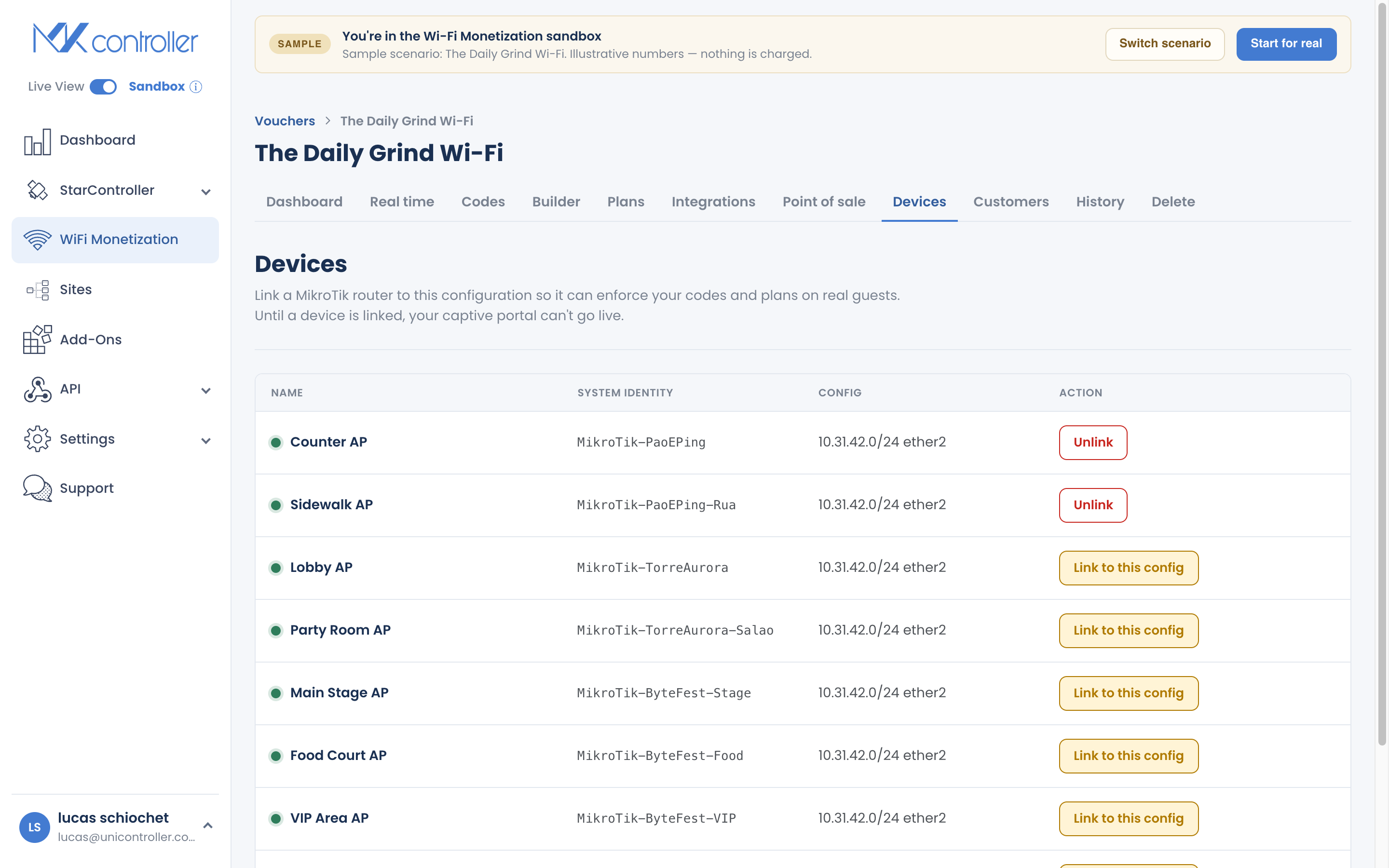
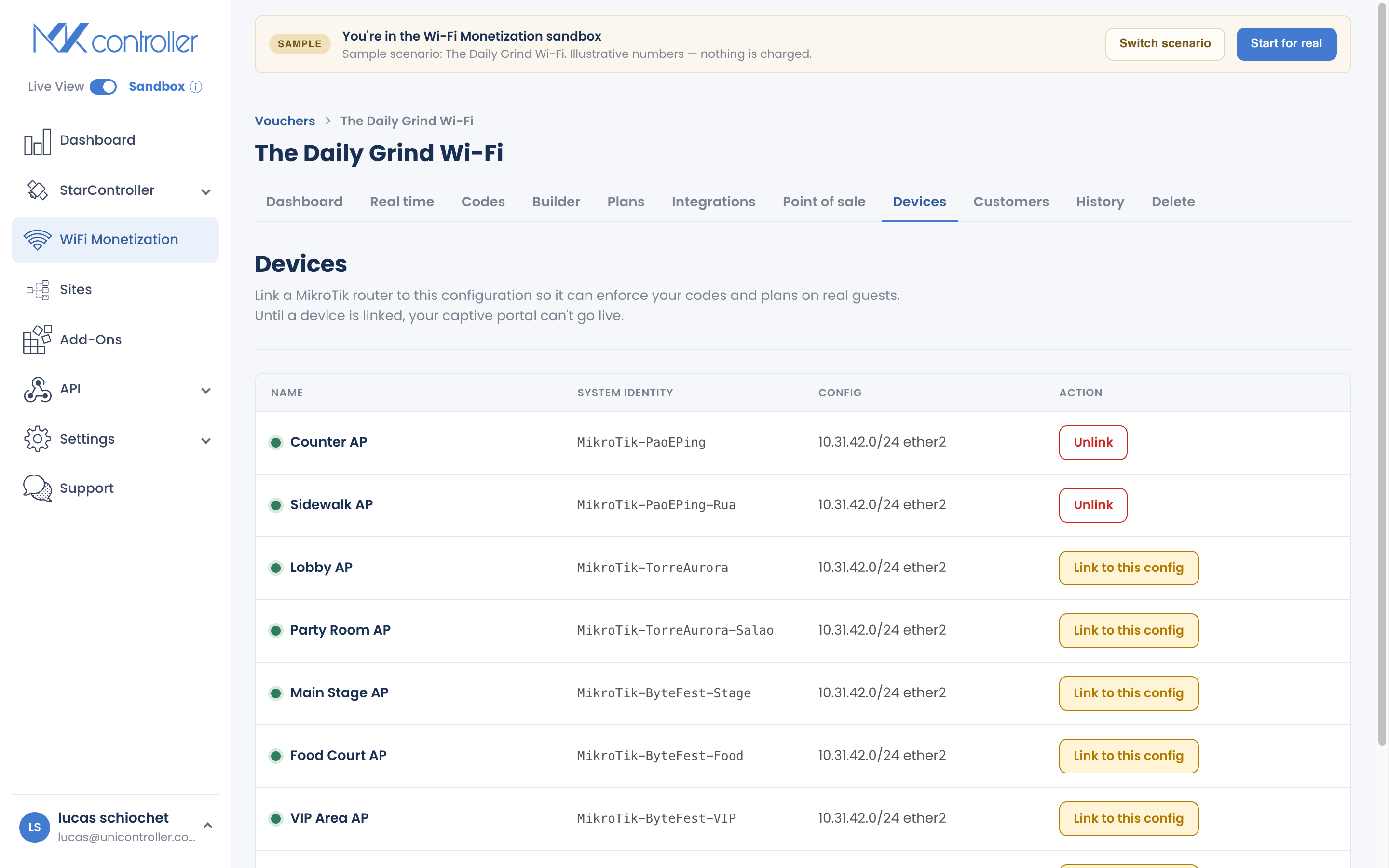
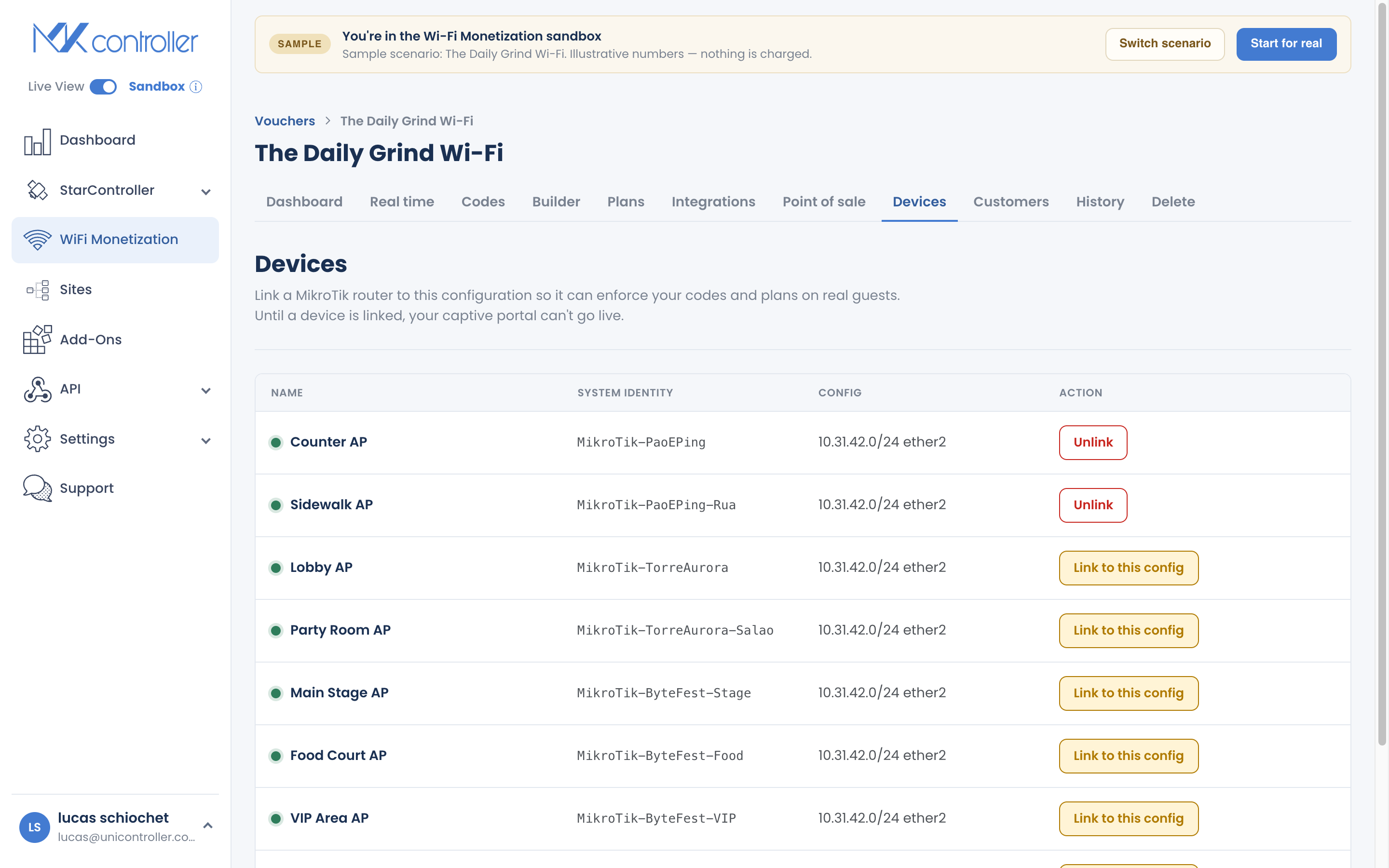
Section titled “الخطوة 1: افتح قسم Devices”داخل القسيمة، افتح قسم Devices. يسرد أجهزة MikroTik المرتبطة بالفعل بهذه القسيمة مع حالتها متصلة أو غير متصلة. اختر الجهاز الذي تريد ربطه وشغّل معالج النشر (deploy wizard).
الخطوة 2: اختر الواجهة
Section titled “الخطوة 2: اختر الواجهة”يكتشف المعالج الواجهات على جهاز التوجيه تلقائيًا ويقترح الواجهة التي ينبغي أن يستخدمها الضيوف. إذا كان إعدادك غير معتاد، فانتقل إلى التحديد اليدوي واختر الواجهة بنفسك.
الخطوة 3: اضبط الشبكة الفرعية
Section titled “الخطوة 3: اضبط الشبكة الفرعية”أبقِ على الشبكة الفرعية المقترحة — إذ تعمل الافتراضية 10.31.42.1/24 مع معظم عمليات النشر وتمنحك 254 عنوانًا للضيوف — أو أدخل شبكتك الخاصة إن كانت تتعارض مع شبكة موجودة على جهاز التوجيه.
الخطوة 4: شغّل عملية النشر
Section titled “الخطوة 4: شغّل عملية النشر”ابدأ النشر. يعمل المعالج عبر خطوات مرحلية ويُظهر التقدّم لكل منها:
- إنشاء نسخة احتياطية من تهيئة جهاز التوجيه الحالية (حتى لا يُفقَد أي شيء).
- تهيئة الواجهة.
- إعداد RADIUS.
- تهيئة DHCP.
- تطبيق الحديقة المسوَّرة (walled garden).
- رفع كل شيء إلى الجهاز.
انتظر حتى يصل المعالج إلى Done. أصبح جهاز MikroTik لديك الآن يقدّم البوابة الأسيرة.
استخدام نقاط وصول إضافية (وضع الجسر)
Section titled “استخدام نقاط وصول إضافية (وضع الجسر)”عمليًا: اجمع نقاط الوصول لديك في جسر على جهاز MikroTik، واربط الـ hotspot بواجهة الجسر تلك في الخطوة 2. عندئذٍ تغطي قسيمة واحدة منطقة التغطية بأكملها.
إدارة الأجهزة المرتبطة
Section titled “إدارة الأجهزة المرتبطة”من قسم Devices يمكنك:
- ربط جهاز MikroTik آخر بالقسيمة نفسها.
- نقل جهاز بين القسائم.
- إلغاء ربط جهاز عندما لا تعود تريده أن يقدّم هذا الـ hotspot.
إذا أبلغ النشر عن خطأ
Section titled “إذا أبلغ النشر عن خطأ”على عكس الواجهة الأقدم، يُظهر المعالج حالات الفشل الحقيقية بدلًا من عرض “انتهى” زائف. وأكثرهما شيوعًا:
- خطأ في نظام الملفات — لم يتمكن جهاز التوجيه من كتابة الملفات المطلوبة (غالبًا بسبب انخفاض مساحة التخزين الحرة). أفرِغ مساحة على جهاز MikroTik وأعد المحاولة.
- خطأ في النص البرمجي — فشلت خطوة تهيئة في التطبيق (على سبيل المثال، تعارض في الواجهة أو العنوان). تحقق من اختيار الواجهة والشبكة الفرعية، ثم أعد المحاولة.
تؤدي إعادة المحاولة إلى إعادة دفع التهيئة؛ ولا ينتهي الجهاز كجهاز مرتبط إلا بعد أن يؤكد النجاح.
الأسئلة الشائعة
Section titled “الأسئلة الشائعة”هل يمكن لقسيمة واحدة استخدام عدة أجهزة MikroTik؟ نعم. اربط ما تحتاجه بالقسيمة نفسها. يظهر كل منها في قسم Devices مع حالته الخاصة على الإنترنت.
هل يمكنني استخدام نقاط وصول إضافية؟ نعم — اضبطها كـجسور (bridges)، لا كأجهزة توجيه، واربط الـ hotspot بواجهة الجسر. عندئذٍ تعمل قسيمة واحدة عبرها جميعًا.
هل يغيّر الربط الإعدادات الأخرى لجهاز التوجيه؟ يضيف المعالج تهيئة الـ hotspot وRADIUS وDHCP والحديقة المسوَّرة، وينشئ نسخة احتياطية من جهاز التوجيه أولًا. تبقى تهيئتك الحالية في مكانها.
ماذا يحدث عند إلغاء ربط جهاز؟ تُزال تهيئة الـ hotspot وRADIUS التي نشرها MKController. يستمر جهاز التوجيه في العمل؛ لكنه يتوقف فقط عن تقديم هذه البوابة الأسيرة.
استكشف بعد ذلك: صمّم بوابتك الأسيرة · أنشئ واطبع أكواد القسائم · إعداد WiFi Monetization · الأسئلة الشائعة حول WiFi Monetization
بحاجة إلى مساعدة في ربط جهاز؟ تحدّث إلى فريقنا عبر WhatsApp أو أنشئ حساب MKController المجاني.