
UniFi Mobile App with MKController
Summary MKController-adopted UniFi devices can be accessed through the official Ubiquiti UniFi mobile app using the Console Manual Setup option. This guide walks through the 7-step process of linking your MKController-hosted UniFi controller to the UniFi app on Android or iOS, so you can manage your devices from your phone alongside everything else in MKController.
What Is UniFi Mobile App Integration with MKController?
Section titled “What Is UniFi Mobile App Integration with MKController?”The UniFi mobile app integration in MKController allows you to access UniFi devices — adopted and managed through MKController’s cloud controller — directly from Ubiquiti’s official UniFi mobile application on Android or iOS. You get the full native UniFi app experience (real-time monitoring, VPN access, traffic routing, device restarts) while your devices remain under MKController’s cloud management and governance layer.
This integration is additive: it does not replace MKController’s web dashboard. It adds mobile convenience on top of the cloud management you already have.
What Can You Do with the UniFi App?
Section titled “What Can You Do with the UniFi App?”The UniFi app is Ubiquiti’s mobile interface for managing UniFi networks. Its key capabilities include:
- Device setup and configuration for gateways, switches, and access points.
- Real-time network monitoring and traffic analytics.
- Single-tap VPN access.
- Remote device restarts without a desktop browser.
- Bluetooth-assisted device adoption (for direct UniFi controller setups).
When paired with MKController, the app works as a mobile companion — ideal for on-site visits, quick status checks, and client demonstrations.
How Do You Set Up the UniFi App with MKController?
Section titled “How Do You Set Up the UniFi App with MKController?”Step 1: Download the UniFi App
Section titled “Step 1: Download the UniFi App”Install the official Ubiquiti UniFi app on your mobile device:
- Android: UniFi on Google Play
- iOS: UniFi on the App Store
Step 2: Find the Device in MKController
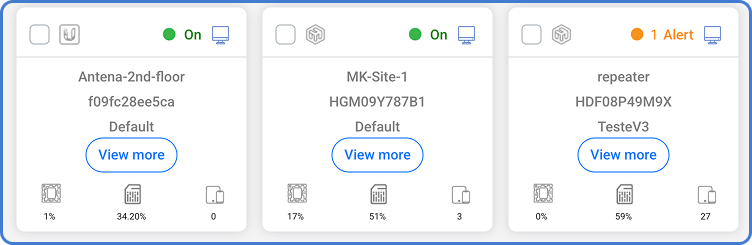
Section titled “Step 2: Find the Device in MKController”Log in to app.mkcontroller.com and open the Unified Dashboard. Locate the UniFi device you want to add to the mobile app.
Step 3: Get the Controller Data
Section titled “Step 3: Get the Controller Data”In the device’s left menu, select Controller Data. This screen displays the connection credentials you will need in the app.
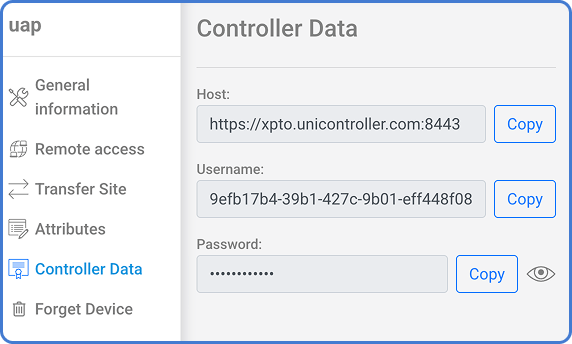
Keep this screen open — you will need the hostname, port, username, and password in the following steps.
Step 4: Open the UniFi App
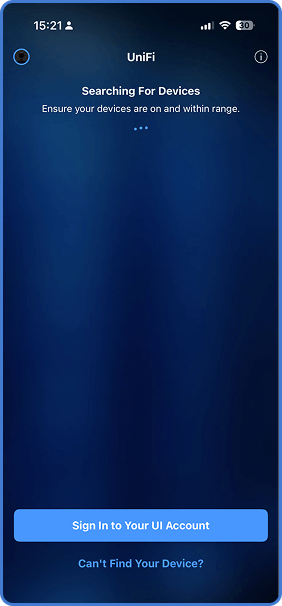
Section titled “Step 4: Open the UniFi App”Launch the UniFi app on your phone. On the welcome screen, tap Can’t Find Your Device? at the bottom.
Step 5: Choose Console Manual Setup
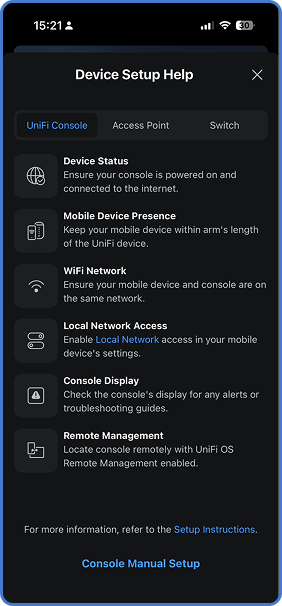
Section titled “Step 5: Choose Console Manual Setup”From the list of options, scroll to the bottom and select Console Manual Setup.
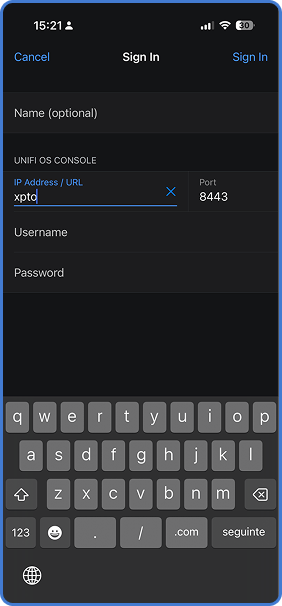
Step 6: Enter the Controller Data
Section titled “Step 6: Enter the Controller Data”Using the credentials from Step 3, fill in the sign-in form in the UniFi app.
Step 7: Access Your Device
Section titled “Step 7: Access Your Device”If the credentials are correct, the app connects to your MKController-hosted UniFi controller and displays your device.
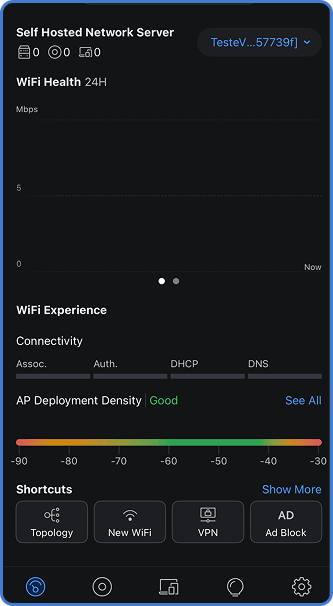
You now have full mobile access to the device through the native UniFi app, with all management data persisted in MKController.
Comparing Access Methods for MKController UniFi Devices
Section titled “Comparing Access Methods for MKController UniFi Devices”| Access method | Best for | Requires |
|---|---|---|
| MKController web dashboard | Full management, backups, availability reports, attributes | Browser (desktop or mobile) |
| UniFi mobile app via MKController | On-the-go monitoring, VPN toggle, quick restarts | UniFi app + controller data from MKController |
| Direct SSH to device | Advanced configuration, troubleshooting | SSH client, device credentials |
Troubleshooting UniFi App Connection Issues
Section titled “Troubleshooting UniFi App Connection Issues”Controller Data is not appearing in MKController. Make sure the UniFi device has been fully adopted in MKController and is showing as online in the Unified Dashboard. Devices that are adopted but offline may not display controller credentials until they reconnect.
The UniFi app shows “Unable to connect” after entering controller data. Double-check that you selected Console Manual Setup (not Bluetooth or automatic discovery) and that the hostname and port from the Controller Data panel were entered without trailing spaces or extra characters. Also verify that you are using the credentials shown in MKController, not your UniFi account credentials.
The app connected once but disconnected later and won’t reconnect. MKController may have rotated credentials for security reasons. Return to the Controller Data panel in MKController, copy the updated credentials, and re-enter them in the app’s Console Manual Setup flow.
I see the device in the app but I cannot make changes. This is a permission issue. The credentials provisioned for your user may have read-only scope. Contact the MKController account administrator to verify your UniFi access role in Site User Management.
Frequently Asked Questions
Section titled “Frequently Asked Questions”Does the UniFi app work on both Android and iOS with MKController? Yes. The Console Manual Setup flow is available on both Android and iOS versions of the official UniFi app.
Does using the UniFi app instead of the MKController dashboard affect my usage limits? No. App access and web dashboard access both route through MKController’s infrastructure and count identically against your plan.
Questions about the UniFi app setup or Controller Data not appearing? Contact MKController support on WhatsApp.
Questions? 📧 contato@mkcontroller.com