
Factory Reset UniFi Access Point
Summary
Section titled “Summary”A UniFi factory reset returns the access point or switch to firmware defaults, removes it from any controller, and makes it ready for fresh adoption. There are three methods: reset from the UniFi Controller (if the device is currently adopted), SSH command, or the physical reset button. This guide covers all three.
A UniFi factory reset erases all local configuration on the device and removes its association with any UniFi Controller. Use it when you need to re-adopt a device to a new controller, troubleshoot a stuck firmware state, or prepare a device for resale or redeployment.
Which reset method should you use?
Section titled “Which reset method should you use?”| Situation | Best method |
|---|---|
| Device is adopted and accessible in the controller | Reset from UniFi Controller (easiest) |
| Device is reachable on the network but not adopted | SSH reset command |
| Device is unresponsive, misconfigured, or inaccessible | Physical reset button (last resort) |
Method 1 — Reset from the UniFi Controller
Section titled “Method 1 — Reset from the UniFi Controller”Use this method when the device is currently adopted in your controller and accessible.
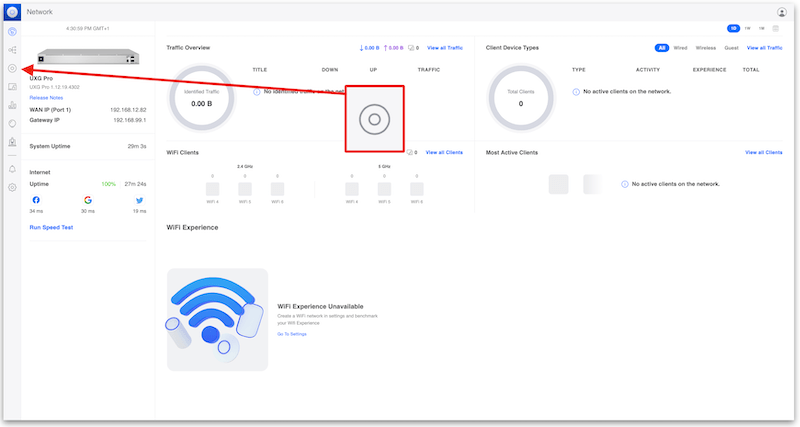
Step 1 — Go to Devices
Section titled “Step 1 — Go to Devices”Log in to your UniFi Controller and open the Devices section.
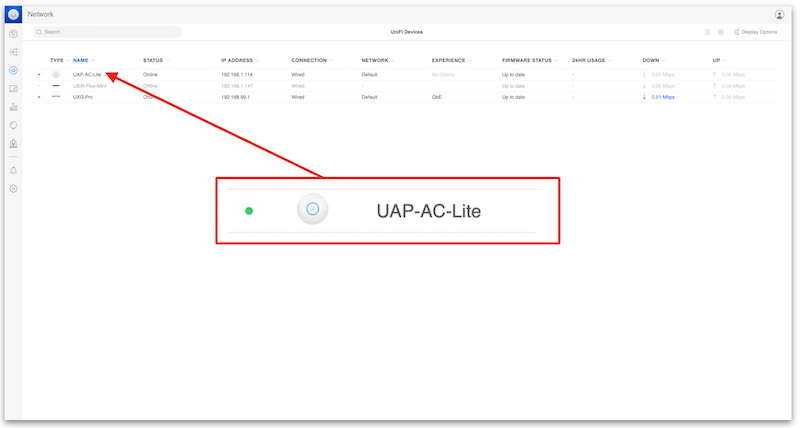
Step 2 — Select the device
Section titled “Step 2 — Select the device”Click on the access point or switch you want to reset.
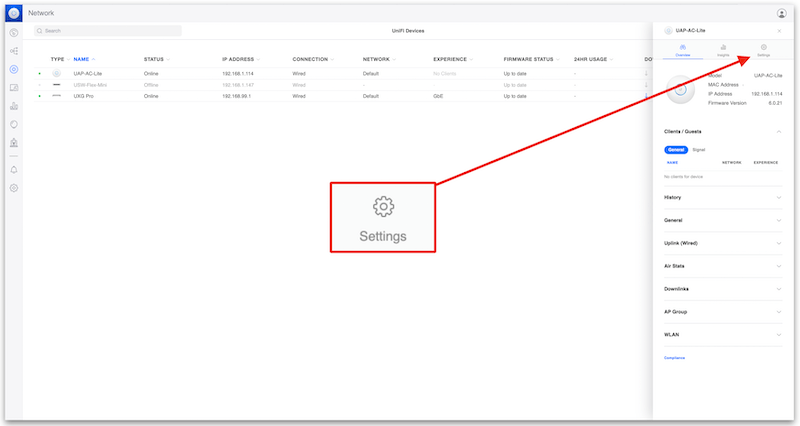
Step 3 — Open Settings
Section titled “Step 3 — Open Settings”In the device panel, click Settings.
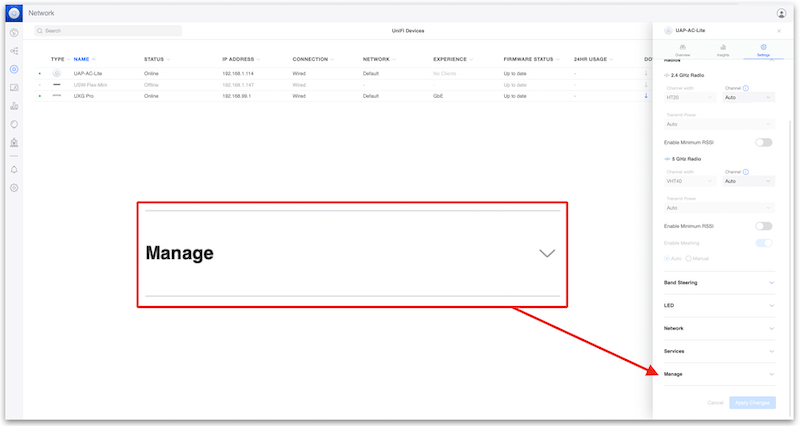
Step 4 — Open the Manage section
Section titled “Step 4 — Open the Manage section”Scroll down and expand the Manage dropdown.
Step 5 — Click Forget
Section titled “Step 5 — Click Forget”Click Forget, then confirm.
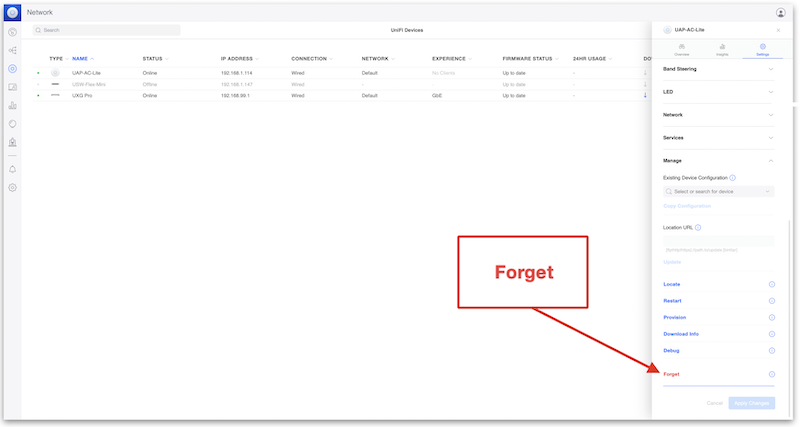
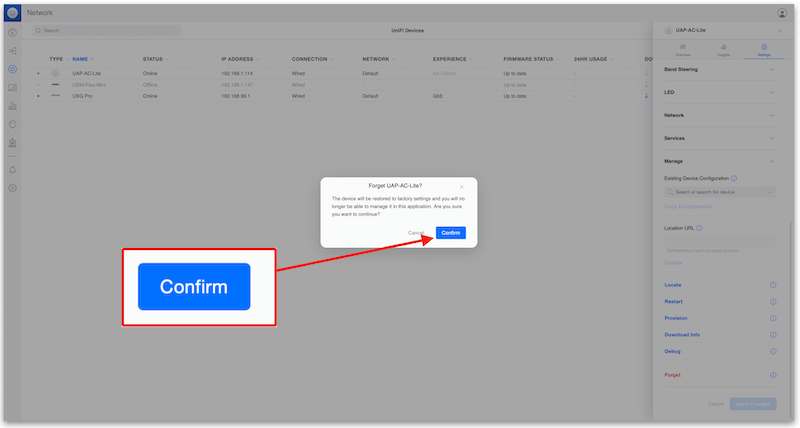
The UniFi device will reset to factory defaults, remove itself from the controller, and reboot — ready for fresh adoption.
Method 2 — Reset via SSH
Section titled “Method 2 — Reset via SSH”Use this method when the device is reachable on the network but not yet (or no longer) adopted.
Step 1 — SSH into the device
Section titled “Step 1 — SSH into the device”Connect to the device’s IP address using SSH (default credentials are ubnt / ubnt on factory-fresh devices).
Step 2 — Run the restore command
Section titled “Step 2 — Run the restore command”syswrapper.sh restore-default & set-default &The device will reboot and return to factory defaults.
Method 3 — Physical reset button (last resort)
Section titled “Method 3 — Physical reset button (last resort)”Use this method when the device is unresponsive or cannot be reached via network or controller.
Step 1 — Locate the reset button
Section titled “Step 1 — Locate the reset button”The reset button is usually next to the ethernet port. Use an unwound paperclip or a SIM ejection tool to press it.
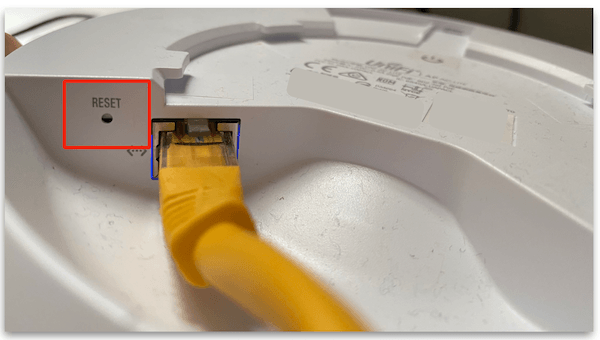
Step 2 — Hold for 10 seconds
Section titled “Step 2 — Hold for 10 seconds”Hold the reset button for 10 seconds until the LED flashes. Release the button — the device will reboot and return to factory defaults.
After a factory reset — what’s next?
Section titled “After a factory reset — what’s next?”Once your UniFi device is back to factory defaults, you can adopt it into your UniFi Controller. If you manage your UniFi network through MKController’s cloud controller, follow the UniFi device adoption guide to add it back in minutes.
Troubleshooting After a Factory Reset
Section titled “Troubleshooting After a Factory Reset”The device is not appearing in the controller after reset. After a physical or SSH reset, the device broadcasts on the local network and can be discovered by any UniFi controller on the same subnet. If it does not appear in the discovery list, check that the device has received a DHCP address and that the controller’s inform URL is reachable from the AP’s network segment.
The device keeps trying to adopt to the old controller. Some older UniFi firmware versions retain the inform URL through a factory reset. Override it by adopting the device in your new controller — once adopted, the new controller’s inform URL replaces the old one. Alternatively, SSH into the device and manually set the inform URL:
set-inform http://<new-controller-ip>:8080/informThe LED is not flashing after holding the reset button. Confirm you are holding the button the full 10 seconds — a short press reboots the device without resetting. If the LED behavior is unexpected, check the Ubiquiti hardware documentation for your specific model, as LED indicators vary between generations.
The SSH command returns “permission denied.”
Factory-fresh devices use ubnt / ubnt credentials. If the device was previously configured, the SSH password was likely changed from the default. In that case, the physical reset button is the only option.
Preventing the Need for a Reset
Section titled “Preventing the Need for a Reset”Regular preventive maintenance reduces the scenarios where a factory reset becomes necessary:
- Keep firmware updated — Ubiquiti releases patches that fix firmware states that can cause devices to become unresponsive.
- Back up your UniFi controller configuration regularly — MKController does this automatically if you use the managed cloud controller.
- Document device credentials in a secure password manager rather than relying on defaults.
Manage All Your UniFi Devices from the Cloud
Section titled “Manage All Your UniFi Devices from the Cloud”MKController’s cloud controller includes automatic backups, SSL, 24/7 monitoring, and remote access — no dedicated server required. Start your free 3-day trial.