
Unified MikroTik & UniFi Management
Summary MKController’s Unified Dashboard centralizes MikroTik and UniFi device management in a single interface, giving operators a consolidated view of their entire network infrastructure. Custom device attributes — tags, locations, responsible teams, and arbitrary metadata — add governance structure and make large fleets manageable without spreadsheets.
What Is MKController Unified Dashboard?
Section titled “What Is MKController Unified Dashboard?”MKController Unified Dashboard is a centralized management interface that displays MikroTik RouterOS devices and UniFi equipment side by side, enabling monitoring, updates, and configuration from a single browser window. It eliminates the need to switch between separate management tools for MikroTik and Ubiquiti infrastructure.
For ISPs and MSPs managing mixed-vendor networks, the unified view means one login, one audit trail, and one place to check the status of the full fleet — whether a device is a MikroTik CPE, a UniFi access point, or a NATCloud gateway.
What Does the Unified Dashboard Show?
Section titled “What Does the Unified Dashboard Show?”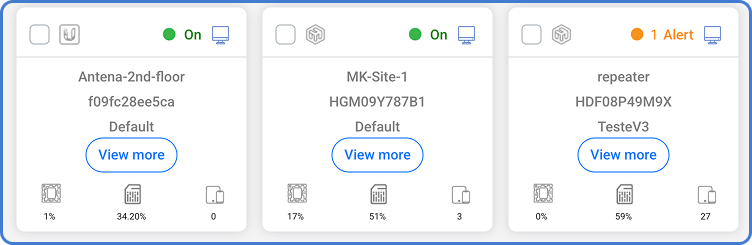
The dashboard presents all adopted devices — across MikroTik, UniFi, and NATCloud — in a single, consistent table. For each device you can:
- Monitor connectivity status and availability in real time.
- Trigger remote access (WebFig, terminal, or UniFi web interface).
- Apply configuration updates or restart devices.
- View and edit device attributes.
All operations work remotely over MKController’s encrypted infrastructure, without VPNs, static IPs, or port forwarding on the customer’s side.
What Are Device Attributes and Why Do They Matter?
Section titled “What Are Device Attributes and Why Do They Matter?”MKController lets you attach structured metadata to every device through attributes — custom fields for tags, physical location, responsible technician, contract expiry date, client name, or any other property relevant to your operation.
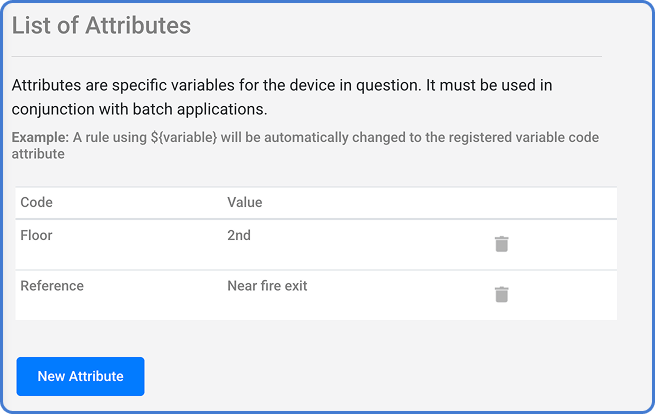
These attributes appear in the unified dashboard view alongside all other devices, giving the whole team instant context without needing to open a spreadsheet or ticket system.
Why Does This Matter for Scale?
Section titled “Why Does This Matter for Scale?”| Without attributes | With MKController attributes |
|---|---|
| Technician opens a ticket to ask which engineer manages a device | Device card shows “Responsible: Carlos Andrade” directly |
| Client asks which of their sites had an outage last week | Filter dashboard by client tag, view availability data per site |
| You need to find all devices approaching end-of-contract | Custom “Contract End” field filters immediately |
| Audit requires a list of all devices at a specific location | Filter by location tag, export in seconds |
Attributes do not require any RouterOS configuration changes — they are metadata stored in MKController and applied to the device’s record in the platform.
How Does Unified Management Help Different Teams?
Section titled “How Does Unified Management Help Different Teams?”ISPs use the unified dashboard to manage CPE routers and customer-site access points from a single account, reducing the number of tools technicians need to learn and support.
WISPs combine MikroTik backbone devices with UniFi access points; the unified view gives network operations a single pane of glass for the entire tower site.
MSPs can create separate Sites per client, assign responsibility attributes, and give each client read-only access to their own devices — all within the same MKController account.
How Do You Get Started with Unified Management?
Section titled “How Do You Get Started with Unified Management?”Unified management is available automatically once you have adopted both MikroTik and UniFi devices. To adopt UniFi devices, follow the UniFi adoption guide. To configure device attributes, open any device’s detail panel and add the fields relevant to your operation.
Practical Attribute Examples
Section titled “Practical Attribute Examples”For ISPs managing CPE devices: add a “Client Name” attribute and a “Contract Expiry” date to each device. Filter the dashboard by contract expiry date each month to proactively notify clients before billing cycles end.
For WISPs managing tower sites: add a “Tower” attribute (e.g., “North Tower 3”, “South Hill Site”) and a “Technician” attribute. When a customer calls with an outage, filter to the tower in seconds and see every affected device with its responsible technician listed.
For MSPs onboarding new clients: create a standard attribute template — Client, Site, SLA Tier, Installation Date — and apply it during the adoption flow for every new device. The first availability report is meaningful from day one.
Frequently Asked Questions
Section titled “Frequently Asked Questions”Can I export the unified device list with attributes for reporting? The MKController dashboard supports filtering and viewing all device attributes. Contact the support team for current export and API options for fleet inventory reports.
Do attributes sync to the UniFi controller? Attributes are stored in MKController’s platform layer and do not write back to the UniFi controller or RouterOS. They are governance metadata for your team’s use, not router configuration values.
How many custom attributes can I create per device? There is no fixed limit on the number of custom attributes per device. Add as many fields as your operation requires.
Does the unified dashboard require separate logins for MikroTik and UniFi? No. One MKController login gives you access to both MikroTik and UniFi devices in the same dashboard, with the same permission model.
Related guides: Adding UniFi Devices to MKController · UniFi Security — Credential Rotation · UniFi Mobile App Access
Questions about setting up unified management or configuring device attributes? Contact MKController support on WhatsApp.
Questions? 📧 contato@mkcontroller.com