
Reset UniFi přístupového bodu
Uvedení UniFi přístupového bodu zpět do továrního výchozího stavu je běžný úkol — ať už připravujete zařízení pro nové nasazení, zotavujete se z chybné konfigurace, nebo vracíte vybavení klientovi. K dispozici jsou tři metody v závislosti na tom, zda máte k zařízení stále softwarový nebo SSH přístup.
Pokud máte přístup k UniFi Controlleru, kde je zařízení adoptováno, použijte metodu přes kontroler — je nejčistší a nejspolehlivější. Pokud je zařízení v síti stále dostupné, ale není v kontroleru, je nejrychlejší reset přes SSH. Pokud nefunguje ani jedna z těchto možností, fyzické resetovací tlačítko je vždy k dispozici.
Kdy použít kterou metodu resetu
Section titled “Kdy použít kterou metodu resetu”| Metoda | Použijte, když |
|---|---|
| UniFi Controller | Zařízení je adoptováno a kontroler je dostupný |
| SSH | Zařízení je v síti, ale není adoptováno, nebo je kontroler nedostupný |
| Fyzické tlačítko | Zařízení nelze dosáhnout přes software — zapomenuté heslo, izolovaná síť |
Reset z UniFi Controlleru
Section titled “Reset z UniFi Controlleru”AP je možné resetovat z UniFi Controlleru, pokud je aktuálně adoptován.
Nejprve se přihlaste do svého UniFi Controlleru a přejděte do sekce „Devices“
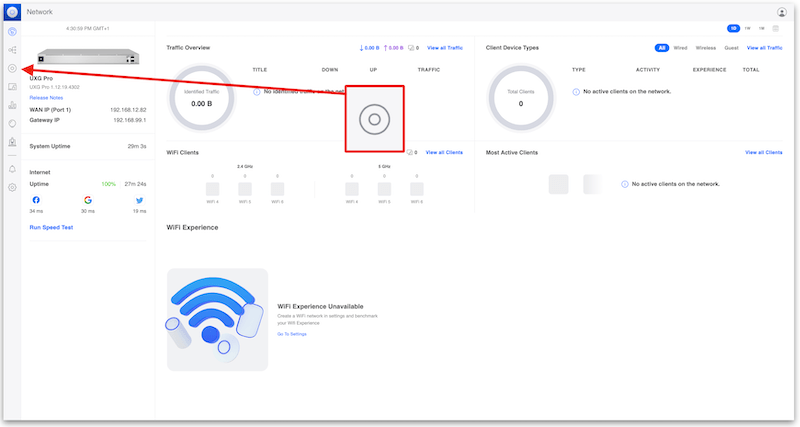
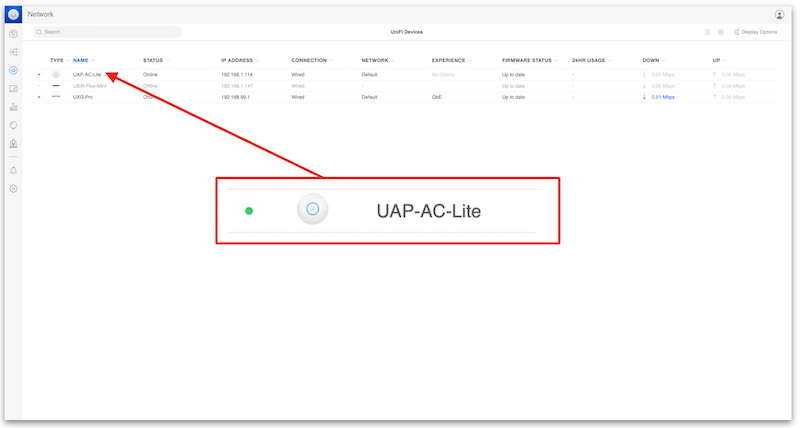
Dále vyberte zařízení, které chcete odebrat
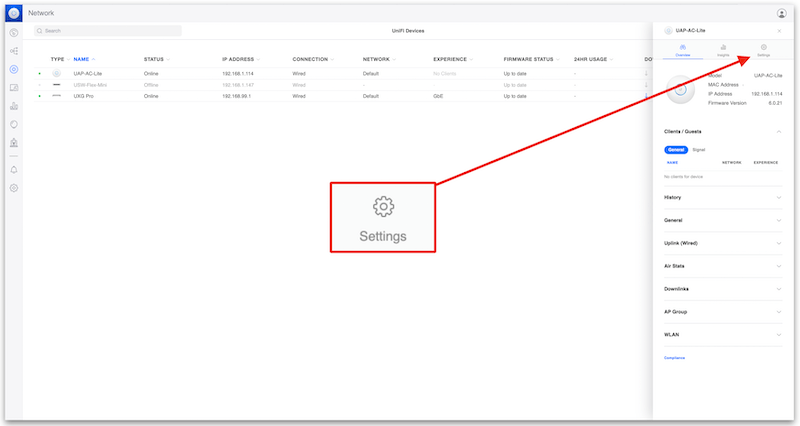
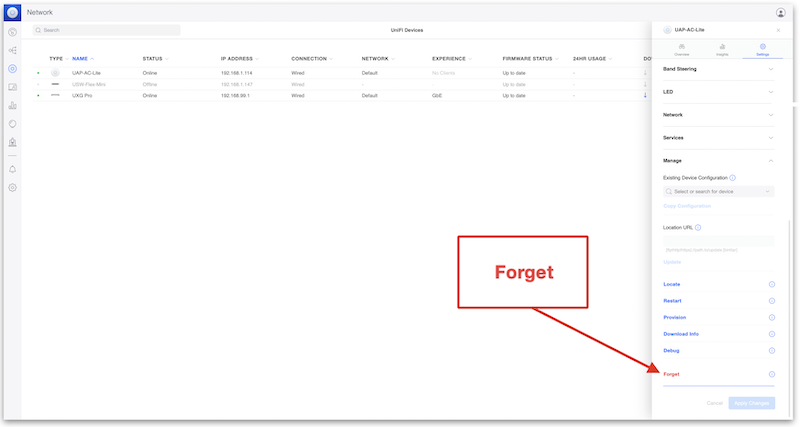
Jakmile se otevře panel zařízení, klikněte na „Settings“
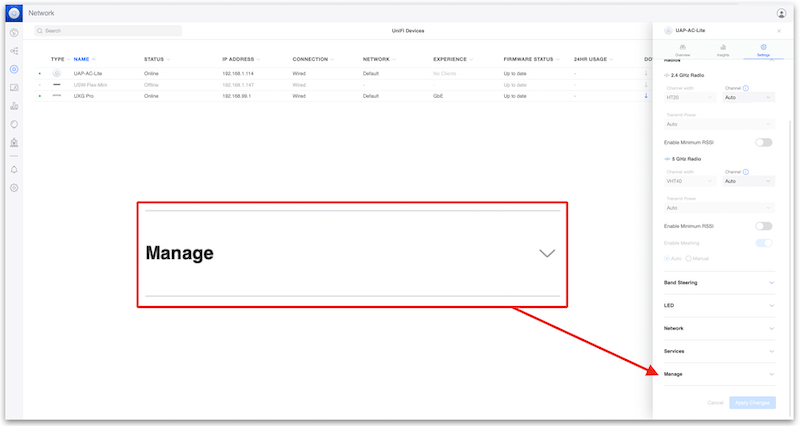
Posuňte se dolů a rozbalte rozevírací nabídku „Manage“
Klikněte na „Forget“
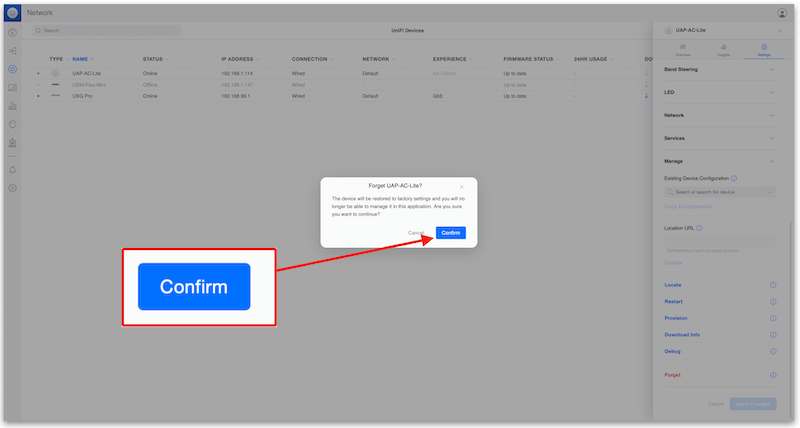
Nakonec klikněte na „Confirm“
UniFi AP poté zahájí proces návratu do továrního nastavení, odstraní se z UniFi Controlleru a bude připraven k opětovnému nastavení.
Reset přes SSH
Section titled “Reset přes SSH”Přihlaste se do UniFi AP přes SSH. Po přihlášení zadejte následující příkaz a stiskněte enter. Po dokončení se AP restartuje a vrátí se do továrního výchozího nastavení. Po dokončení bude připraven k opětovnému nastavení.
syswrapper.sh restore-default & set-default &
Reset na fyzickém zařízení
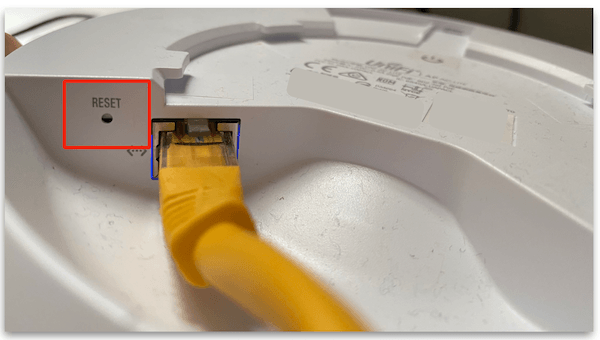
Section titled “Reset na fyzickém zařízení”UniFi APs mají fyzické resetovací tlačítko, obvykle umístěné vedle ethernetového portu. Jakmile tlačítko najdete, podržte ho stisknuté po dobu 10 sekund, dokud nezačnou blikat LED kontrolky. Po dokončení se AP restartuje a vrátí se do továrního výchozího nastavení. Po dokončení bude připraven k opětovnému nastavení.
Nejlepším nástrojem k použití je narovnaná kancelářská sponka nebo nástroj na vysunutí SIM karty. Na fotografii níže je UAP AC Lite.
Co očekávat po továrním resetu
Section titled “Co očekávat po továrním resetu”Po dokončení kterékoli metody resetu UniFi AP:
- Restartuje se a vrátí se do továrního výchozího nastavení — veškerá předchozí konfigurace je vymazána
- Vysílá výchozí UniFi SSID (viditelné v nástrojích pro skenování bezdrátových sítí), pokud bylo nakonfigurováno z výroby
- Stane se rozpoznatelným pro adopci novým UniFi Controllerem nebo UniFi kontrolerem hostovaným v MKControlleru
- Nemá nastavené admin heslo — první adopce nakonfiguruje přihlašovací údaje zařízení
Pokud byl AP dříve adoptován v kontroleru, je po resetu zcela odstraněn ze seznamu zařízení daného kontroleru. Před opětovnou správou je nutná opětovná adopce.
Řešení problémů s resetem UniFi AP
Section titled “Řešení problémů s resetem UniFi AP”Fyzické tlačítko nespustilo reset. Ujistěte se, že tlačítko držíte stisknuté celých 10 sekund — nikoli pouze krátce (což zařízení pouze restartuje bez resetu). Před uvolněním sledujte, zda LED rychle nezačne blikat.
Po resetu přes SSH se AP neobjevuje pro adopci. Zkontrolujte, zda má AP DHCP adresu a síťové připojení. Zařízení, která po resetu nemohou dosáhnout inform URL kontroleru, se zobrazují jako „Pending“ nebo se v seznamu rozpoznaných zařízení vůbec neobjeví. Ověřte, že adresa kontroleru je dosažitelná z podsítě AP.
Volba „Forget“ v kontroleru je zašedlá nebo chybí. Některé verze UniFi Controlleru vyžadují, aby bylo zařízení online, aby bylo možné spustit tovární reset ze softwaru. Pokud je AP offline, použijte místo toho metodu přes SSH nebo fyzické tlačítko.
AP se po resetu stále znovu připojuje ke starému kontroleru. Některé starší verze firmwaru UniFi AP si uchovávají inform URL i po továrním resetu. Adoptujte zařízení do svého nového kontroleru a ten aktualizuje inform URL, čímž přepíše tu starou.
Než provedete reset: Exportujte svou konfiguraci
Section titled “Než provedete reset: Exportujte svou konfiguraci”Pokud je zařízení stále dostupné — buď přes kontroler, nebo přes SSH — exportujte před resetem kopii jeho konfigurace. V UniFi Controlleru přejděte na Settings → Backup a stáhněte nejnovější zálohovací soubor. Tento soubor po resetu zařízení neobnoví, ale poskytne vám referenci k tomu, jak bylo zařízení nakonfigurováno, včetně názvů SSID, přiřazení VLAN a nastavení rádia, které budete muset znovu zadat během opětovné adopce. Pokud spravujete svá UniFi zařízení prostřednictvím cloudového kontroleru MKControlleru, automatické zálohy se již vytvářejí za vás — podrobnosti najdete v průvodci zálohováním a obnovou.
Spravujete UniFi zařízení společně s MikroTik? UniFiController od MKControlleru poskytuje cloudově hostovaný UniFi kontroler s automatickými zálohami, SSL a sjednocenou správou — bez nutnosti Cloud Key.