
Reset UniFi pristupne točke — 3 metode
Sažetak
Section titled “Sažetak”Vraćanje UniFi uređaja na tvorničke postavke vraća pristupnu točku ili preklopnik na zadane postavke firmvera, uklanja ga s bilo kojeg kontrolera i čini ga spremnim za novo usvajanje. Postoje tri metode: reset putem UniFi Controllera (ako je uređaj trenutno usvojen), SSH naredba ili fizički gumb za reset. Ovaj vodič pokriva sve tri.
Vraćanje UniFi uređaja na tvorničke postavke briše svu lokalnu konfiguraciju na uređaju i uklanja njegovu povezanost s bilo kojim UniFi Controllerom. Koristite ga kada trebate ponovno usvojiti uređaj na novi kontroler, riješiti zaglavljeno stanje firmvera ili pripremiti uređaj za preprodaju ili ponovno postavljanje.
Koju metodu resetiranja trebate koristiti?
Section titled “Koju metodu resetiranja trebate koristiti?”| Situacija | Najbolja metoda |
|---|---|
| Uređaj je usvojen i dostupan u kontroleru | Reset putem UniFi Controllera (najjednostavnije) |
| Uređaj je dostupan na mreži, ali nije usvojen | SSH naredba za reset |
| Uređaj ne reagira, krivo je konfiguriran ili je nedostupan | Fizički gumb za reset (krajnja mjera) |
1. metoda — Reset putem UniFi Controllera
Section titled “1. metoda — Reset putem UniFi Controllera”Koristite ovu metodu kada je uređaj trenutno usvojen u vašem kontroleru i dostupan.
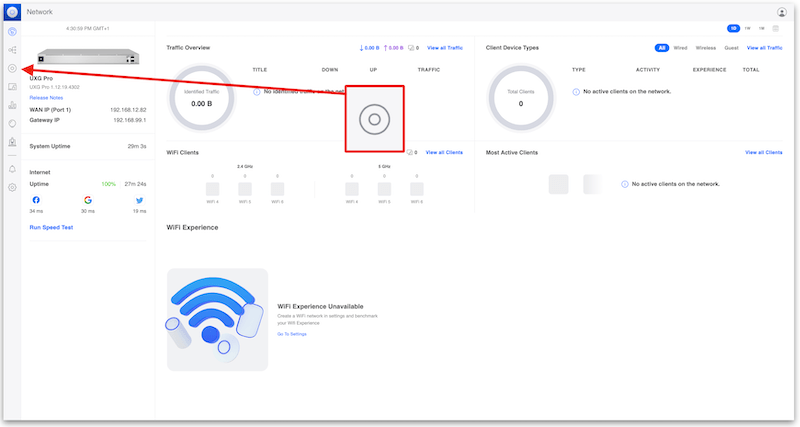
1. korak — Idite na Uređaji
Section titled “1. korak — Idite na Uređaji”Prijavite se u svoj UniFi Controller i otvorite odjeljak Uređaji.
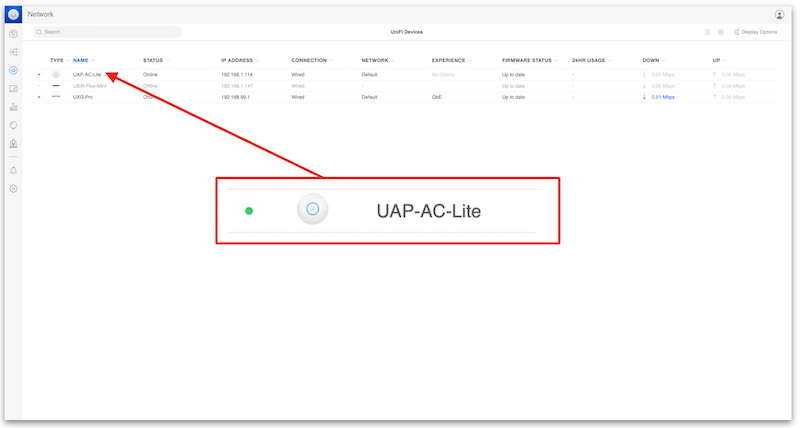
2. korak — Odaberite uređaj
Section titled “2. korak — Odaberite uređaj”Kliknite na pristupnu točku ili preklopnik koji želite resetirati.
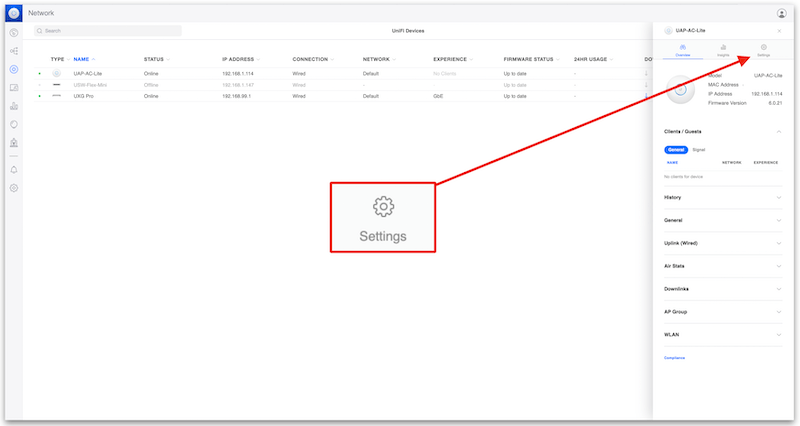
3. korak — Otvorite Postavke
Section titled “3. korak — Otvorite Postavke”Na ploči uređaja kliknite Postavke.
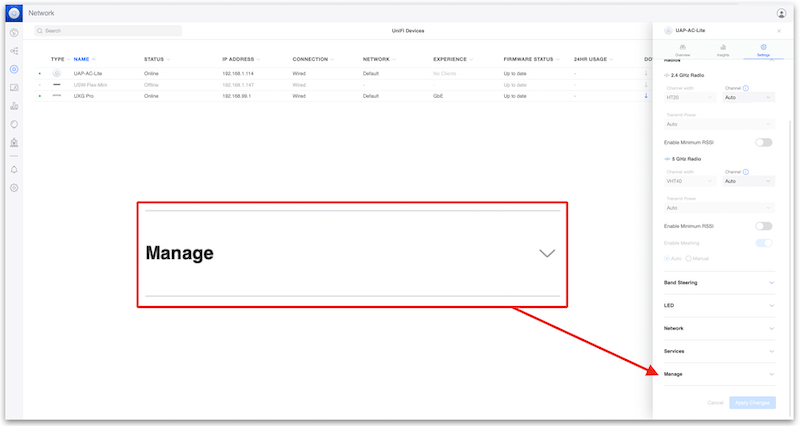
4. korak — Otvorite odjeljak Upravljanje
Section titled “4. korak — Otvorite odjeljak Upravljanje”Pomaknite se prema dolje i proširite padajući izbornik Upravljanje.
5. korak — Kliknite Zaboravi
Section titled “5. korak — Kliknite Zaboravi”Kliknite Zaboravi, zatim potvrdite.
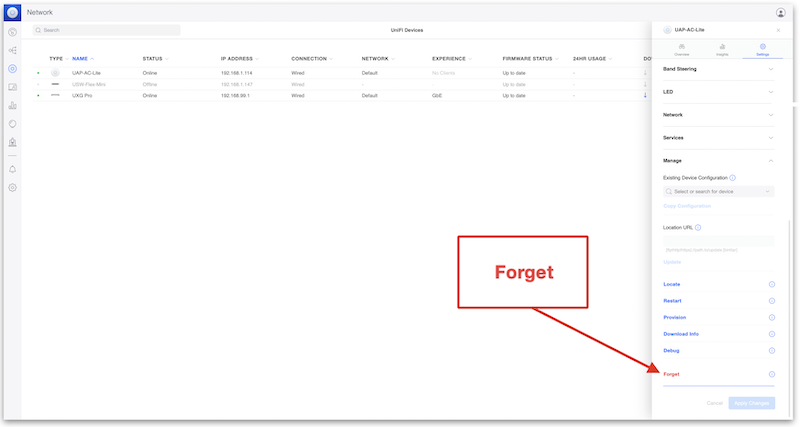
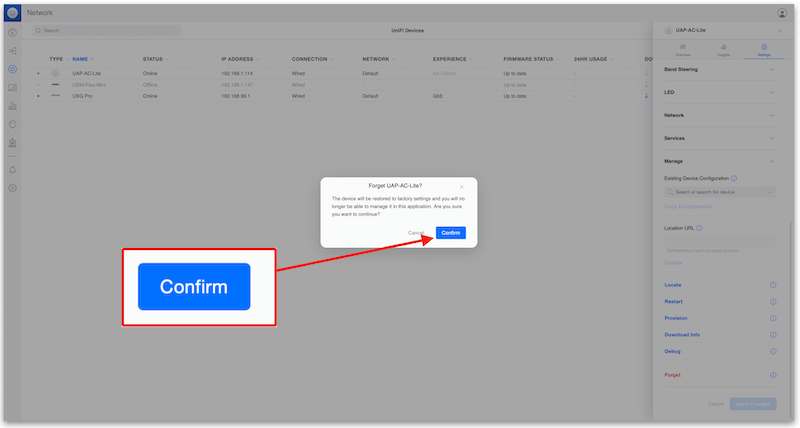
UniFi uređaj će se resetirati na tvorničke postavke, ukloniti se s kontrolera i ponovno pokrenuti — spreman za novo usvajanje.
2. metoda — Reset putem SSH-a
Section titled “2. metoda — Reset putem SSH-a”Koristite ovu metodu kada je uređaj dostupan na mreži, ali još nije (ili više nije) usvojen.
1. korak — Spojite se na uređaj putem SSH-a
Section titled “1. korak — Spojite se na uređaj putem SSH-a”Spojite se na IP adresu uređaja putem SSH-a (zadane vjerodajnice su ubnt / ubnt na uređajima s tvorničkim postavkama).
2. korak — Pokrenite naredbu za vraćanje
Section titled “2. korak — Pokrenite naredbu za vraćanje”syswrapper.sh restore-default & set-default &Uređaj će se ponovno pokrenuti i vratiti na tvorničke postavke.
3. metoda — Fizički gumb za reset (krajnja mjera)
Section titled “3. metoda — Fizički gumb za reset (krajnja mjera)”Koristite ovu metodu kada uređaj ne reagira ili mu se ne može pristupiti putem mreže ili kontrolera.
1. korak — Pronađite gumb za reset
Section titled “1. korak — Pronađite gumb za reset”Gumb za reset obično se nalazi pokraj ethernet priključka. Za pritiskanje upotrijebite razmotanu spajalicu ili alat za vađenje SIM kartice.
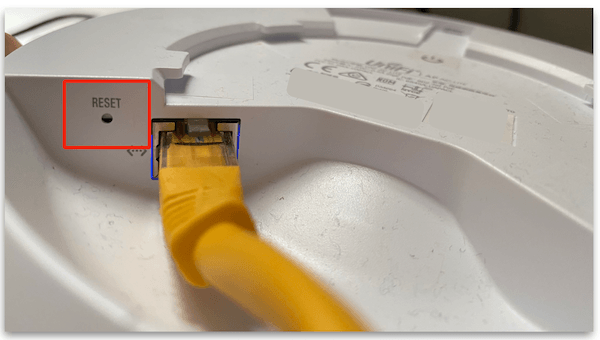
2. korak — Držite 10 sekundi
Section titled “2. korak — Držite 10 sekundi”Držite gumb za reset 10 sekundi dok LED ne počne treperiti. Otpustite gumb — uređaj će se ponovno pokrenuti i vratiti na tvorničke postavke.
Nakon vraćanja na tvorničke postavke — što slijedi?
Section titled “Nakon vraćanja na tvorničke postavke — što slijedi?”Nakon što je vaš UniFi uređaj ponovno na tvorničkim postavkama, možete ga usvojiti u svoj UniFi Controller. Ako svojom UniFi mrežom upravljate putem MKControllerovog cloud kontrolera, slijedite vodič za usvajanje UniFi uređaja kako biste ga vratili u nekoliko minuta.
Rješavanje problema nakon vraćanja na tvorničke postavke
Section titled “Rješavanje problema nakon vraćanja na tvorničke postavke”Uređaj se ne pojavljuje u kontroleru nakon resetiranja. Nakon fizičkog ili SSH reseta, uređaj emitira na lokalnoj mreži i može ga otkriti bilo koji UniFi kontroler na istoj podmreži. Ako se ne pojavi na popisu otkrivenih uređaja, provjerite je li uređaj dobio DHCP adresu i je li inform URL kontrolera dostupan iz mrežnog segmenta AP-a.
Uređaj se i dalje pokušava usvojiti na stari kontroler. Neke starije verzije UniFi firmvera zadržavaju inform URL i nakon vraćanja na tvorničke postavke. Premostite to usvajanjem uređaja u svom novom kontroleru — nakon usvajanja, inform URL novog kontrolera zamjenjuje stari. Alternativno, spojite se na uređaj putem SSH-a i ručno postavite inform URL:
set-inform http://<new-controller-ip>:8080/informLED ne treperi nakon držanja gumba za reset. Provjerite držite li gumb punih 10 sekundi — kratki pritisak ponovno pokreće uređaj bez resetiranja. Ako je ponašanje LED-a neočekivano, provjerite Ubiquiti hardversku dokumentaciju za svoj konkretni model, jer se LED indikatori razlikuju među generacijama.
SSH naredba vraća “permission denied.”
Uređaji s tvorničkim postavkama koriste vjerodajnice ubnt / ubnt. Ako je uređaj prethodno bio konfiguriran, SSH lozinka je vjerojatno promijenjena sa zadane. U tom slučaju jedina je opcija fizički gumb za reset.
Sprječavanje potrebe za resetiranjem
Section titled “Sprječavanje potrebe za resetiranjem”Redovito preventivno održavanje smanjuje scenarije u kojima vraćanje na tvorničke postavke postaje nužno:
- Održavajte firmver ažuriranim — Ubiquiti objavljuje zakrpe koje rješavaju stanja firmvera koja mogu uzrokovati da uređaji prestanu reagirati.
- Redovito izrađujte sigurnosnu kopiju konfiguracije svog UniFi kontrolera — MKController to radi automatski ako koristite upravljani cloud kontroler.
- Dokumentirajte vjerodajnice uređaja u sigurnom upravitelju lozinki umjesto da se oslanjate na zadane.
Upravljajte svim svojim UniFi uređajima iz oblaka
Section titled “Upravljajte svim svojim UniFi uređajima iz oblaka”MKControllerov cloud kontroler uključuje automatske sigurnosne kopije, SSL, nadzor 24/7 i daljinski pristup — bez potrebe za namjenskim poslužiteljem. Započnite svoje besplatno 3-dnevno probno razdoblje.