
WiFi Monetization Dashboard, Realtime & Reports
Ez a tartalom még nem érhető el a jelenlegi nyelven.
Summary The Dashboard is your control room: revenue, codes used, online sales, and new users for any period, with breakdowns by plan and batch and banners that flag what needs fixing. The Realtime tab shows who is connected right now and lets you act on a session. Reports drill into usage over time, and Customers shows who your guests are. It is how you turn activity into decisions.
What Is the WiFi Monetization Dashboard?
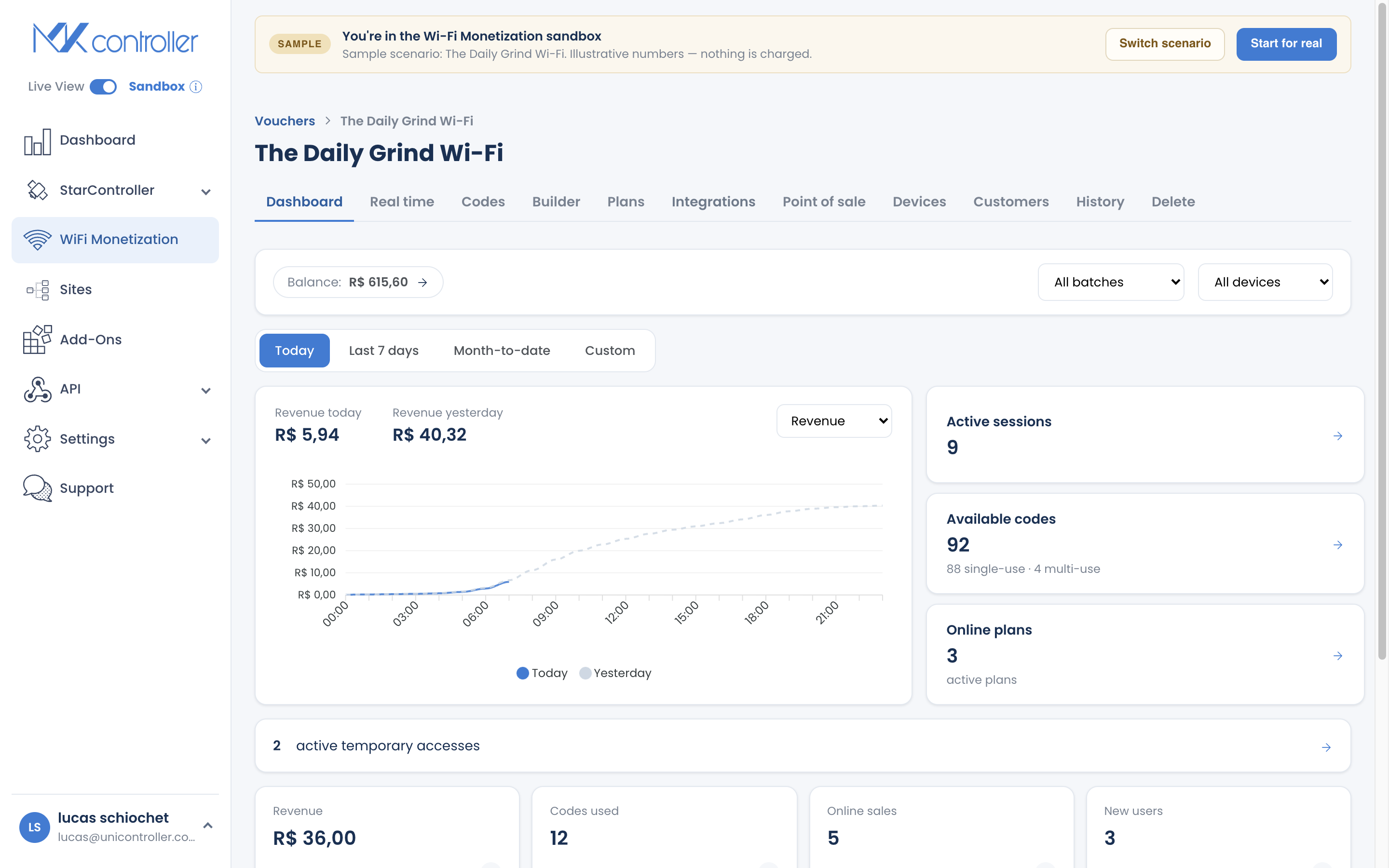
Section titled “What Is the WiFi Monetization Dashboard?”The Dashboard (Painel) is the first thing you see inside a voucher. It answers the question every operator asks — “is this working?” — with revenue and usage at a glance, and points you to anything that needs attention.
Choose your period
Section titled “Choose your period”Period tabs — Today, 7 days, Month, Custom — sit above the dashboard so every number reflects the window you care about. The times are shown in your configured timezone.
The chart
Section titled “The chart”A chart plots revenue or codes used, today against yesterday, clipped to the current hour so there is no misleading empty stretch ahead.
The four KPIs
Section titled “The four KPIs”- Faturado (Revenue) — what you earned.
- Códigos utilizados (Codes used) — how many codes were redeemed.
- Vendas on-line (Online sales) — plans sold on the portal.
- Novos usuários (New users) — first-time guests.
Each KPI links to an “Open report” for the detail behind the number.
Breakdowns
Section titled “Breakdowns”See usage by plan and usage by batch, so you know which offers and which distribution points are pulling their weight.
Action banners
Section titled “Action banners”Amber banners flag things to fix — “a batch has no price,” “link a device,” “set your timezone” — each with a button that jumps straight to the screen where you fix it. They turn a problem into a one-click next step.
Balance pill
Section titled “Balance pill”The header’s balance pill shows your Pix earnings and opens Payout.
Realtime: Manage Live Sessions
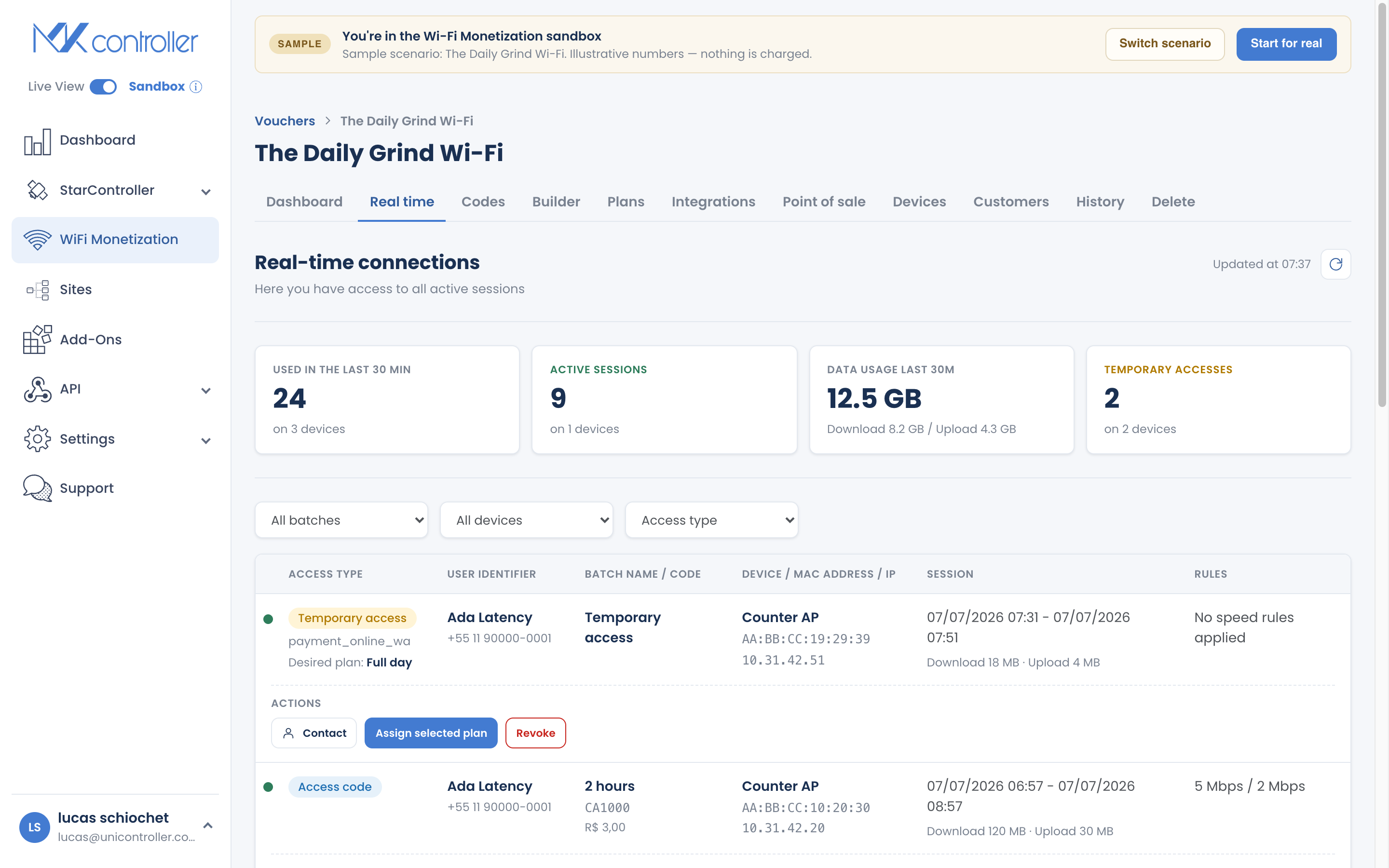
Section titled “Realtime: Manage Live Sessions”The Realtime (Tempo real) tab shows guests connected right now — access type, guest name and contact, device and site, batch, code, data used, and the session’s start and end.
Per session, you can:
- Disconnect (revoke) the session.
- Contact the guest on WhatsApp (using the number captured at the portal).
- Assign a plan — mint a plan code and move the guest onto it (handy for a WhatsApp sale).
- Copy the Pix link to resend to a guest who is paying.
Reports: Drill Into Usage
Section titled “Reports: Drill Into Usage”Open a report from any dashboard metric to see the usage events behind it. Reports offer preset ranges (7 / 30 / 60 days) plus custom, and remember your filters. Open a single event for a report detail — the full session: guest identifier, gross and net revenue, batch, device, code, data used, the rules applied, and why the session ended (time, data, or revoked).
Customers: Know Your Guests
Section titled “Customers: Know Your Guests”The Customers (Clientes) tab summarizes your guests — unique devices, contactable emails and phones — and lists each with their access history.
Turning the Dashboard Into Decisions
Section titled “Turning the Dashboard Into Decisions”- Clear the banners first. They are the fastest wins — an unpriced batch or an unlinked device is money left on the table.
- Compare plans and batches. Double down on what sells; pause or rework what doesn’t.
- Watch new users vs revenue. Lots of new users but low revenue can mean your plan ladder or pricing needs a tweak.
Frequently Asked Questions
Section titled “Frequently Asked Questions”Where do I see revenue? On the Dashboard, for any period you choose, with breakdowns by plan and batch.
Can I disconnect a guest? Yes — use Revoke on the Realtime tab.
Can I resend a Pix link or move a guest to a plan? Yes. Realtime lets you copy a Pix link and assign a plan per session.
Why doesn’t Realtime update on its own? It refreshes on demand to stay light on slow connections. Use the refresh control for the latest state.
Does the dashboard respect my timezone? Yes. Periods and charts use your configured timezone.
Explore next: Get Paid — Payout & Financeiro · Create & Sell Online Plans · How Guests Connect & Pay · WiFi Monetization FAQ
Ready to watch your hotspot earn? Start your free MKController account or talk to our team on WhatsApp.