
Collection Steps in ISP Manager: Reminder to Automatic Restore
The collection steps decide what happens when a bill is not paid: a Reminder before the due date, an Overdue notice after it, then Reduce speed and Block on the router, and Automatic restore as soon as the bill is paid. You set them per operation on the Automation tab. They run only after the operation is activated.
▶ How the collection steps work in ISP Manager · from Reminder to Block — video in English, with captions.
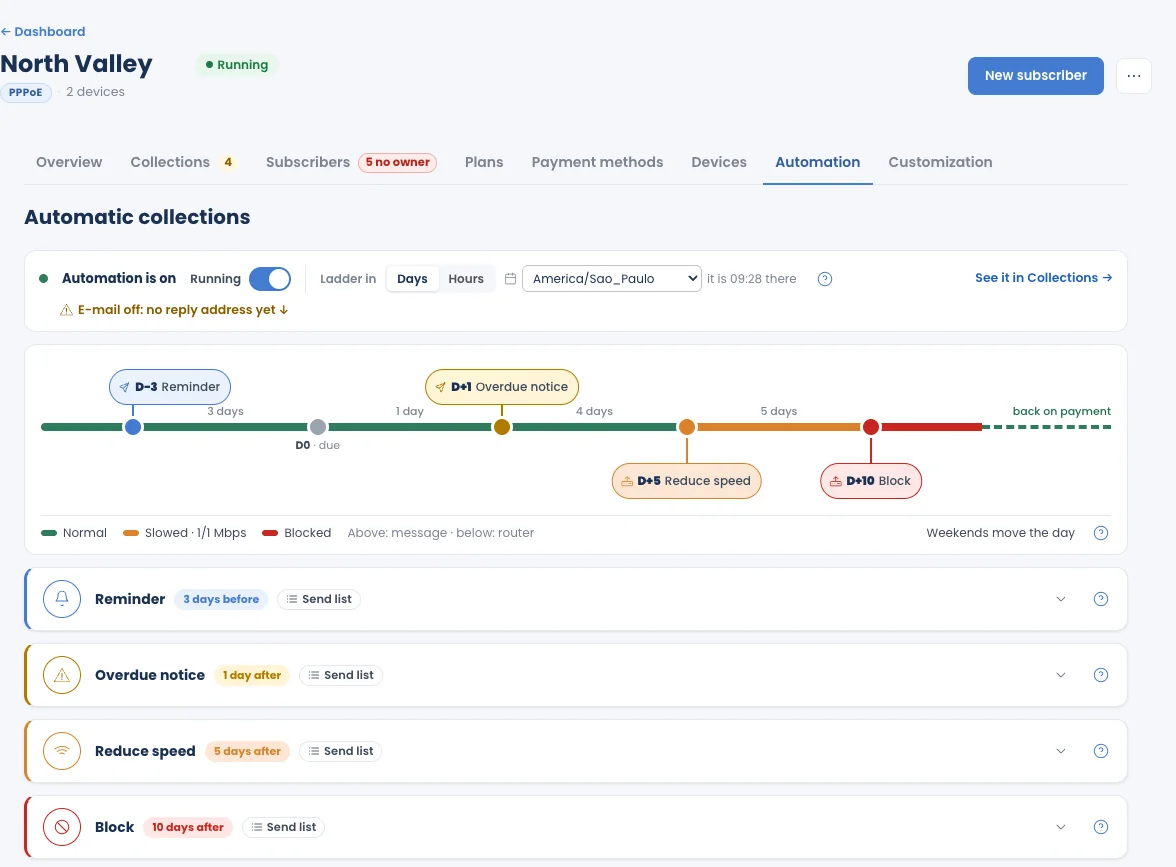
The five steps
Section titled “The five steps”| Step | When | What the subscriber experiences |
|---|---|---|
| Reminder | Days (or hours) before the due date | Gets a message that the bill is due soon. Service is unchanged. |
| Overdue notice | After the due date | Gets a message that the bill is overdue. Service is unchanged. |
| Reduce speed | After the due date | The connection is slowed on the router, not cut: the subscriber is moved to the reduced-speed profile you marked (for example 1/1 Mbps). |
| Block | After the due date | The internet is cut on the router until the bill is paid. |
| Automatic restore | When the bill is paid | Speed and access come back on the router within seconds, and the subscriber gets a message that service is back. |
Reminder and Overdue notice send messages. Reduce speed and Block act on the router. Automatic restore undoes them.
Activate the collection steps
Section titled “Activate the collection steps”A new operation is a draft: no invoices are issued and no step runs.
- Open the operation and click the Automation tab.
- Check the days of each step.
- Click Activate this operation.
Once active, the tab shows Automation is on and the operation’s status is Running. To stop billing, see Deactivate or delete.
Days or hours
Section titled “Days or hours”Ladder in switches between:
- Days: each step happens a number of days before or after the due date.
- Hours: each step counts hours from the exact due time. Use it when a subscriber’s day matters, for example to cut at a given hour.
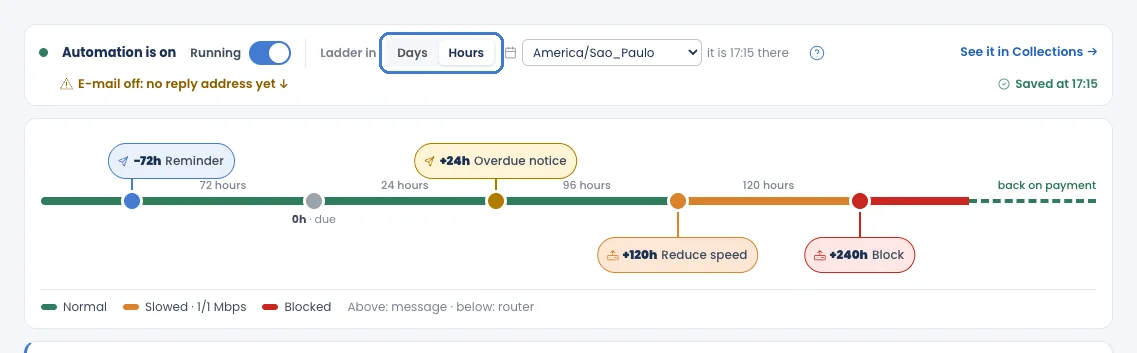
Next to it, pick the operation’s time zone; the tab shows the current time there. Every time in the operation follows this time zone.
Read the ruler
Section titled “Read the ruler”The ruler draws the steps on a timeline around the due date (D0): messages above the line, router actions below it. The colours show the subscriber’s connection: Normal, Slowed and Blocked, then back on payment.
- Weekends move the day (in days only): a step that falls on a Saturday or Sunday moves to the Monday, or to the Friday if it is a step before the due date: always away from the due date. Holidays are not considered. In hours, weekends change nothing.
- Each step’s card shows its timing and a Send list of who it applies to. Open a card to change it.
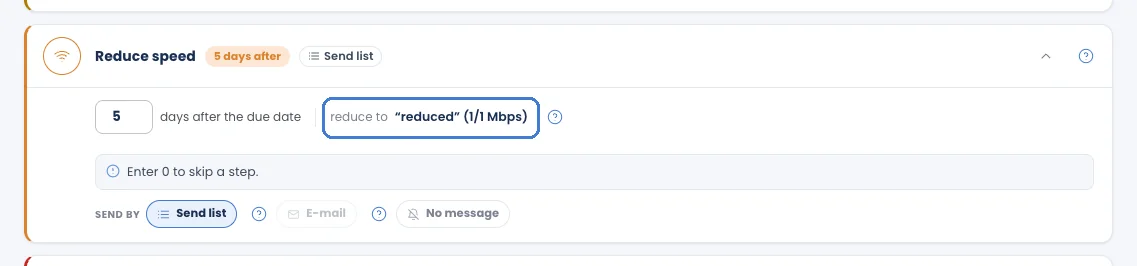
Reduce speed needs a reduced-speed profile
Section titled “Reduce speed needs a reduced-speed profile”Reduce speed moves an overdue subscriber to a PPPoE profile you marked as Reduced-speed profile (no monthly price) when you set up the plans. If no profile is marked, mark one in the setup’s Plans step or enter 0 to skip the step.
Messages and e-mail
Section titled “Messages and e-mail”- E-mail goes out on its own. By default it is sent from the MKController address; to send from your own address, connect your Gmail or SendGrid in Integrations › Channels and use Connect my e-mail on this tab. See Billing e-mails.
- WhatsApp and SMS are not sent automatically: you copy the message, send it from your own account and mark it as sent on the Collections tab.
- The steps move on even if a message is not sent. A subscriber whose reminder was never sent still reaches the next step on its day.

When service comes back
Section titled “When service comes back”- Paid through the link: the gateway confirms the payment and Automatic restore gives service back within seconds.
- Paid outside the system: Record a payment (or mark the invoice paid) on the subscriber’s page; service comes back the same way.
- Automatic restore switched off: nobody is restored on their own; you restore each subscriber by hand from their page.
Every step taken, and every restore, is listed on the subscriber’s History tab.
If your plan loses ISP Manager
Section titled “If your plan loses ISP Manager”If the account moves to Basic, a trial ends without a subscription, or the MKController account is blocked for an unpaid invoice, every running operation pauses: no step runs and nothing is sent to any router. A subscriber who pays during the pause still gets service back. See When your plan changes.