
ISP Manager: Bill and Run Your PPPoE Subscribers
ISP Manager bills and runs a small ISP’s PPPoE subscribers from MKController. It reads the PPPoE logins and profiles already on your MikroTik, turns them into plans and subscribers, issues a monthly invoice for each one, and runs the collection steps you choose: a reminder, an overdue notice, a speed reduction and a block on the router. When the bill is paid, service comes back automatically.
▶ Month end on autopilot: billing and collections for small ISPs · ISP Manager — video in English, with captions.
Who can use it
Section titled “Who can use it”| Your MKController plan | What you get |
|---|---|
| Advanced | Everything: create operations, bill subscribers, run the collection steps. |
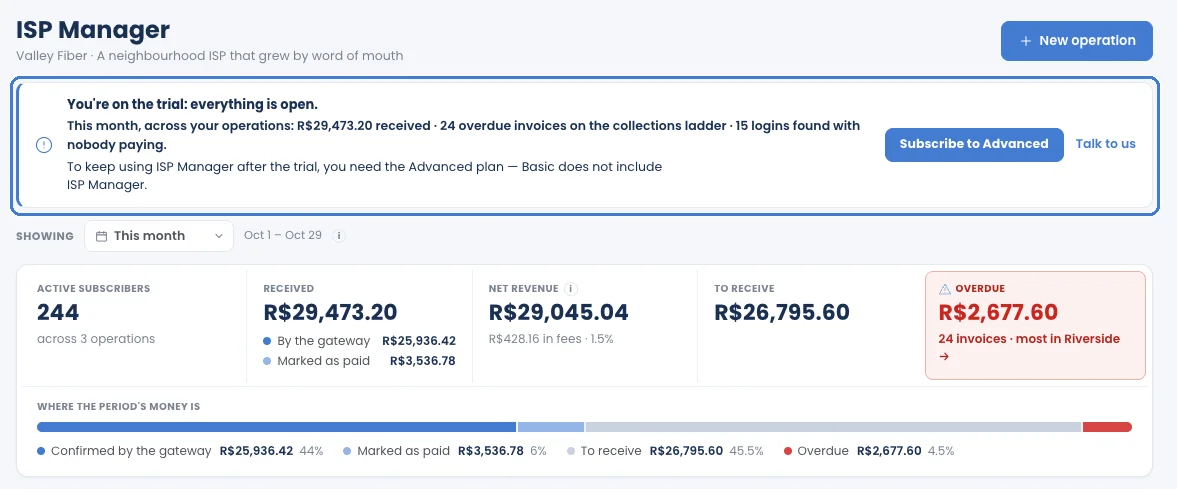
| Free trial | The same as Advanced while the trial is active. |
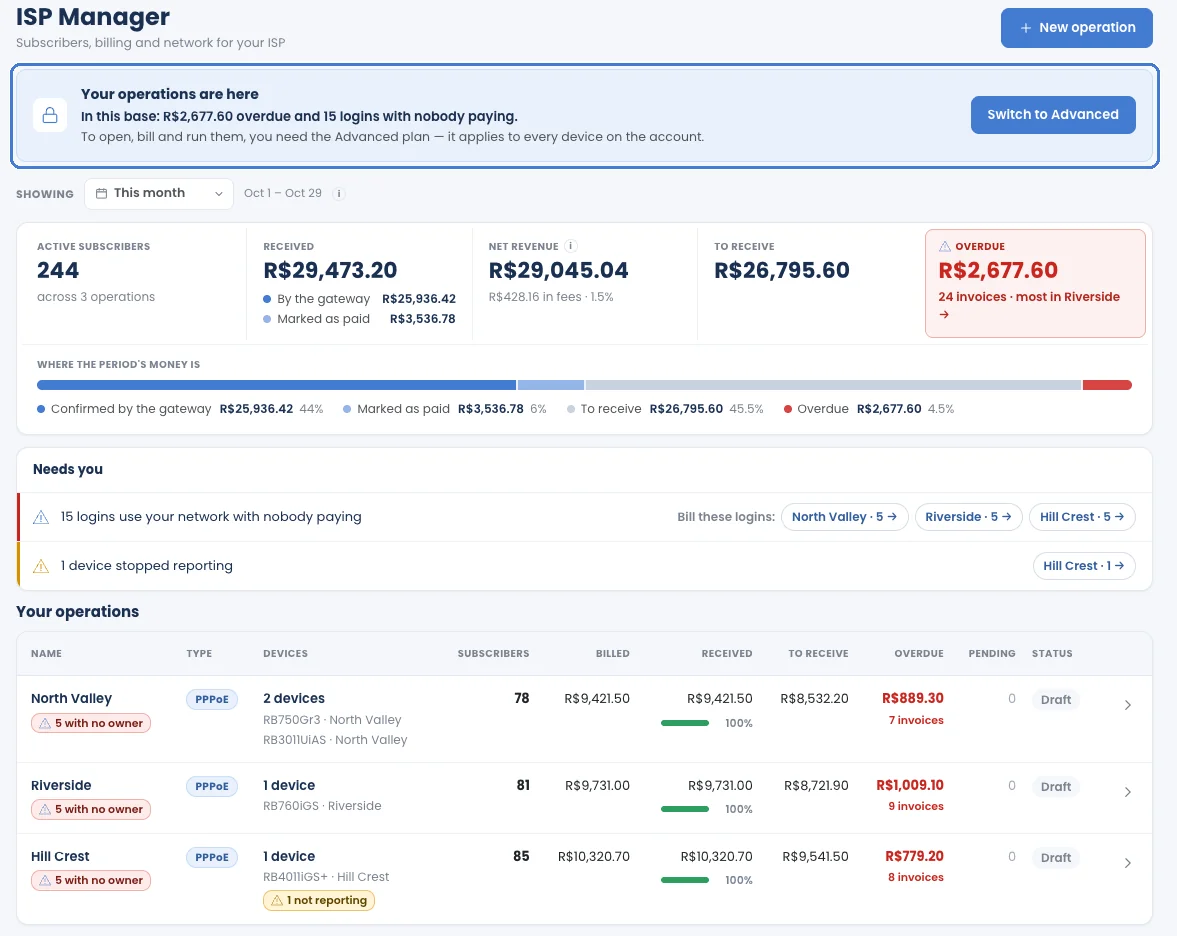
| Basic | No access: ISP Manager is an Advanced feature. Operations created earlier (on Advanced or during a trial) appear in a locked, read-only list with their figures (subscribers, amounts, overdue); you can’t open, change or create one. |
To keep using ISP Manager after a trial, subscribe to Advanced. See Plans and pricing and When your plan changes.
ISP Manager’s screens are available in Portuguese, English and Spanish.
What you need
Section titled “What you need”- An adopted MikroTik that serves your subscribers over PPPoE. ISP Manager reads its PPPoE profiles and logins.
- PPPoE only. A base run on IPoE (no login, subscribers identified by IP and shaped by a queue) is not read.
- Optional: a payment gateway, so subscribers can pay each invoice through a link, and your own e-mail account, so billing e-mails go out from your address. Both are set up once in Integrations (see Payment methods and Billing e-mails).
How it is organised
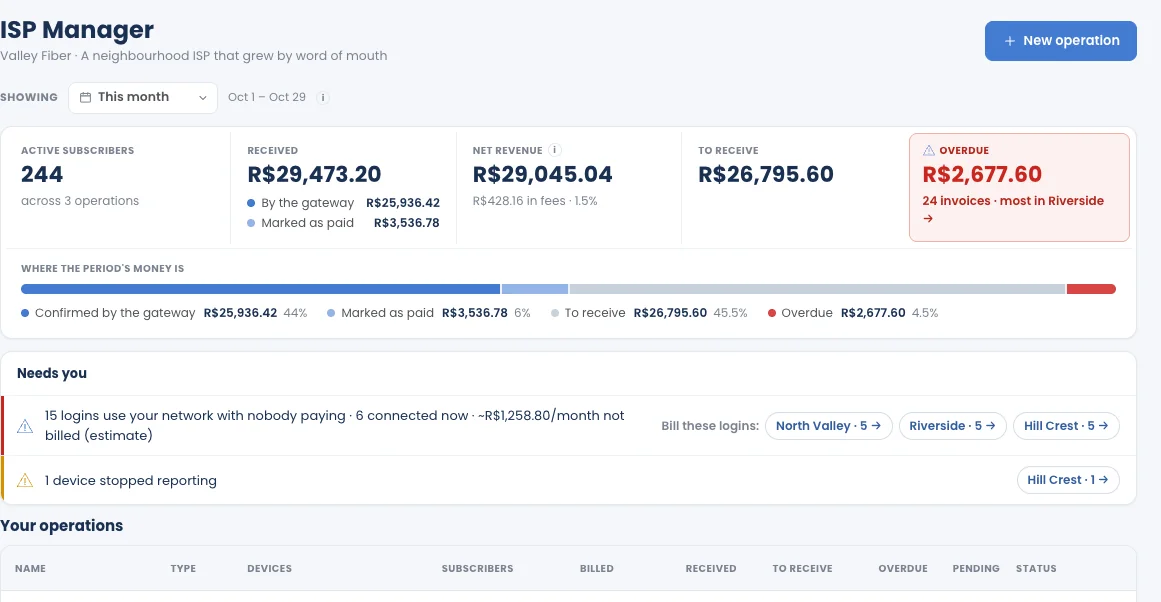
Section titled “How it is organised”- Dashboard: every operation you run, with the money received, to receive and overdue, and what needs you today.
- Operation: one per city or POP. Each operation has its own routers, plans, subscribers, currency, time zone and collection steps, in eight tabs: Overview, Collections, Subscribers, Plans, Payment methods, Devices, Automation, Customization.
- Subscriber page: one per subscriber, with Overview, Financial, Connection & network, History, Notes, Files.
How an operation starts
Section titled “How an operation starts”- You create an operation with an 8-step setup. There is no approval step: finishing Review creates it. See Create an operation.
- The new operation is a draft. Nothing is billed and no collection step runs.
- When you are ready, you click Activate this operation on the operation’s Automation tab. From then on, invoices are issued and the collection steps run.
The collection steps
Section titled “The collection steps”| Step | What it does |
|---|---|
| Reminder | Sends a message before the due date. |
| Overdue notice | Sends a message after the due date. |
| Reduce speed | Slows the subscriber’s connection on the router. |
| Block | Cuts the subscriber’s internet on the router. |
| Automatic restore | Gives service back when the bill is paid, and tells the subscriber. |
Each step can be switched off. The goal is to get paid and keep subscribers connected, not to block them: see Collection steps for exactly what a subscriber experiences at each step.
Next steps
Section titled “Next steps”Questions? Talk to our team in the chat inside MKController, or on WhatsApp.