
ISP Manager Subscribers and the Subscriber Page
The Subscribers tab lists every PPPoE login on an operation’s routers and the person behind it; the subscriber page holds everything about one person. Open an operation and click Subscribers.
The Subscribers tab
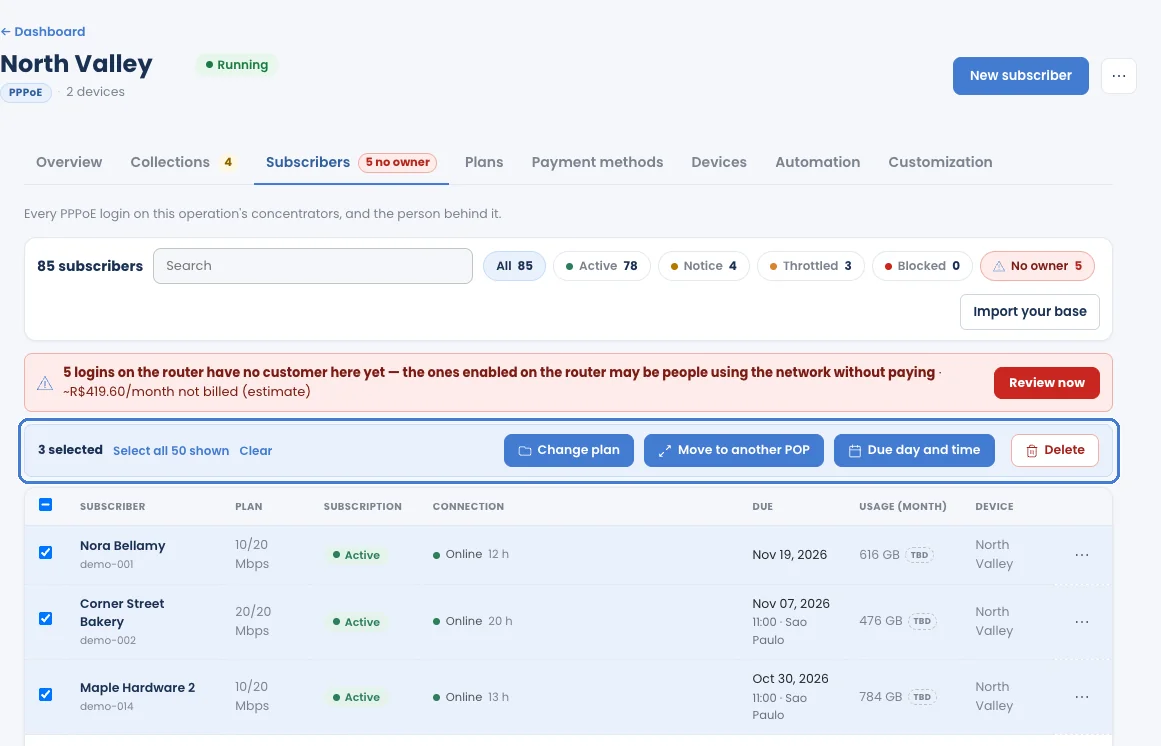
Section titled “The Subscribers tab”- Search by name or login, and filter by status with the chips at the top.
- Each row shows the Subscriber (name and PPPoE login), Plan, Subscription, Connection, Due date, Usage (month) and Device.
- Import your base brings in subscribers from a file.
- Select rows with the checkboxes to act on several subscribers at once: Change plan, Move to another POP, Due day and time or Delete.
Logins with no owner
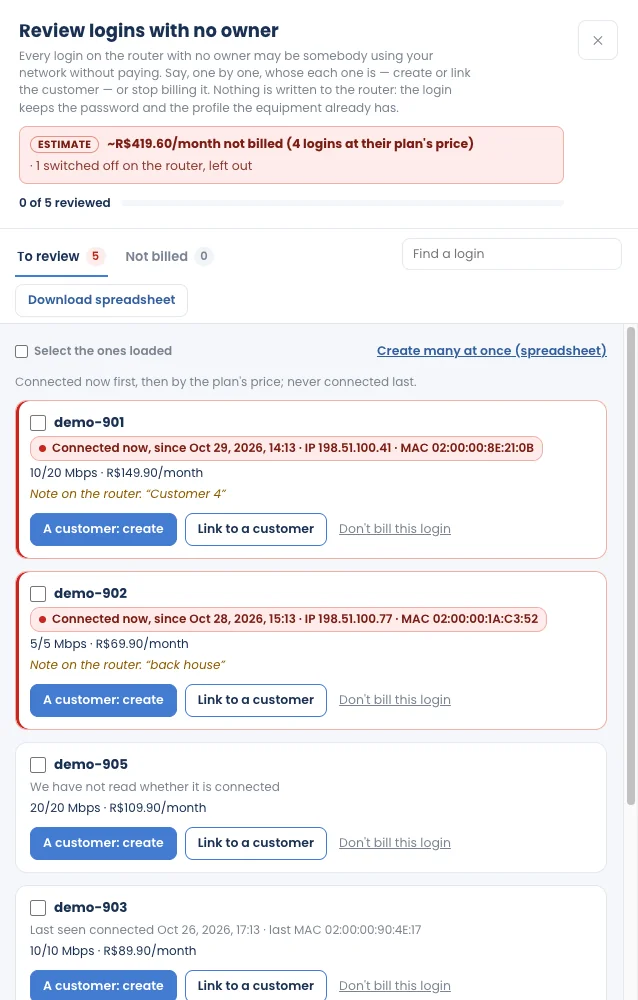
Section titled “Logins with no owner”A login that exists on the router but has no subscriber in ISP Manager is shown as No owner. If it is enabled on the router, someone may be using your network without paying; the banner shows an estimate of what that costs per month. Click Review now to give each login an owner, or leave it out.
Add a subscriber
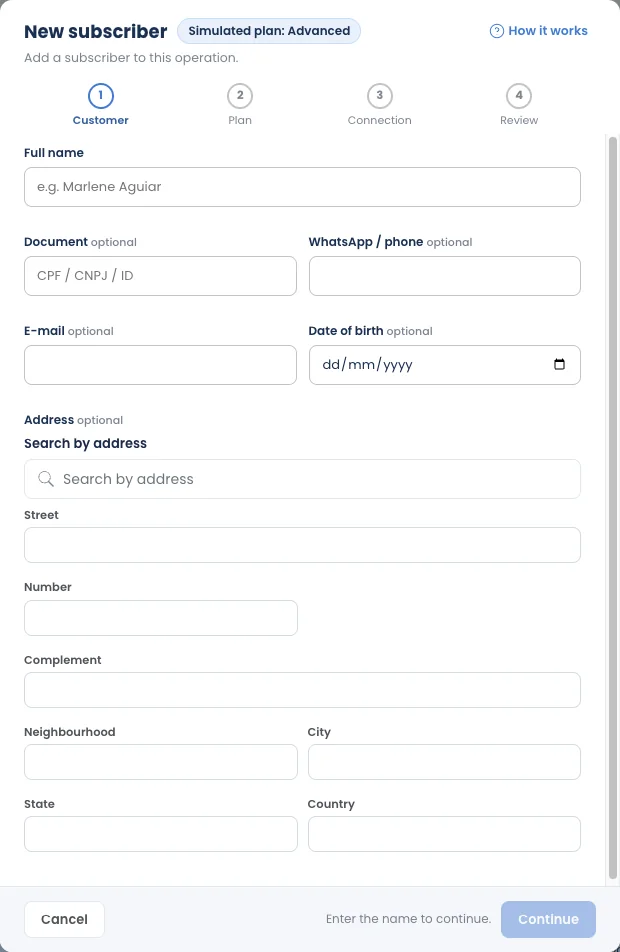
Section titled “Add a subscriber”- Click New subscriber at the top of the operation.
- Fill in the four steps: Customer, Plan, Connection and Review.
- Save.
The subscriber page
Section titled “The subscriber page”Click a subscriber to open their page. The header shows the name, status, login, plan and operation, with a WhatsApp button. The row of figures under it is the same on every tab: Status, Open, Days late, Next due date, Customer since.
Overview
Section titled “Overview”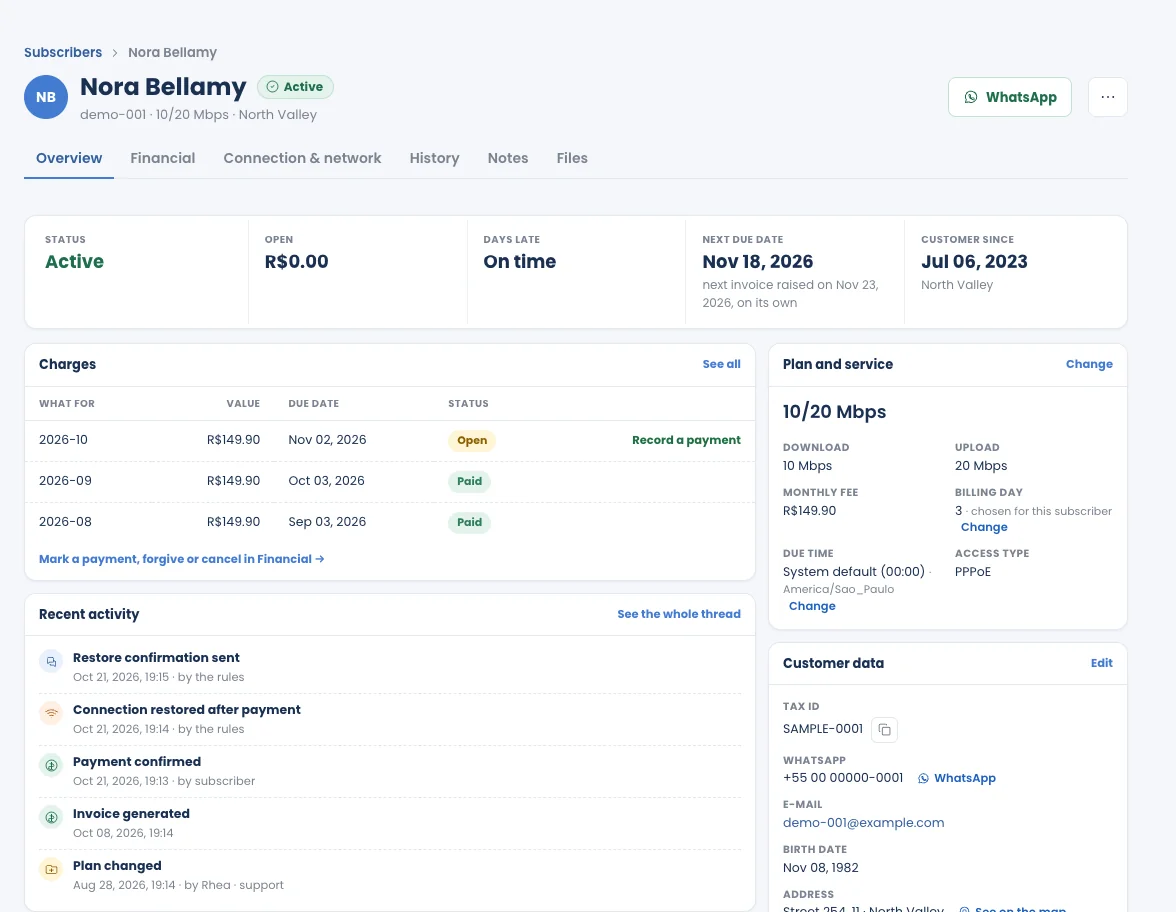
- Charges: the latest invoices, with Record a payment on an open one.
- Plan and service: plan, Download and Upload in Mbps, monthly fee, Billing day (chosen per subscriber), Due time and access type. Change edits them.
- Customer data: tax ID, WhatsApp, e-mail, address. Edit corrects them.
- Recent activity: the last events, such as an invoice generated, a payment confirmed or a connection restored.
Financial
Section titled “Financial”Every invoice, filtered by All, Open or Closed, with how it was paid. From here you can:
- Mark as paid an invoice paid outside the system;
- open the ⋯ menu of an invoice to forgive or cancel it;
- Generate charge for an extra invoice.
Record a payment
Section titled “Record a payment”
When a subscriber pays you directly (cash, a transfer you received), click Record a payment on the open charge, choose How did they pay?, set the Paid on date and click Confirm payment. The invoice counts as paid. If their service was reduced or blocked, Automatic restore gives it back within seconds (unless it is switched off on the Automation tab).
Promise to pay
Section titled “Promise to pay”
If a subscriber promises to pay by a certain date, record the Promise to pay with that date and the reason, and click Let them back on. Their service comes back until that date. Nothing is settled or forgiven: they still owe the full amount, and if the date passes without payment, the collection steps put them back where they were.
Connection & network
Section titled “Connection & network”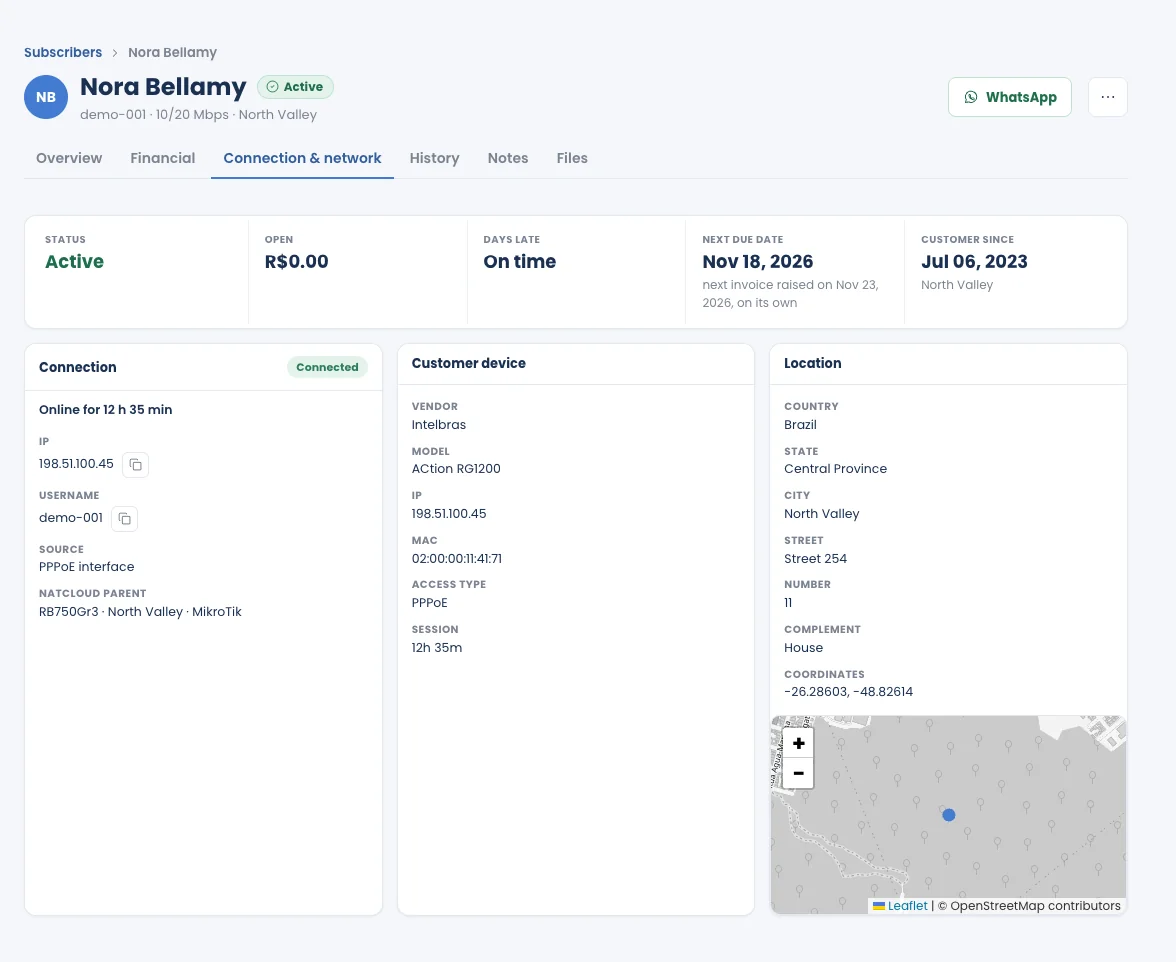
- Connection: online or offline and for how long, IP, PPPoE username, and the router it hangs from.
- Customer device: vendor, model, IP, MAC and session.
- Location: the address and a map.
History
Section titled “History”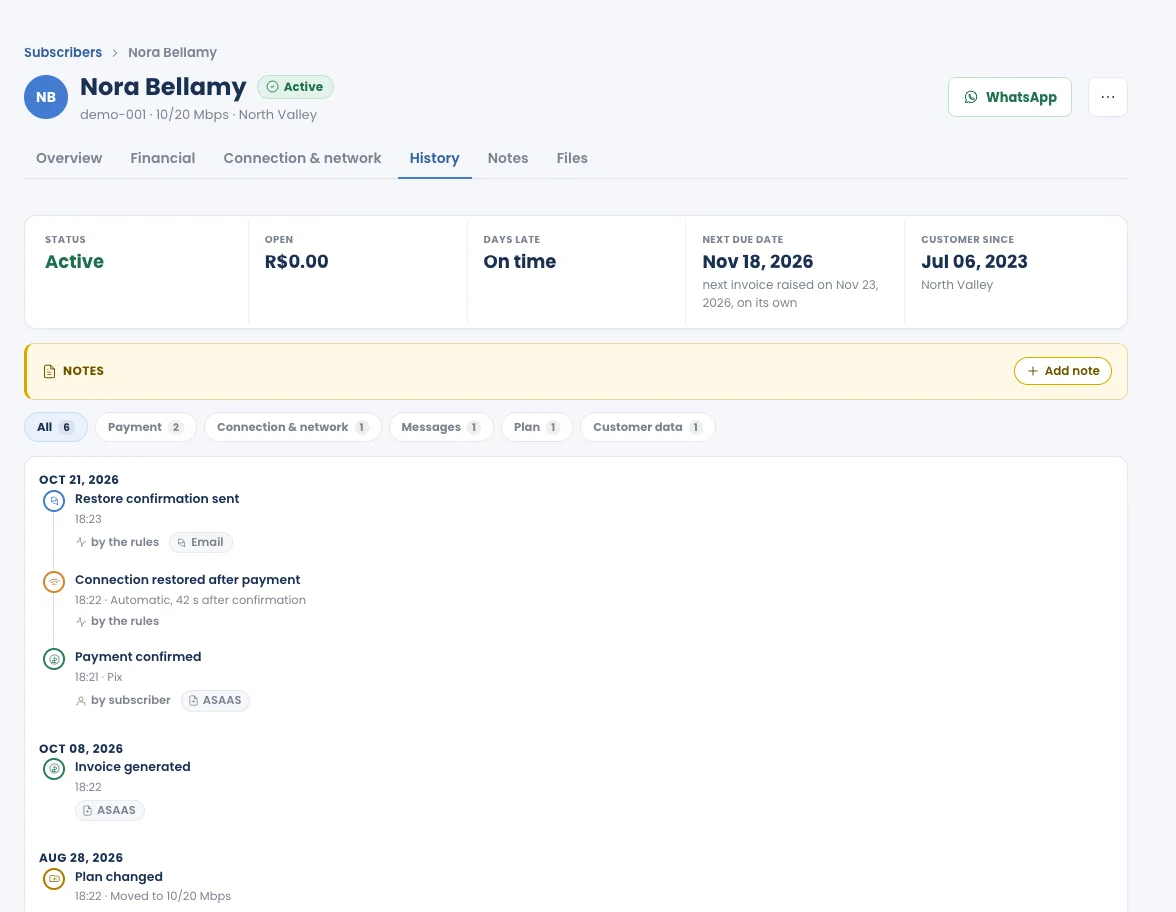
Everything that happened to this subscriber, newest first: payments, connection changes, messages sent, plan changes and edits to their data, with who or what did each one (by the rules, by subscriber, or a person on your team). Filter by type with the chips.
Notes and Files
Section titled “Notes and Files”
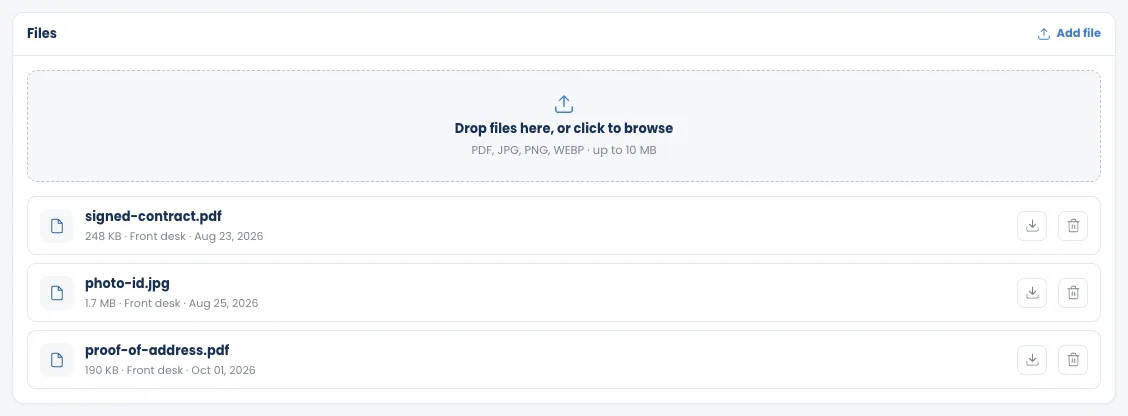
- Notes: leave a note so the next person who picks up this customer knows what you know.
- Files: attach contracts or documents (PDF, JPG, PNG or WEBP, up to 10 MB each).