
Aggiungi il Primo Dispositivo UniFi
Riepilogo L’adozione di un dispositivo UniFi in MKController collega il tuo hardware Ubiquiti a un controller ospitato nel cloud, eliminando la necessità di un server controller UniFi locale. Sono disponibili due metodi: l’Adoption Assistant scansiona automaticamente i dispositivi sulla stessa rete di un router MikroTik adottato, mentre il metodo Manuale funziona su qualsiasi rete tramite un comando SSH set-inform.
Cosa significa adottare un dispositivo UniFi in MKController?
Section titled “Cosa significa adottare un dispositivo UniFi in MKController?”Adottare un dispositivo UniFi in MKController significa indirizzare il dispositivo verso il controller UniFi ospitato nel cloud di MKController utilizzando il comando set-inform. Una volta adottato, il dispositivo appare nella dashboard unificata di MKController insieme a tutti i dispositivi MikroTik che gestisci — senza alcun software o server controller UniFi locale.
MKController supporta access point, switch e gateway Ubiquiti. Il modulo UniFiController fa parte della piattaforma più ampia di MKController, consentendo a ISP, WISP e integratori IT di gestire reti miste MikroTik e UniFi da un’unica interfaccia.
Quali sono i requisiti?
Section titled “Quali sono i requisiti?”Prima di iniziare, verifica quanto segue:
- Disponi di un account MKController attivo con almeno un dispositivo MikroTik adottato.
- Disponi di accesso fisico o remoto al dispositivo UniFi che vuoi adottare.
- Il dispositivo UniFi dispone di connettività internet.
Quale metodo di adozione dovresti usare?
Section titled “Quale metodo di adozione dovresti usare?”| Metodo | Quando usarlo |
|---|---|
| Adoption Assistant (consigliato) | Il dispositivo UniFi e il tuo dispositivo MikroTik sono sulla stessa rete |
| Adozione Manuale | I dispositivi sono su reti diverse, o preferisci un approccio passo-passo |
Metodo 1: Adoption Assistant (assistito dall’IA, consigliato)
Section titled “Metodo 1: Adoption Assistant (assistito dall’IA, consigliato)”L’Adoption Assistant scansiona la rete in cui si trova il tuo MikroTik, individua i dispositivi UniFi compatibili e ti permette di adottarli con un solo clic.
Requisiti per l’Adoption Assistant
Section titled “Requisiti per l’Adoption Assistant”- Il dispositivo UniFi è sulla stessa rete di un dispositivo MikroTik già adottato.
- Quel MikroTik è raggiungibile e online in MKController.
Passo 1: Apri l’Adoption Assistant
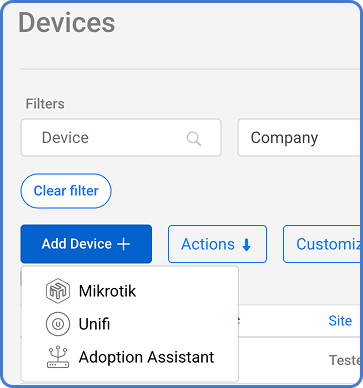
Section titled “Passo 1: Apri l’Adoption Assistant”Nell’area Dispositivi del tuo account MKController, clicca su Aggiungi dispositivo + e poi seleziona Adoption Assistant.
Passo 2: Lascia che il sistema scansioni
Section titled “Passo 2: Lascia che il sistema scansioni”MKController utilizza il MikroTik adottato sulla stessa rete per cercare i dispositivi UniFi nelle vicinanze. Attendi i risultati.
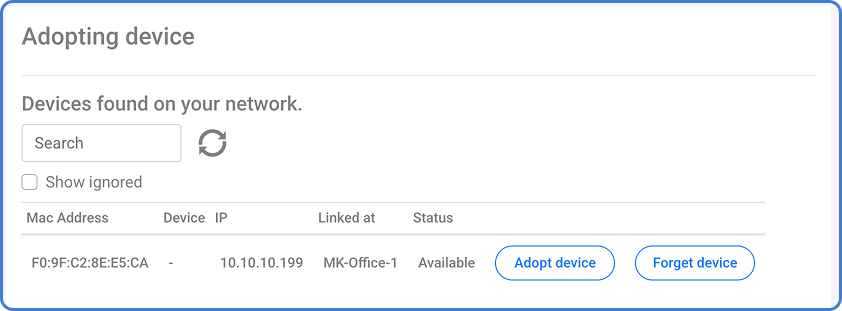
Quando il dispositivo appare, clicca su Adotta dispositivo.
Passo 3: Configura il dispositivo
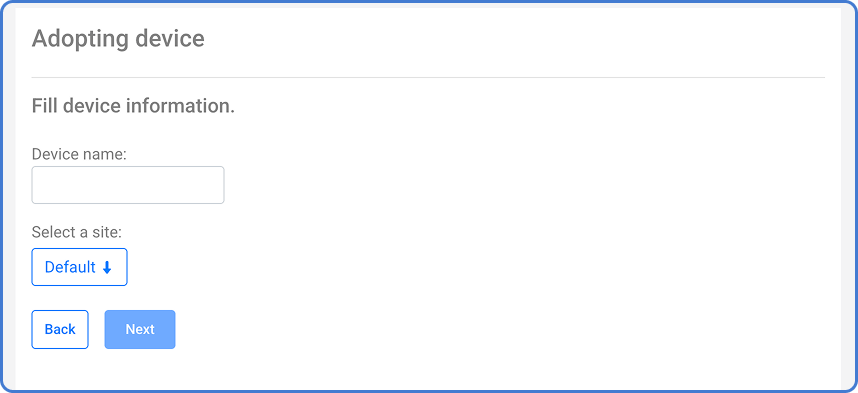
Section titled “Passo 3: Configura il dispositivo”Assegna un nome visualizzato al dispositivo e seleziona un Sito in cui organizzarlo.
Passo 4: Completa l’adozione
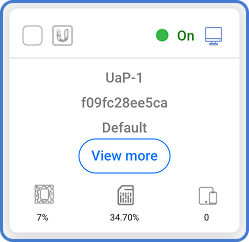
Section titled “Passo 4: Completa l’adozione”Attendi il termine del processo di adozione. Una volta completato, il dispositivo è attivo nella tua dashboard MKController.
Metodo 2: Adozione Manuale
Section titled “Metodo 2: Adozione Manuale”Usa questo metodo quando il dispositivo UniFi e il MikroTik si trovano su reti diverse, oppure quando preferisci il controllo diretto sul processo di adozione.
Passo 1: Avvia l’adozione manuale
Section titled “Passo 1: Avvia l’adozione manuale”Nell’area Dispositivi, clicca su Aggiungi dispositivo + e seleziona Unifi.
Passo 2: Crea il record del dispositivo
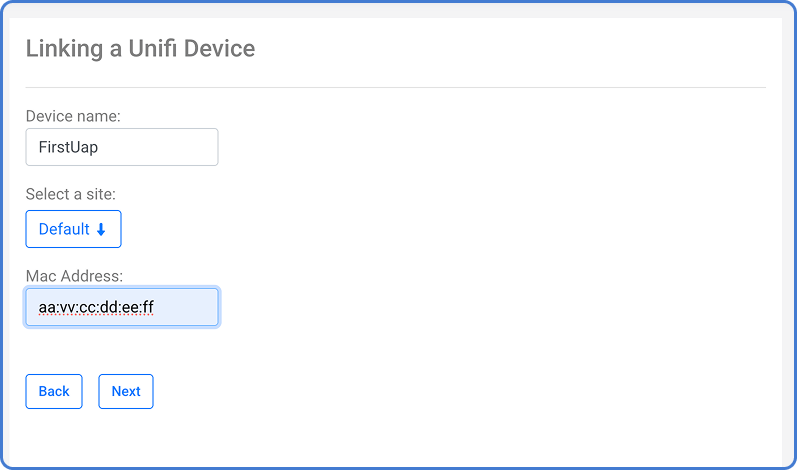
Section titled “Passo 2: Crea il record del dispositivo”Assegna un nome al dispositivo, seleziona un Sito e inserisci l’indirizzo MAC del dispositivo.
Passo 3: Esegui il comando set-inform
Section titled “Passo 3: Esegui il comando set-inform”Dopo aver completato il Passo 2, MKController fornisce un comando set-inform specifico per il tuo controller.
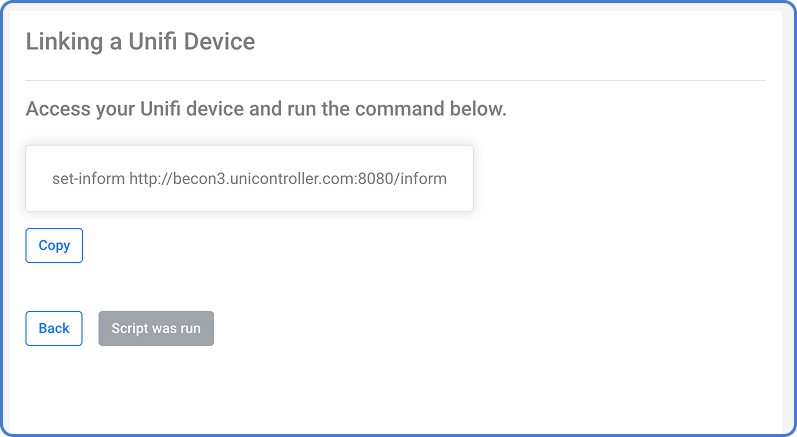
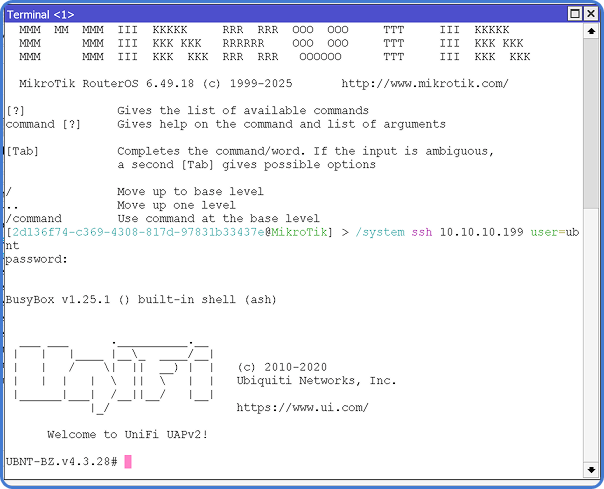
Accedi al dispositivo UniFi tramite SSH ed esegui quel comando. Se il dispositivo è connesso a un MikroTik, puoi usare il MikroTik come jump host:
/system ssh <antenna-IP> user=<USER>Per i dispositivi UniFi con impostazioni di fabbrica, il nome utente e la password SSH sono entrambi ubnt.
Passo 4: Completa l’adozione
Section titled “Passo 4: Completa l’adozione”Attendi il termine del processo. Una volta che il dispositivo UniFi contatta il controller MKController, l’adozione è completata e il dispositivo appare nella tua dashboard.
Cosa puoi fare dopo l’adozione?
Section titled “Cosa puoi fare dopo l’adozione?”Una volta adottati, i tuoi dispositivi UniFi sono visibili nella stessa dashboard MKController dei tuoi dispositivi MikroTik. Da qui puoi monitorare la connettività, applicare aggiornamenti, assegnare tag e posizioni e accedere all’integrazione con l’app mobile UniFi per la gestione in mobilità.
Domande sull’adozione di UniFi? Contatta il supporto MKController su WhatsApp — il nostro team risponde rapidamente e può aiutarti con le sfide della topologia di rete.
Domande? 📧 contato@mkcontroller.com