
Receive Pix Payments on Your Hotspot
このコンテンツはまだ日本語訳がありません。
Summary Pix lets Brazilian guests pay for Wi-Fi instantly on your captive portal. Enable it in Payment Methods, and guests get a copia-e-cola code or QR to pay — and go online immediately while the bank confirms. Pix runs through MKController’s platform with a default 5% fee on each sale; the rest is credited to your balance for payout.
What Is Pix in WiFi Monetization?
Section titled “What Is Pix in WiFi Monetization?”Pix is Brazil’s instant payment system. With Pix enabled, a guest on your captive portal picks a plan, pays with their bank app, and is online in seconds — no card, no cash, no waiting for you.
Pix payments run through MKController’s platform, which handles the transaction and deducts a default 5% fee per sale. The remaining amount is credited to your balance and paid out to you (see Get Paid — Payout & Financeiro).
How Pix Works for Your Guests
Section titled “How Pix Works for Your Guests”- The guest chooses a plan on the captive portal and selects Pix.
- They receive a copia-e-cola code (and QR) to pay in their bank app.
- Access is granted immediately — the guest goes online right away while the payment confirms in the background.
- When the bank confirms, the session upgrades to the full plan automatically.
This instant-access design removes the biggest reason guests abandon a purchase: waiting. They are online the moment they commit.
Before You Enable Pix
Section titled “Before You Enable Pix”- You need at least one plan to sell — if Pix is on but there are no plans, MKController reminds you there is nothing to buy.
- To actually receive the money, you will set up a Pix key and a fiscal document for payout. You can enable Pix selling now and complete payout details when you are ready; see Get Paid — Payout & Financeiro.
How to Enable (“Save”) Pix
Section titled “How to Enable (“Save”) Pix”Step 1: Open Payment Methods
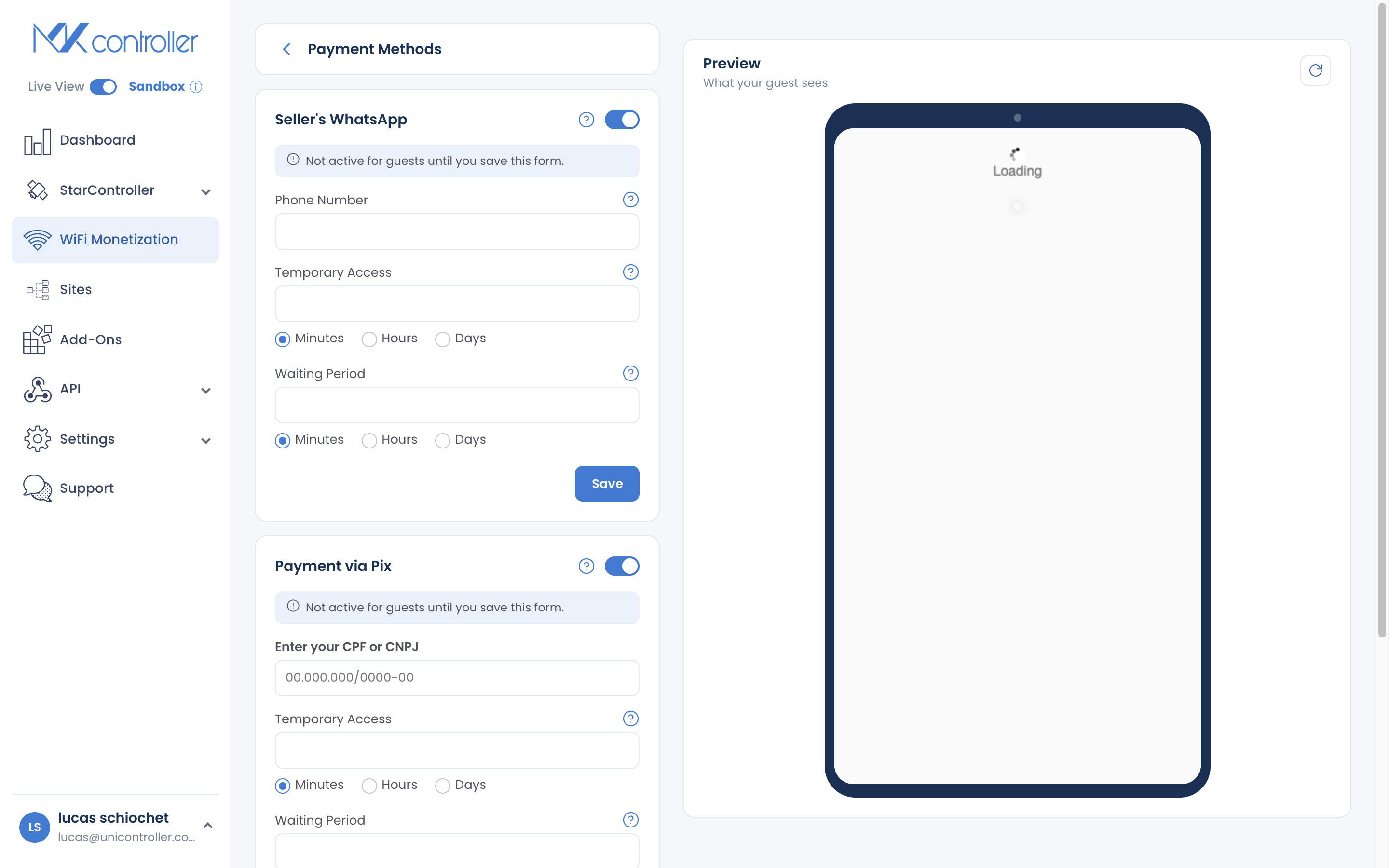
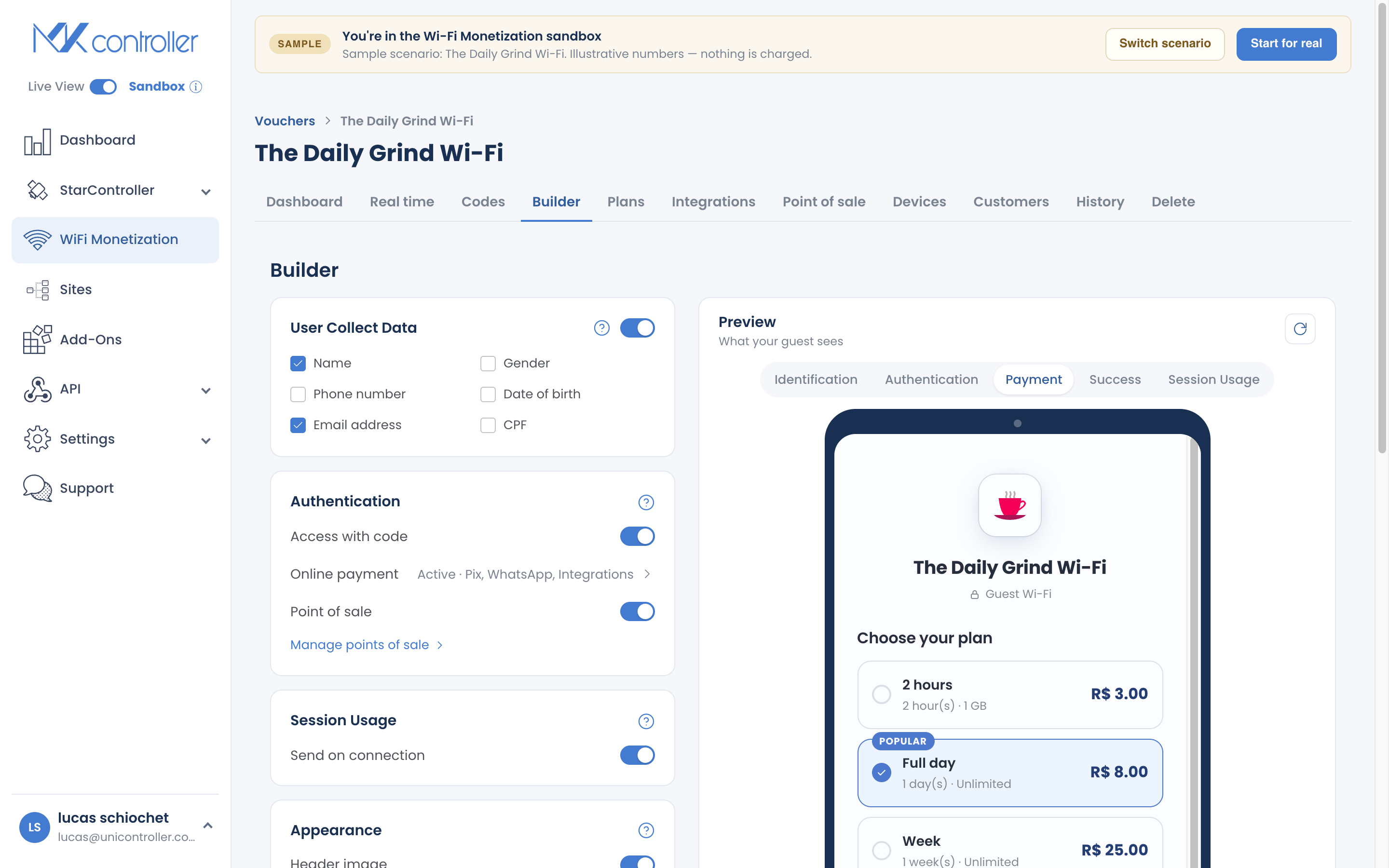
Section titled “Step 1: Open Payment Methods”In your voucher’s Builder, open Payment Methods (the Online payment row).
Step 2: Turn on Pix and enter your CPF/CNPJ
Section titled “Step 2: Turn on Pix and enter your CPF/CNPJ”Switch Pix on and enter the CPF or CNPJ that identifies you as the seller.
Step 3: Set temporary access
Section titled “Step 3: Set temporary access”Choose how long temporary access lasts while a payment confirms, and the waiting period before a guest can start a new Pix. Sensible defaults are provided; keep them unless you have a reason to change.
Step 4: Save and test
Section titled “Step 4: Save and test”Save your changes. Then use “test as a guest” in the Builder to see exactly what a buyer experiences — the Pix code, the instant access, and the status page — with no real charge.
Understanding the 5% Fee
Section titled “Understanding the 5% Fee”Pix sales carry a default 5% platform fee. It is deducted automatically, and both figures are recorded per sale, so your reports always show gross (what the guest paid) and net (what you keep).
Two honest things to plan around:
- Price with the fee in mind. If you want to net R$5 on a plan, price it a little above R$5. It is the same habit as accounting for any card fee.
- The fee applies to Pix only. Card and mobile-money sales through your own gateway settle under that provider’s terms, not this 5%.
What Happens If a Guest Doesn’t Complete Payment?
Section titled “What Happens If a Guest Doesn’t Complete Payment?”Because access is granted up front, a guest whose Pix is never confirmed stays on the temporary access you configured until it expires — then they are disconnected like any other ended session. Nothing is charged, and no money is owed. This is normal and expected; it is the trade-off for letting paying guests connect instantly.
Getting Paid
Section titled “Getting Paid”Enabling Pix lets guests pay; receiving the money is handled in Payout, where you add your Pix key and a fiscal document (a one-time verification) and track your balance and deposits. Full guide: Get Paid — Payout & Financeiro.
Tips to Get the Most from Pix
Section titled “Tips to Get the Most from Pix”- Turn it on early. Pix is the lowest-friction way for a Brazilian guest to pay — often the difference between a sale and a shrug.
- Pair it with a clear plan ladder. Two or three well-named plans make the Pix decision fast. See How to Design Your Plan Lineup.
- Complete your payout details now. Verifying your Pix key and fiscal document once means your earnings are ready to withdraw when they add up.
Frequently Asked Questions
Section titled “Frequently Asked Questions”How much does Pix cost me? A default 5% platform fee per Pix sale. Your reports show gross and net for every transaction.
Is Pix available outside Brazil? No. Pix is Brazil-only. Elsewhere, use a card or mobile-money gateway, WhatsApp, or cash via Point of Sale.
Does the guest wait for confirmation to get online? No. Access is granted immediately; the session upgrades automatically when the bank confirms.
What if a guest never finishes paying? They stay on temporary access until it expires, then disconnect. Nothing is charged.
How do I actually receive the money? Through Payout — add your Pix key and fiscal document, then track your balance and deposits. See Get Paid — Payout & Financeiro.
Explore next: Configure Payment Gateways · Get Paid — Payout & Financeiro · Create & Sell Online Plans · How Guests Connect & Pay
Ready to accept Pix? Start your free MKController account or talk to our team on WhatsApp.