Device Observations in MKController
Summary
Device Observations let teams attach quick, clickable notes to device cards in Dashboard 3.0 Card mode, making operational context easier to see and share.
Device Observations in MKController
Device Observations are a new MKController feature designed to make device context more visible in daily operations. In practical terms, they let you add a clickable tag to a device card, so important information is always close at hand.
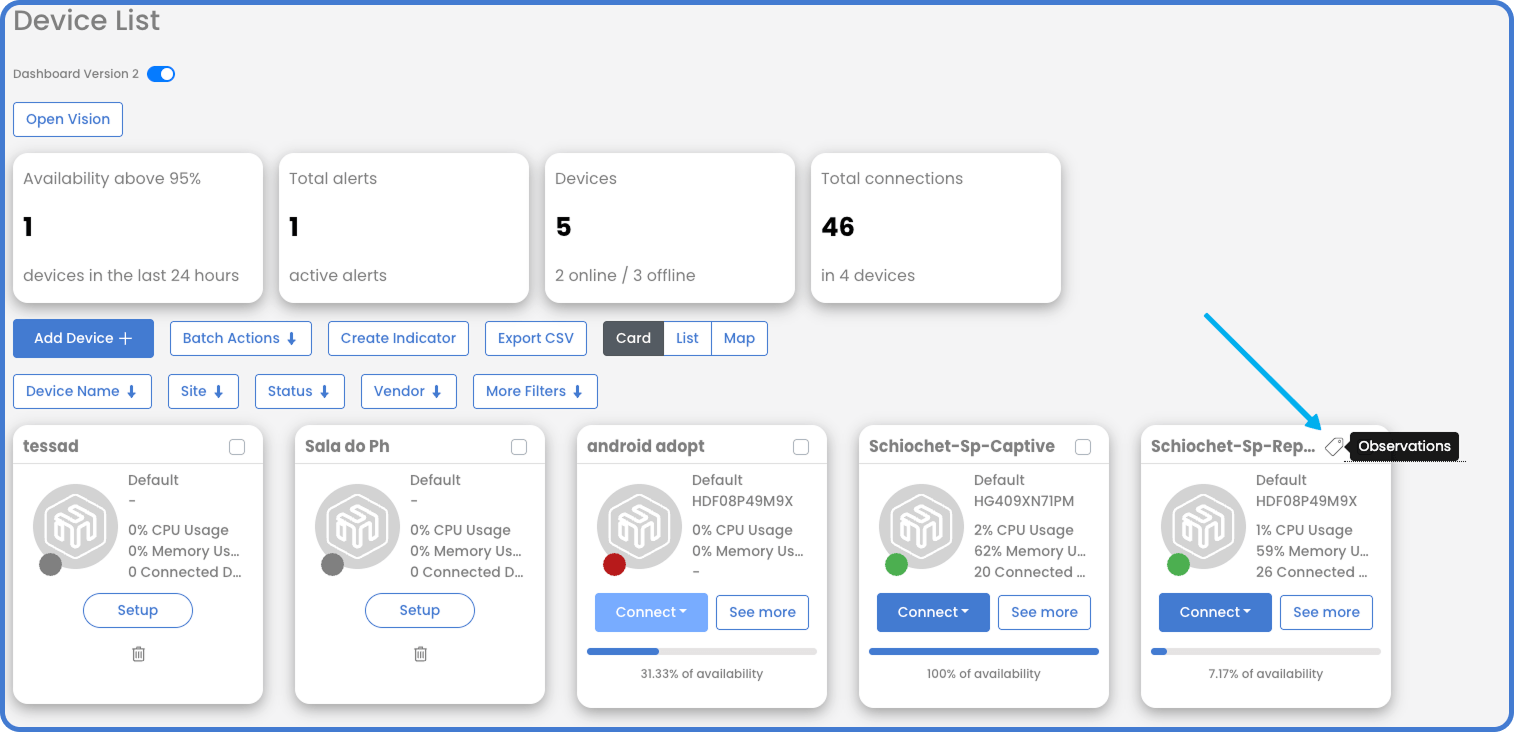
This feature works exclusively in Card mode on Dashboard 3.0. That makes sense, because Card mode is built for fast visual operation. You can learn more about that layout in the Dashboard 3.0 full guide.
Why use Device Observations
Sometimes a device needs more than a name and a status dot. Teams often need a quick reminder about what is happening around that equipment.
With Device Observations, you can register short operational notes such as:
- a device that is offline because a project has ended and it is waiting for reallocation
- the person responsible for a device installed at a specific address
- a known issue affecting that equipment, with a brief explanation for the team
- any temporary field note that should not get lost in chat messages or memory
This is simple, but powerful. Instead of asking around or opening extra records, the team can click the tag and immediately read the note. It is a small feature with a very practical impact.
Tip: Observations work best for short, high-value notes that help technicians and managers make faster decisions.
How to create an Observation
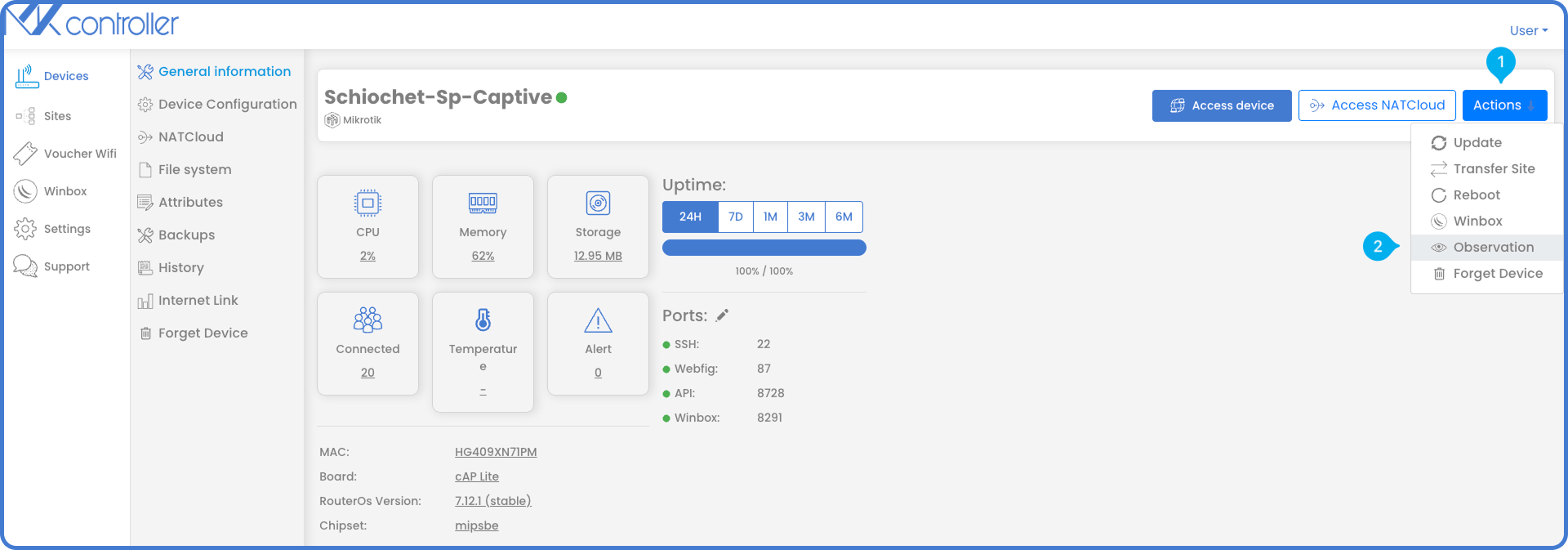
Creating a new Observation is straightforward, and the first thing is to open the target device in MKController.
- Click the Actions button.
- Select Observation.
That path takes you to the Device Observations area for the selected equipment.
Add the observation text
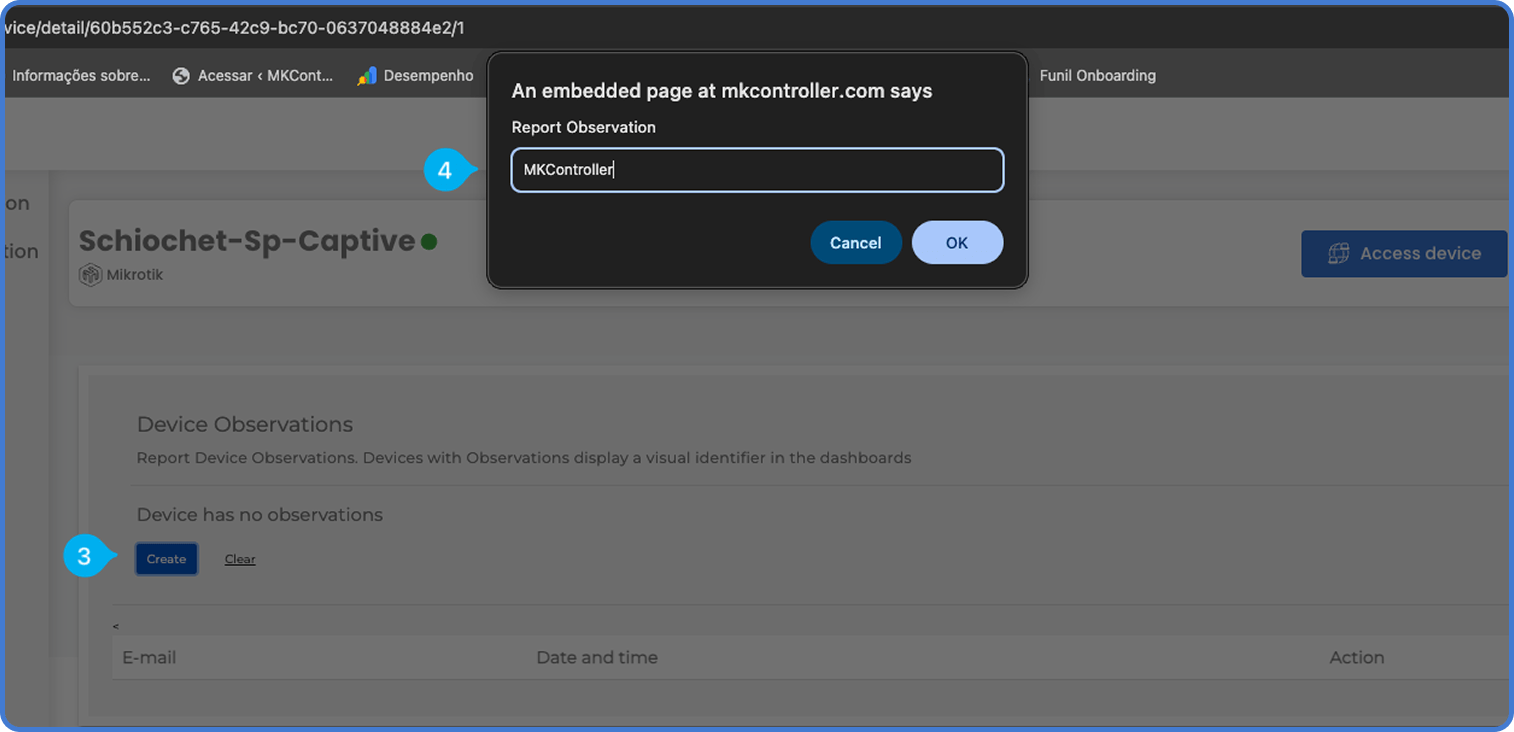
Once you are inside the Device Observations section, the next step is quick.
- Click the blue Create button.
- Enter the text you want to store, and then just Save the note.
The text you enter is the content that will appear when someone clicks the observation tag on the device card. Because of that, it is a good idea to keep the message direct and useful.
Examples include “Waiting for customer approval,” “Installed at branch office front desk,” or “Device has intermittent error on port 3.”
Managing multiple Observations
A single device can have one or more tags registered over time. This gives your team flexibility when the device history changes or when several notes are relevant during different phases of operation.
However, there is one important detail: only the most recent Observation appears on the card. This keeps the Card view clean and avoids visual clutter.
If you want to remove the notes, you can use the Clear option to clean all tags from that device.
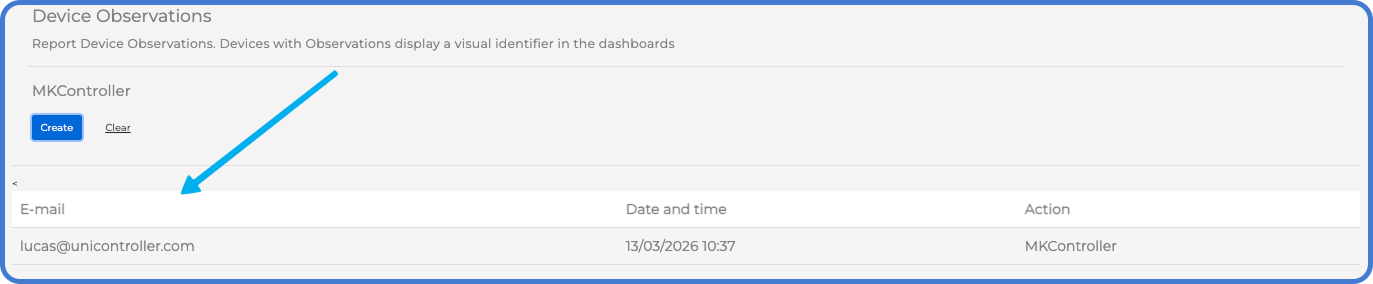
Note: Showing only the latest tag helps preserve the speed and readability of Card mode, especially in environments with many devices.
How to check an Observation
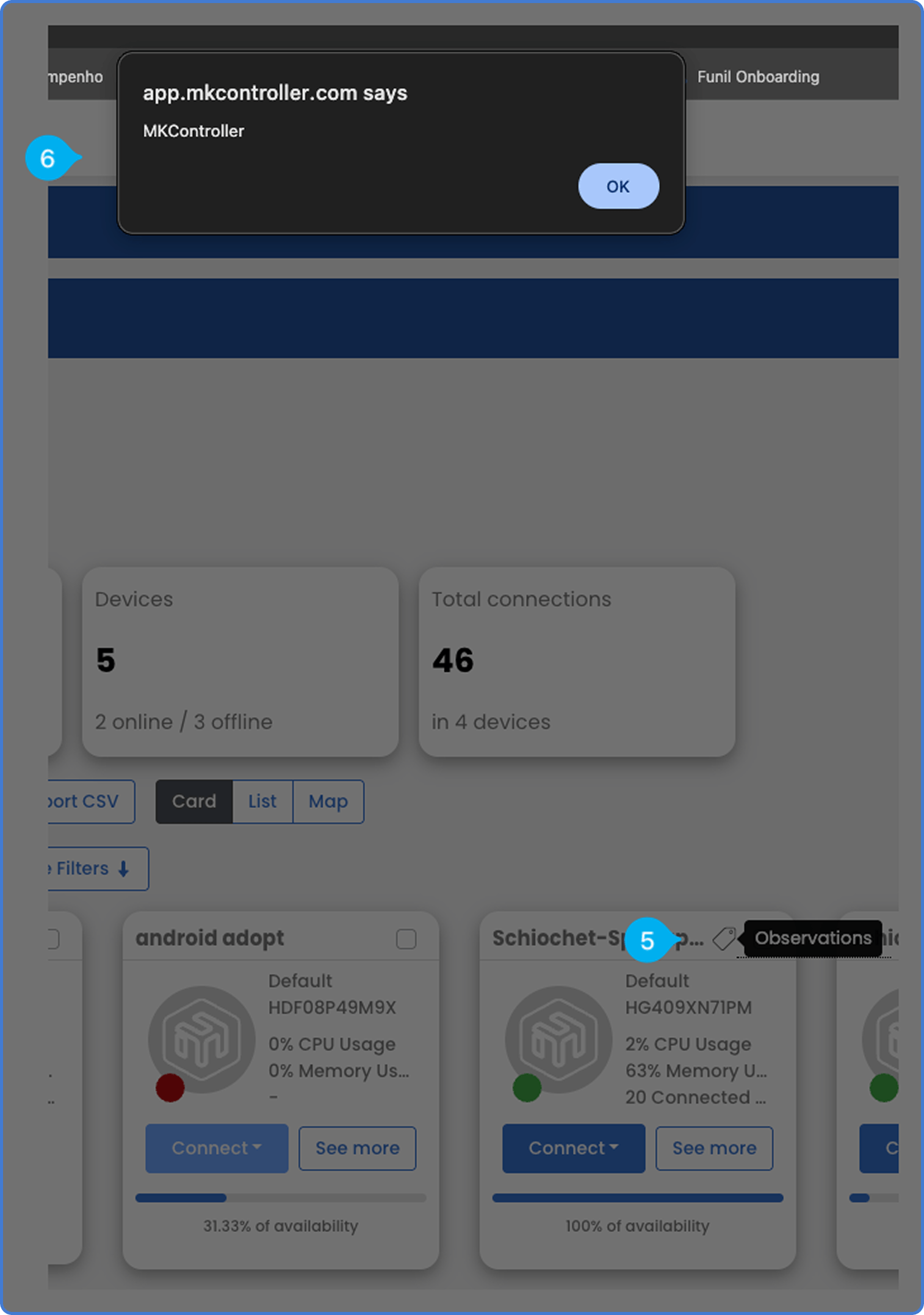
After the tag appears on the card, using it is easy. Just click the Observations (item 5) tag shown on the device card.
A pop-up (item 6) will open with the text that was defined earlier. This makes it fast to confirm operational context without leaving the dashboard flow. For support teams, NOC analysts, and field technicians, that kind of instant reference can save time and reduce mistakes.
Best practices for better team communication
To get the most value from Device Observations, keep a few habits in mind.
Use concise language. A short note is easier to scan. Update the note when the situation changes. Remove outdated notes when they no longer matter. And most importantly, use Observations for information that improves operational clarity.
This feature is not meant to replace full documentation. Instead, it acts like a quick label on the dashboard. Think of it as a sticky note for your device fleet, but cleaner, faster, and shared with the whole team.
Where MKController helps: Device Observations add lightweight context directly to Dashboard 3.0, helping teams act faster without losing the visual simplicity of Card mode.
Still have questions about Device Observations or want help applying them in your environment? Did you not find the information you were looking for? Do you have other questions? Do you want to help us improve the material? Do not hesitate to contact us and seek support from MKController! Click here for any questions.