
Install MKController on RouterOS
Summary The MKController Agent is a small desktop application that scans your local network, discovers MikroTik devices, and lets you adopt them into MKController with a single click — replacing manual script execution for on-site deployments. This guide explains what the agent does, how to install it on Windows, macOS, and Linux, and how to handle the certificate notice that appears during installation.
What Is the MKController Agent?
Section titled “What Is the MKController Agent?”The MKController Agent is a lightweight desktop helper that bridges your local network and the MKController cloud platform. It runs on your computer, scans the LAN for compatible MikroTik devices, and presents them in the platform’s adoption flow with a one-click Adopt button — replacing the need to manually copy and execute adoption scripts on each device.
For teams familiar with the UniFi Device Discovery Tool or similar vendor assistants, the workflow is directly comparable: a local process handles discovery, and the cloud platform handles management.
The key distinction: discovery and adoption are separate actions. The agent locates eligible devices and surfaces them for you — it does not automatically adopt or modify anything. Every adoption requires your explicit confirmation.
When Should You Use the Agent vs. the Manual Method?
Section titled “When Should You Use the Agent vs. the Manual Method?”| Scenario | Recommended method |
|---|---|
| First deployment at a new site with multiple devices | Agent — discovers all compatible devices at once |
| Remote adoption of a device already online | Manual script via WebFig, Winbox, or SSH |
| Lab staging before shipping to client site | Agent |
| Single device, technician already has CLI access | Manual script |
| Recurring customer site visits | Agent speeds up repeat onboarding |
Where Does the Agent Appear in MKController?
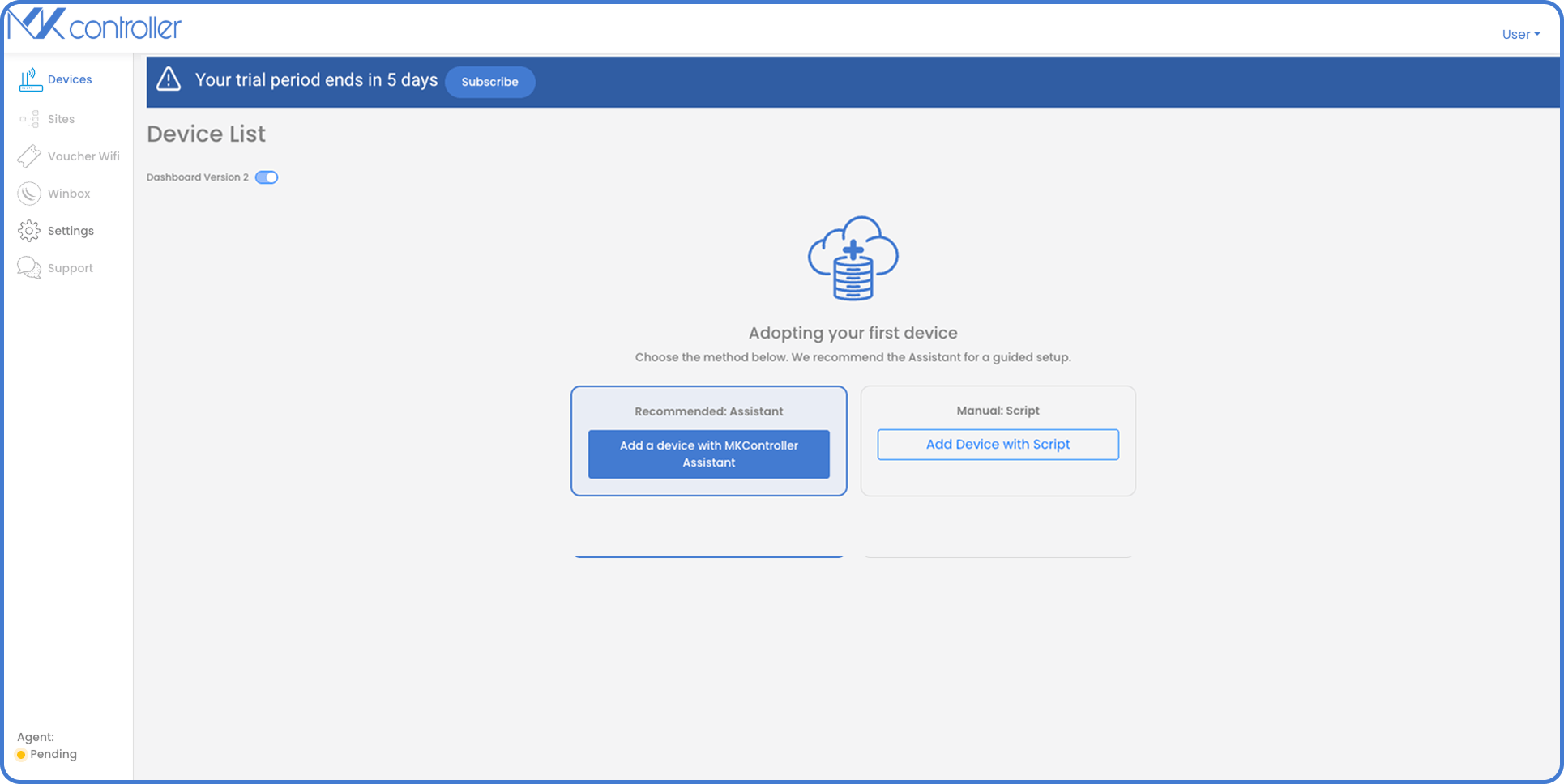
Section titled “Where Does the Agent Appear in MKController?”On a new account with no devices, MKController highlights two onboarding paths: install the agent or use the manual script.
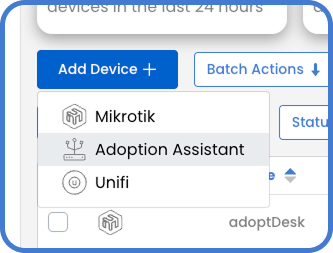
On accounts that already have devices, the Add Device menu includes the Adoption Assistant option.
A status indicator in the lower-left corner of the platform shows whether the agent is On (green), Pending, or Off — so you always know if the desktop helper is ready to scan.
How Do You Install and Connect the Agent?
Section titled “How Do You Install and Connect the Agent?”The installation flow takes three steps: download, pair, confirm.
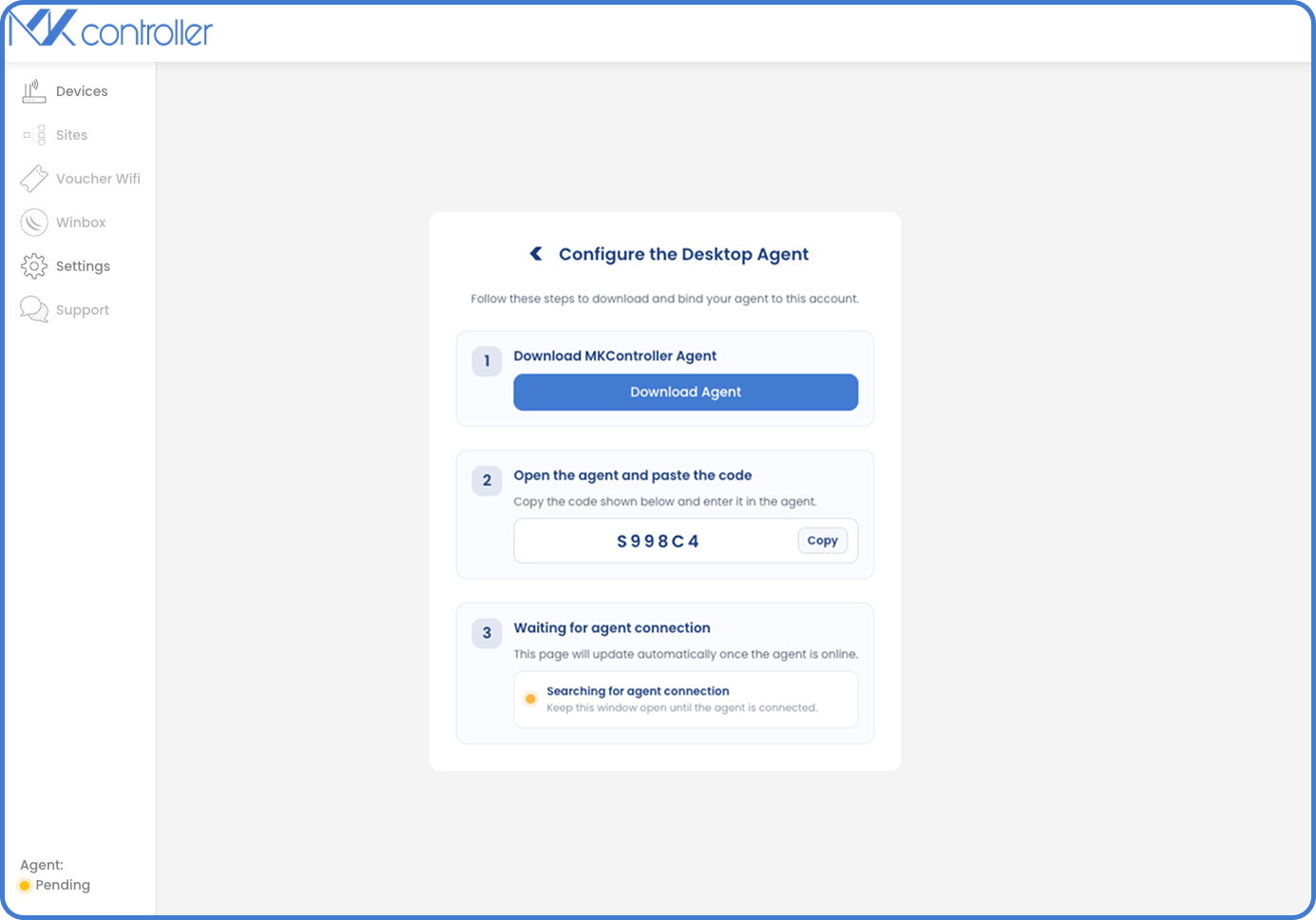
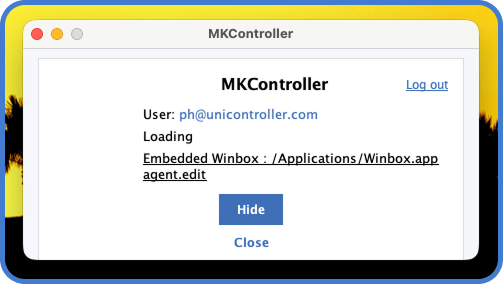
- Click Download Agent in MKController.
- Run the downloaded installer on your computer.
- Copy the pairing code displayed in the platform.
- Paste that code into the desktop application.
- Wait for the platform to confirm the connection — no manual configuration required.
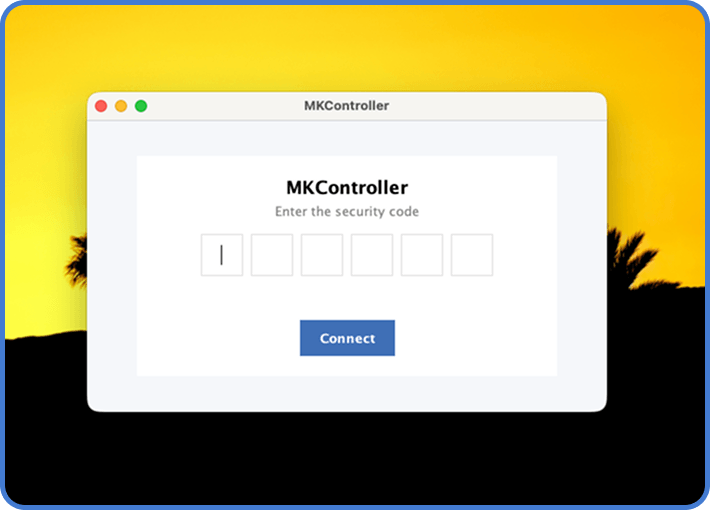
Once the code is entered, the connection is established automatically. No discovery rules, no terminal commands, no firewall exceptions needed.
Why Does the OS Show a Certificate Warning?
Section titled “Why Does the OS Show a Certificate Warning?”MKController certificates are currently in the approval process. During this period, Windows, macOS, and Linux may display a security prompt when you run the installer. This is expected behavior for newly distributed software pending certificate approval — it does not indicate that the agent is unsafe.
Windows: If the system shows a protected-app warning, click More info and allow the installation. Enterprise environments may require one-time IT administrator approval.
macOS: If macOS blocks the installer, go to System Settings → Privacy & Security, scroll down, and approve the blocked application. Then re-run the installer.
Linux: Ensure the downloaded file has execute permission. In restricted environments, your administrator may need to approve the package source.
How Do You Confirm the Agent Is Online?
Section titled “How Do You Confirm the Agent Is Online?”When the agent is installed and running, MKController shows its status as On in green in the lower-left corner of the platform.
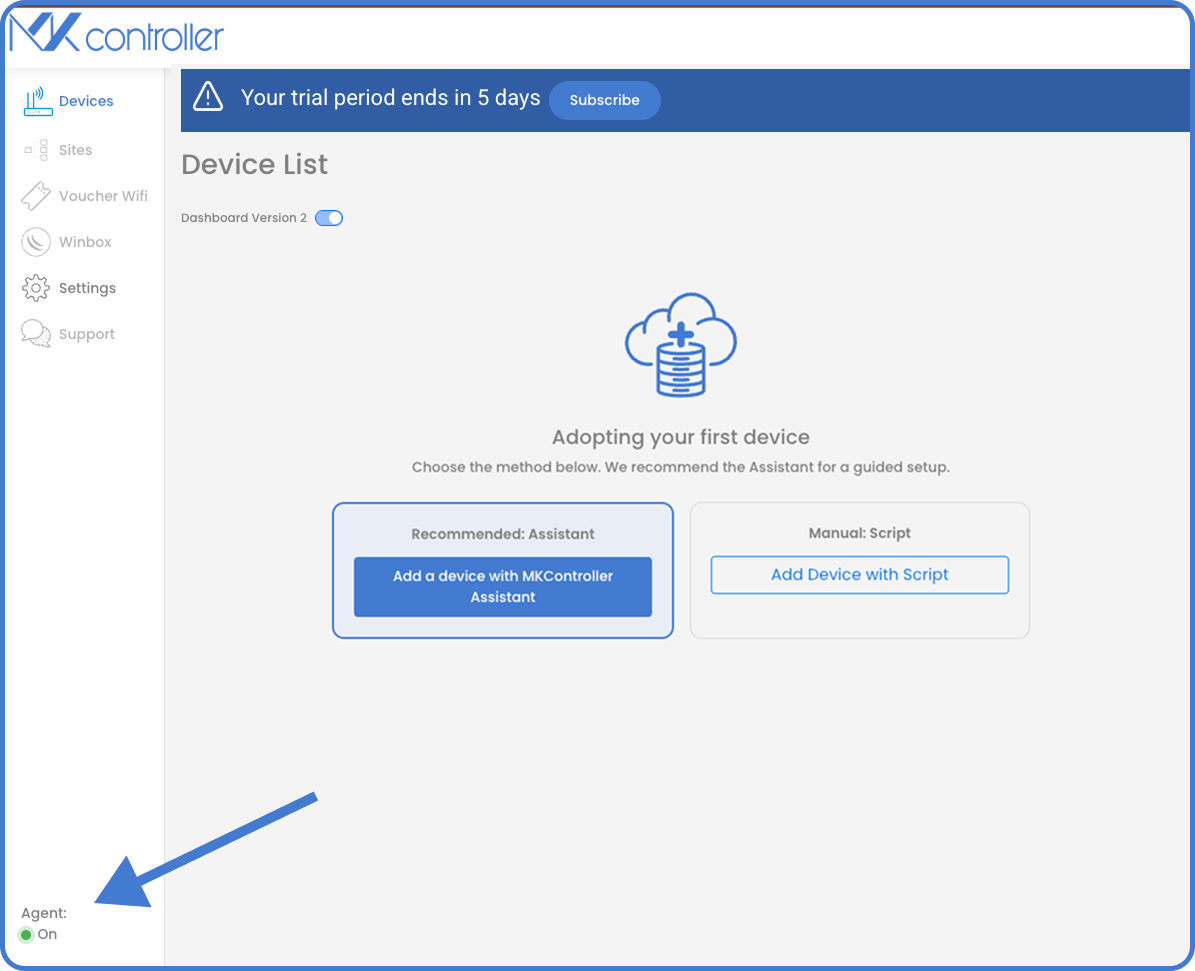
At this point the Adoption Assistant can scan your network and list discoverable devices.
How Do You Scan and Adopt Devices?
Section titled “How Do You Scan and Adopt Devices?”With the agent online, MKController scans the local network and lists compatible devices with an Adopt button next to each.
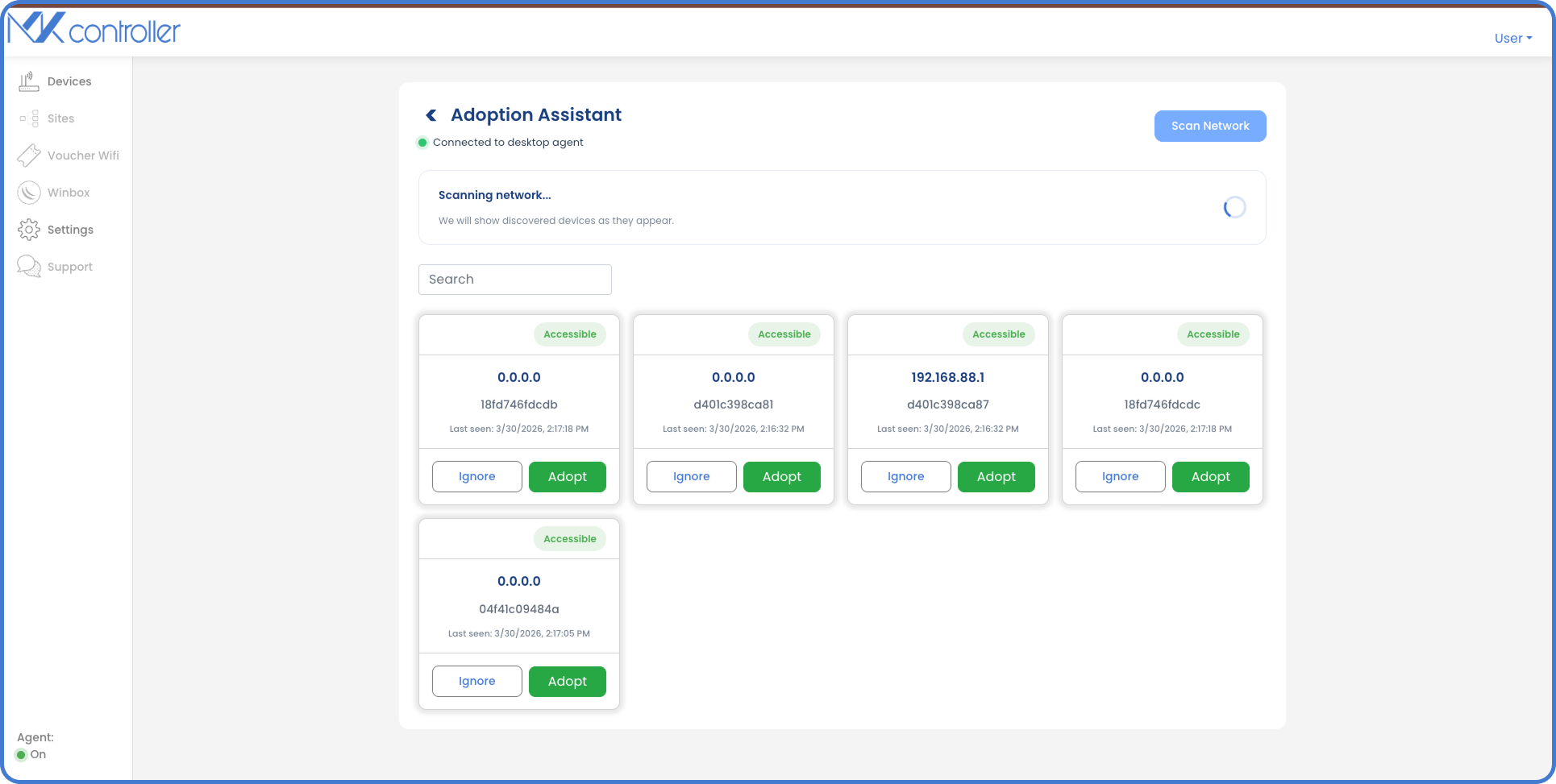
A few practical notes:
- The scan reaches devices on the network where the agent’s computer is running.
- Devices must be accessible on that network segment.
- Internet connectivity is still required, since the adoption workflow is coordinated by the MKController platform.
After adoption, devices can be physically relocated to any network with internet access and remain manageable through MKController.
What Happens When the Agent Goes Offline?
Section titled “What Happens When the Agent Goes Offline?”If the desktop helper stops running or loses internet access, MKController shows its status as offline and provides a recovery path.
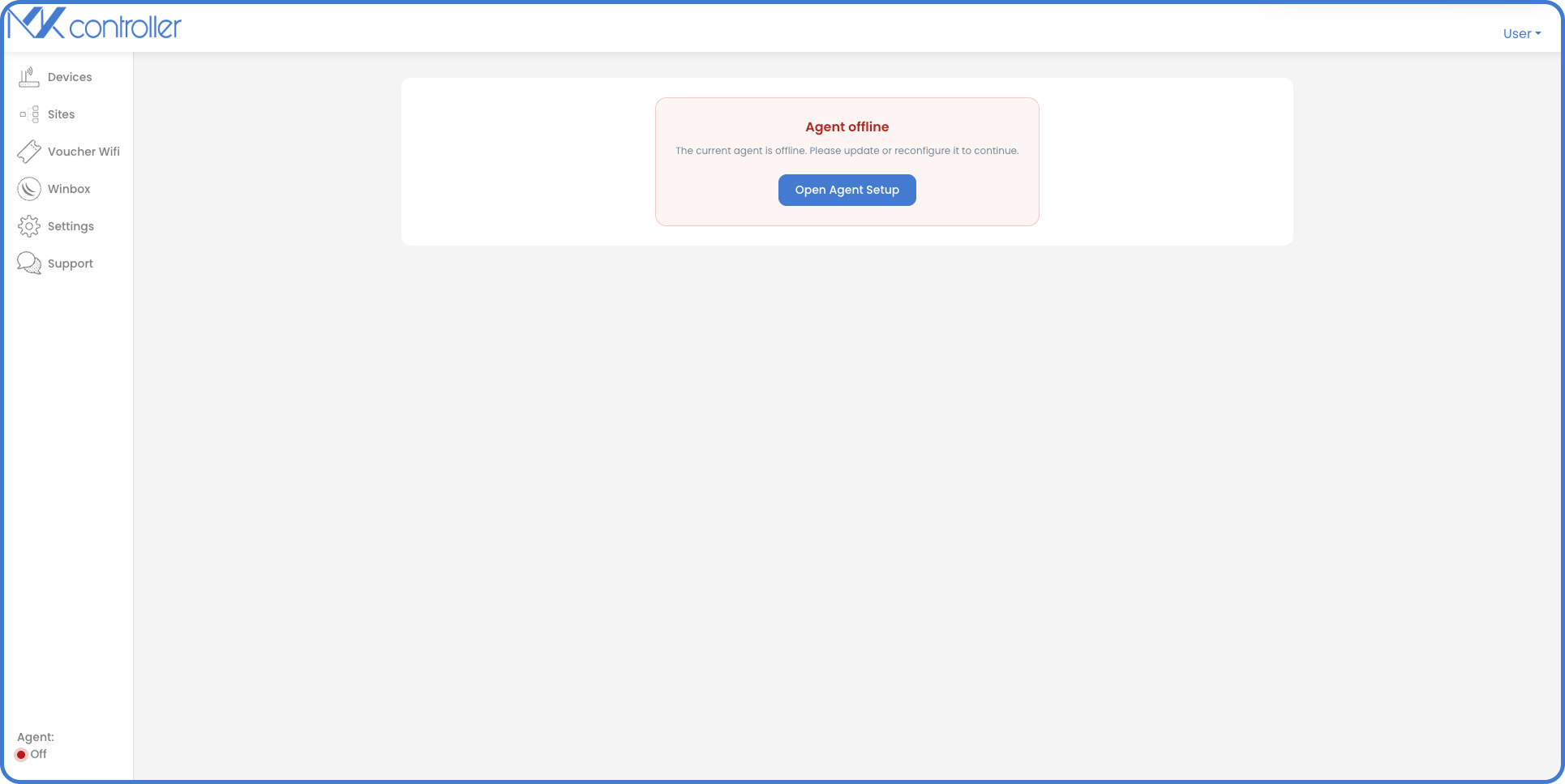
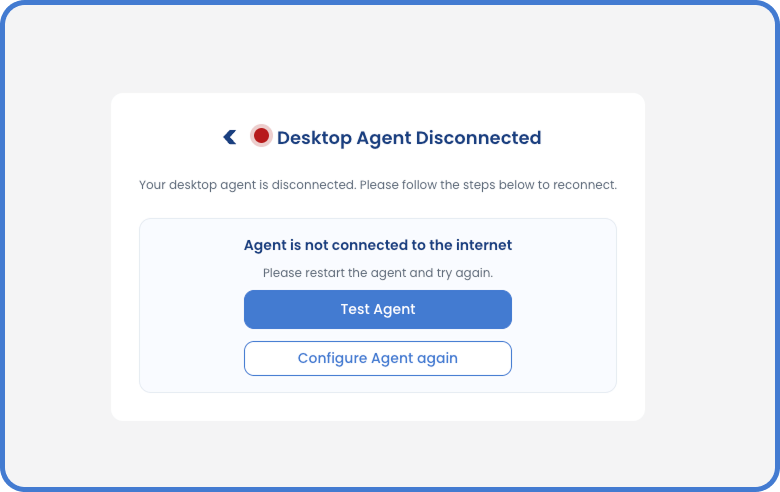
Recovery steps:
- Reopen the desktop application if it was closed.
- Verify the computer has internet access.
- Use Test Agent or Configure Agent Again if prompted.
- Return to MKController and wait for the status indicator to turn green.
Once the Agent is connected and your devices are adopted, explore the full management platform: Monitor device availability, set up automated backups, and configure Telegram alerts for offline notifications. For the standard browser-based adoption workflow (without the desktop Agent), see the MikroTik Onboarding guide.
Need help with installation? Contact our team on WhatsApp — we can guide you through any OS-specific issue.