
NATCloud — MikroTik Remote Access Setup
Summary
NATCloud is a cloud remote access service that lets you reach any device — MikroTik routers, IP cameras, DVRs, servers — behind NAT or CGNAT without a public IP, port forwarding, or a VPN client on the target device. The encrypted tunnel is initiated from inside the network outward, so nothing is ever exposed to the internet.
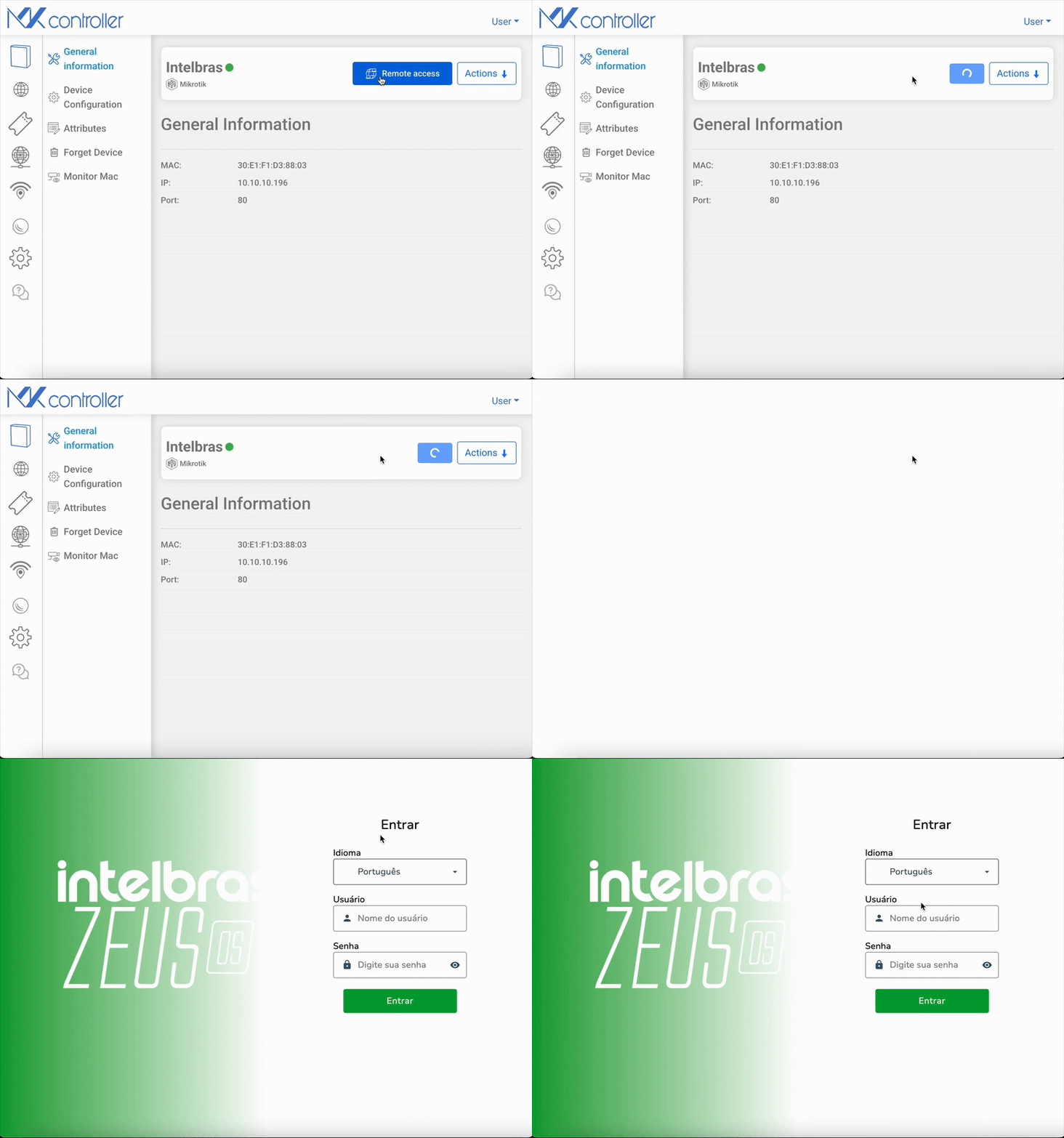
NATCloud is a secure remote access service built for networks where direct inbound connectivity is impossible — devices behind CGNAT, double NAT, or ISPs that block inbound traffic. NATCloud installs a lightweight agent on the target device, which opens an outbound encrypted tunnel to MKController’s cloud infrastructure. From that point on, you connect in through the tunnel — no public IP, no open ports, no VPN server to manage.
Why is remote access to MikroTik behind CGNAT so difficult?
Most ISPs today assign private or shared IP addresses rather than public ones. This means:
- Public IPs are increasingly scarce and expensive — most residential and small-business connections are behind CGNAT
- Clients behind CGNAT cannot be reached with traditional port forwarding
- Port forwarding exposes the network and increases the attack surface even when a public IP exists
- Manual VPNs are complex and slow for field support — technicians need a VPN server, credentials, and client software on every workstation
- TR-069 / TR-369 require compatible CPE firmware, an ACS server, and careful configuration to work behind NAT
NATCloud solves all of these at once with a single agent installation.
What can you do with NATCloud?
Simplified, secure remote connection
- Access any device from anywhere — works behind CGNAT, double or triple NAT, with no public IP
- Zero inbound configuration: no firewall changes, no open ports (only outbound WAN connectivity required)
- Auto-reconnects after internet outages — the tunnel re-establishes automatically
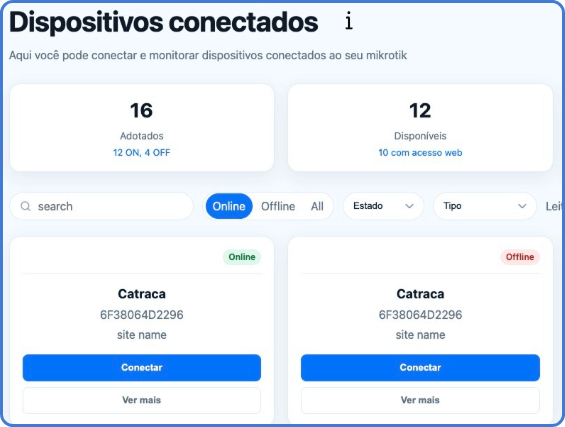
Monitoring and alerts
- Generate availability reports for any custom time period
- Receive alerts and integrate with external systems via case-based triggers
- Produce SLA proof reports for enterprise and ISP clients
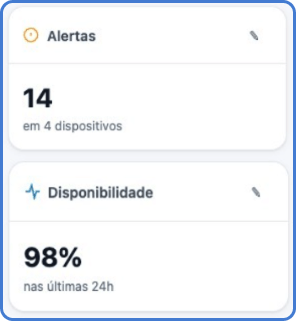
Governance and inventory
- Centralize access permissions by site and user
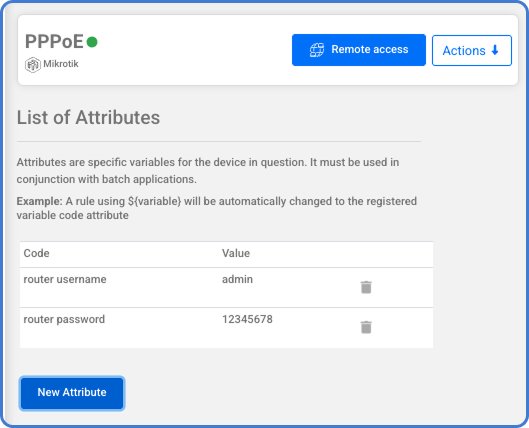
- Build an automatic inventory with custom attributes (asset ID, address, contract number) and eliminate spreadsheets
WAN Access
For NATCloud to work, your devices need to allow outbound WAN access from your MikroTik to MKController’s cloud infrastructure. Tutorials for the most common device types are available in the WAN Access section.
How to Get Started with NATCloud
Step 1 — Create a free MKController account
Sign up at app.mkcontroller.com. The free trial requires no credit card.
Step 2 — Adopt your MikroTik device
Run the adoption script on your MikroTik via WebFig, Winbox, or SSH. The process takes under 2 minutes and works even on devices behind CGNAT. Full instructions: Add Your First MikroTik Device.
Step 3 — Enable NATCloud for a site
In MKController, navigate to your site and enable the NATCloud service. MKController automatically establishes the outbound tunnel from your MikroTik to the cloud infrastructure.
Step 4 — Add devices to your tunnel
In the NATCloud dashboard, add the local IP addresses and ports of the devices you want to reach remotely — IP cameras, NAS drives, OLT controllers, switches. Each device gets its own access link.
Step 5 — Connect from anywhere
Click the link for any device in the NATCloud dashboard to open it in your browser. The encrypted tunnel routes the connection through MKController’s cloud — no port forwarding, no VPN client required on your workstation.
What Are the Technical Requirements for NATCloud?
- A MikroTik router running RouterOS 6.43 or later, fully adopted in MKController
- Outbound internet connectivity from the MikroTik (any connection — CGNAT, PPPoE, LTE — works)
- The devices you want to reach must have a web interface (HTTP or HTTPS) and be on the same LAN as the adopted MikroTik
- No inbound ports need to be opened on the router or ISP modem
How Does NATCloud Compare to Other Remote Access Methods?
| Method | Public IP needed | Open ports | Works behind CGNAT | Setup effort |
|---|---|---|---|---|
| NATCloud (MKController) | ❌ No | ❌ No | ✅ Yes | Low |
| Port forwarding | ✅ Yes | ✅ Yes | ❌ No | Medium |
| Self-hosted VPN | ✅ Yes | ✅ Yes | ❌ No | High |
| TR-069 / ACS | Depends | Depends | Depends | High |
| TeamViewer / AnyDesk | ❌ No | ❌ No | ✅ Yes | Medium |
NATCloud is the only solution in this list that requires zero configuration on the ISP or firewall side and integrates directly with MKController’s monitoring and governance platform.
Frequently Asked Questions
Can I use NATCloud with a double-NAT or triple-NAT connection? Yes. As long as the MikroTik can reach the internet outbound, the tunnel is established regardless of how many NAT layers exist upstream.
Does NATCloud expose my MikroTik to the internet? No. The tunnel is initiated from inside the network outward. NATCloud does not open any inbound ports on your router or modem.
How many devices can I add to NATCloud? The number of NATCloud tunnels available depends on your MKController plan. See Plans and Pricing for current limits.
What happens if the MikroTik loses internet connection? The tunnel is dropped automatically and re-established as soon as connectivity is restored — without any manual intervention. The NATCloud dashboard shows the device as offline during the outage.
Didn’t find what you need? Have questions or feedback? Reach out to MKController Support.
👉 Click here to talk to us.