
Wan Access to your tplink devices
Summary
This guide explains, step by step, how to enable secure WAN/remote access on TP-Link devices so they can be reached through NATCloud or other remote-management tools. We’ll focus on the TL-WR840N, showing how to turn on remote management, choose a safe port, and avoid the most common mistakes that block access or expose your router more than necessary.
After completing the steps below, your TP-Link will be reachable from the WAN using the port you’ve configured, while still keeping control over who can reach the management interface.
TL-WR840N
1. Log in to your TP-Link router
- Connect a computer to the TP-Link (cable or Wi-Fi).
- In your browser, access the default IP (usually
192.168.0.1or192.168.1.1). - Enter your username and password (factory default is often
admin/admin, or the credentials printed on the sticker on the bottom of the device). - If you changed the password before (recommended!), use your custom credentials.
2. Open the Administration / Remote Management page
- In the top menu, go to Advanced.
- On the left side, navigate to System Tools → Administration (in some firmware versions this may appear as System Tools → Remote Management).
- Wait for the page to fully load before making changes.
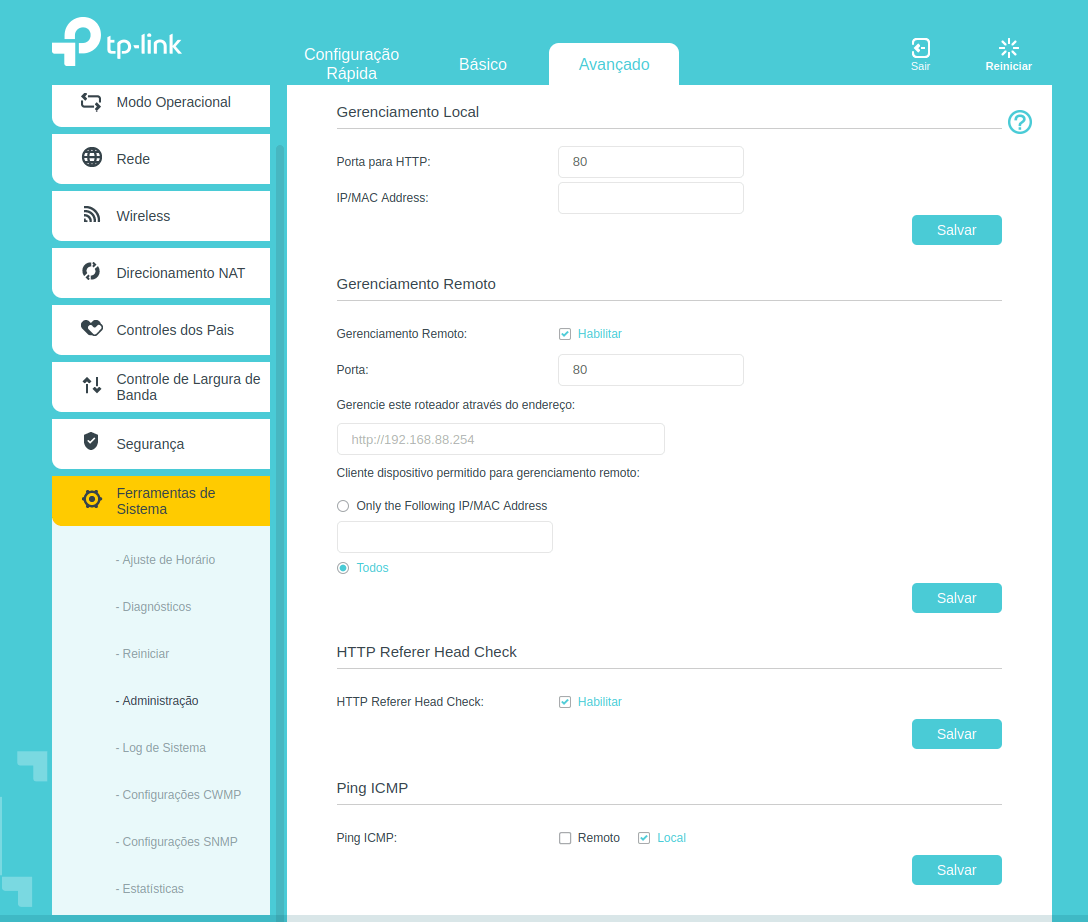
3. Enable remote management and choose the WAN port
- Look for the Remote Management section.
- Check the option Enable Remote Management (or similar).
- In the Port field, define which port will be exposed on the WAN.
- You may keep the default (e.g.,
80) or choose a different one like8080or8888to avoid conflicts.
- You may keep the default (e.g.,
- If the firmware allows, restrict access to a specific Remote Management IP or range (for example, your management server / NATCloud IP), instead of leaving it open to
0.0.0.0(anyone on the internet). - Click Save / Apply and wait for the router to confirm the changes. In some cases the device may reboot.
4. Test remote access
- From an external network (not the same Wi-Fi/LAN), try accessing:
http://<your-public-ip>:<configured-port>
or, if using a remote access platform like NATCloud, follow its dashboard instructions to open the management page. :contentReference[oaicite:0]{index="0"} - If the page does not open:
- Confirm your public IP (or DDNS hostname) is correct.
- Check if the chosen port is not blocked by your ISP or upstream firewall.
- Make sure no other service on the router is already using that port.
Still have questions?
Following these steps usually solves the most common issues when trying to reach TP-Link devices through NATCloud or any remote-management solution. If you still can’t access the router:
- Double-check the WAN IP, port, and Remote Management IP settings.
- Confirm there is no extra firewall or CGNAT blocking the connection on the ISP side.
- Reboot the device after changing multiple parameters, then test again.
If problems persist, contact our support team and share screenshots of your Administration / Remote Management page and the error you see when trying to connect. This helps us identify misconfigurations faster and get your remote access working as expected.
Click here for any questions.