Draw Your Network for Free with the Network Map
Summary The Network map is a free tool that runs in your browser. Draw a client’s network with real devices, their ports and the cables between them, then hand it over as a printed A4 sheet, an image or a link. You don’t need an account to draw. Saving a map needs a free MKController account.
Use it to show a client what you installed, to plan a job, or to know what is plugged into what when something breaks later.
Open the Network map
Section titled “Open the Network map”- Without an account: go to mkcontroller.com/design and start drawing.
- In MKController: go to Operations → Network map. It’s in every account, except the Sandbox.
The Network map is available in English, Portuguese and Spanish. Change the language in ⋯ → Language.
Draw your network
Section titled “Draw your network”- Add your devices. Click Add object and search the catalogue for the model you installed, such as a MikroTik router, a UniFi access point or a Starlink, or add your own device by hand. Catalogue models bring their ports, and many have a product photo.
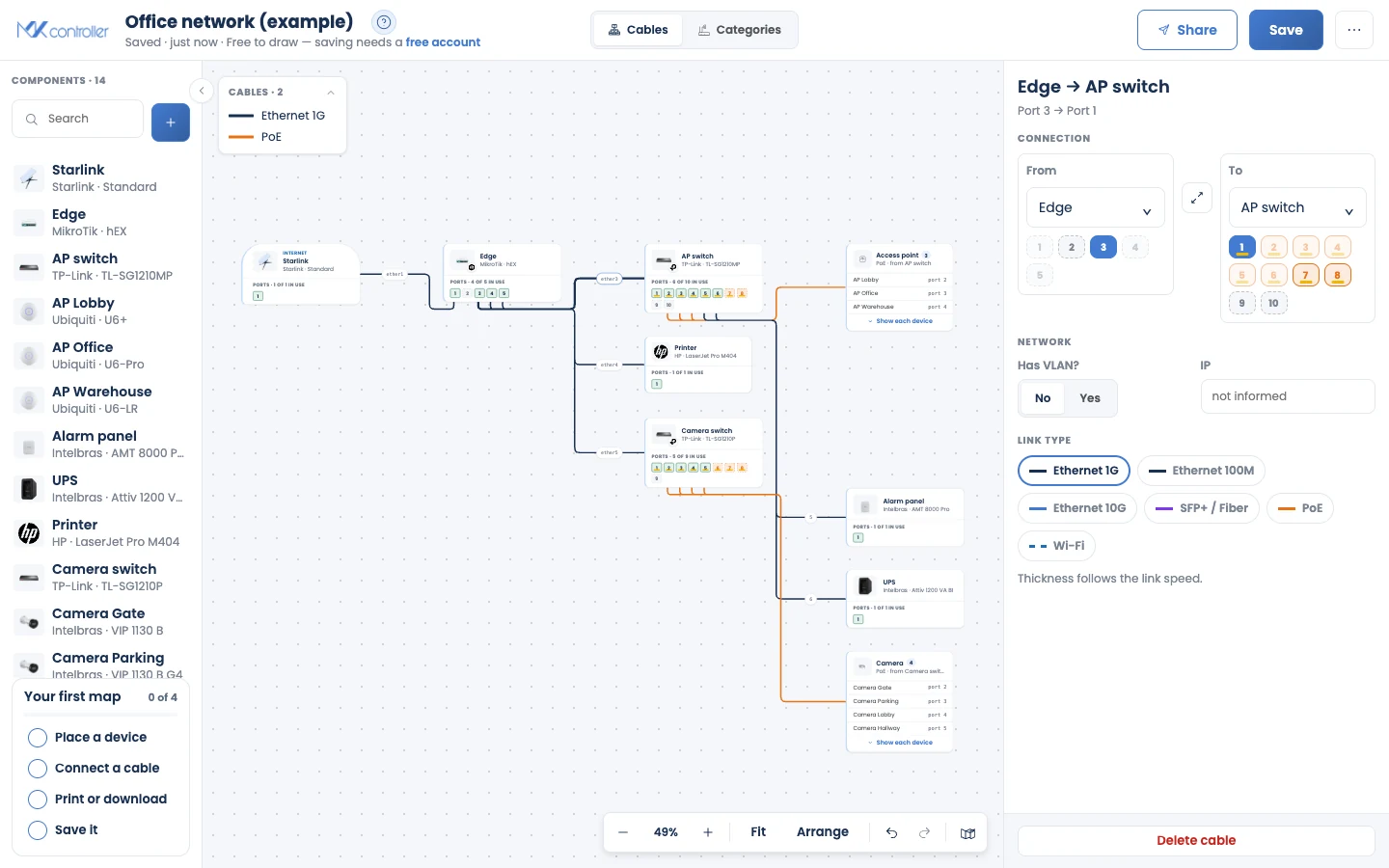
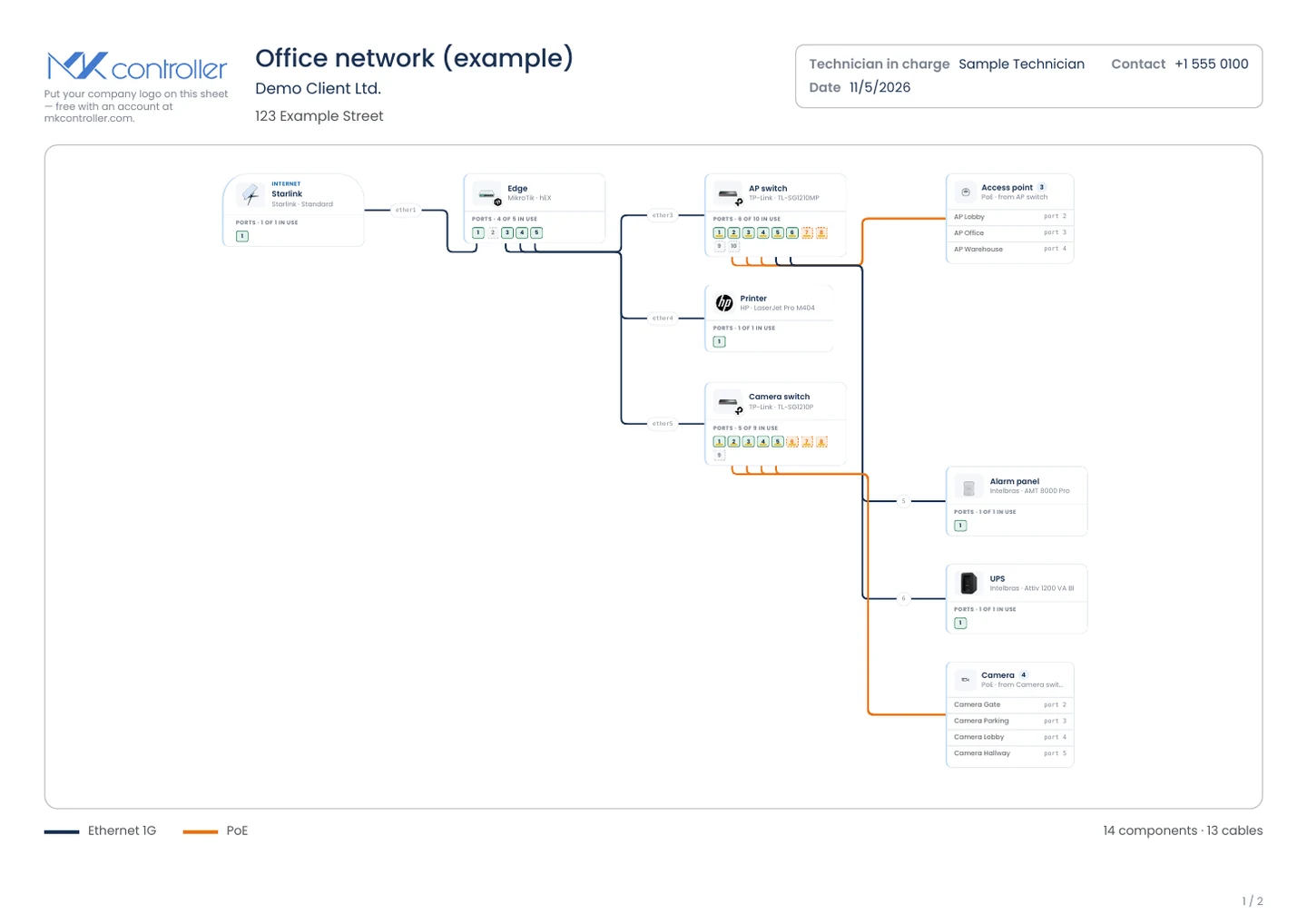
- Draw the cables. Select a card and drag its blue dot onto another card. The first free port at each end is filled in for you. Each card shows how many ports are used, for example Ports · 4 of 5 in use.
- Choose the cable type. Click a cable to open its panel: change the ports at each end, add a VLAN or an IP, and pick the link type: Ethernet 1G, Ethernet 100M, Ethernet 10G, SFP+ / Fiber, PoE or Wi-Fi. The line’s thickness follows the link speed.
Two views of the same drawing
Section titled “Two views of the same drawing”Switch at the top of the map:
- Cables shows how everything is wired, with the port at each end of every cable.
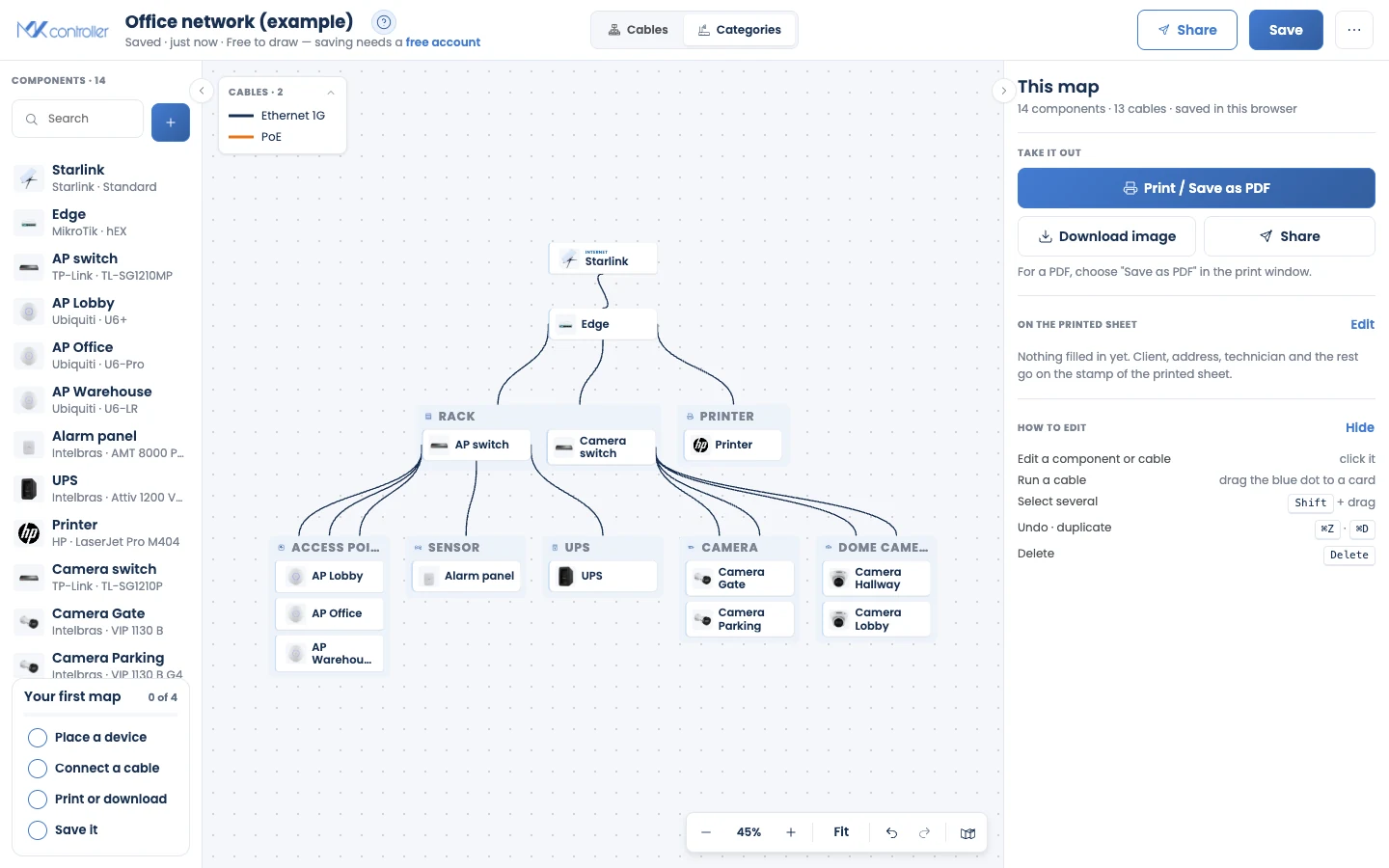
- Categories groups the same devices by what they are (rack, access points, cameras, UPS and so on). Nothing moves in your drawing.
Tools that help
Section titled “Tools that help”- Arrange tidies the layout, and Fit brings the whole map into view.
- Overview shows a small map of the whole drawing.
- Undo and Redo: Ctrl+Z / ⌘+Z and Shift+Ctrl+Z / Shift+⌘+Z.
- The components list on the left has a Search field.
- The “Your first map” checklist and the guides under ?, next to the map name, walk you through each step on the real screen.
Hand it over
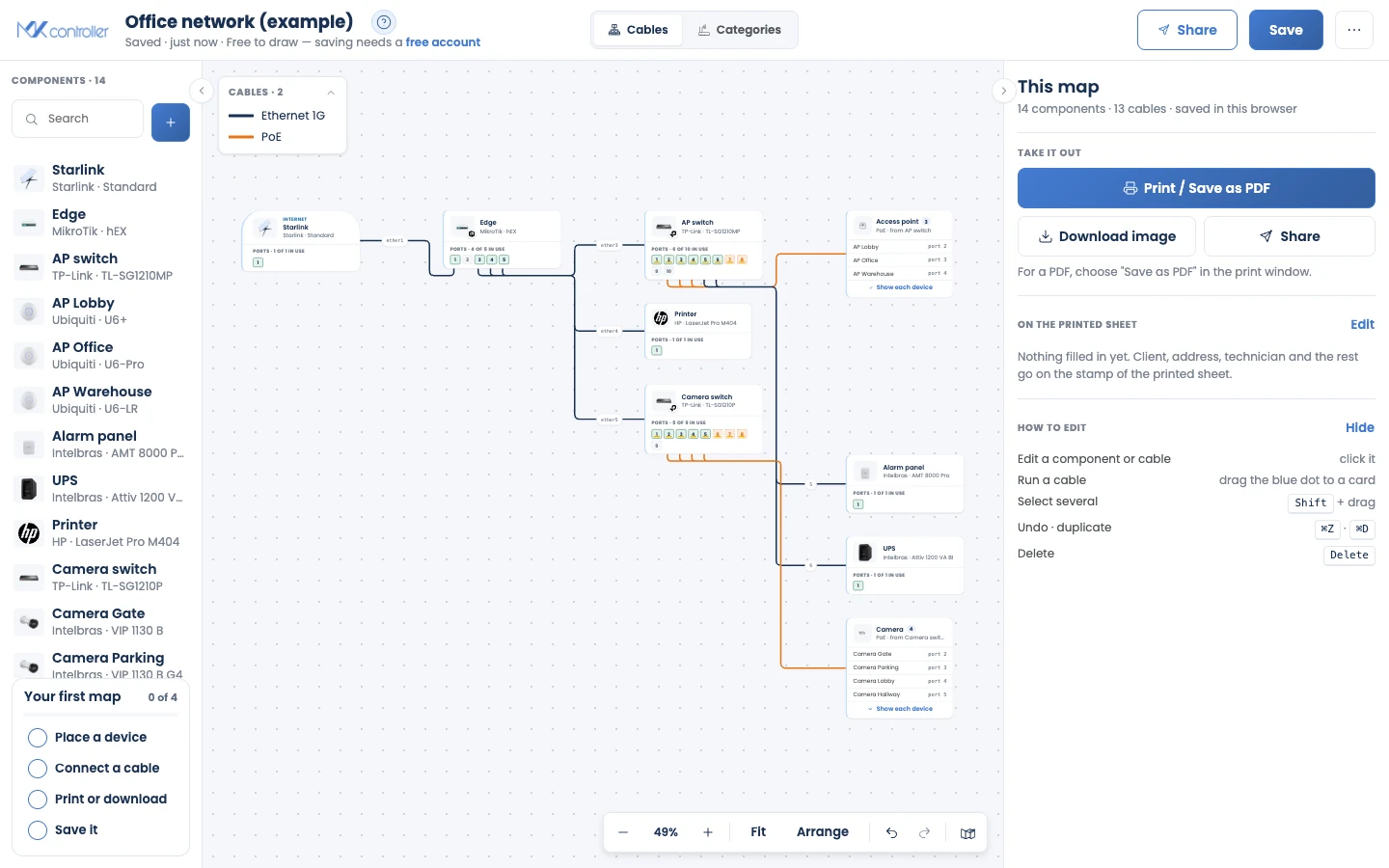
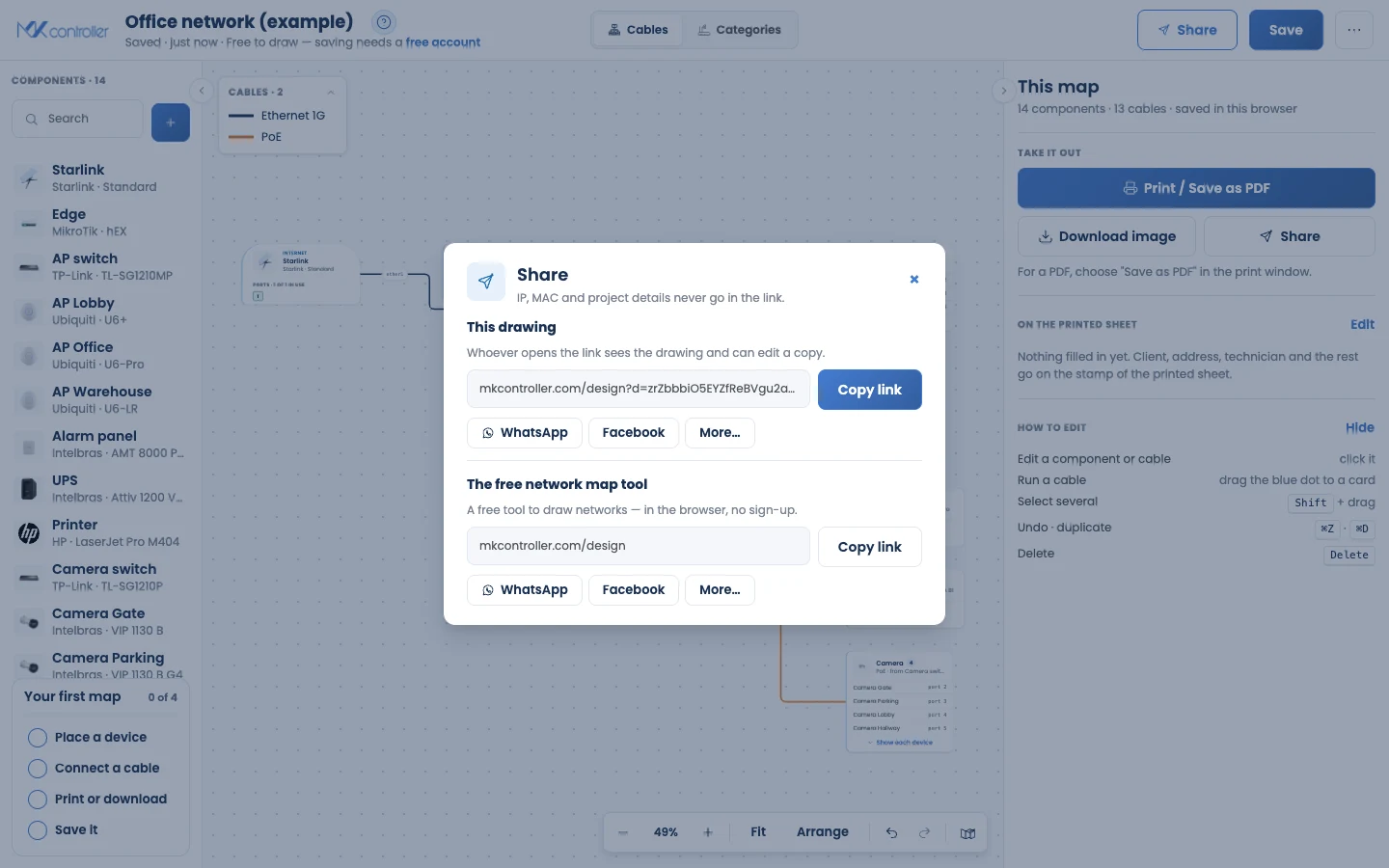
Section titled “Hand it over”In the This map panel, under Take it out:
- Print / Save as PDF. An A4 landscape sheet. To get a PDF, choose “Save as PDF” in the print window.
- Page 1: the whole drawing, the cable legend and the counts, plus a stamp with the details you fill in under On the printed sheet → Edit: Client, Address / site, Technician in charge, Contact, Revision, Date and Notes.
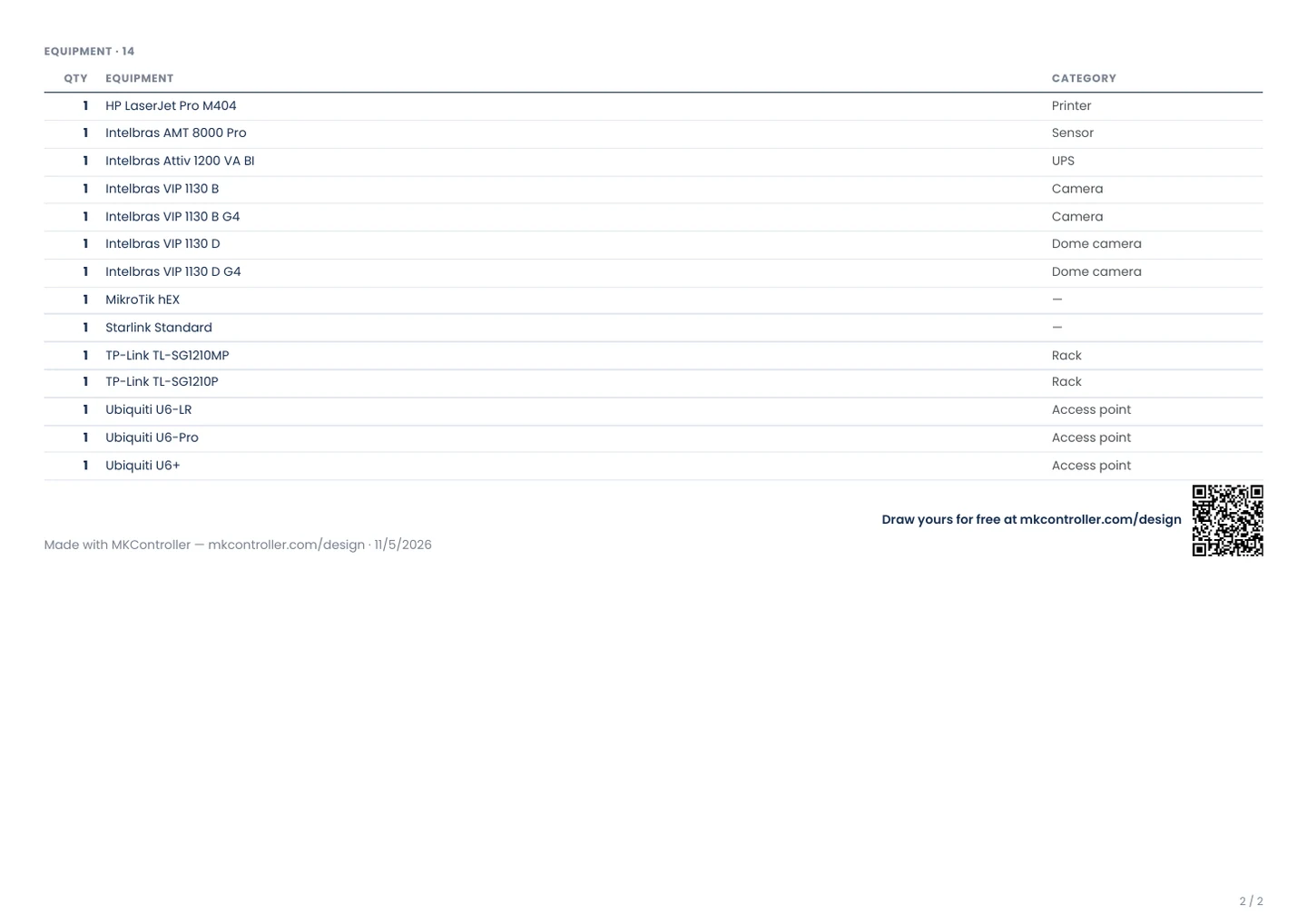
- Page 2: the equipment list, with Qty, Equipment and Category.
- With an account, your company logo goes on the sheet.
- Download image. A PNG of the drawing, with the cable legend and the counts.
- Share. A link that carries the drawing itself. IP addresses, MAC addresses and project details never go in the link. Whoever opens it can edit their own copy.
Save your map
Section titled “Save your map”Click Save. Saving needs a free MKController account: choose Create my free account or Sign in to save, with Google, Microsoft or e-mail. The sign-in opens in a new window or tab, and your drawing stays where it is.
- Creating an account starts a 3-day free trial of the full MKController platform. A new account confirms its e-mail first.
- A saved map is stored on MKController’s servers, in your account: its objects, cables and names, and anything you typed in it, such as IP addresses, MAC addresses and the project details.
Inside MKController
Section titled “Inside MKController”Signed in, under Operations → Network map:
- Read a site. Click New, choose Read a site, pick the site, then Read the site and draw. The map draws the site’s adopted devices (MikroTik, UniFi, Starlink, NATCloud) and up to 100 devices seen on the network that aren’t adopted yet, marked Not adopted.
- Live status. Each card shows Online, Offline, Needs attention, No data or Not adopted. The status is read when the map opens; click Refresh status to read it again.
- Sync devices adds devices that joined the site and flags the ones that left, without moving what you already drew.
- Connect a drawn device. Click a drawn MikroTik, UniFi or Starlink and choose Connect <name> to MKController to start adopting it. As a visitor, the button reads Save & connect it and opens the save dialog first.
- Share with your team. In the Share dialog, Copy map link works for people in the same MKController account. For anyone else, send the PDF or the image.
Good to know
Section titled “Good to know”- A map drawn from a site is a snapshot. It doesn’t redraw itself: use Sync devices and Refresh status.
- After you adopt a device you drew, its card stays a drawing. It doesn’t turn into the live device.
- Every Starlink card shows the same dish image, whatever the model.
- On a phone, select one card at a time; the cable legend and port labels are hidden at phone zoom.
- There is no file import or export. Take a map out as a PDF, an image or a link.
Frequently asked questions
Section titled “Frequently asked questions”Is the Network map free?
Section titled “Is the Network map free?”Yes. Drawing, printing, downloading an image and sharing a link need no account. Only saving a map needs a free MKController account.
Is my drawing sent to MKController before I save it?
Section titled “Is my drawing sent to MKController before I save it?”No. Until you save, the drawing lives only in your browser.
What does a shared link contain?
Section titled “What does a shared link contain?”The drawing itself, inside the link. IP addresses, MAC addresses and project details never go in it. The link doesn’t expire and can’t be revoked.
Which languages does it support?
Section titled “Which languages does it support?”English, Portuguese and Spanish. Change it in ⋯ → Language.
Next steps
Section titled “Next steps”- MikroTik Cloud Manager — Getting Started: connect your routers to MKController.
- MKController Plans & Pricing: the 3-day free trial and the plans.
Questions? Talk to our team in the chat inside MKController, or on WhatsApp.