
How to Install and Use MKController Agent
Deze inhoud is nog niet vertaald.
Summary
This guide explains what the MKController Agent does, why it is safe, how to install it on Windows, macOS, and Linux, and how to use it to discover and adopt devices into MKController.
MKController Agent
The MKController Agent is a small desktop helper that makes device adoption much easier. Think of it as a guided bridge between your local network and the MKController cloud platform. If you have used the UniFi Device Discovery Tool or similar vendor assistants before, the experience will feel familiar: the agent runs on your computer, checks your local network, finds compatible devices, and lets the platform offer a simpler adoption flow.
Instead of relying only on manual scripts, the agent helps you discover devices that are reachable on your current network. It also makes first-time onboarding more approachable for teams that want a visual, step-by-step workflow. For the classic method, you can still use the standard onboarding guide in MKController onboarding documentation.
What the MKController Agent is and why it is safe
The agent is not a random scanner running wild on your network. It is a controlled desktop application that stays tied to your MKController account and only assists with discovery and adoption (soon with Winbox and more). In practical terms, it behaves like other established management assistants in the market: it helps the platform identify devices on the local LAN and present them for approval.
Why is that useful? Because many devices are easy to reach locally, but not always simple to claim from a cloud controller without a guided discovery step. The agent closes that gap.
From a security perspective, the model is straightforward:
- You download the agent from the MKController platform.
- You bind it to your account using a temporary code.
- The platform shows when the agent is online, pending, or offline.
- You still choose which devices to adopt.
That last point matters. Discovery is not the same as automatic takeover. The agent helps locate eligible devices, but the final action remains under your control.
Note: The same security mindset present in MKController services for Content Filtering, VPN, and remote access also applies here. The agent is meant to simplify operations without lowering the bar for trust.
For broader background, the general idea is similar to how local discovery tools are used by network platforms such as Ubiquiti UniFi, where a local helper can assist with finding and onboarding devices on the same network.
First access: where to start in MKController
If this is your first time in MKController, or if your account has no devices yet, the platform already highlights two paths: install the agent or continue with the traditional adoption method.
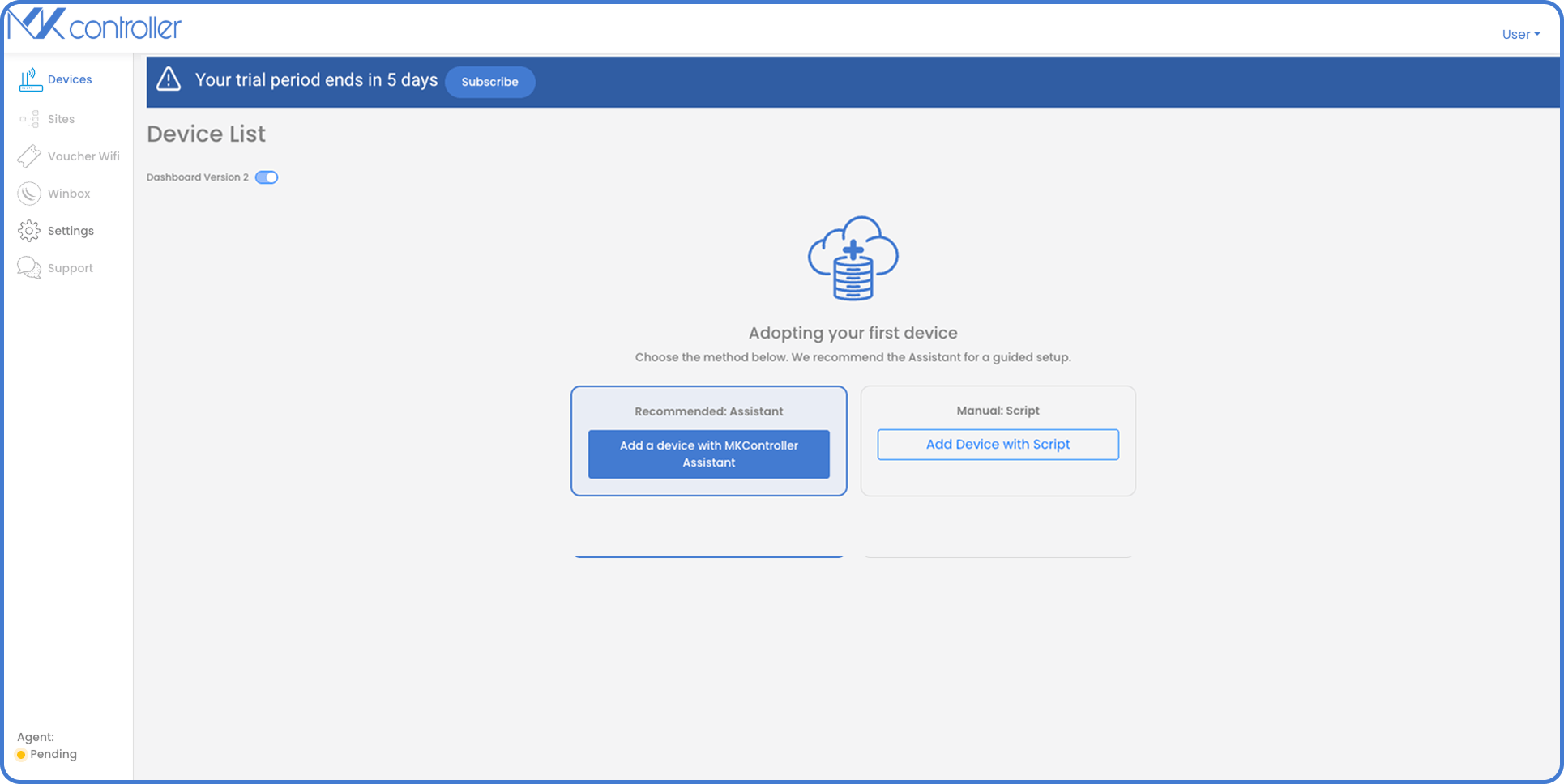
On the first device screen, the recommended option is the guided assistant. The manual script option remains available for customers who prefer the older process or who already have an established workflow.
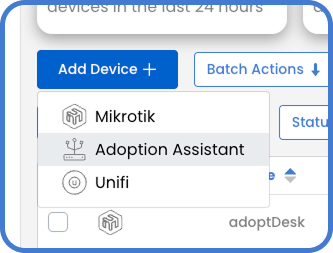
If you already have devices in your account and later want to add more using the agent, you can open the Add Device menu and select the assistant option.
A second indicator appears in the lower-left corner of the platform. When you see the agent status as Pending, On, or Off, you immediately know whether the desktop helper is ready to scan.
How to install and connect the agent
The installation flow is guided and short. On the setup page, MKController presents a three-step process: download the agent, copy the pairing code, and wait for the connection.
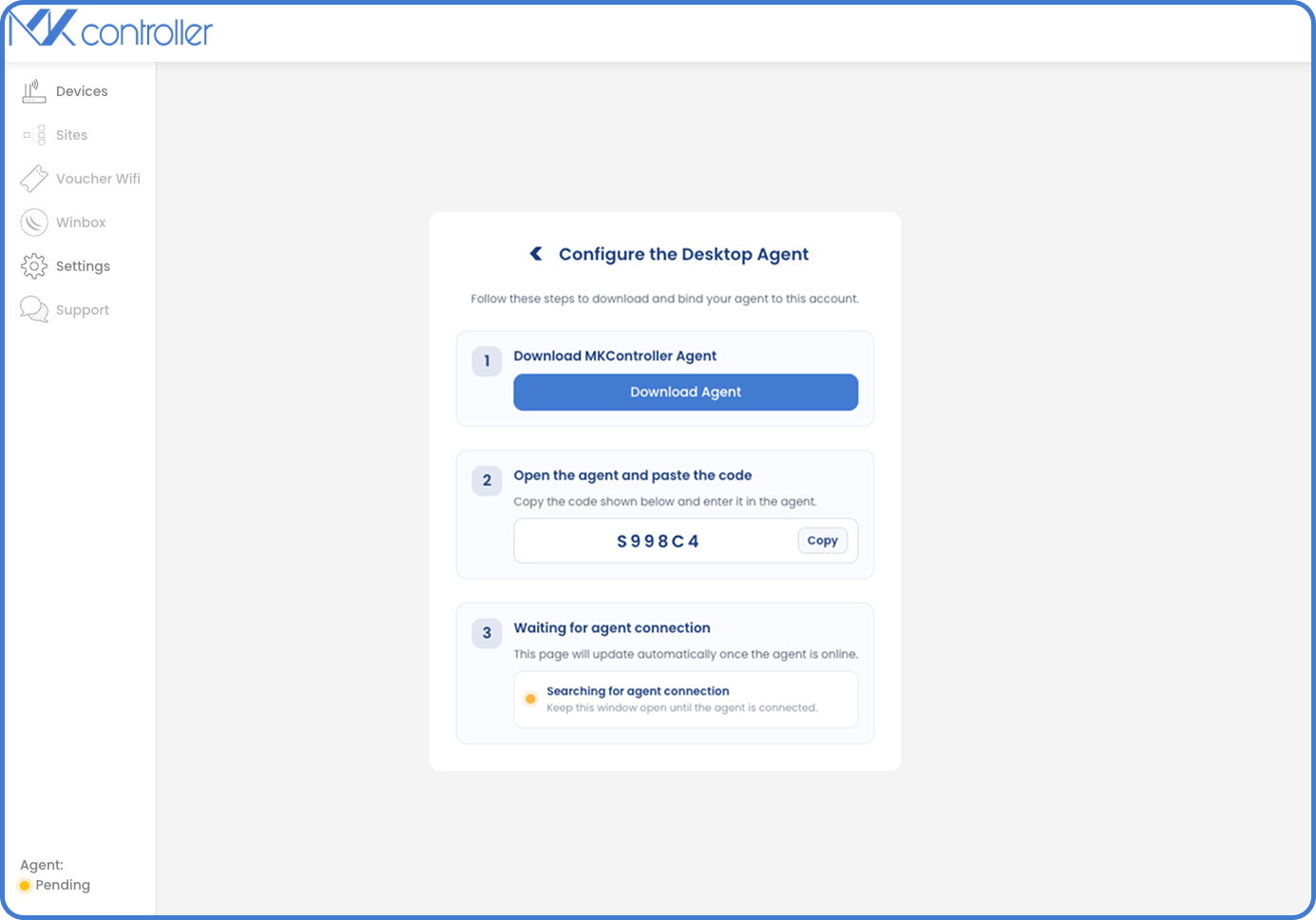
The process is:
- Click Download Agent.
- Open the downloaded installer on your computer.
- Copy the code displayed in the platform.
- Paste that code into the desktop application.
- Wait for the platform to confirm the connection.
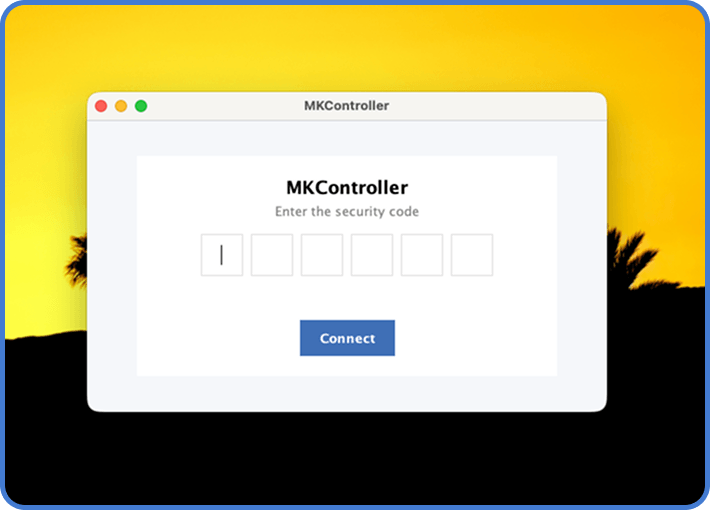
Once the code is entered, the connection process starts right away. There is no need to manually create discovery rules or run complicated terminal commands. That is the whole point of the assistant: fewer moving parts, less room for error.
After setup finishes, the application remains open on your system like any normal desktop utility.
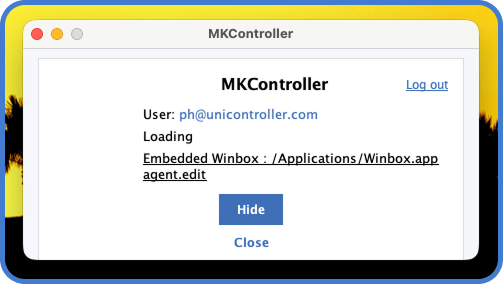
Tip: Keep the agent running while you are adopting devices. If you close it, the platform may no longer be able to scan your local network until it reconnects.
Important certificate disclaimer before installation
At the moment, MKController certificates are still in the approval process. Because of that, some operating systems may warn you when you try to install the agent. This can sound dramatic, but during this period it is expected behavior for newly distributed software that has not yet completed certificate approval.
This does not mean the agent is unsafe. It means your operating system is being cautious because the application certificate is still awaiting approval. The extra prompt is temporary, and it should stop being necessary once the certificate process is completed.
Here is a simple guide for each platform:
Windows
On Windows, the system may show a protected-app warning. Try opening the installer first. If Windows blocks it, look for options such as More info and then allow the installation of the trusted file you downloaded from MKController. If your company uses endpoint policies, your IT administrator may also need to approve it once.
macOS
On a MacBook or other macOS device, try opening the installer normally. If macOS blocks it, go to System Settings > Privacy & Security. Scroll down and approve the installation for the blocked application, then run the installer again.
Linux
On Linux, the most common issue is execution permission. Make sure the downloaded file can run, and then open it using your desktop environment or package method. In stricter environments, your administrator may need to approve the package source according to company policy.
Warning: Only approve and install the agent when it was downloaded directly from the MKController flow inside your account. Do not use files from unknown mirrors or third-party shares.
The reassuring part is this: the same trust principles already present in MKController solutions for Content Filtering, VPN, and remote access are present here too. The goal is to help you move forward safely, not to ask for blind trust. This approval step is only relevant while the certificate is not yet approved.
For extra operating-system guidance, you can also review trusted vendor references such as Apple Support and Microsoft Support, both of which explain how system security prompts work.
How to confirm the agent is online
When the installation is complete and the application is open, MKController marks the agent as active in the lower-left corner of the platform. The status becomes green and shows that the helper is connected.
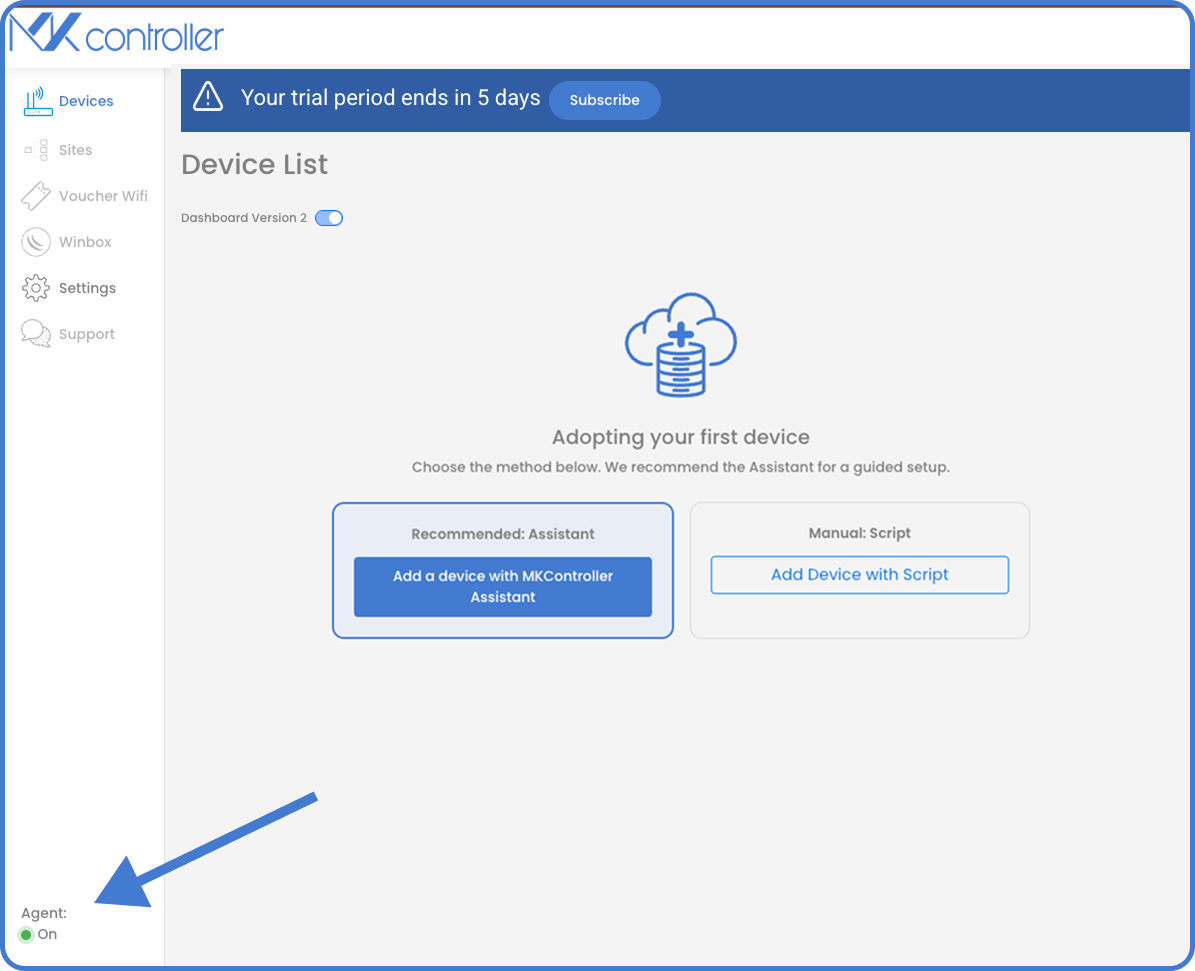
This is the moment when adoption becomes much easier. The button that previously guided you to download the assistant now becomes part of the discovery flow. The agent is online, the platform can talk to it, and you are ready to scan.
How to scan the network and adopt devices
With the agent running, MKController can search your local network for devices that are eligible for adoption.
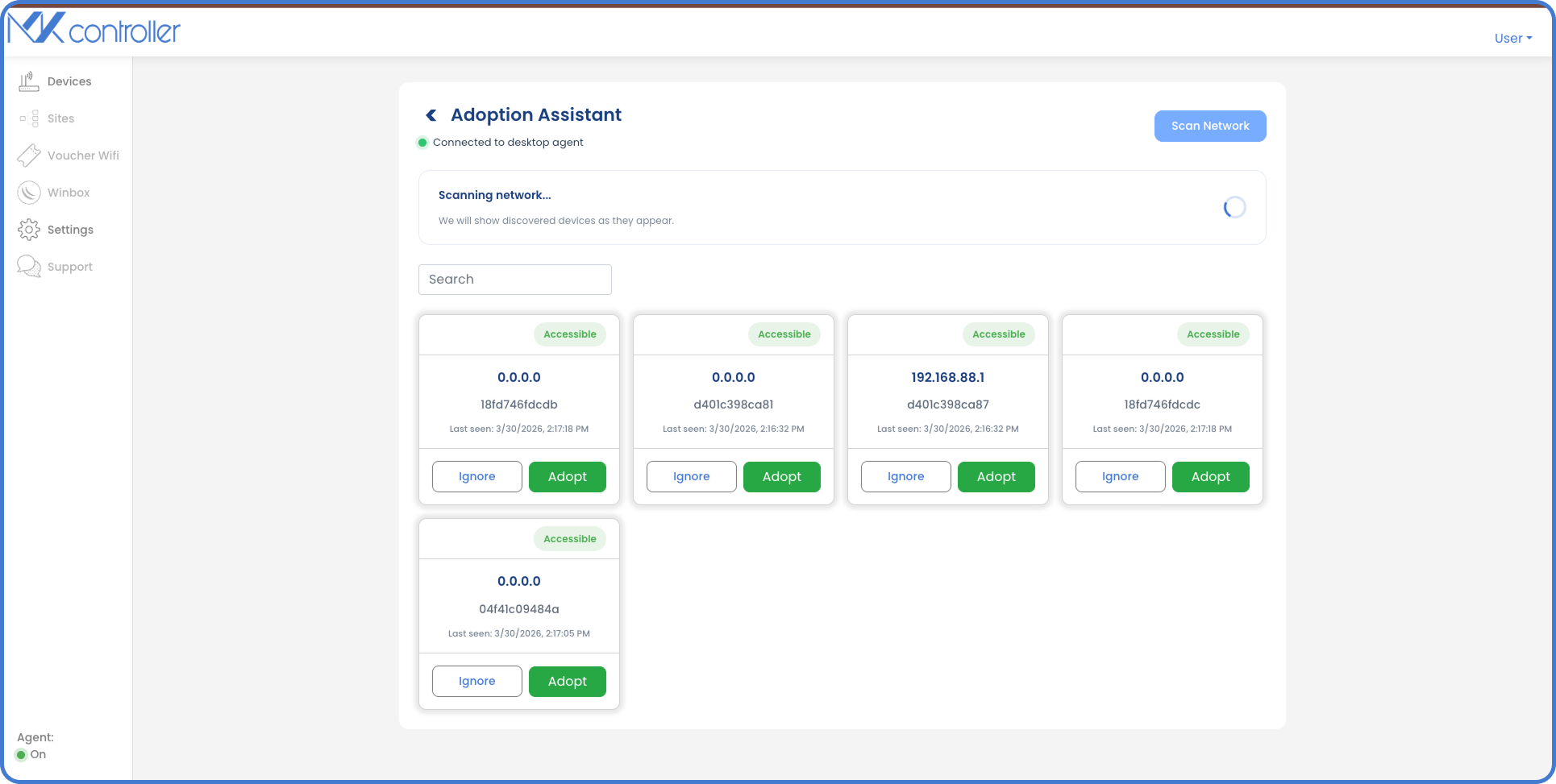
This screen is where the agent really shines. It scans the current network, lists discovered devices, and gives you a direct Adopt button for each compatible result. You can also ignore entries you do not want to process yet.
A few practical notes help here:
- The scan depends on the computer running the agent having local visibility of the devices.
- The devices must be reachable on the network where the agent is running.
- Internet connectivity is still important because the workflow is coordinated by the MKController platform.
One useful operational detail is that you can adopt supported MikroTik devices now and physically move them later. After they are adopted, as long as the destination has internet access, you can continue managing them and take advantage of what MKController offers in the cloud.
Where MKController helps: The agent reduces manual work during onboarding. It is especially useful when you want a guided adoption experience for new deployments, lab staging, or recurring installations across customer sites.
What happens if the agent goes offline
If the desktop helper is not running or loses internet access, the platform makes that status obvious. You do not have to guess.
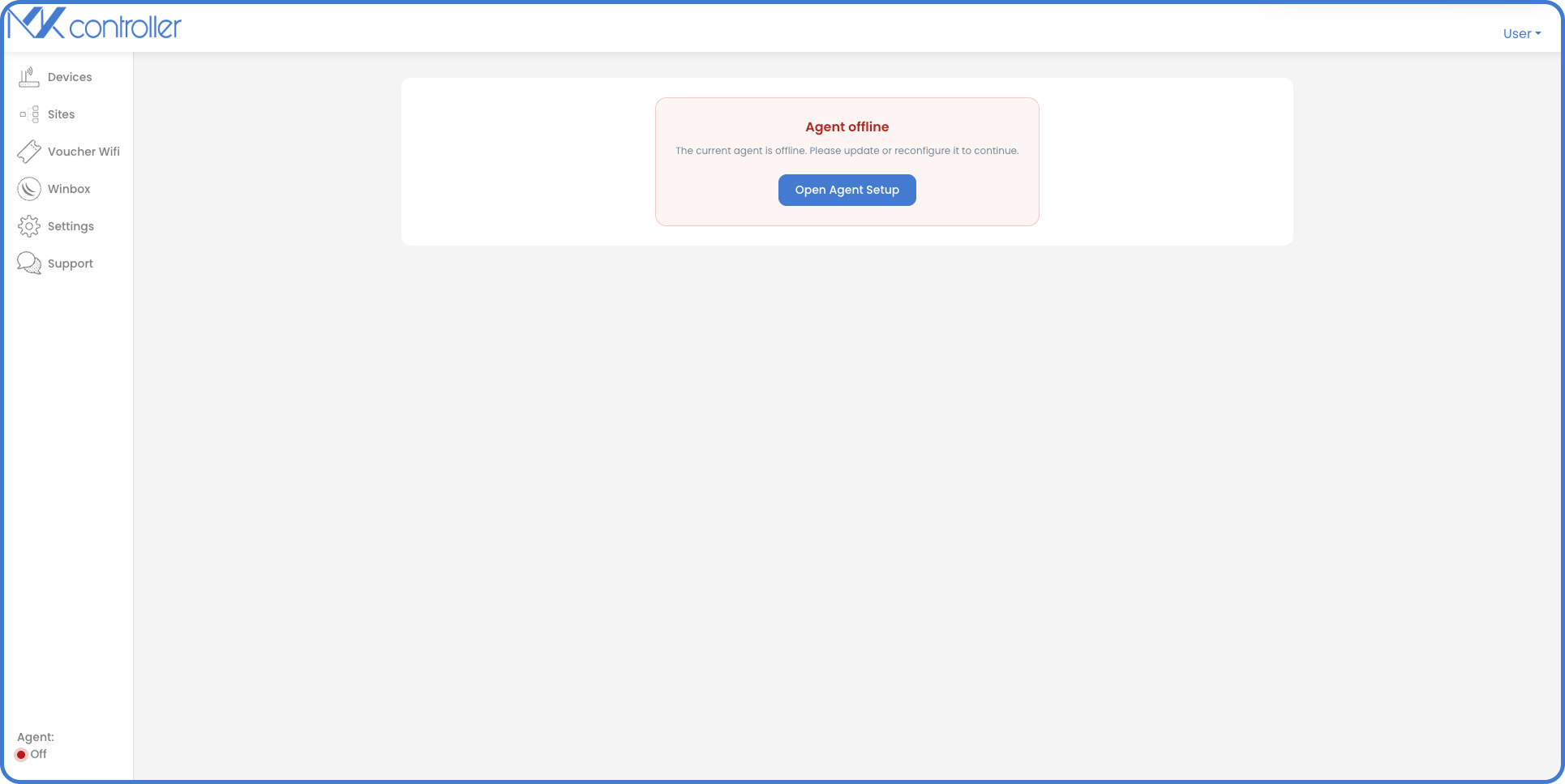
When this happens, MKController also provides a recovery path with clear guidance.
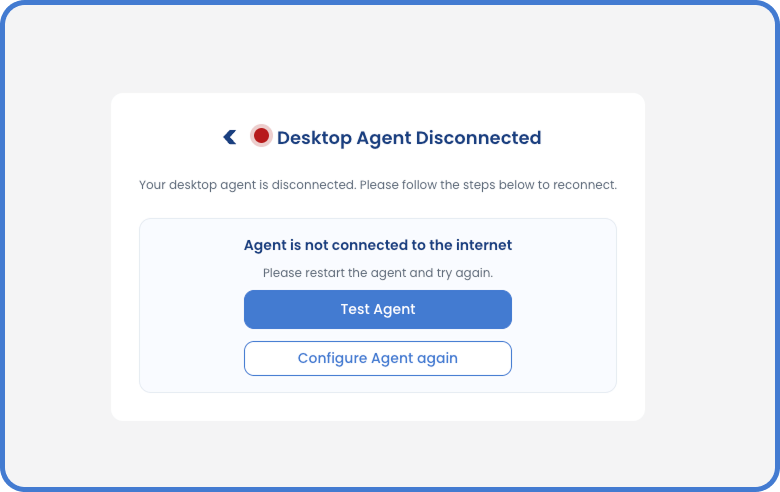
In most cases, the fix is simple:
- Reopen the desktop application if it was closed.
- Confirm the computer still has internet access.
- Use Test Agent or Configure Agent again if prompted.
- Return to the platform and wait for the status to become active again.
Once the agent is back online, the adoption process is very simple: just click the Adopt button. If you have any questions, you can still follow the traditional processes, or contact our support.