
MikroTik Bulk Updates with MKController
Este conteúdo não está disponível em sua língua ainda.
Summary
This guide shows how to run bulk MikroTik changes in MKController with .auto.rsc files, staged execution, and optional device attributes for per-router values.
MikroTik Bulk Updates with MKController
Managing one MikroTik is simple. Managing dozens, hundreds, or geographically scattered routers is another story. When you need to update identities, firewall rules, Wi-Fi settings, DHCP options, or other RouterOS parameters at scale, doing it device by device wastes time and increases the chance of inconsistency.
MKController helps reduce that operational drag by letting you send the same script to multiple selected devices in one batch. In practice, you prepare a file in .auto.rsc format, upload it through the platform, and track the operation from a central screen. For teams that support branch offices, ISPs, and distributed customer networks, that can save a lot of clicks and more than a few headaches.
Why bulk updates matter
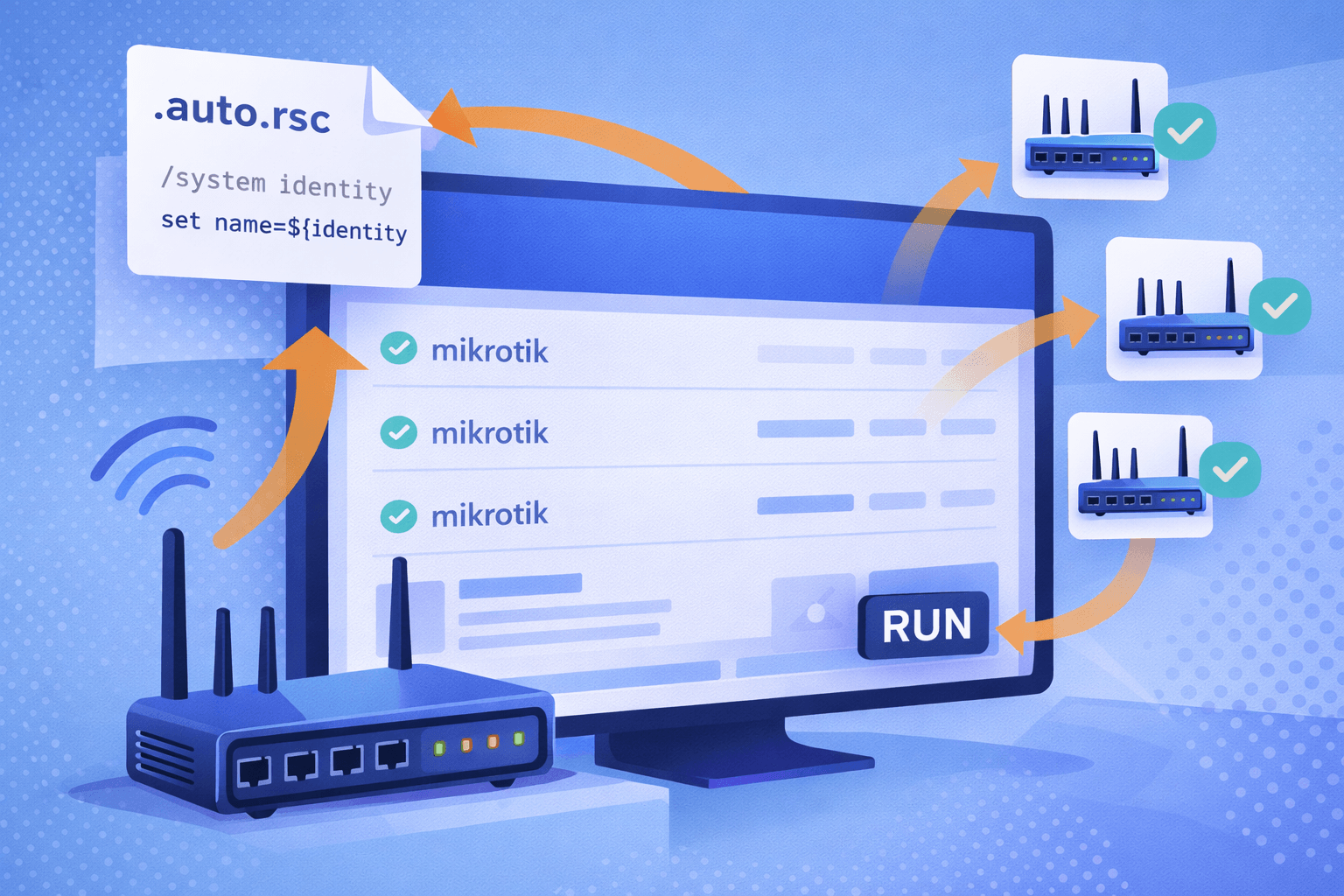
Bulk changes are useful whenever the same adjustment must be applied to many routers. Common examples include renaming devices, standardizing firewall rules, changing Wi-Fi parameters, or preparing a migration plan in phases.
The main benefit is consistency. Instead of repeating the same manual task across many sessions, you prepare one command file and reuse it. That makes maintenance faster and easier to audit later.
Where MKController helps: MKController centralizes device selection, batch execution, and operation tracking, which makes routine RouterOS changes easier to organize across distributed environments.
You can also combine this workflow with your broader MKController process for onboarding and lifecycle management. For example, after device adoption, you can continue with centralized monitoring and administration in the platform: MKController Knowledge Center.
Prepare the script file
The first step is to create the command you want RouterOS to execute. In this example, the goal is to change the device identity. The command starts with a slash and uses standard RouterOS syntax.
/system identity set name=MKController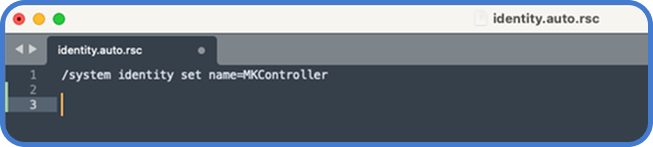
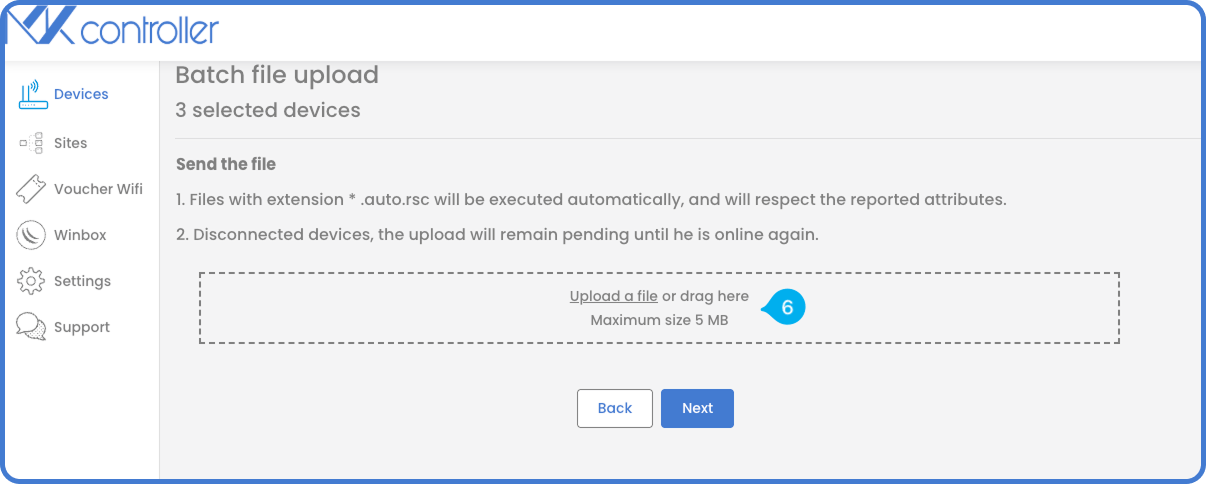
Save the file with the .auto.rsc extension. That extension is important because MKController recognizes it for automatic execution during the batch process.

Tip: Keep the first version of your script small and focused. Test one safe change before pushing a larger set of commands.
Run a batch operation in MKController
Once the file is ready, log in to the MKController app and open the device list. Select the routers that should receive the update. Then use the batch action menu to start the file upload flow.
A practical sequence looks like this:
- Open Devices.
- Select the target MikroTik devices.
- Click the option to add the selected devices to an operation.
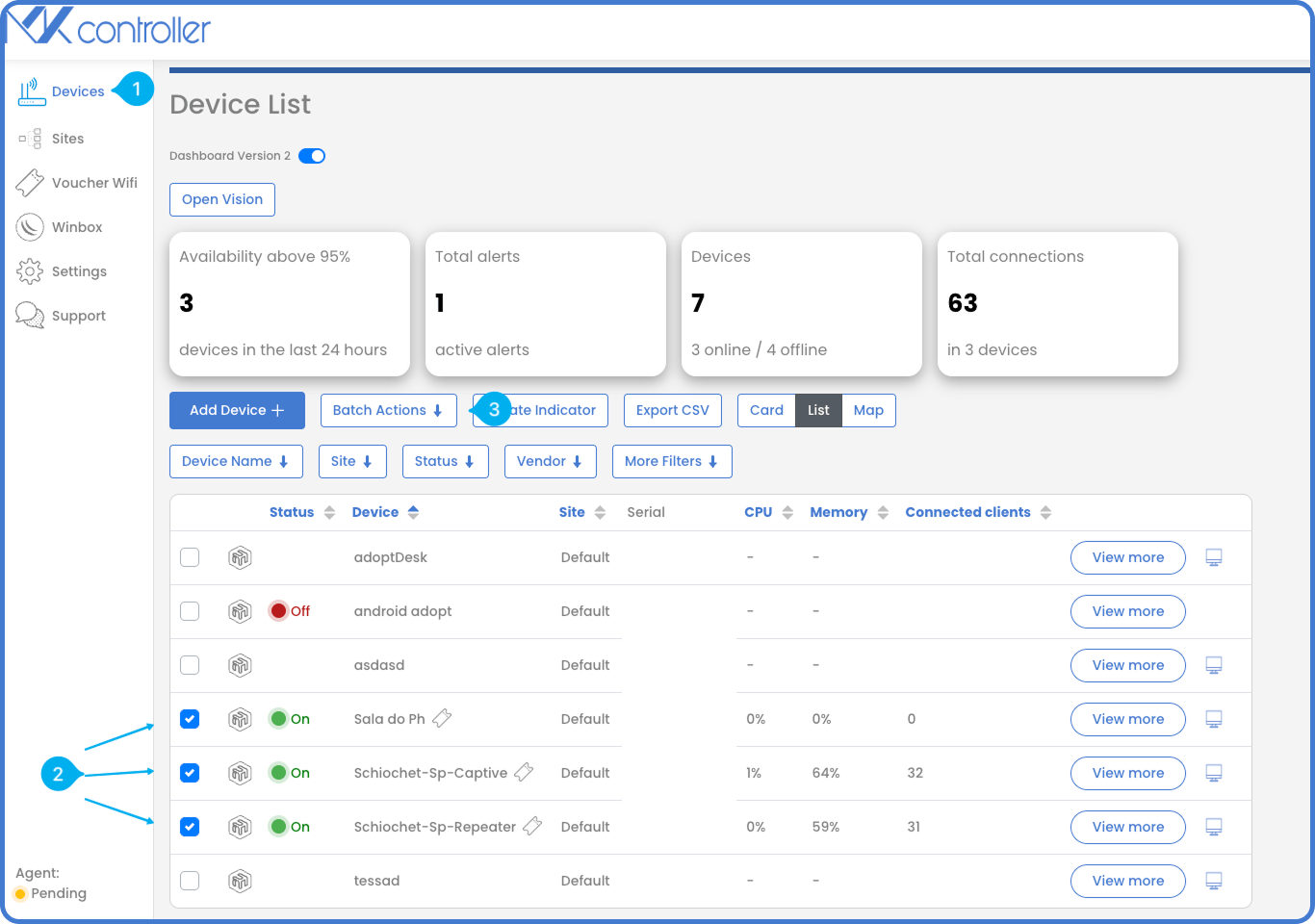
- Choose Send batch file.
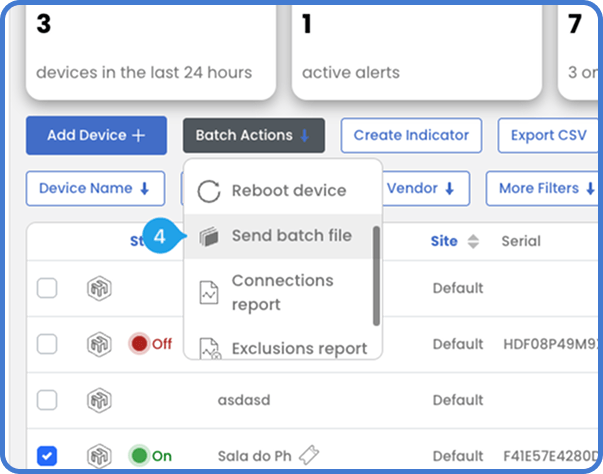
- Review the selected routers and continue.
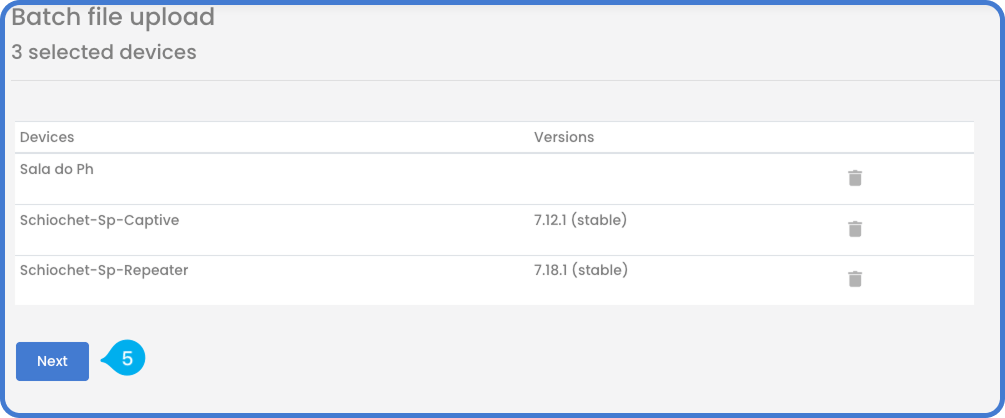
- Upload the
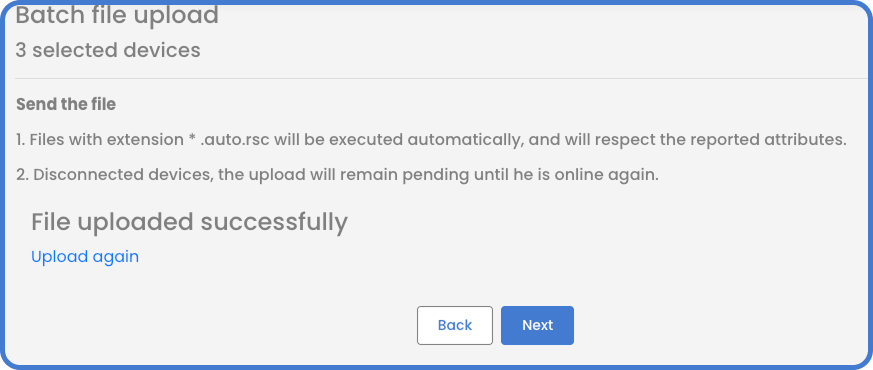
.auto.rscfile.
- Confirm and move to the operation screen.
Track status and validate the result
After the upload, MKController shows the operation in the pending queue. This is the right place to confirm whether the file has been accepted and whether the selected devices are still part of the task.
If needed, you can remove a device from the operation before execution. That adds a useful safety layer when you notice that the wrong router was selected.
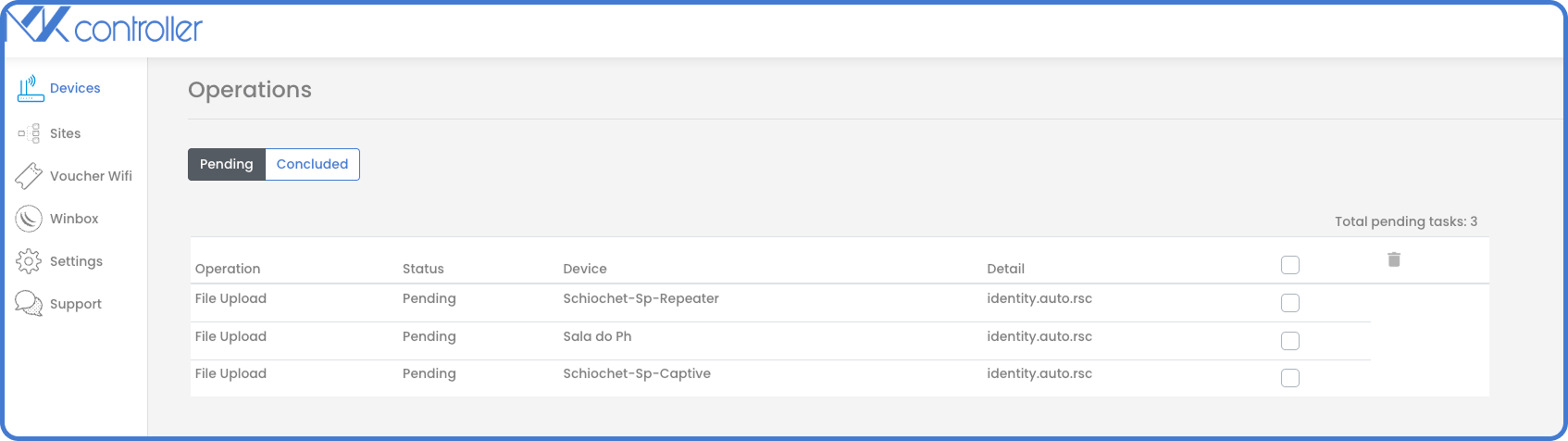
Validation should not stop at the queue. After the operation finishes, open at least one updated router and confirm that the expected value changed. In this case, you would verify that the device identity now matches the value sent in the script.
Note: For wider production changes, test on a small pilot group first. A clean pilot usually reveals syntax errors, variable issues, or unintended side effects before they spread.
For RouterOS scripting behavior and command structure, the official MikroTik documentation is also worth keeping nearby: RouterOS documentation.
Use attributes for per-device values
Sometimes the command structure is the same, but the value must change per router. That is where attributes become useful. Instead of hardcoding a fixed name, you can reference a variable that MKController resolves for each device.
In the source scenario, one router has an attribute with the code identity and the value Becon, while another router does not yet have that attribute.
To prepare that flow:
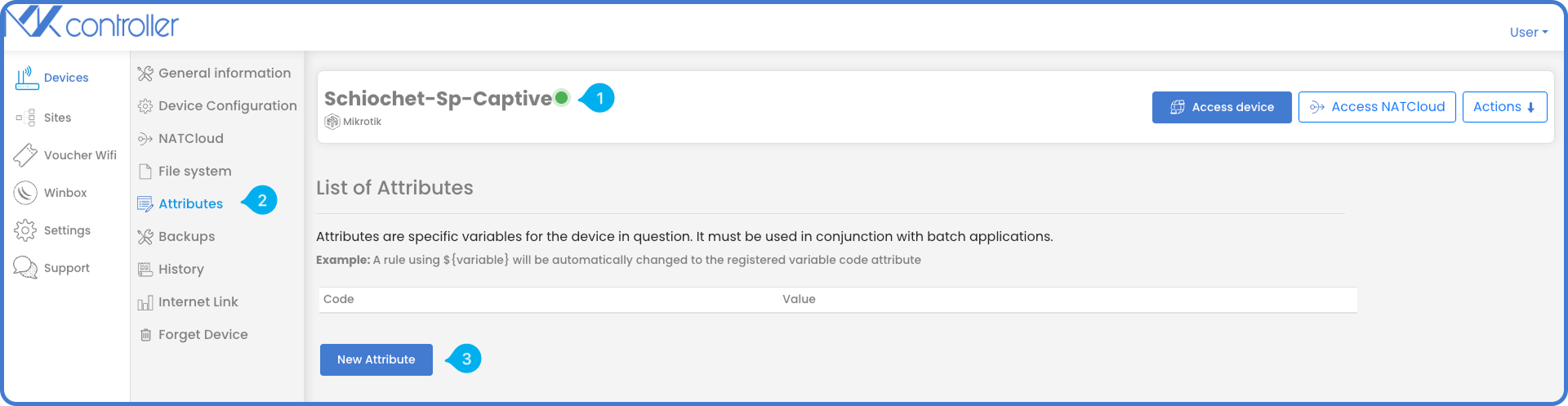
- Open the target device details.
- Go to Attributes.
- Create a new attribute.
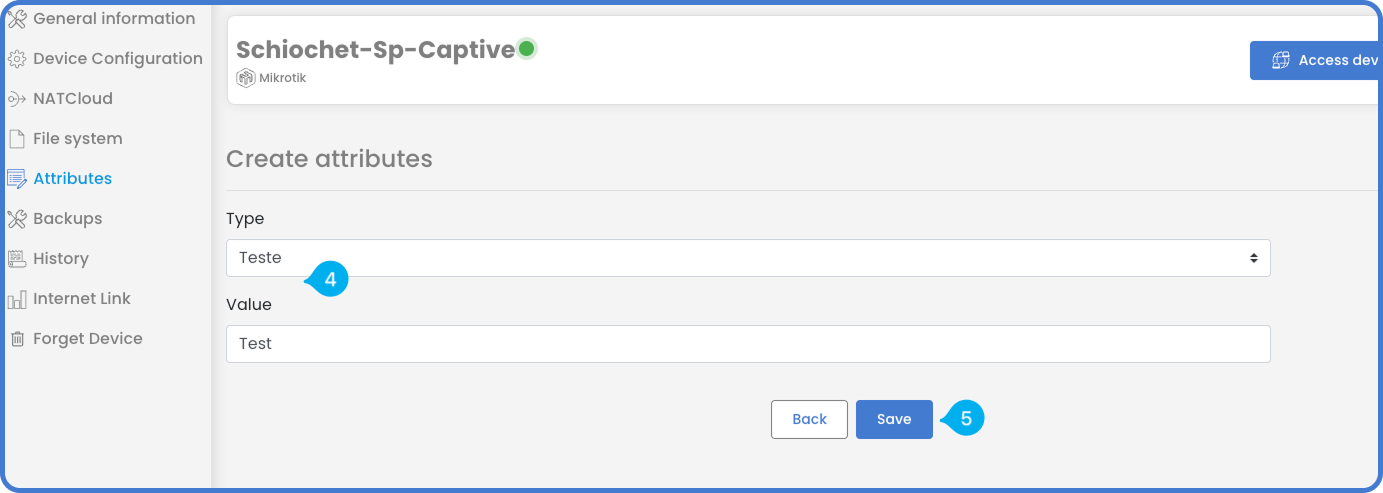
- Define the type and value.
- Save it before running the batch process.
Then update the script so it uses the attribute placeholder:
/system identity set name="${teste}"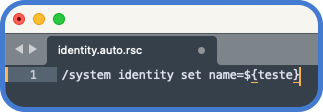
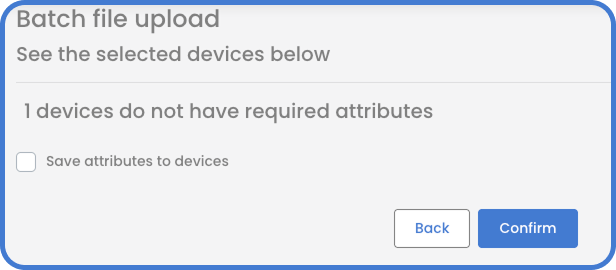
If a selected router does not yet have the required attribute, MKController can stop and ask for the missing value before continuing. That prevents silent failures and helps you finish the batch with the correct data.
Good practices before sending scripts at scale
A batch script is powerful, so it deserves a little discipline. Keep these habits in place:
- Start with a lab device or a small pilot group.
- Use one logical change per script whenever possible.
- Save versioned copies of your
.auto.rscfiles. - Review commands for syntax and spacing before upload.
- Confirm whether the change depends on per-device attributes.
- Validate the result on real devices after completion.
Warning: Avoid bundling unrelated changes into one large script unless you have already tested the full sequence. Smaller batches are easier to roll back and troubleshoot.
Final thoughts
Bulk updates in MKController offer a practical way to standardize RouterOS changes across many devices without working one router at a time. The basic method is simple: write the command, save it as .auto.rsc, select the devices, upload the file, and track the operation. When values differ per router, attributes give you the flexibility to reuse the same script without losing control.
That combination of speed and structure is what makes the feature valuable. Less repetition. Fewer manual mistakes. Better visibility.