
Limite de Dados em Vouchers MikroTik
Resumo Os limites de dados do MKController permitem que você defina um volume máximo de download/upload por voucher — por exemplo, 1 GB por código — aplicado pelo hotspot MikroTik. Quando o limite é atingido, a sessão é encerrada automaticamente. O acompanhamento de consumo em tempo real no painel mostra exatamente quanto de dados cada voucher ativo já usou. Esse recurso é essencial para implantações conectadas via satélite (Starlink, Viasat, etc.) e qualquer local onde a banda tem custo por GB.
O Que É a Limitação de Dados de Vouchers MikroTik no MKController?
Section titled “O Que É a Limitação de Dados de Vouchers MikroTik no MKController?”A limitação de dados de vouchers do MKController é um limite de banda por voucher que o MKController configura no seu hotspot MikroTik. Quando a sessão de um usuário atinge o volume de dados definido, o acesso dele é encerrado — mesmo que a duração da sessão ainda não tenha expirado. Você define o limite durante a criação do lote, monitora o consumo em tempo real e nunca precisa mexer no RouterOS manualmente.
Por Que Usar Limites de Dados em Vouchers MikroTik?
Section titled “Por Que Usar Limites de Dados em Vouchers MikroTik?”| Cenário | Benefício dos limites de dados |
|---|---|
| Conexões via satélite (Starlink, Viasat, Hughes) | Impede que um único usuário consuma toda a franquia mensal de dados |
| Locais compartilhados (cafés, hotéis, coworking) | Dá a cada usuário uma parcela justa da banda disponível |
| Revendedores de pagamento por GB | Venda pacotes de acesso de 1 GB, 5 GB ou 10 GB com aplicação automática |
| ISPs com planos escalonados | Alinhe as franquias de dados dos vouchers aos níveis de contrato dos clientes |
| Eventos públicos | Gerencie banda finita entre centenas de usuários simultâneos |
Para ISPs e WISPs que usam backhaul via satélite: os limites de dados são o cerne de um modelo de monetização baseado em consumo. Um voucher de 1 GB vendido em um quiosque recupera o custo dos dados de satélite diretamente, sem intervenção manual.
Pré-requisitos
Section titled “Pré-requisitos”Antes de configurar limites de dados, confirme:
- Seu MikroTik está adotado e online no MKController.
- Um hotspot já está configurado e vinculado a um dispositivo. Consulte o guia de Onboarding de Vouchers.
Como Configurar um Limite de Dados em Vouchers MikroTik?
Section titled “Como Configurar um Limite de Dados em Vouchers MikroTik?”Passo 1: Abra o Criador de Lotes de Vouchers
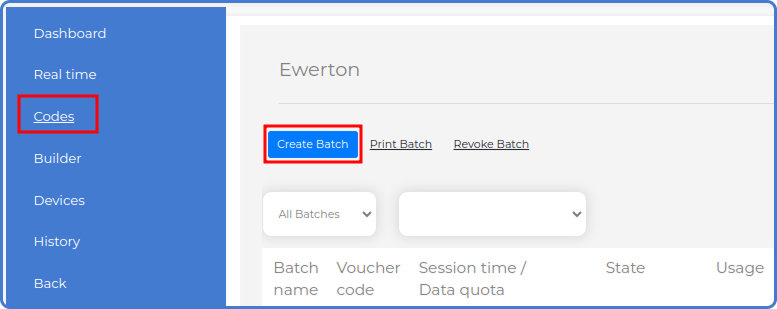
Section titled “Passo 1: Abra o Criador de Lotes de Vouchers”Na seção Voucher do MKController, clique em Códigos e então em Criar Lotes.
Passo 2: Preencha as Informações do Lote
Section titled “Passo 2: Preencha as Informações do Lote”Insira os detalhes do lote:

- Nome do lote: um identificador claro (por exemplo, “Vouchers de 1 GB — Semana 23” ou “Lote Starlink A”).
- Quantidade de códigos: o número de vouchers a serem gerados neste lote.
- Modo de uso do código: escolha “Uma conexão por voucher” (dispositivo único) ou “Uso simultâneo em vários dispositivos.”
Passo 3: Defina o Limite de Consumo de Dados
Section titled “Passo 3: Defina o Limite de Consumo de Dados”Na seção de parâmetros, configure:
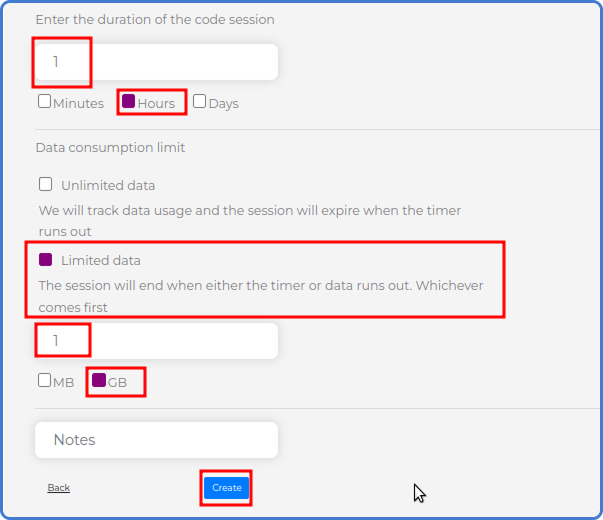
- Duração da sessão: o tempo máximo que uma sessão de voucher pode durar (minutos, horas ou dias). A sessão termina no que ocorrer primeiro: o limite de tempo ou o limite de dados.
- Limite de consumo de dados: habilite esta opção e insira o valor (por exemplo:
1) e a unidade (MBouGB).
Clique em Criar para gerar o lote.
Como Monitorar o Consumo de Dados em Tempo Real?
Section titled “Como Monitorar o Consumo de Dados em Tempo Real?”Na seção Tempo real do módulo Voucher do MKController, a coluna Uso de Dados mostra o total de dados consumidos (upload + download combinados) para cada sessão de voucher ativa.
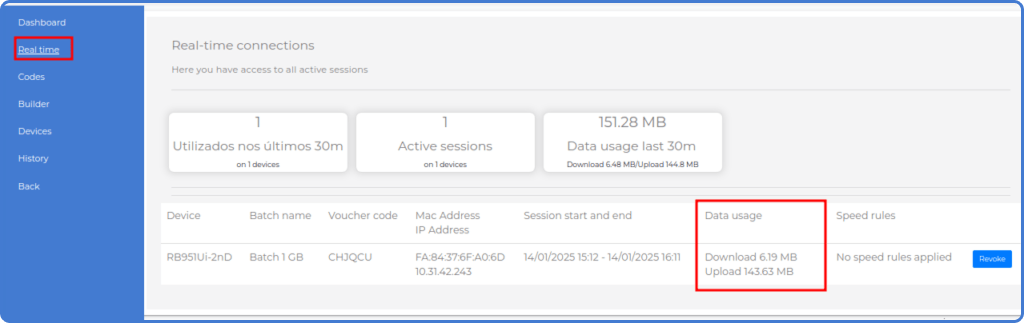
Use esta visão para:
- Confirmar que os limites de dados estão sendo aplicados corretamente em novos lotes.
- Identificar usuários de alto consumo antes que esgotem sua franquia.
- Verificar volumes de dados para fins de cobrança ou geração de relatórios.
Dicas de Estratégia de Precificação de Limites de Dados
Section titled “Dicas de Estratégia de Precificação de Limites de Dados”Definir o limite de dados certo por nível de voucher pode impactar significativamente a lucratividade e a satisfação do cliente:
Alinhe o limite ao seu custo de upstream. Se você paga por gigabyte por backhaul via satélite ou medido, precifique cada nível de modo que o custo dos dados seja coberto antes de qualquer margem. Por exemplo, se 1 GB de dados Starlink custa US$ 0,05 para você, um voucher de US$ 1,00 com limite de 1 GB lhe dá uma margem de 20x.
Ofereça vários níveis. Um voucher de 500 MB para acesso rápido e um voucher de 5 GB para estadias prolongadas dão opções aos clientes e ajudam você a capturar tanto usuários casuais quanto os de uso intenso. Gere lotes separados para cada nível com nomes descritivos.
Arredonde os limites de dados para valores fáceis de comunicar. Os clientes entendem “1 GB” e “500 MB” mais facilmente do que “1.024 MB” ou “750 MB.” Mantenha os nomes dos níveis simples.
Solução de Problemas de Limites de Dados
Section titled “Solução de Problemas de Limites de Dados”O limite de dados está definido, mas as sessões não estão parando no limite. Verifique se o dispositivo MikroTik está online e se o hotspot está corretamente vinculado no MKController. Os limites de dados são aplicados pelo mecanismo de hotspot do MikroTik — se o dispositivo perder a conectividade com o MKController, ele continua executando o perfil de hotspot existente até ser restaurado.
A coluna Uso de Dados mostra 0 mesmo com sessões ativas. Verifique se o hotspot é o correto vinculado ao dispositivo MikroTik em questão. Se vários hotspots estiverem configurados, as sessões podem estar sendo contabilizadas na visão em tempo real de um hotspot diferente.
Criei um novo lote com um limite de dados, mas os vouchers existentes do lote antigo não são afetados. Os limites de dados são definidos por lote no momento da criação e não podem ser alterados para códigos já gerados. Apenas novos lotes refletem as configurações atualizadas.
Perguntas Frequentes
Section titled “Perguntas Frequentes”O limite de dados conta upload, download ou ambos? O limite de consumo de dados no MKController conta o tráfego total — o volume combinado de upload e download por sessão de voucher.
O que acontece quando um usuário atinge o limite de dados durante a sessão? O mecanismo de hotspot do MikroTik encerra a sessão imediatamente quando o limite é atingido. O usuário é levado de volta à página de login do portal cativo, onde pode inserir um novo código de voucher, se tiver um.
Posso estender o limite de dados em uma sessão ativa existente? Os limites de dados são aplicados pela configuração do lote do código de voucher e não podem ser estendidos em uma sessão ativa. Você pode gerar um novo voucher com um limite maior e fornecê-lo ao usuário como extensão.
Dúvidas sobre a configuração de limites de dados ou casos de uso de conectividade via satélite? Entre em contato com o suporte do MKController pelo WhatsApp.
Dúvidas? 📧 contato@mkcontroller.com