
How to Cancel your MKController Subscription
Summary
This guide explains, in detail, how to permanently delete your MKController account from inside the panel.
You’ll see where to find the option in the Settings menu, how the confirmation works, and what you need to enter (password and email code) before the account is actually removed.
Remember: this action is irreversible – once completed, your account, settings and related data will no longer be available.
How to permanently delete your MKController account
-
Open the Settings menu
- Log in to your MKController account using your usual email and password.
- Once you’re inside the panel, look for the Settings menu.
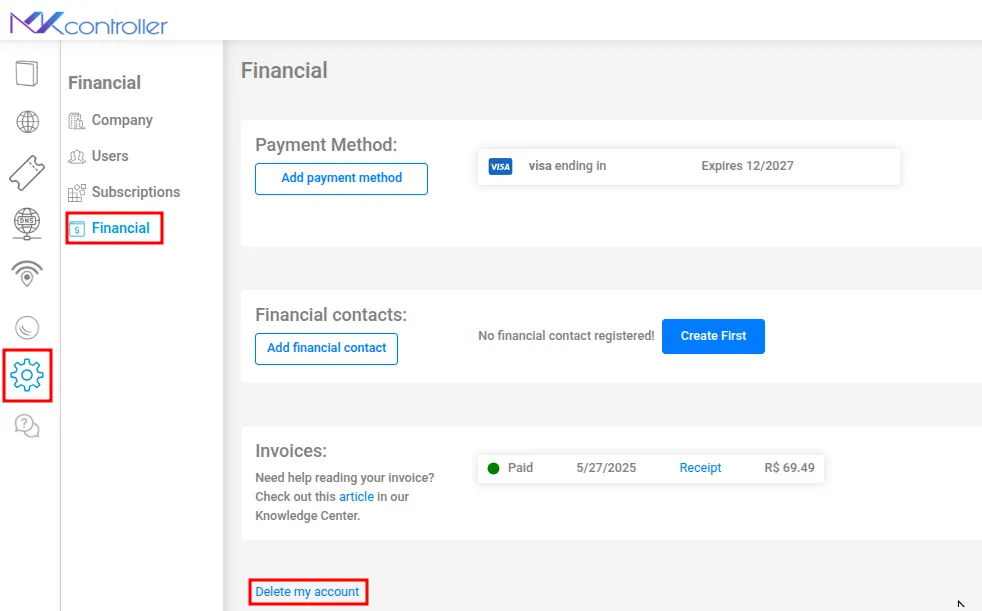
- It is represented by a gear icon (⚙️), usually located in the sidebar or top navigation bar.
- Click the gear icon to open the main Settings area for your account.
-
Access the Financial section
- Inside Settings, locate and select the Financial option.
- This section groups all billing and subscription-related controls, including invoices, payment methods, and account cancellation.
- Click Financial to open the page where the deletion option will be available.
-
Find the “Delete my account” option
- Scroll down to the bottom of the Financial page.
- Look for the button labeled “Delete my account”.
- Before clicking, make sure you understand that this is a permanent action, not just a temporary pause of your subscription.
- When you’re ready to proceed, click the “Delete my account” button.
-
Confirm your identity (password + email code)
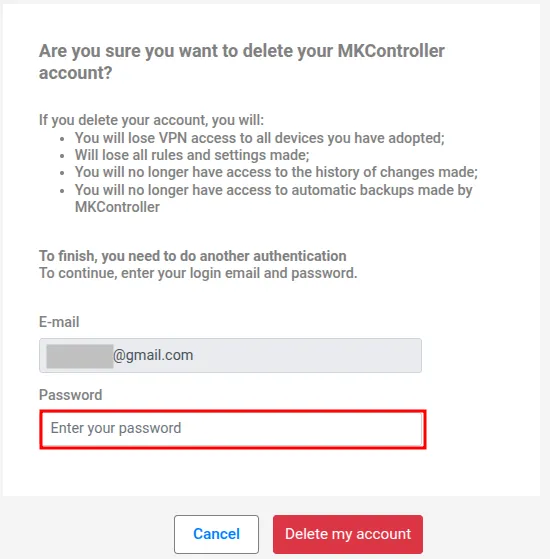
- After clicking, a confirmation window will appear to ensure the request is really from you.
- In this window, you must enter:
- Your MKController account password, in the appropriate field.
- The verification code sent to the email address associated with your account.
- Open your inbox, find the email with the code, and carefully type it into the requested field.
If you don’t see the email, check your spam/junk folder and make sure you’re checking the correct email address used to register on MKController.
-
Finalize the deletion
- Once you’ve entered both your password and the email verification code, review the information one last time.
- If everything is correct and you really want to proceed, click the “Delete my account” button again to confirm.
- After confirmation, the system will process the request and your account will be permanently removed.
You will no longer be able to log in with this account, and any associated configuration or data may be deleted according to our retention policies.
Need help or changed your mind?
If you have trouble receiving the verification email, entering your password, or you’re not sure whether your account was actually deleted, please reach out to our support team. We’re here to help you confirm the status of your account and clarify any questions about subscriptions, billing, or data removal.
👉 Click here to talk to us.
If you started the process by mistake, simply close the confirmation window before clicking the final “Delete my account” button – no changes will be made.
Remember that all your data and settings on the platform will be lost after deletion.