
Temporary Starlink Access for Technicians
Summary When someone needs to reach a Starlink account in the field, StarController issues a temporary session instead of your standing password. Remote access gives you a one-time e-mail, password, and OTP code that get you into Starlink for the job — and are deleted automatically once the session ends. You hand over access for the task, not the keys to the account.
Sharing a master Starlink login with a contractor means access that never expires and that nobody tracks. StarController replaces that with a session that exists only for the job at hand.
Open a temporary session
Section titled “Open a temporary session”From a terminal’s detail page (or its row on the dashboard), click Remote access.
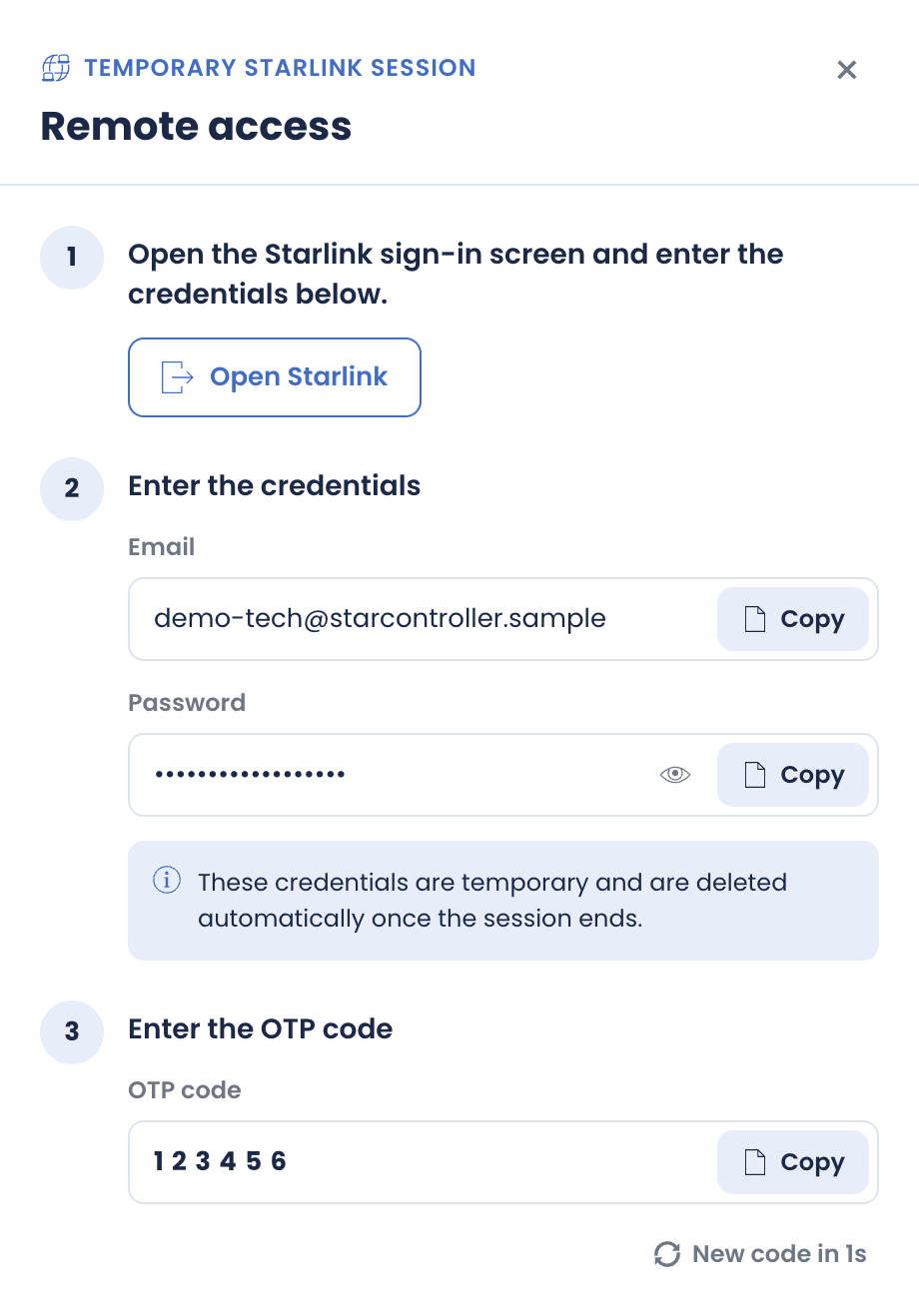
The panel walks through three steps:
- Open the Starlink sign-in screen — the Open Starlink button takes you there.
- Enter the credentials — copy the temporary e-mail and password with the Copy buttons. A note makes the model explicit: these credentials are temporary and are deleted automatically once the session ends.
- Enter the OTP code — copy the one-time code. It rotates on a short timer (a fresh code is issued every so often), so there’s always a current one to hand over.
When the work is done, use End access to close the session immediately, or Finish access to wrap it up. Either way, the temporary credentials stop working.
Why this is safer than sharing a password
Section titled “Why this is safer than sharing a password”- The technician never learns your standing account password.
- Access is tied to the job, not the person — it ends when the session ends.
- You stay the account owner the whole time.
On the roadmap
Section titled “On the roadmap”StarController’s access model keeps getting tighter. These items are planned, not yet shipped, and this guide will be updated when they land:
- Scoped, least-privilege roles — onboarding currently uses a broad Starlink Administrator role; future sessions will grant only what a task needs.
- Access audit logs — an exportable record of who accessed what and when.
- Self-serve revoke console — revoke any person or session yourself, instantly.
Next steps
Section titled “Next steps”- Inside a terminal — where the Remote access button lives.
- Managing accounts — review who holds access across accounts.
Didn’t find what you need? Have questions or feedback? Reach out to MKController Support.
👉 Click here to talk to us.