
Manage Multiple Starlink Accounts in One Console
Summary The Accounts tab is where you manage the Starlink accounts behind your fleet. It’s split into three views — Synced accounts, Available to sync, and Starlink users — so you can see who can act across all your accounts from one place, and bring new accounts in with a single click.
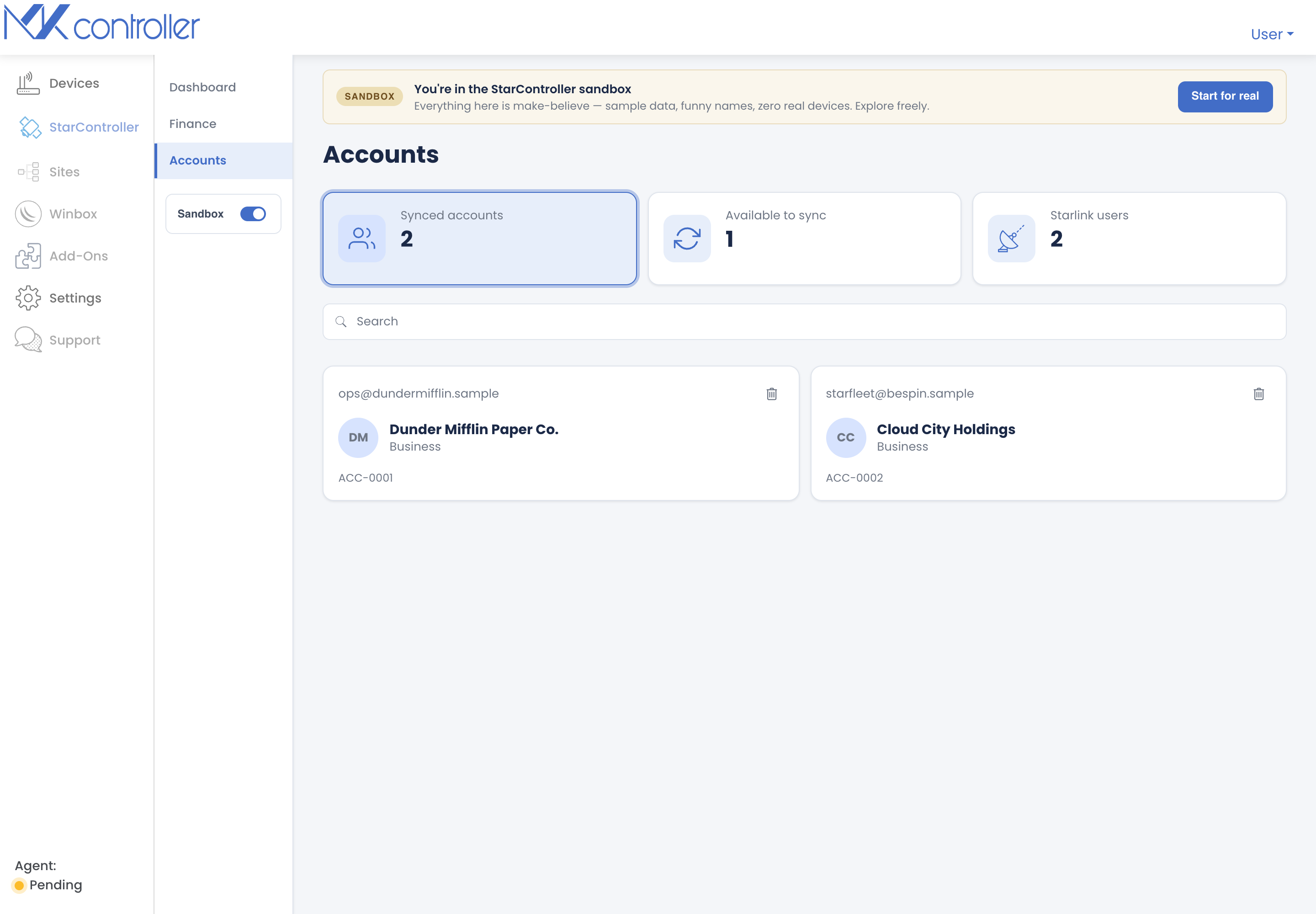
Open it from Satellites → Accounts. The three counters at the top double as views — click one to switch.
Synced accounts
Section titled “Synced accounts”The Starlink accounts already connected to StarController. Each account card shows its e-mail, name, plan type (Residential or Business), and its account code (e.g. ACC-0001). These are the accounts feeding your Dashboard, Finance, and terminal data.
Available to sync
Section titled “Available to sync”Accounts StarController can see but hasn’t connected yet. From here you bring an account into the fleet:
- Sync selected — pick one or more accounts, then sync just those (the button stays disabled until you select at least one).
- Sync all — bring every available account in at once.
If you’re connecting a brand-new account that StarController hasn’t seen, use the invite flow in Sync your Starlink devices.
Starlink users
Section titled “Starlink users”The people who hold access on your synced accounts. This view answers a question that’s otherwise scattered across logins: who can act across all your Starlink accounts? Reviewing it regularly is how you keep standing access intentional rather than accidental.
Removing an account
Section titled “Removing an account”Use the remove action on an account card to disconnect it from StarController. Because you remain the owner in Starlink, removing an account here simply stops StarController from managing it — your Starlink account itself is untouched.
Next steps
Section titled “Next steps”- Sync your Starlink devices — connect a new account.
- Finance & invoices — billing across every account.
- Remote & temporary access — give a technician scoped, time-limited access.
Didn’t find what you need? Have questions or feedback? Reach out to MKController Support.
👉 Click here to talk to us.