
StarController Fleet Dashboard for Starlink
Summary The Dashboard is your fleet’s home screen. Five KPIs summarize the whole fleet — devices, monthly cost, data usage, alerts, and finance — above a list of every terminal with its status, site, plan, and usage. Switch to Map to see the same fleet by location, and use the status filters to jump straight to what needs attention.
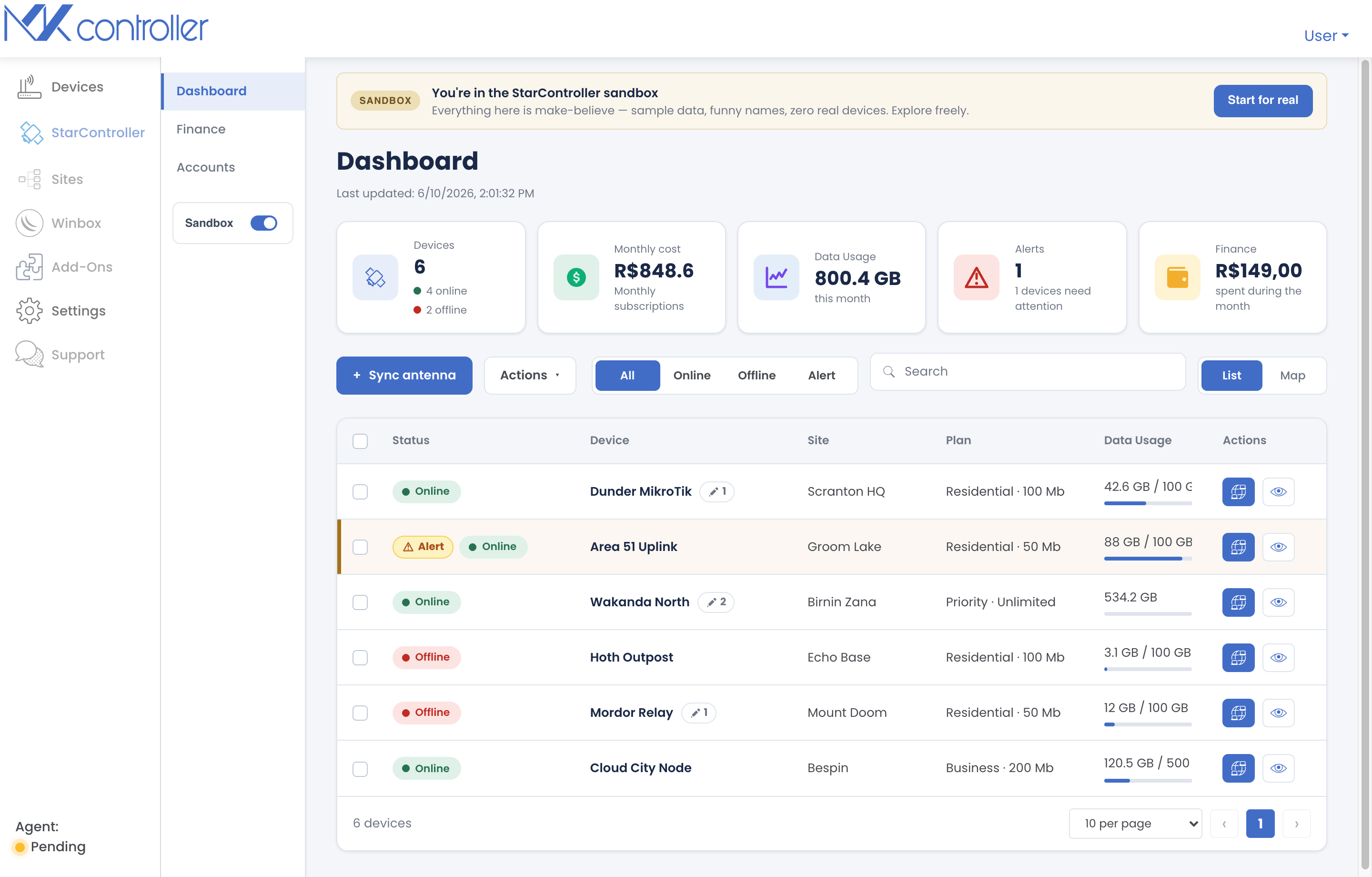
Open it from Satellites → Dashboard. Everything here is cross-account: one screen for every terminal you’ve synced, no matter which Starlink account it belongs to.
The KPI row
Section titled “The KPI row”Five cards summarize the fleet at the top:
| KPI | What it tells you |
|---|---|
| Devices | Total terminals, split into online and offline. |
| Monthly cost | Combined monthly subscription cost across the fleet. |
| Data Usage | Total data consumed this month. |
| Alerts | How many devices currently need attention. |
| Finance | Amount spent during the month. |
The device list
Section titled “The device list”Below the KPIs, each terminal is a row:
- Status — Online, Offline, or an Alert badge when a device is online but needs attention.
- Device — the terminal name, with a small chip showing how many observations it has.
- Site — where it serves.
- Plan — the Starlink plan (e.g. Residential · 100 Mb, Business · 200 Mb).
- Data Usage — usage this cycle against the plan’s allowance.
- Actions — quick Remote access and View more (opens the terminal detail).
Find what matters fast
Section titled “Find what matters fast”- Status filters — All / Online / Offline / Alert narrow the list to the devices you care about right now.
- Search — filter by device or site name.
- Alerts call out why a device needs attention — for example needs repositioning, connectivity degradation, a billing or subscription issue, or an overdue invoice — so a green-looking dish never hides a real problem.
Map view
Section titled “Map view”Switch the List / Map toggle to Map to see every terminal plotted by location, colour-coded by status — online, offline, or needs attention. It’s the fastest way to spot whether an issue is one site or a whole region.
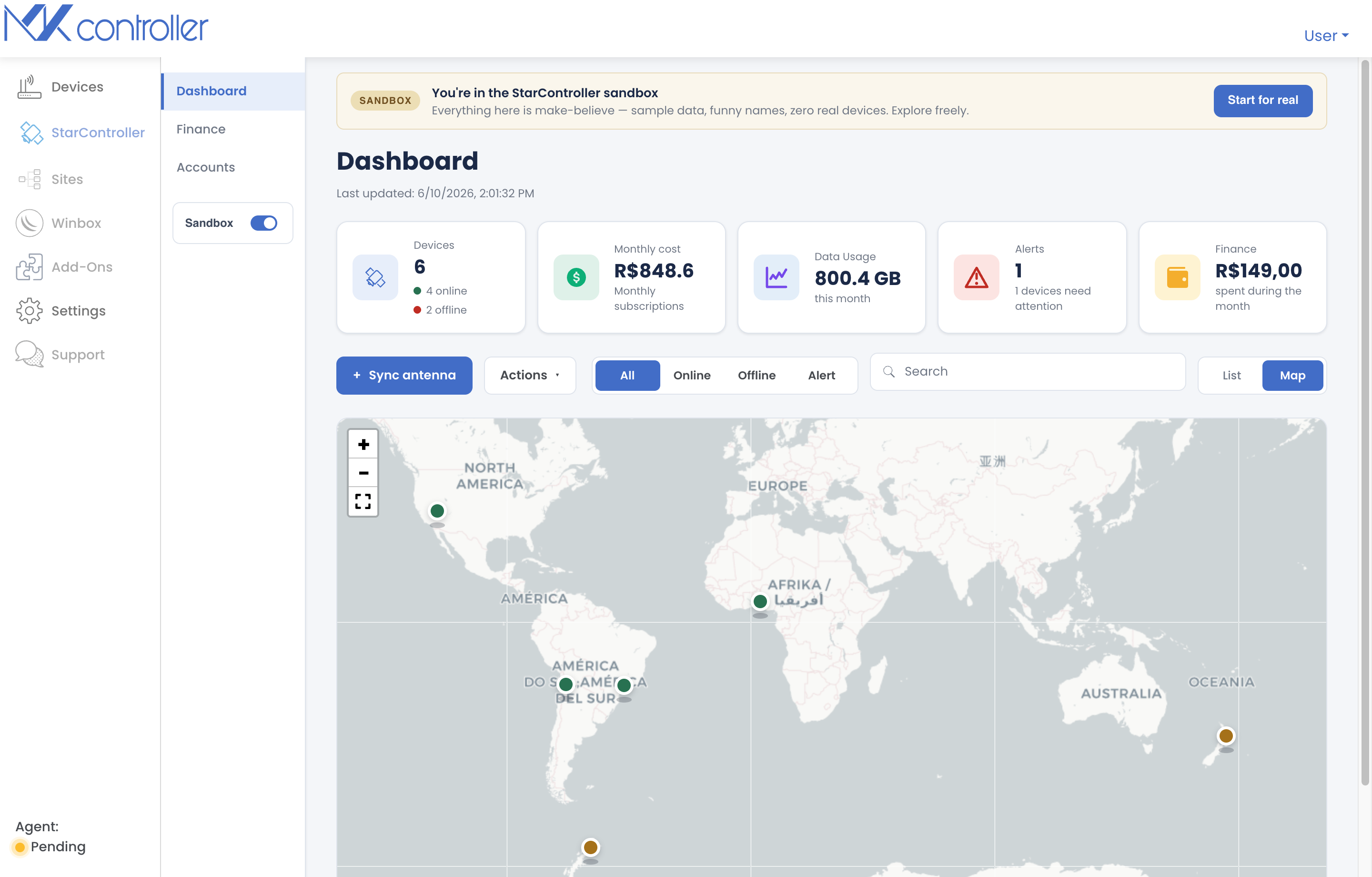
Click a marker to open its detail card and jump to the full terminal view.
Next steps
Section titled “Next steps”- Inside a terminal — open one device’s full cockpit.
- Finance & invoices — drill into fleet billing.
- Remote & temporary access — connect to a terminal in the field.
Didn’t find what you need? Have questions or feedback? Reach out to MKController Support.
👉 Click here to talk to us.