
Sync Starlink Devices to StarController (No Password Sharing)
Summary StarController syncs your antennas using an invite model: you add a unique MKController address as an administrator inside your own Starlink account, and StarController syncs your devices automatically once Starlink confirms the invite. You never share your Starlink password. The first time you open StarController you land in a sandbox with sample data, so you can explore before connecting anything real.
Syncing is how your real Starlink antennas, accounts, and invoices appear in StarController. It’s built around one principle: you stay the account owner. Instead of handing over credentials, you grant access from inside your Starlink account — and you can revoke it the same way, at any time.
Before you start
Section titled “Before you start”- StarController access is enabled (it’s in Beta — request it from Add-Ons / Marketplace if you don’t see Satellites in your menu).
- You can sign in to the Starlink account you want to manage at starlink.com.
- For Residential accounts, keep two free user slots available: one for the MKController administrator, and one to rotate between temporary and remote access sessions.
Step 1 — Open the sync flow
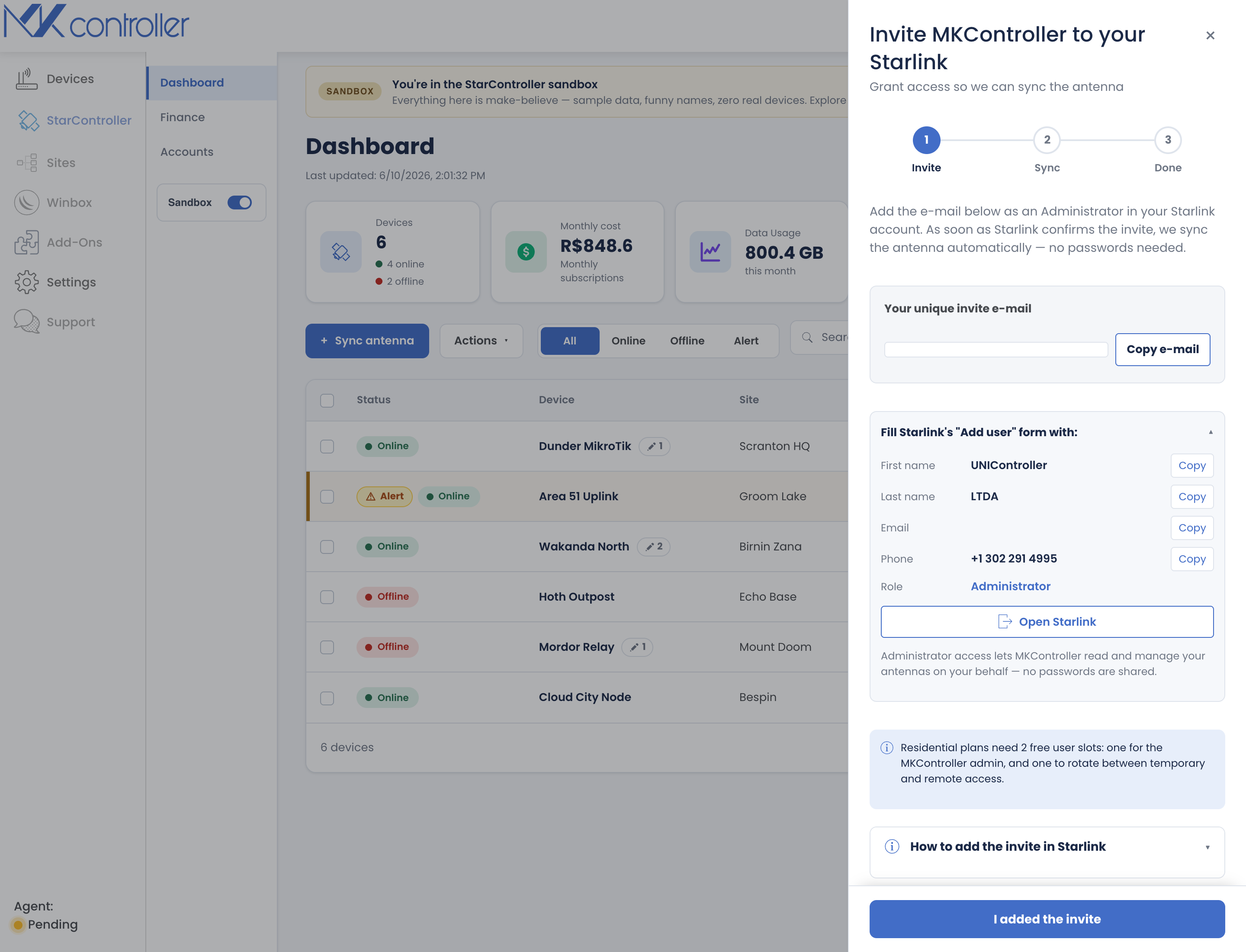
Section titled “Step 1 — Open the sync flow”In the left menu, open Satellites → Dashboard and click + Sync antenna. The sync drawer opens on the Invite step.
Step 2 — Invite MKController into your Starlink account
Section titled “Step 2 — Invite MKController into your Starlink account”StarController gives you a unique invite e-mail and the exact values to enter in Starlink’s Add user form — first name, last name, e-mail, phone, and Role: Administrator.
- Click Copy e-mail (and use the Copy buttons for each field).
- Click Open Starlink to jump to your Starlink account.
- In Starlink, add a new user with that e-mail and the Administrator role.
Administrator access lets StarController read and manage your antennas on your behalf — no password is shared. If you need the exact clicks inside Starlink, expand “How to add the invite in Starlink” in the drawer.
Step 3 — Confirm and let it sync
Section titled “Step 3 — Confirm and let it sync”Back in StarController, click I added the invite. The flow moves to the Sync step and waits for Starlink to confirm.
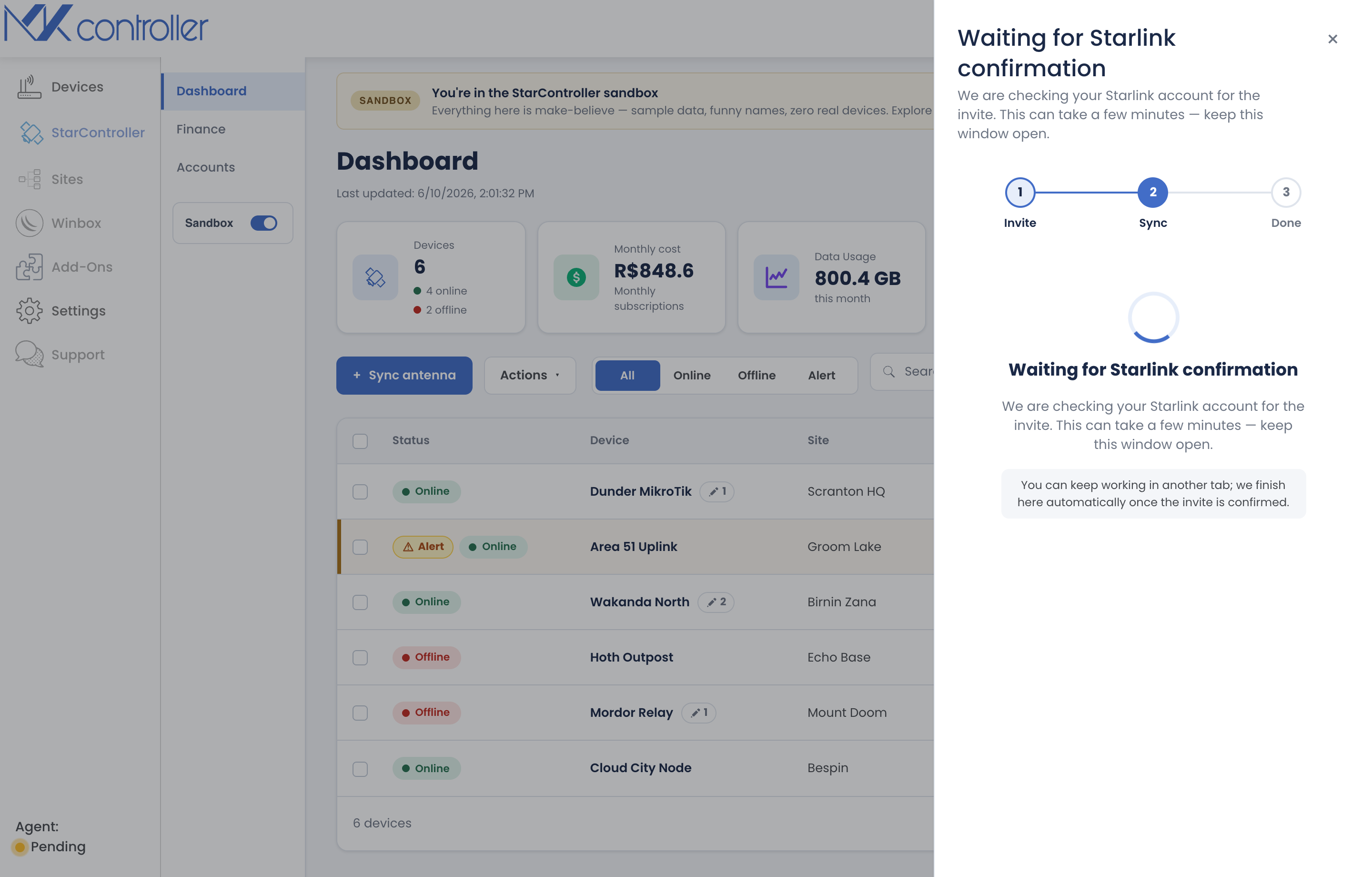
This can take a few minutes. Keep the window open — you can keep working in another tab, and StarController finishes automatically once Starlink confirms the invite.
Step 4 — Done
Section titled “Step 4 — Done”When the invite is confirmed, the flow reaches Done and your Dashboard, Accounts, and Finance tabs fill with your real antennas, accounts, and invoices.
Frequently asked
Section titled “Frequently asked”Do I ever type my Starlink password into StarController? No. You only add an invited administrator inside your own Starlink account. StarController never asks for or stores your Starlink password.
Can I remove access later? Yes. Because access is a user you added in Starlink, you remove it the same way — from your Starlink account — and you remain the owner throughout.
Nothing synced after a few minutes. Make sure the invited e-mail was added with the Administrator role and that the account had a free user slot. You can re-open + Sync antenna to retry.
Next steps
Section titled “Next steps”- Fleet Dashboard — read your fleet at a glance.
- Managing accounts — sync more accounts and manage users.
- Finance & invoices — fleet-wide billing.
Didn’t find what you need? Have questions or feedback? Reach out to MKController Support.
👉 Click here to talk to us.