
Create & Print MikroTik Voucher Codes
Tento obsah zatiaľ nie je dostupný vo vašom jazyku.
Summary Voucher codes are prepaid access credentials you print as cards and hand out or sell at a counter. You create them in batches that share the same rules — how many codes, single- or multi-use, how long each lasts, any limits, and the price. Once generated, print the batch directly or download it as a PDF. Guests type a code into your captive portal to get online.
What Are Codes and Batches?
Section titled “What Are Codes and Batches?”A code is a short credential a guest enters on your captive portal to connect. A batch is a group of codes generated together that share the same rules — think of a batch as “50 two-hour passes at R$3 each.”
Grouping codes into batches keeps them organized and makes reporting meaningful: the Dashboard shows revenue and usage per batch, so you can compare “Event Pass – June” against “Café – Week 23,” or one reseller against another.
Codes are the right tool for in-person, offline sales — a counter, a front desk, an event gate — where a guest pays you directly and you hand over a card. To sell access online without being present, use online plans instead.
How to Create a Batch of Codes
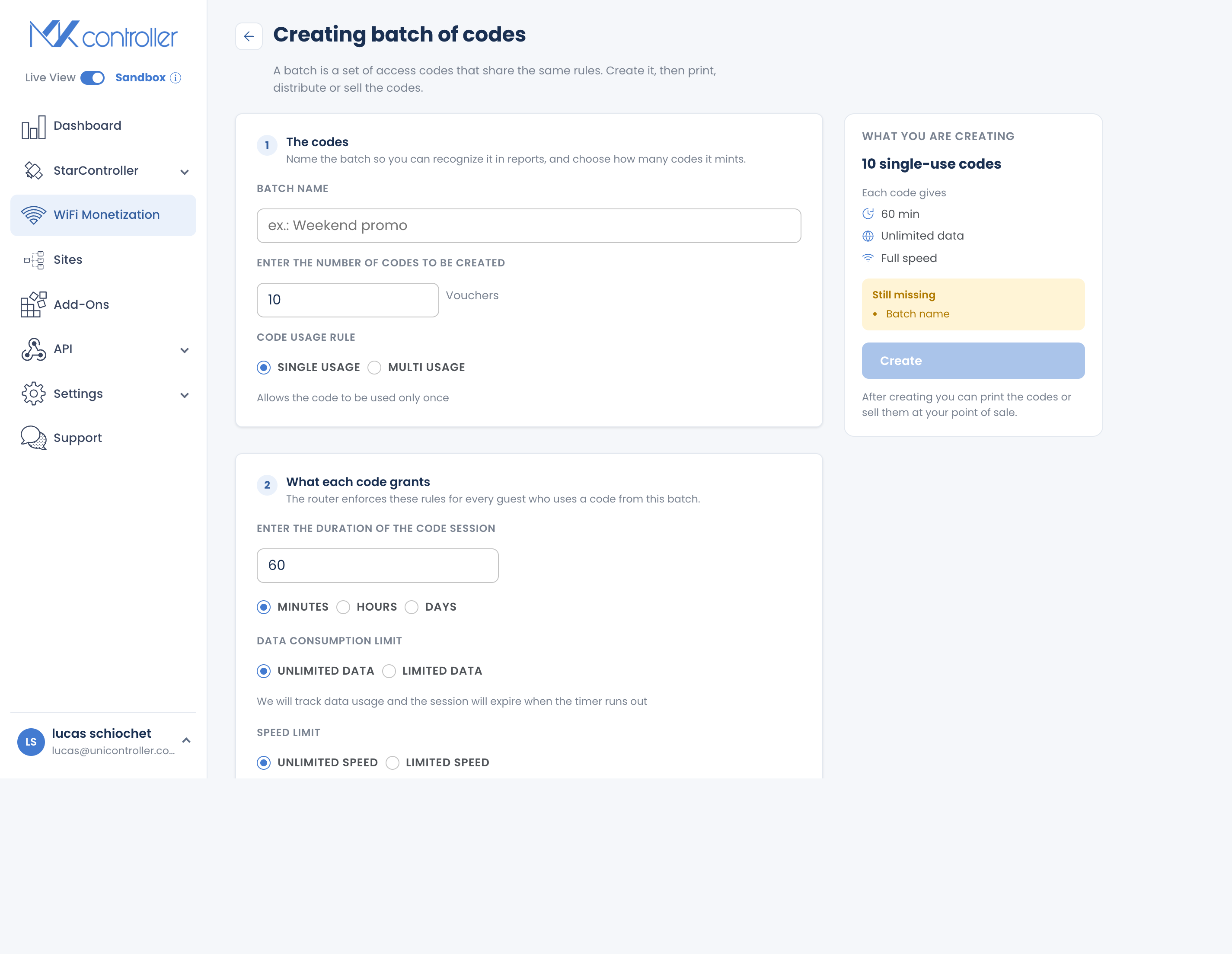
Section titled “How to Create a Batch of Codes”The Batch Create flow walks you through three simple questions — how many, what they get, and what they cost — with sensible defaults you can change.
Step 1: Open Batch Create
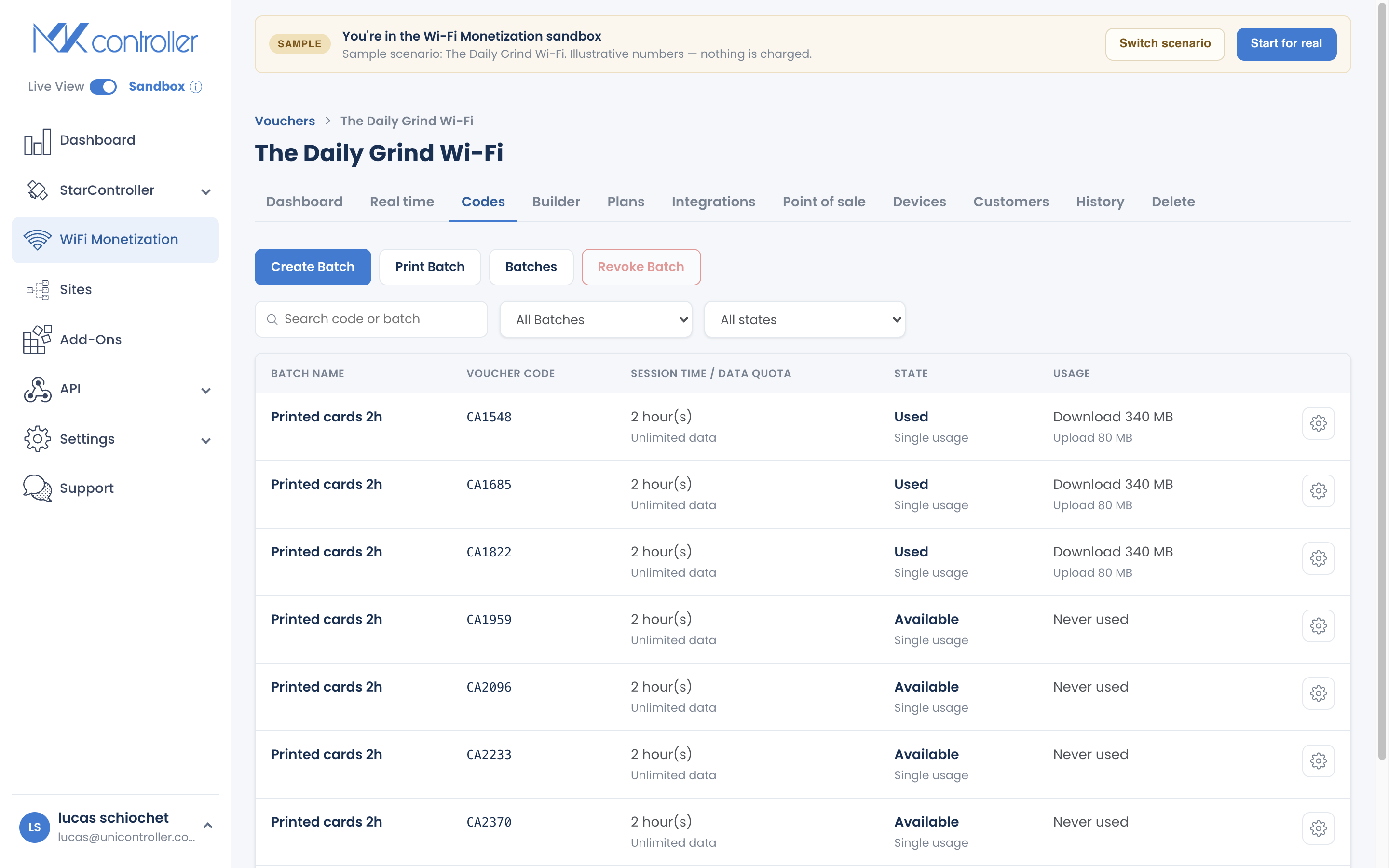
Section titled “Step 1: Open Batch Create”Open your voucher, go to the Codes section, and start a new batch.
Step 2: How many codes, and how are they used?
Section titled “Step 2: How many codes, and how are they used?”- Number of codes — how many to generate (the default is 10; generate as many as you need).
- Usage mode — choose how each code behaves:
- Single-use — one device at a time per code. Best when you sell one card per customer.
- Multi-use — several devices can share the same code. Best for a family, a table, or a shared space.
Step 3: What do guests get, and what does it cost?
Section titled “Step 3: What do guests get, and what does it cost?”- Session duration — how much access time each code grants, in minutes, hours, or days (the default is 60 minutes).
- Data and speed limits — optionally cap data (MB/GB) or limit speed. See Set Data & Speed Limits.
- Price — set a price per code so revenue is tracked on the Dashboard. Even for free Wi-Fi, a nominal price keeps reporting consistent.
- Batch name — an internal label such as “Week 23 – Café” or “Event Pass – June.”
Step 4: Generate the batch
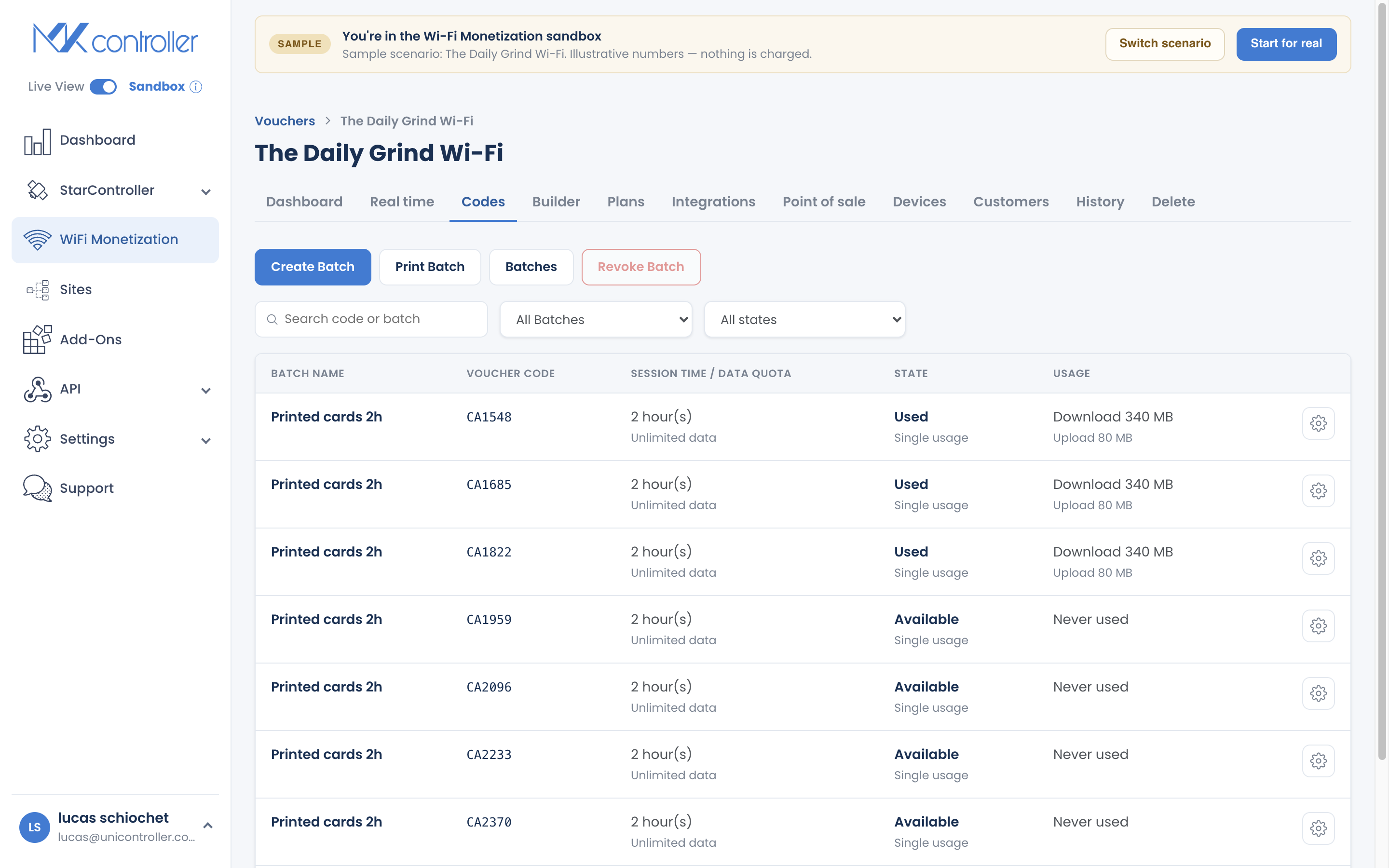
Section titled “Step 4: Generate the batch”Create the batch. The codes appear in the Codes list, ready to print.
Print or Download Voucher Cards
Section titled “Print or Download Voucher Cards”To distribute codes physically:
- Open the batch you want to distribute and select Print Batch.
- Choose Print Directly for immediate printing, or Save as PDF to send to a print shop or distribute later.
The PDF lays the codes out as cards you can cut and hand out.
Understanding Code States
Section titled “Understanding Code States”Each code shows a state so you know at a glance what has been used:
| State | Meaning |
|---|---|
| Never used | Generated but not yet redeemed. |
| Used — available | A multi-use code that has been used and can still be used again. |
| Unavailable | A single-use code that has been redeemed and is now spent. |
| Deleted | Revoked or removed; no longer valid. |
Revoking Codes
Section titled “Revoking Codes”You can revoke a single code from its detail view, or revoke a whole batch from the Codes section (select the batch first). Revoking invalidates the code immediately — use it if a card is lost or a batch was printed by mistake.
Tips for Selling with Codes
Section titled “Tips for Selling with Codes”- Match the batch to the sale. One batch per event, location, or reseller makes the Dashboard tell you exactly what sold where.
- Choose usage mode deliberately. Single-use protects a code from being shared; multi-use is friendlier for households and tables.
- Print a little ahead, not a lot. Codes do not expire until used, but printing in smaller runs keeps unsold cards from piling up.
Frequently Asked Questions
Section titled “Frequently Asked Questions”What is the difference between single-use and multi-use codes? Single-use allows one device at a time per code; multi-use lets several devices share the same code. You choose per batch.
Do codes expire if they are never used? No. A code’s timer starts only when it is first redeemed. The session then runs in real time from that moment.
Can I print codes as a PDF? Yes. Open the batch, select Print Batch, and choose Save as PDF or print directly.
Can I set a data-only code with no time limit? Yes — set a data cap and leave the duration open. See Set Data & Speed Limits.
How do I track which batch is selling? The Dashboard breaks revenue and usage down by batch.
Explore next: Set Data & Speed Limits · Create & Sell Online Plans · Dashboard, Realtime & Reports · WiFi Monetization FAQ
Ready to print your first batch? Start your free MKController account or talk to our team on WhatsApp.