
(New) Voucher Dashboard
Summary
MKController’s new Voucher Dashboard adds revenue visibility across voucher groups, devices, and batches. You can filter by time range, spot top-performing locations fast, and make decisions based on real usage—not guesswork.
New Voucher Revenue Dashboard in MKController
What’s new (and why it matters)
If you sell access via vouchers, you’re running a mini business. The question is simple: which voucher group is actually paying the bills?
This release brings revenue context to your voucher workflow, so you can connect usage to money, faster.
Note: Revenue metrics depend on the voucher Price field. See “Prerequisites” below.
Change 1: Revenue column in Voucher selection
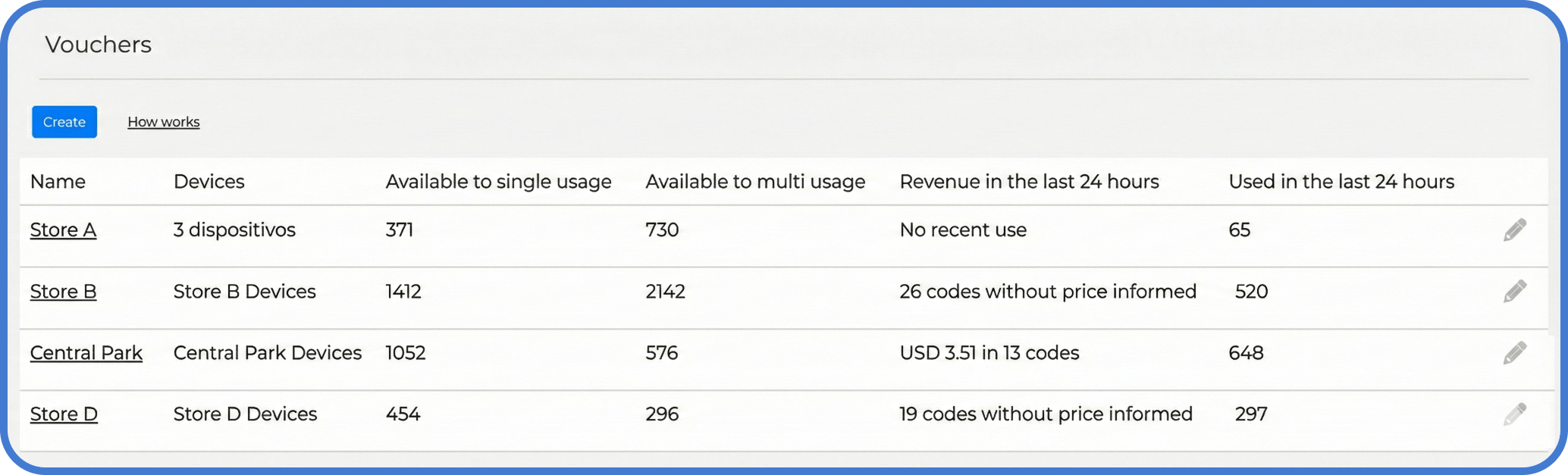
On the Vouchers selection screen (where you create voucher groups for specific purposes), you’ll now see Revenue in the last 24 hours.
Use it to:
- Compare voucher groups at a glance.
- Spot “silent” voucher groups that are being used but not priced.
- Identify which location or campaign is performing right now.
This is especially handy when you manage multiple stores, kiosks, or resellers and need a quick pulse check.
Change 2: A more commercial Voucher Dashboard
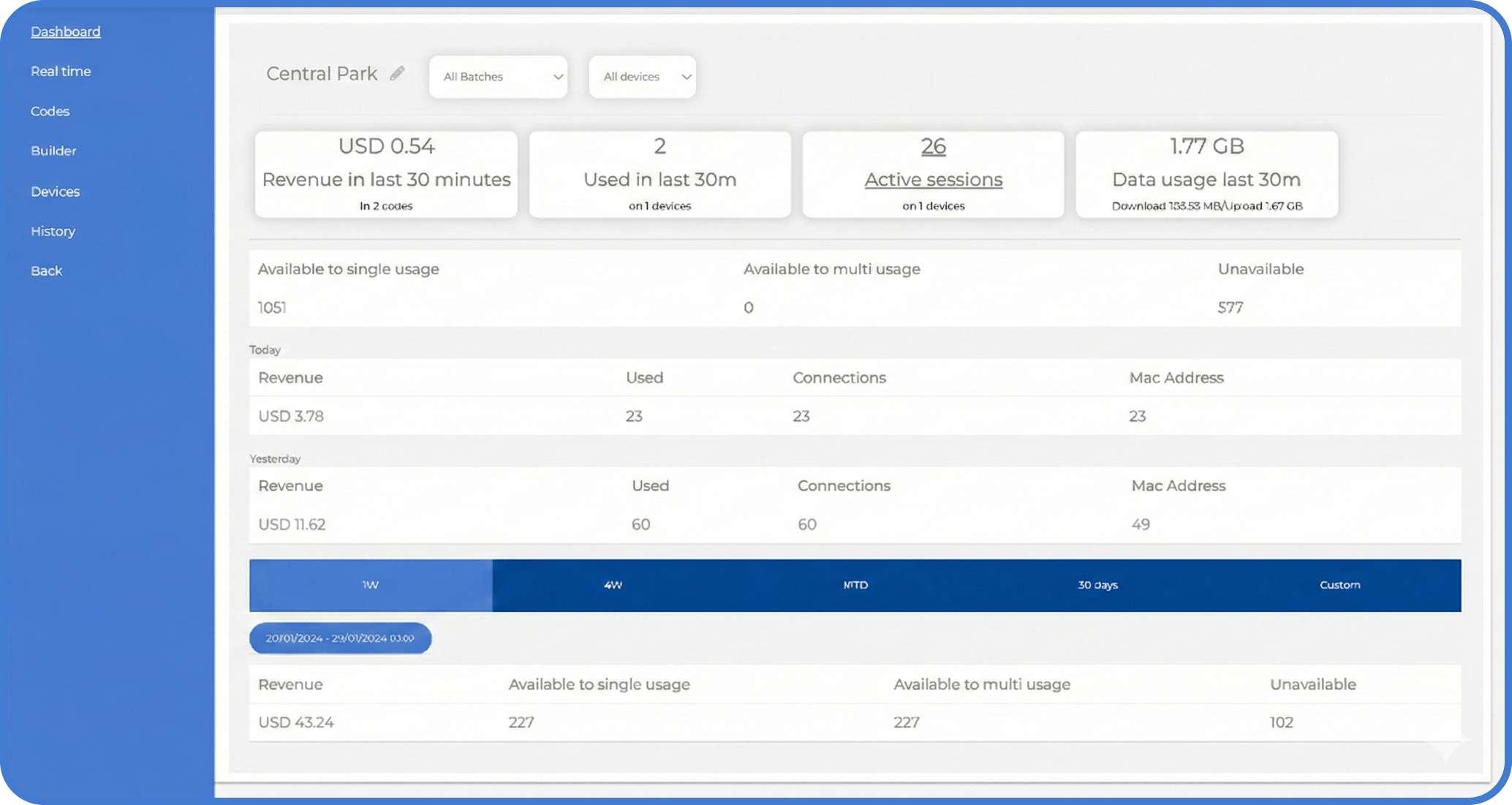
Inside a voucher configuration, the dashboard now exposes more detailed behavior data. It’s designed for operational decisions, not just technical monitoring.
Think: “Is this hotspot worth keeping here?” instead of “Are vouchers being used?”
Filters: drill down by Devices or Batches
At the top of the page, you can filter the dashboard by:
Devices
Useful when you want to understand performance by equipment or placement. For example: compare “MikroTik A” vs “MikroTik B” to see which one generates more revenue and whether the location has enough traffic.
Batches
Batches are perfect for resellers, stores, or sales teams. Filter by a batch to see how a specific distributor (e.g., “Batch A2”) is converting vouchers into revenue.
Tip: If you’re reviewing a reseller, start with Batches. If you’re reviewing a physical venue, start with Devices.
Key metrics: what to watch in the middle of the dashboard
If you want a quick refresher, revenue is the total income generated before costs—a standard business metric used to compare performance across locations and channels (see: https://www.investopedia.com/terms/r/revenue.asp).
The metric cards are designed for quick insight. Common examples include:
- Revenue (last 30 minutes / today / yesterday): what’s been earned in each time window.
- Used: how many vouchers were redeemed.
- Active sessions: how many users are online right now.
- Data usage: download/upload volume for the selected period.
- Unavailable: vouchers that can’t be used (depleted stock, expired, or blocked).
When a number looks off, your next move is usually one of these:
- Check if the voucher group has a Price set.
- Confirm the correct Device/Batch filter.
- Expand the time range to spot patterns.
Time ranges: compare trends without spreadsheets
At the bottom of the dashboard, you can filter by time period:
- 1W — last week
- 4W — last 4 weeks
- MTD — month-to-date (from the 1st until today)
- 30 Days — rolling last 30 days
- Custom — pick exact start/end dates
A simple workflow that works well:
- Start with 30 Days to understand the “normal”.
- Switch to 1W to validate recent changes (new location, new pricing, new device).
- Use Custom when investigating a specific promotion or incident.
Prerequisites: Pricing and revenue calculation
All customers already have access to this dashboard on the Web platform (and soon in the app).
To calculate revenue, MKController needs a Price value for each voucher.
- Vouchers created from 01/01 onward include the Price field by default.
- If you have older batches running without Price, reach out to support and we can help you add it.
If you want a quick reference for where vouchers fit in your operation, start from the docs home: /docs/ or visit the platform site at mkcontroller.com.
Troubleshooting quick checks
If revenue shows “No recent use” or “codes without price informed”, check:
- The voucher group has a non-zero Price.
- Users are redeeming vouchers from the expected group (not another configuration).
- Your selected Device/Batch matches the real deployment.
- Your time range isn’t too narrow (try 30 Days).
Warning: Editing Price can change historical reporting behavior depending on how your organization accounts for revenue. If you need strict accounting rules, align internally before applying changes.
Where MKController helps: Centralized voucher management plus dashboards let you validate deployment decisions (locations, resellers, devices) with real numbers—so you invest effort where it returns revenue.
Didn’t find what you need? Have questions about pricing fields or reporting?